
How to Troubleshoot Reftab Agent and View Agent Logs in Windows OS
If you’re having trouble with the Reftab Windows agent, follow this guide for troubleshooting steps.
Agent Requirements: The Windows agent requires .NET 4.6 in order to connect securely with Reftab. It also needs to be installed with administrative rights to run as a service in the background.
Step 1: Make Sure Reftab has the Correct Fields Setup for Agent Use
Log into Reftab as an administrator and click “Settings” > “Agent“.

Next, make sure you have a location and category selected.
Then, make sure the fields “guid” and “Last Updated” are highlighted in green.

If you do not have a field for guid, the agent will not connect.
Finally, make sure “Use Agents” is set to “On“
If you do not have a field for “Last Updated” the agent can still connect, however it will become difficult to troubleshoot any issues because you won’t be able to tell the last time it made a connection.
If you do not have these two fields, please click “Asset Categories” and click on your Category you are using for the agent and add “guid” as a text field and “Last Updated” as a date field.

Make sure to save them to your category that you are using for the Reftab agent and click “Save Category” when done.
Step 2: Make sure the agent is running on the Windows PC
You will need to look at Services. You can launch services by opening Start, typing: services then hitting Enter
Find “Reftab Agent” and make sure the status is “Running“

If it is not running, right click and select “Start Service“
Next, go back into Reftab, and check to see if this Windows machine has been created as an asset. If it has, the agent is working and you no longer need to troubleshoot.
If you’re having issues with connectivity and the agent had already created an asset in Reftab , check the “Last Updated” field to see if it updated to now. If it has not, move to the next step.
Step 2: Check Event Viewer Logs
If you’re still having issues, you will need to view logs in Windows Event Viewer.
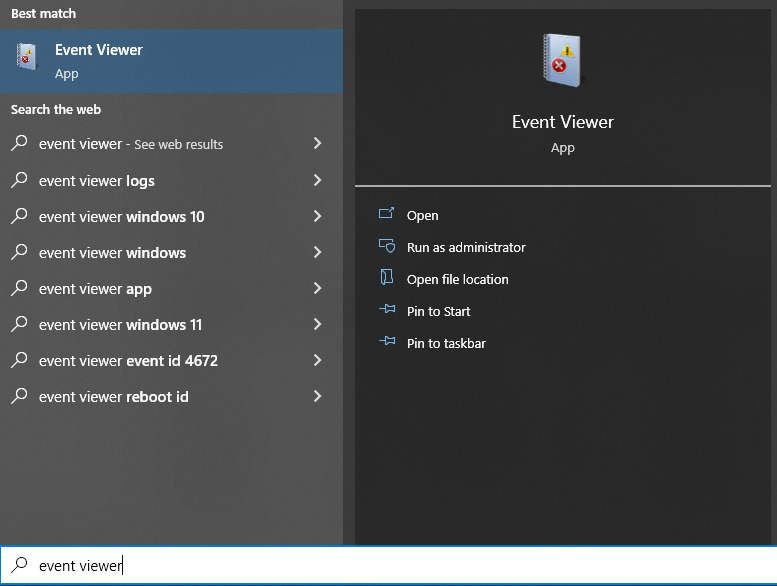
On the windows machine, open the start menu and type “event viewer” and click “open“
Next, click expand “Windows Logs” and click “Application“

Next click “Filter Current Log” and set event source as “Reftab Agent” and click “Ok“
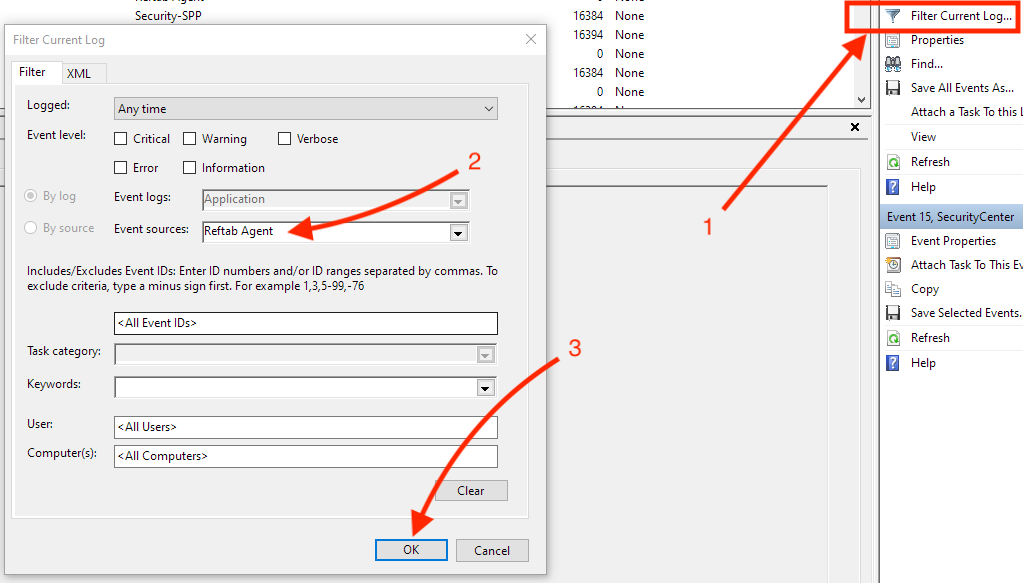
Then, you will be able to see the logs filtered for Reftab Agent. If you see any errors, view these errors to help troubleshoot further.

You can also email any errors to “help@reftab.com”
Viewing Logs within Reftab Agent Control Panel
Reftab logs the last 1,000 agent calls in the past 24 hours, helping you verify successful data transmission and the specifics of the data sent. This can identify issues like multiple Windows devices sending the same serial number.
Note that if an agent is not creating an asset in Reftab, it is worth a try to search for the serial number and or the GUID of that device in these logs. But, if not found, you’ll need to use the windows event viewer in the above steps to troubleshoot.
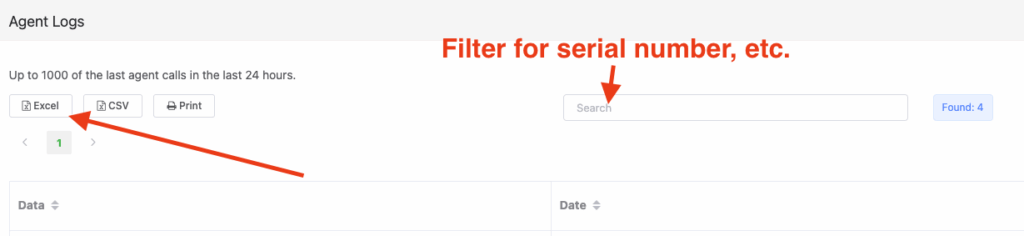
Log into your Reftab account as an administrator and click, “Settings” > “Agent” > “Agent History“

Use the buttons to Export to Excel or use the filter to search for information such as serial numbers, etc.
Why isn’t a new asset being created by the Reftab Agent even though I see it trying to send data in the logs?
If you see in the agent logs that it attempted to create or update an asset in Reftab, but no new asset appears (and no serial number is shown), here’s what’s likely happening:
- The device’s serial number isn’t available — when this happens, the Reftab Agent falls back to using the device’s GUID to identify existing assets.
- Multiple assets in your account share the same GUID — this prevents the agent from knowing which one to update, so it stops and doesn’t create a new asset or update any existing ones.
How to fix it:
- In Reftab, search for the GUID shown in your agent logs.
- If multiple assets appear with that same GUID, edit those assets and clear out the GUID value (so that field is blank).
- Once those duplicate GUIDs are removed, the next time the agent syncs, it should create the new asset properly.
Why this happens:
If you’re using a pre-install image, that image may include a copied GUID — meaning every machine deployed from that image shares the same identifier. When this happens and there’s no serial number that matches an existing asset in Reftab, the agent can’t determine which asset to update or create. As a result, it won’t create a new asset or update any existing ones.
In this setup, because both the GUIDs and serial numbers fail to uniquely identify devices, the Reftab Agent cannot be used reliably with that imaging method.
Need help? We're here for you
For any questions or assistance, feel free to reach out to us.
Your assets, simplified. Begin your journey with us!
50 assets free forever with unlimited inventory & software tracking. Includes email alerts, mobile apps, reports, custom asset tags and more.