
Mastering the 6 Stages of the IT Asset Lifecycle with Reftab
Table of contents
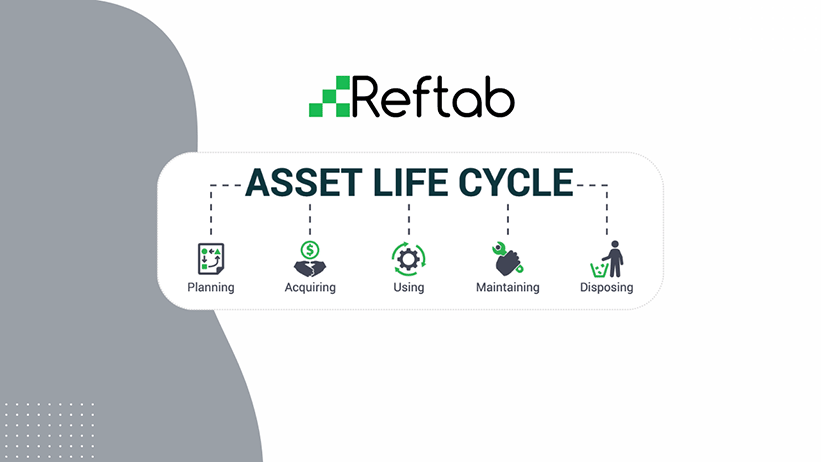
IT asset lifecycle management is the structured process of overseeing IT assets from acquisition to retirement. Each stage of a device’s lifecycle involves specific policies and workflows within the broader IT environment.
Clear, well-defined processes enhance asset performance, reduce downtime, support business objectives, and ultimately help organizations cut costs while maximizing ROI.
This document outlines the 6 stages of an asset’s lifecycle and how the Reftab platform ensures your team adhere to them.
1. Planning Phase
A well-defined IT asset lifecycle starts with strategic planning. As an IT manager, this means aligning tech investments with business goals, assessing your current environment, and identifying how new assets will support long-term success.
Focus first on understanding business needs before selecting hardware and software. Each asset should drive productivity, streamline operations, and add measurable value.
Before making new purchases, evaluate whether existing assets are being fully utilized—this helps reduce unnecessary spend and ensures better ROI.
Reftab supports this strategic planning stage by giving IT managers clear visibility into asset usage and performance, helping them make informed, cost-effective decisions before investing in new technology.
2. Request / Acquiring Phase
Having users submit a request is best way to understand what a user needs. Ex. Laptop vs desktop with specific configurations or software with access rights. The request process ensures the details about the request are captured such as quantities, details, date needed by, their manager, their business group, etc.
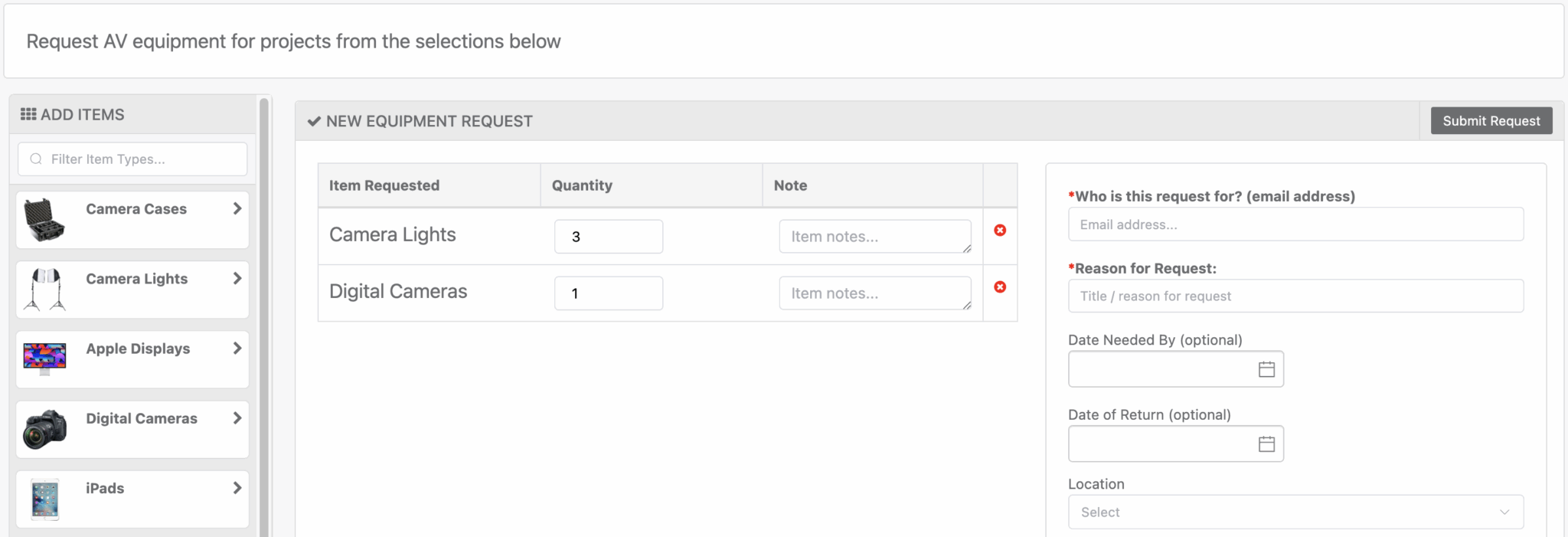
Once submitted a request should go to their manager for approval. The manager is the best person to understand the business requirements and understand what the user needs to do.
Within Reftab: The requests feature can be used to provide request forms.
📘 Equipment Request Forms and Routing Flows Overview
Reftab also integrates with help desk ticketing systems:
3. Deployment Phase
The ITAM team will be involved with pulling items from inventory if available or determining if new purchases are needed. Key thing here is to utilize current inventory instead of making unnecessary purchases.
Tag the hardware asset with an asset tag. Checkout the device to the user in Reftab, then give the asset to the end user. If it’s a software request, make sure to log the license in Reftab and then assign the license seat to the user. It is important to note if software is installed locally or if it’s cloud-based SaaS software.
Within Reftab: This is the checkout of assigning the asset / software licenses to the end user. This should also be done automatically by taking advantage of provided integrations.
Hardware Integrations
Integrate your Reftab account with MDM tools for automated hardware deployment. Anytime you provision a device within an MDM tool, that same user will have that device assigned to them in Reftab
- 📘 Intune – https://www.reftab.com/faq/ms-intune-integration-guide
- 📘 Jamf – https://www.reftab.com/faq/how-to-integrate-jamf-with-reftab
- 📘 JamfSchool – https://www.reftab.com/faq/how-to-integrate-jamf-school-with-reftab
- 📘 GoogleWorkspace – https://www.reftab.com/faq/google-workspace-integration-guide-how-to-integrate-google-workspace-with-reftab
- 📘 Kandji – https://www.reftab.com/faq/how-to-setup-kandji-integration-with-reftab
- 📘 NinjaOne – https://www.reftab.com/faq/how-do-i-integrate-ninjaone-with-reftab
- 📘 Meraki – https://www.reftab.com/faq/how-to-sync-cisco-meraki-with-reftab
- 📘 Mosyle – https://www.reftab.com/faq/integrating-mosyle-with-reftab-step-by-step-instructions
- 📘 CDW – https://www.reftab.com/faq/how-to-integrating-cdw-assets-with-reftab
- 📘 Lansweeper – https://www.reftab.com/faq/how-to-integrate-lansweeper-with-reftab
Software Integrations
Integrate your Reftab account with Identity Providers to automate software assignments. Anytime a user is provisioned with an account to an integrated SaaS platform for SSO, they will be tagged in Reftab as having a “license” for that software.
- 📘 Microsoft 365 and Entra – https://www.reftab.com/faq/how-to-integrating-azure-saas-discovery-with-reftab
- 📘 Okta – https://www.reftab.com/faq/how-to-enable-okta-saas-discovery-with-reftab
- 📘 Adobe – https://www.reftab.com/faq/does-reftab-integrate-with-adobe
- 📘 Browser Add-on: Reftab’s Browser Extension – Chrome
4. Using Phase
During the time that the user is using the hardware or software, ITAM team needs to keep monitoring the usage of the asset.
Tracking software, for example, you’ll want to ensure software is not sitting idle and that the user is actually using the application. For hardware, make sure the user is using the hardware and not leaving it somewhere or not using it at all.
Within Reftab:
• The custody verification feature can be used to verify ownership of hardware.
• The license survey feature can be used to verify software usage and needs.
• The audit feature can be used to verify hardware inventory matches data in Reftab.
📘 Verify Custody of Assets
📘 License Surveys – How To
📘 How to Audit Fixed Assets in Reftab
5. Maintaining Phase
Asset gets into this phase once it needs maintenance. Two categories of maintenance:
- Preventive
- Reactive
There are four primary types of maintenance:
- Corrective – performed after a problem is detected (most common)
- Emergency – sudden failure of asset and repair work is needed (threat to safety, etc.)
- Preventive – routine, scheduled maintenance to prevent unexpected breakdowns (based on time or usage)
- Condition-based – maintenance triggered by actual usage, monitoring, or calibration
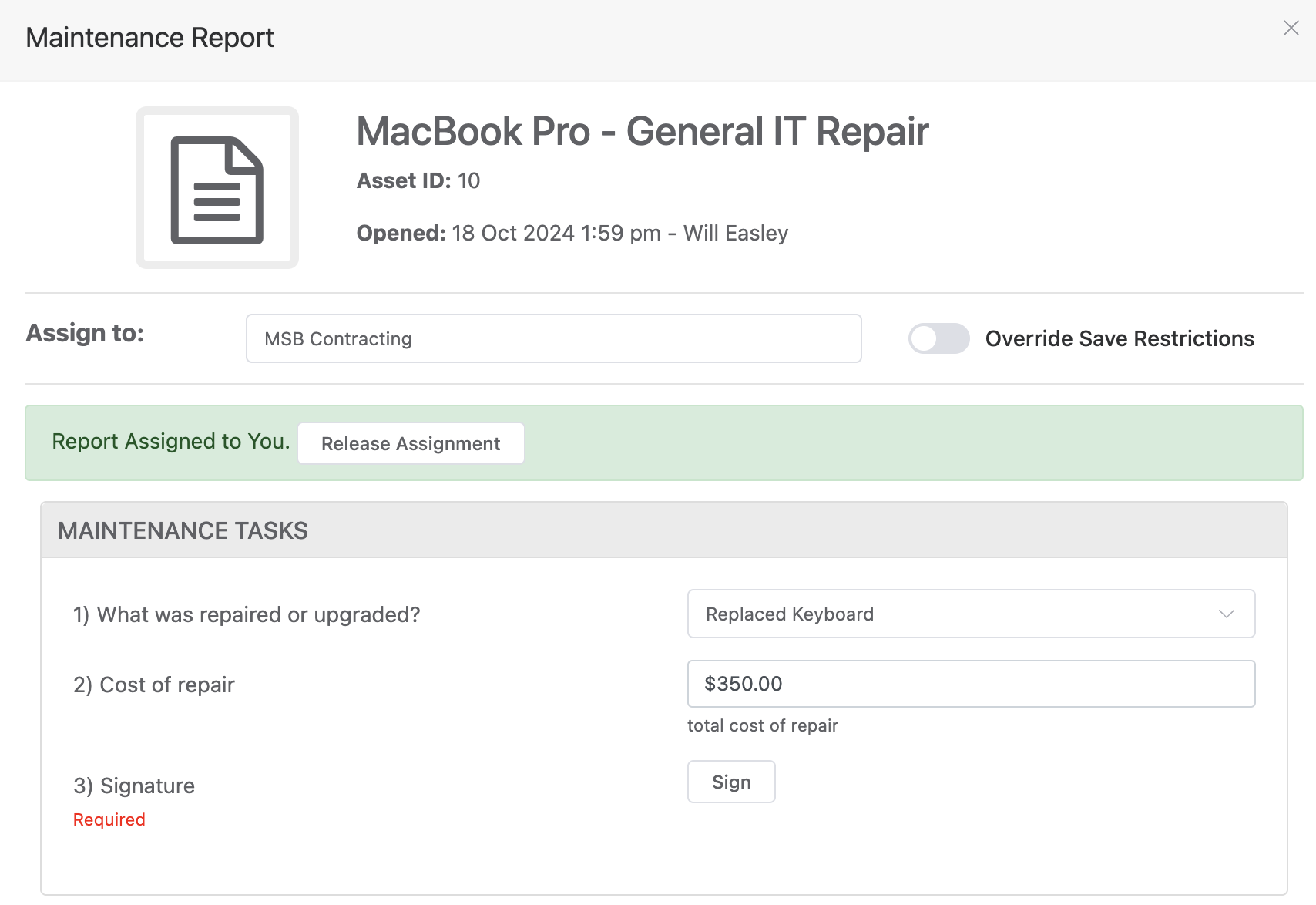
Within Reftab: The maintenance feature can be used to log maintenance work.
6. Disposing / Deprovisioning Phase
When a user leaves the company or if an asset is out of warranty, too damaged, past its usable life, or no longer supported by the vendor, it needs to be disposed. Accounts must be deprovisioned, data backed up, and data erasure methods applied. The item should be tagged as “Retired” in Reftab. Logs must be kept for software uninstalls or SaaS account deprovisioning.
To plan replacements consistently, you can use a custom expression field to calculate a refresh date from an asset’s purchase date or warranty date
Within Reftab:
• Status labels can be used to tag assets as disposed
• Reports can be used to return assets from offboarding users
• Offboarding Tickets can be used to log proper procedures
📘 Viewing Archived Assets
📘 Automatically Report on Disabled Users with Equipment
📘 Setup and Utilize Onboarding & Offboarding
Collecting Equipment from Off-boarded Users with Automations
Whenever a user is deactivated or disabled from Okta or Entra (any connected SAML 2.0 system to Reftab) the user will be marked as “disabled” in Reftab. This can trigger custom automations.
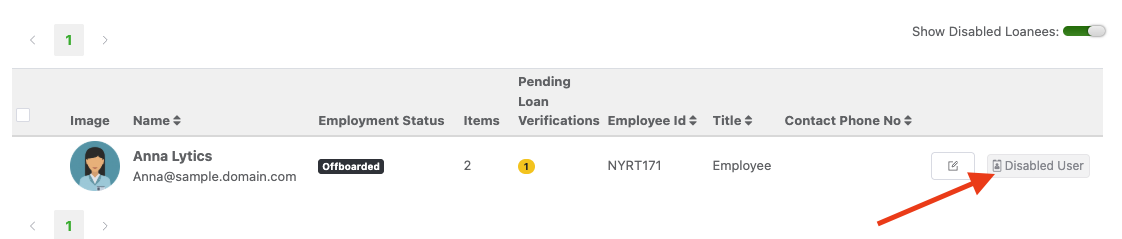
You can configure automations to perform various actions when a user becomes disabled:
- Flag the asset for return
- Send email to their manager or IT staff.
- And more…
To get to the automations page, click “Settings” > “Automated Workflows” > “New Workflow“
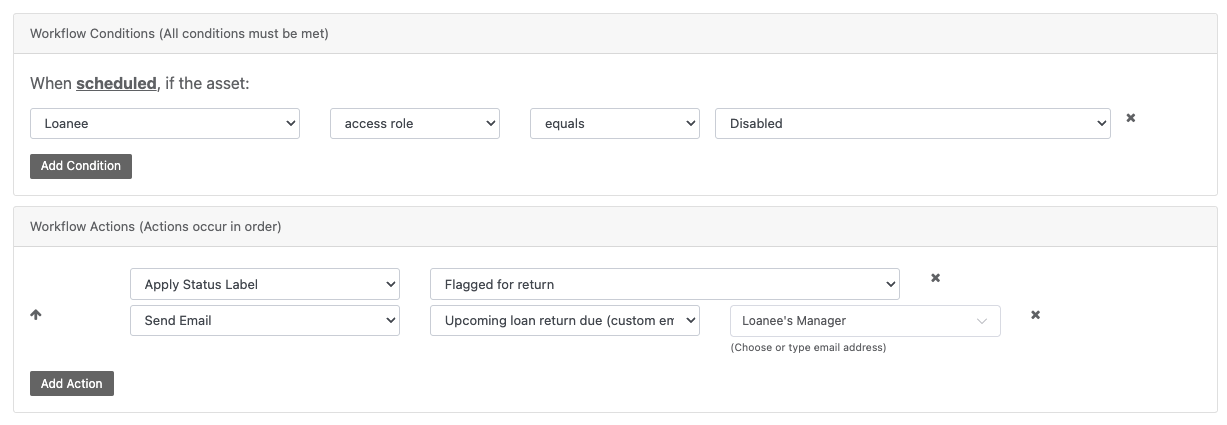
Items assigned to inactive users can have status labels automatically applied such as: “Assigned to Inactive User!”

Note: You can also get automated digest reports showing a list of items that are still assigned to users who have been marked as “Disabled”. This can be done from the reports page.
Integrations with HR systems (Optional)
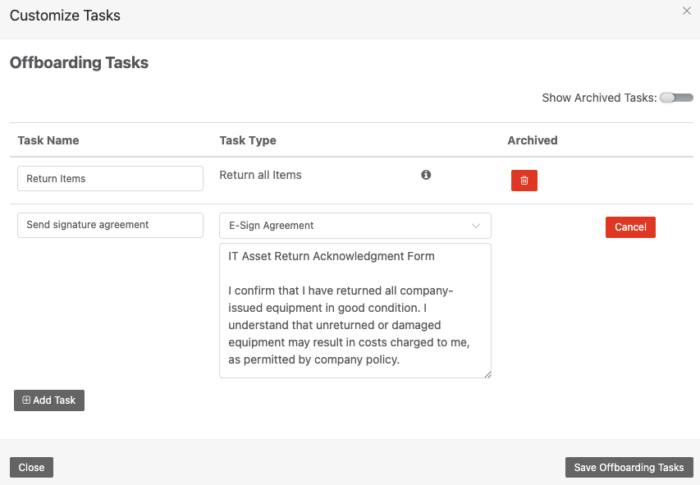
Reftab integrates with 200+ HR systems to further automate off-boarding of users. Reftab allows you to build your own custom tasks to perform when off-boarding a user. From the “Settings” page click “Onboarding / Offboarding” and click ” Manage Offboarding Tasks”
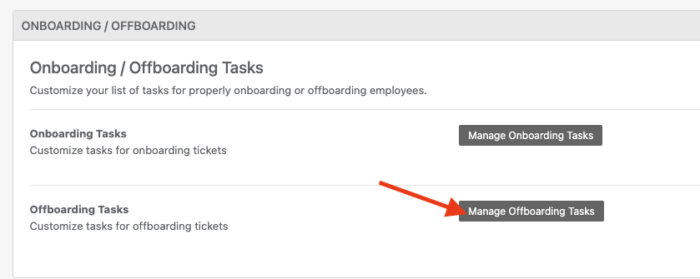
From here, you can create even more tasks for your off-boarding processes. These will be a set of tasks that admins will need to complete that adhere to your company standards and processes. All these tasks will be logged and time stamped.
Once tasks are saved, when your connected HR system flags a user for off-boarding, a ticket will open in Reftab showing the tasks to complete:
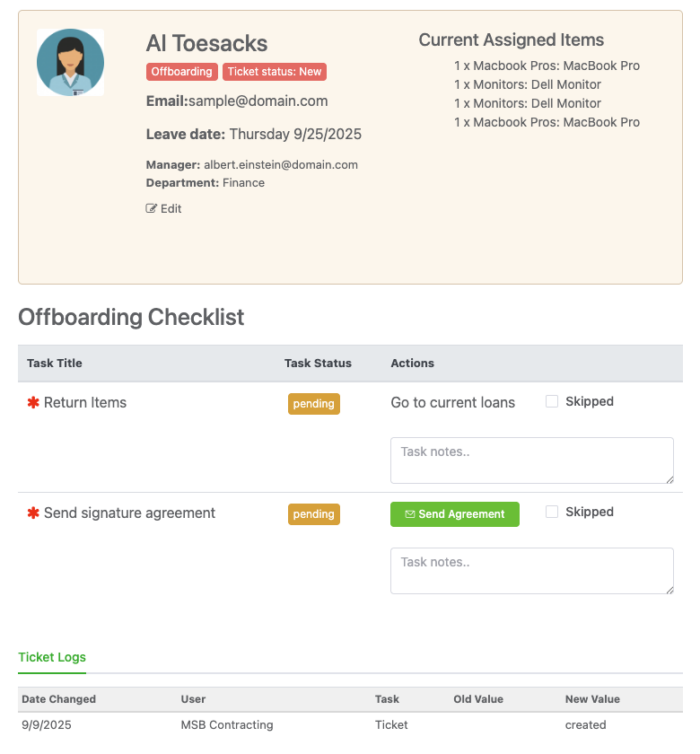
Once all tasks are complete the user in Reftab will have their status changed to “Offboarded”.
Conclusion
By centralizing your hardware and software management into one intuitive platform, Reftab transforms the complex IT asset lifecycle into a streamlined, automated process. Moving beyond “messy Excel files,” the platform provides a clear “source of truth” that enhances asset performance, reduces downtime, and ultimately maximizes ROI for organizations across any industry. Whether you are automating deployments through MDM integrations or tracking maintenance in the field via the mobile app, Reftab ensures that every stage—from strategic planning to secure disposal—is handled with precision and ease. To visualize how these stages flow together, refer to the simplified breakdown below.
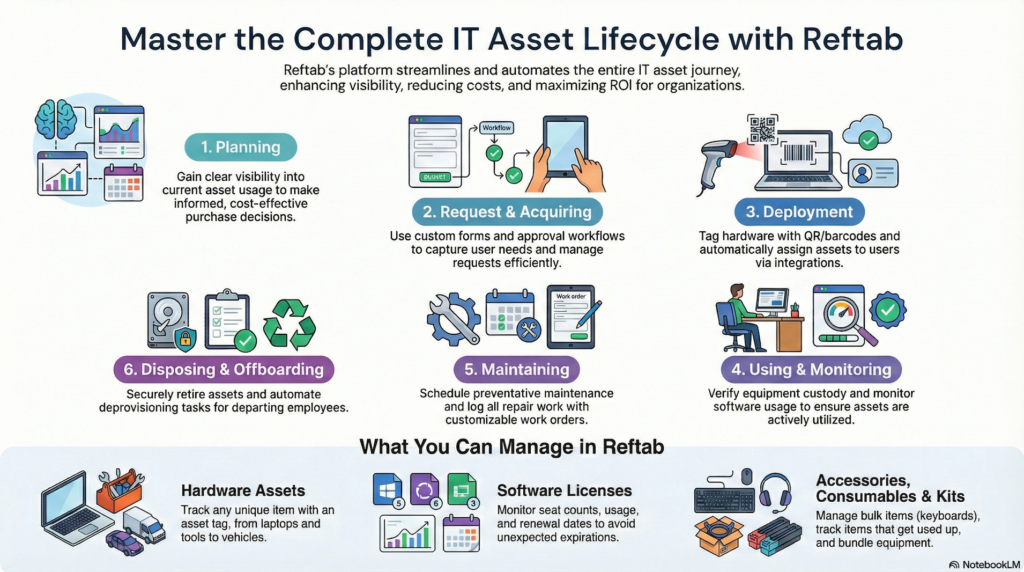
Thanks for taking the time to review our guide on mastering the IT asset lifecycle with Reftab. Please reach out to “Help@reftab.com” for any questions.

Nathan Lively
Table of contents
Your IT inventory, finally under control
Try Reftab for free, no strings attached. 50 assets free forever.
Continue reading
Ready to simplify IT asset management?
No credit card. No watered-down trial. Create a free account and see firsthand what Reftab can do.