
Can Reftab Automatically Move Assets to Different Locations?
Yes, Reftab can automatically move assets between locations. Here are the ways this can be done automatically:
You can also move assets between locations manually:
Automatically Move Assets To New Location with a Workflow:
You can configure workflows that look at your asset field data or owner data and based upon those values, move assets to corresponding locations. To do this, setup a workflow by navigating to “Settings” > “Automated Workflows” > “New Workflow“.
For example, a workflow can look at the “Loanee Department” and if it contained a specific value you can set an action to move the asset to a corresponding location.
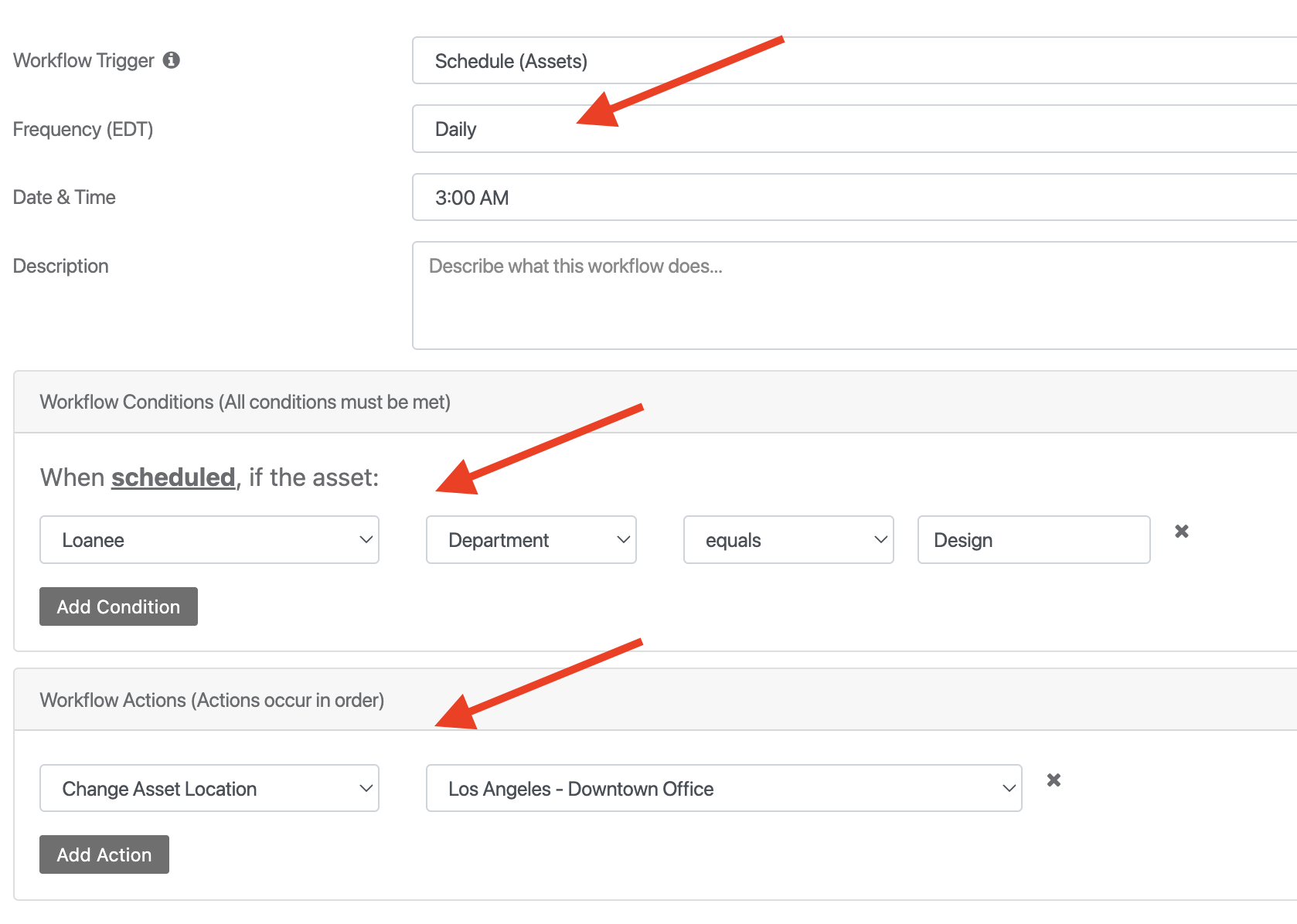
Further Information: For more detail on how to use loanee fields in workflows see this guide: https://www.reftab.com/faq/how-to-auto-assign-asset-locations-via-loanee-fields-in-workflows
Another example, would be to look at a specific field value at the asset level and move the asset to a location that corresponds with that.
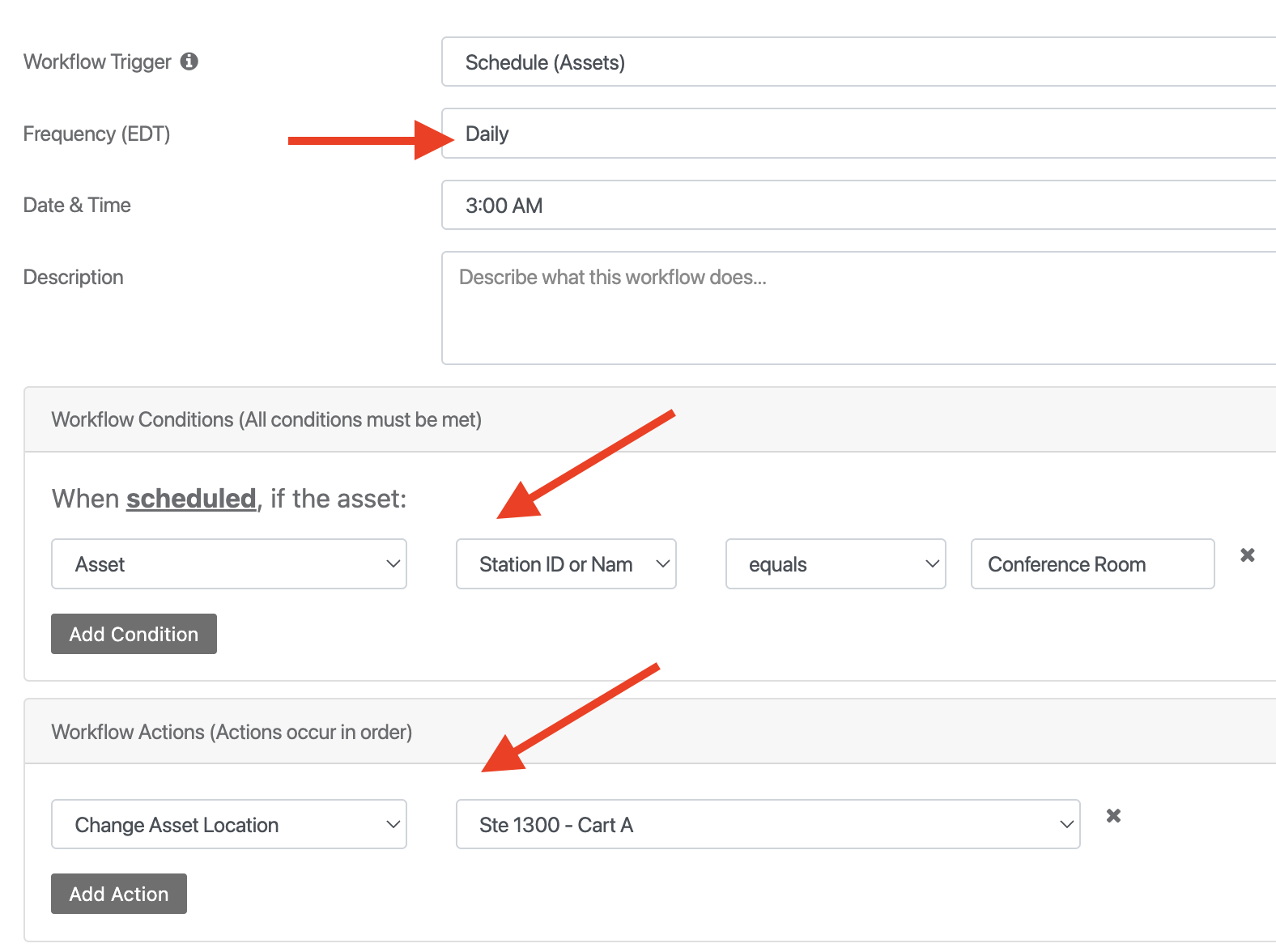
Note: When you use Jamf, Intune, Kandji, Lansweeper, etc. to add assets into your Reftab account, they can be set to a location by default. Workflows are then used to move assets between locations based upon specific business logic or user data.
Move Asset’s Location by Editing a Single Asset
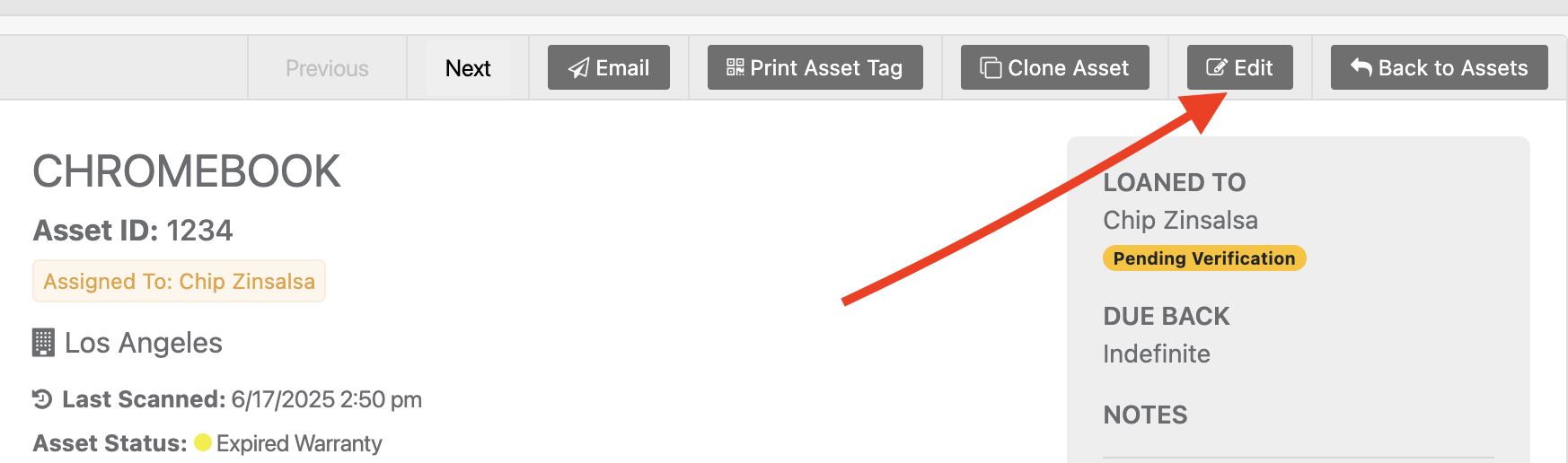
When viewing an asset click “edit”
Then use the drop-down list to change the location:
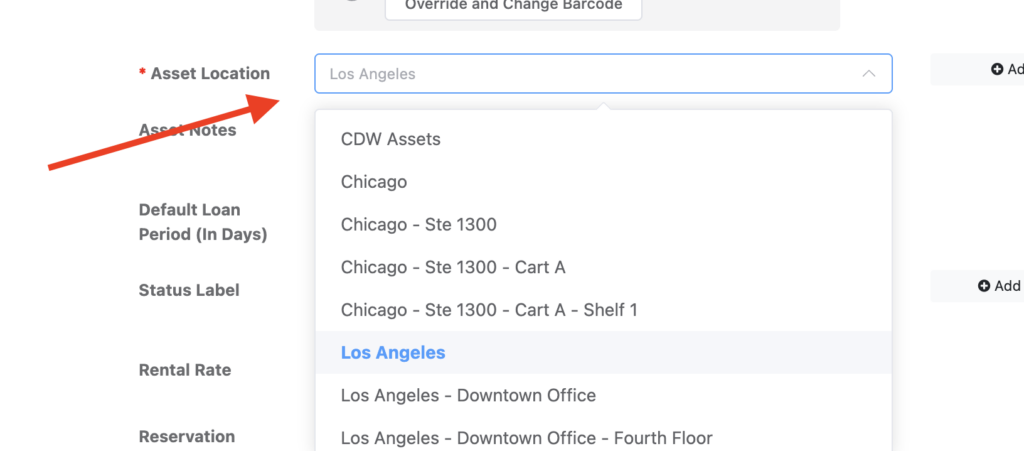
Click “Save Asset” when done.
Move Multiple Assets to New Location in Bulk
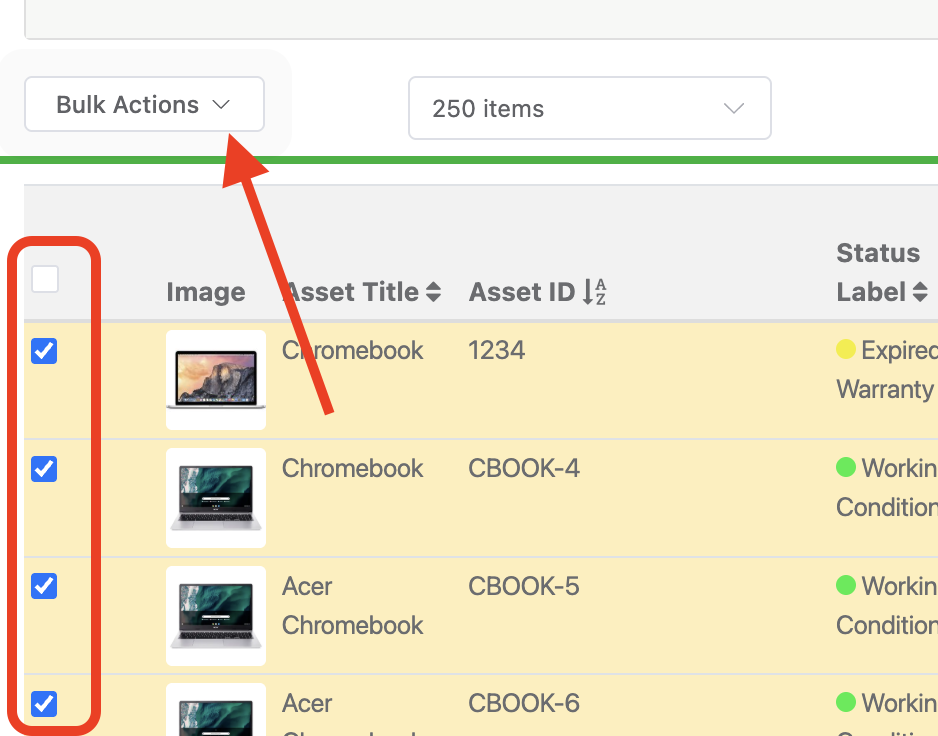
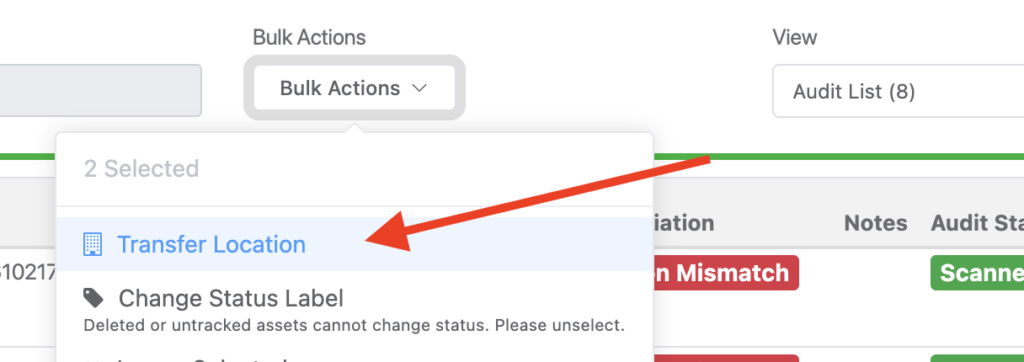
Click “Transfer Location”
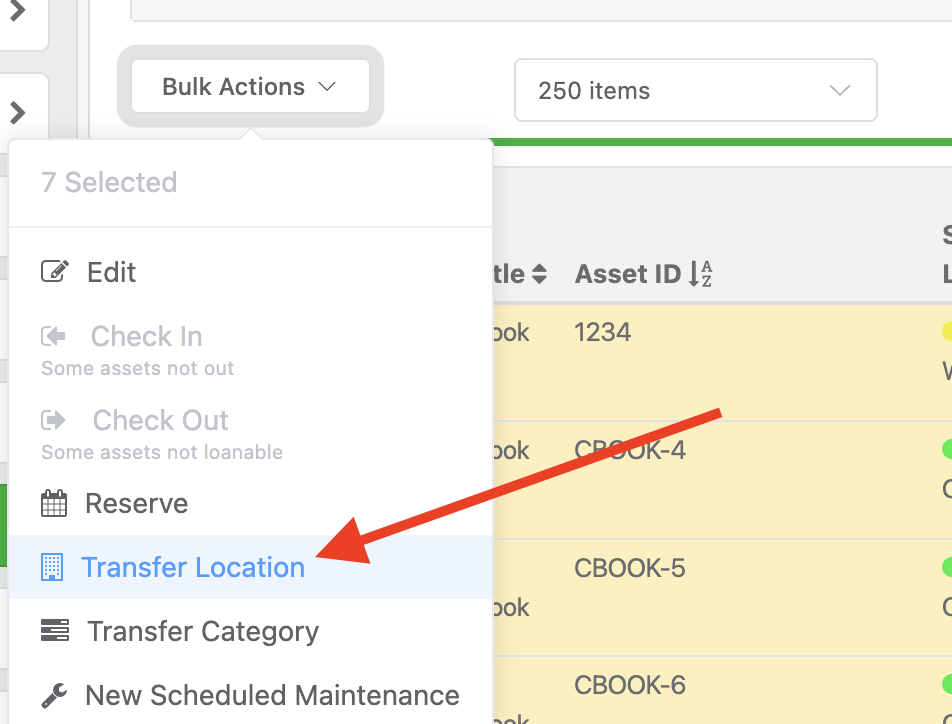
Set your new location and click “Review Asset Transfers” and confirm.
Note: Using the filter options are a great way to filter assets based upon specific field values so that you move only those items you need to as opposed to searching through pages of assets.
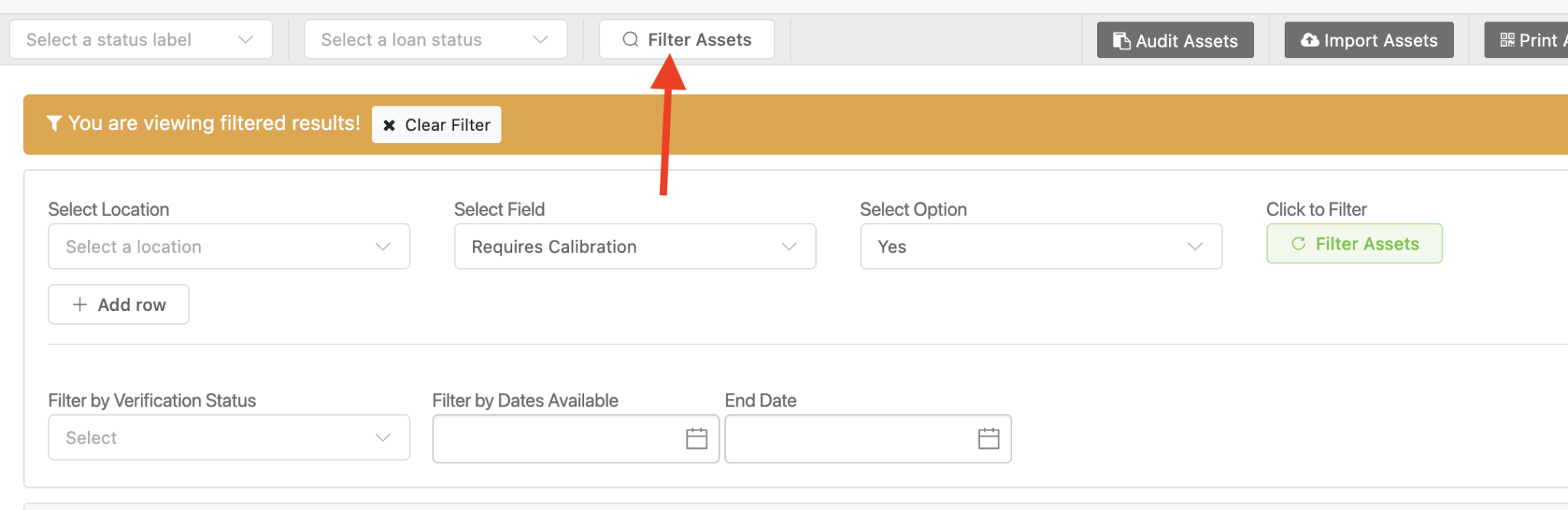
Automatically Move Assets to New Location via Audit
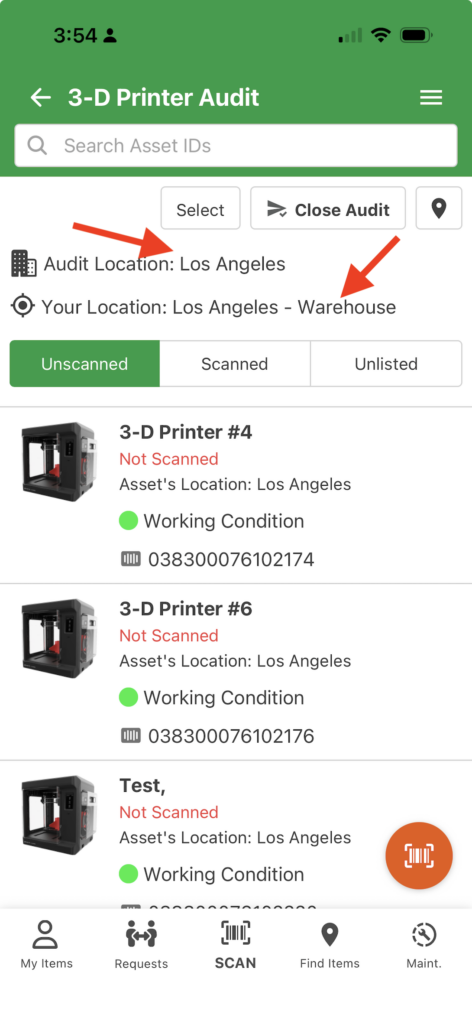
When performing an audit, the mobile app allows you to set your location. When you scan an asset that has a location that differs from the set scanned location, the audit reconciliation process will allow you to transfer that asset to that location easily.
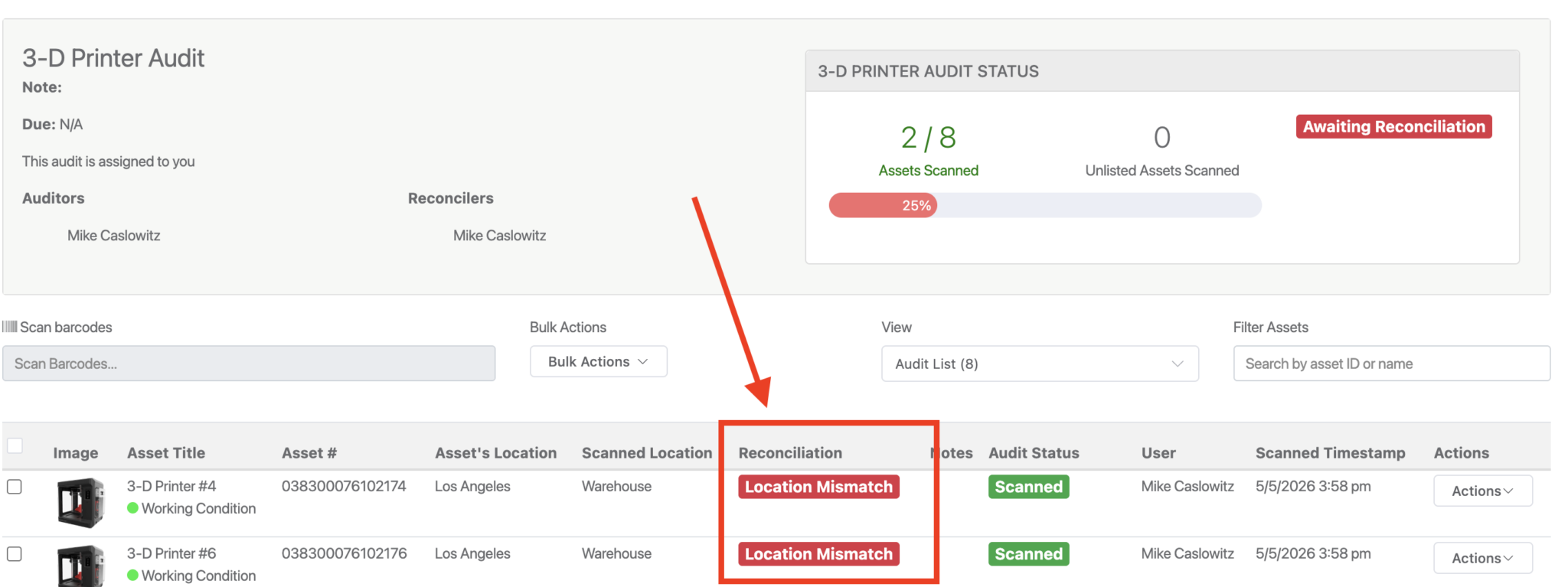
For example, this audit list in the image to the right is showing assets that are currently set to “Los Angeles”. However, by setting the location to “Los Angeles – Warehouse”, you will log in the audit that any scanned asset was physically found in the Los Angeles – Warehouse location.
A location mismatch notice will display:
From there, you can select the bulk action of “Transfer Location”
Need help? We're here for you
For any questions or assistance, feel free to reach out to us.
Ready to simplify IT asset management?
No credit card. No watered-down trial. Create a free account and see firsthand what Reftab can do.