
Track Adobe Licenses Automatically with Reftab’s Adobe Integration
Reftab offers a direct integration with Adobe, allowing you to automatically import user license assignments. This enables administrators to clearly see which users have access to Adobe applications. By setting up this integration, you can seamlessly track Adobe usage without relying on manual updates.
This guide will cover the following:
Adobe Settings
Reftab Settings
Important Notes
Assigning Applications to Users
Adobe Settings
1. First sign in to the Adobe Developer Console (https://developer.adobe.com/console).
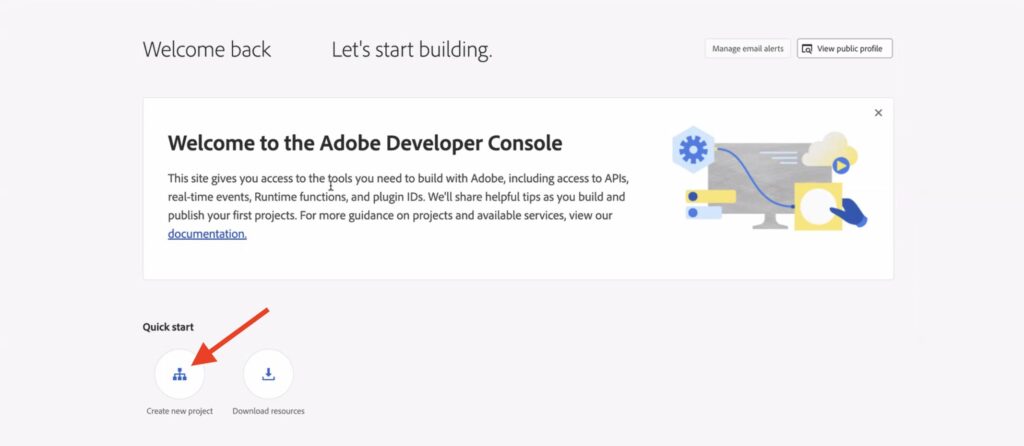
2. Then, click the “Create new project” button at the bottom near the Quick start section.
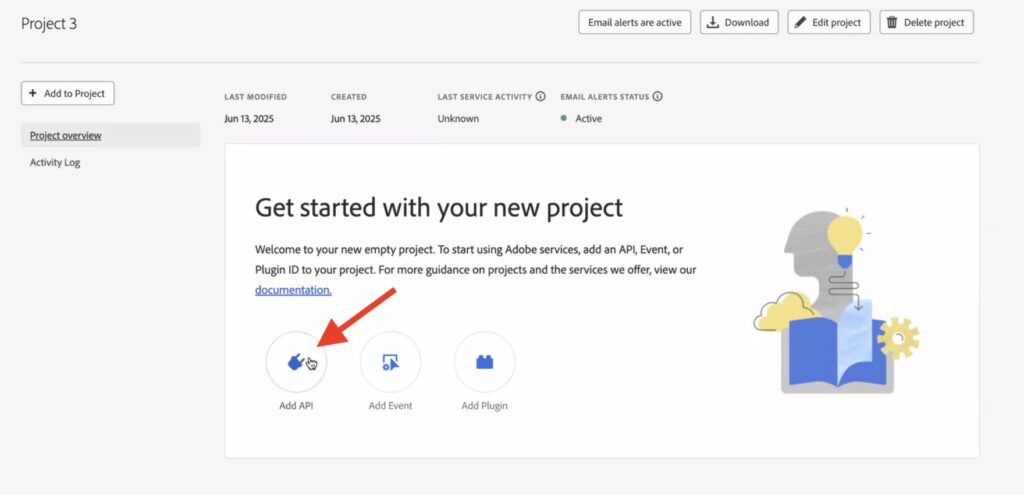
3. With the new project created, you will next click “Add API.”
- Important Note: The required API is only available to users on the Adobe Enterprise plan.
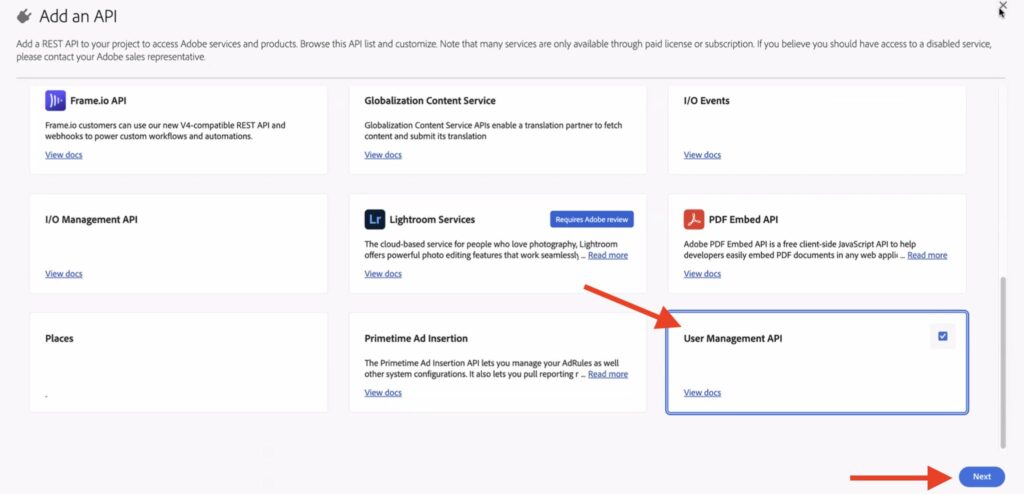
4. Then select the “User Management API” and click “Next“.
5. Next, click “OAuth Server-to-Server” as your authentication. Name the credential, then click “Save configured API“.

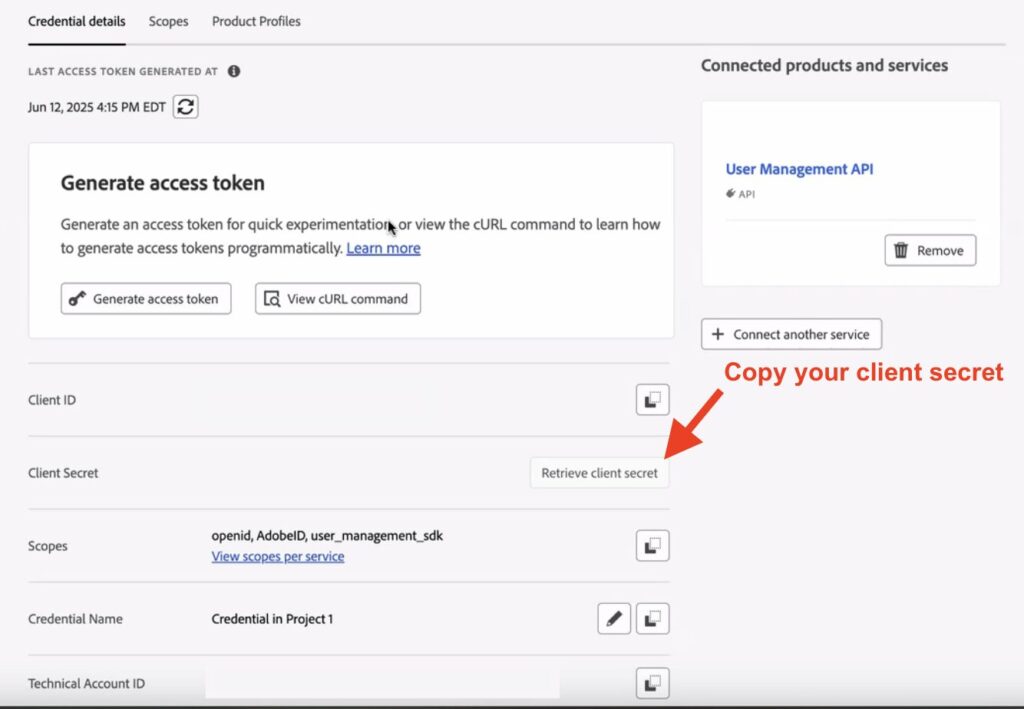
6. Next, you will need to copy the Client ID and save this for later. Then, click the blue highlighted OAuth Server-to-Server title.

7. Click Retrieve client secret and store this for the next steps.
Reftab Settings
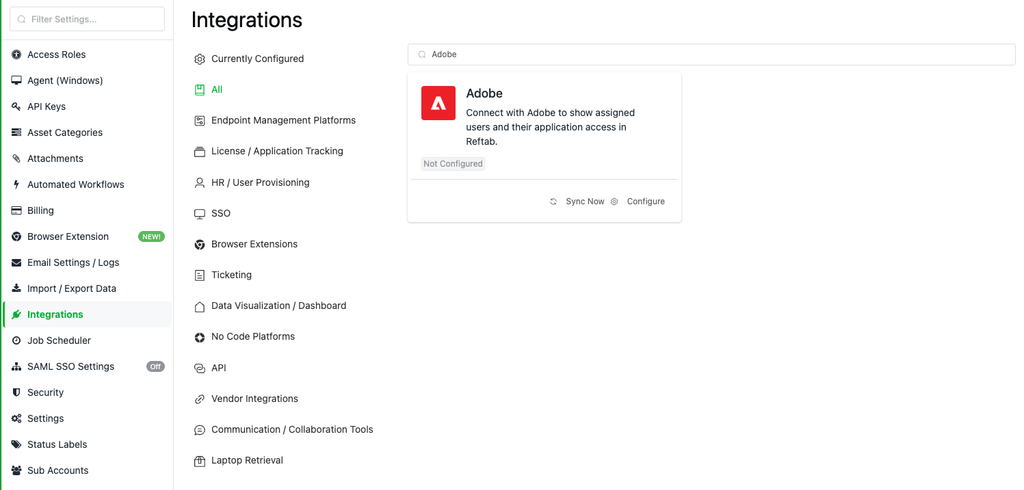
For the next portion of this guide you will need to sign into your Reftab account and head into Settings > Integrations and then search for Adobe. Click Configure.
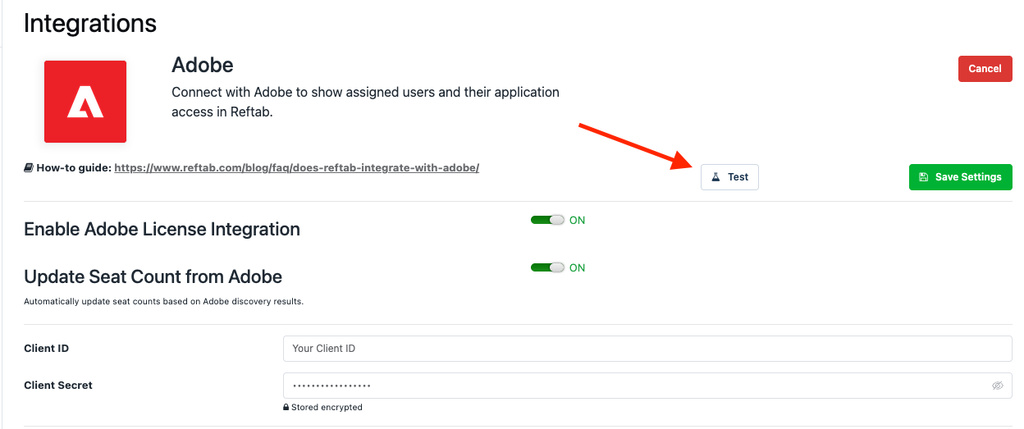
1. Paste in your Client ID and Client Secret that we copied in previous steps. Once done, save your settings and then click Test to verify your connection is established.
2. After a successful test, click Refresh License List to retrieve your Adobe licenses.
3. Map your Adobe licenses to any existing licenses:

If your license doesn’t exist in Reftab, you can click the Create License button to create a new one.
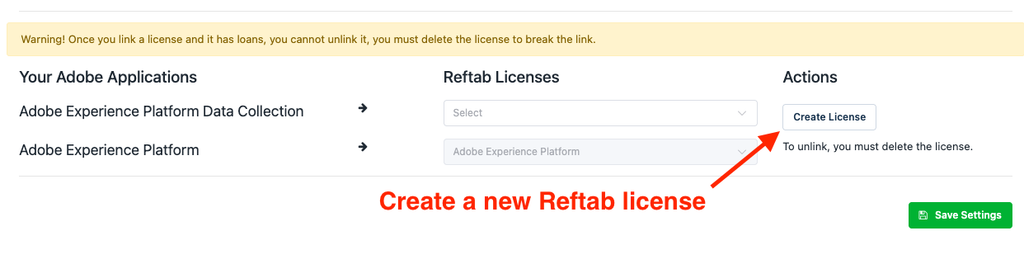
Note: Newly created license may take up to 24 hours for user assignment
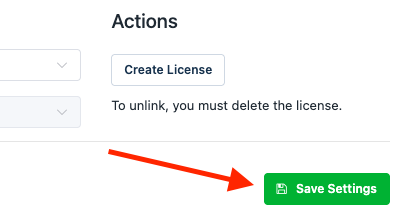
4. Last, click Save Settings once more.
Assigning Applications to Users
To assign applications to users:
1. Navigate to the Adobe Developer Console
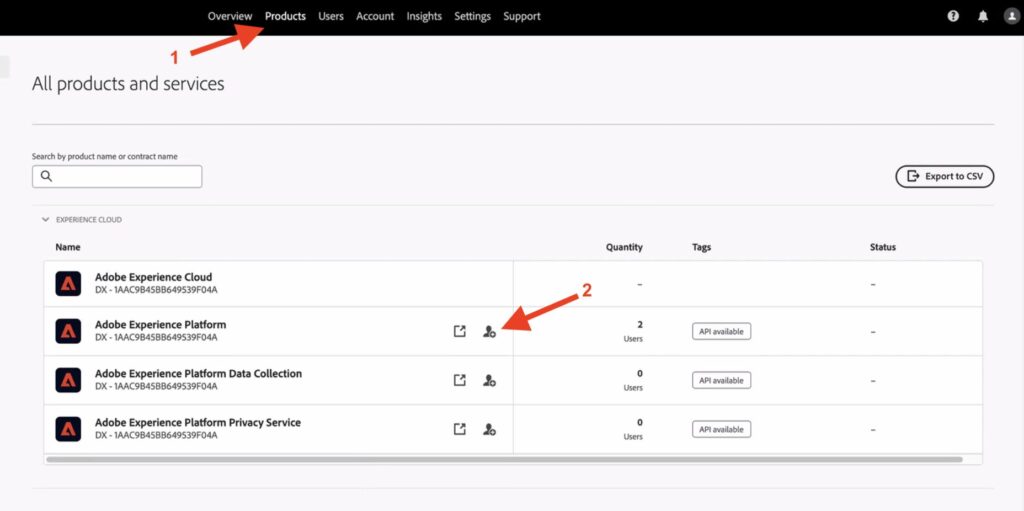
2. Click on Products in the top navigation bar.
3. Select the product you want to assign by clicking its respective assignment icon.
4. You can search for and assign the product to a specific user or group.
Important Notes
- Licenses assigned to users are indefinite
- Licenses that are revoked in Adobe are revoked in Reftab
- The Adobe API only provides information regarding what a specific user has assigned to them. Other information such as cost, and usage are not available.
- Additionally regarding the API, the rate limit for user info is limited to 25 calls per minute per client and for user groups & product profiles the limit is 5 calls per minute per client
- Please note that while reconciling between Reftab and Adobe’s seat counts, we are only aware of the users that Adobe provides us. If a user is disabled or inactive in Adobe, we will be unaware of them and thus your seat count may appear to be off.
Need help? We're here for you
For any questions or assistance, feel free to reach out to us.
Ready to simplify IT asset management?
No credit card. No watered-down trial. Create a free account and see firsthand what Reftab can do.