
Introduction to the Reftab Browser Extension
The Reftab Browser Extension is a lightweight tool that helps IT teams discover and track SaaS application usage across their organization. It’s one of the key ways Reftab helps you get a handle on shadow IT. Whether your organization needs to comply with security policies and regulations like GDPR, or your IT team simply needs an automated way to log the software being used across the company without relying on manual data entry, the Reftab Browser Extension gives you that visibility.
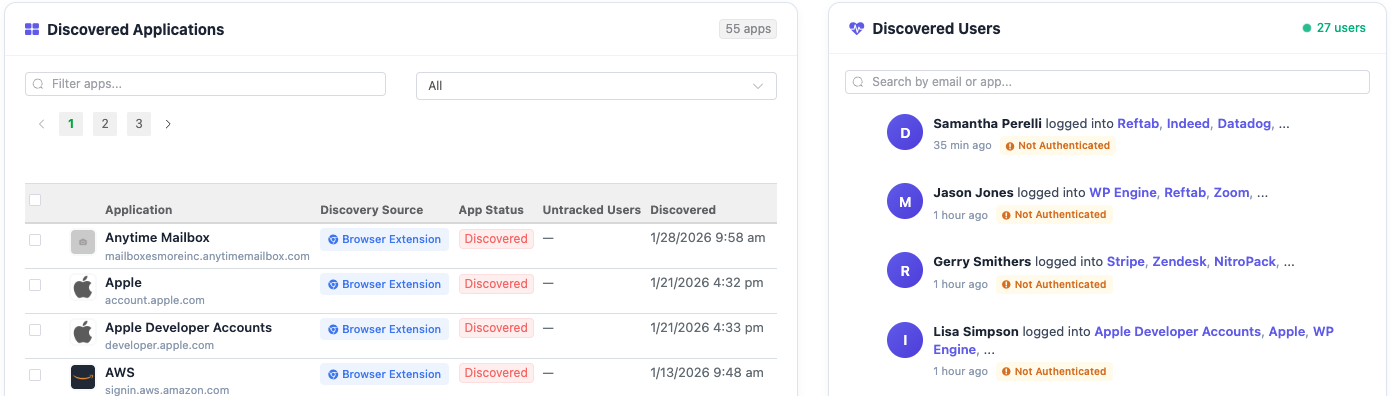
In this guide we will cover the following:
What Does the Browser Extension Do?
What the Browser Extension Does NOT Do
Supported Browsers
How It Works
Authentication Modes
Deployment Options
How to Untrack a User
Configuring Work Domains
Frequently Asked Questions
Best Practices for Rollout
What Does the Browser Extension Do?
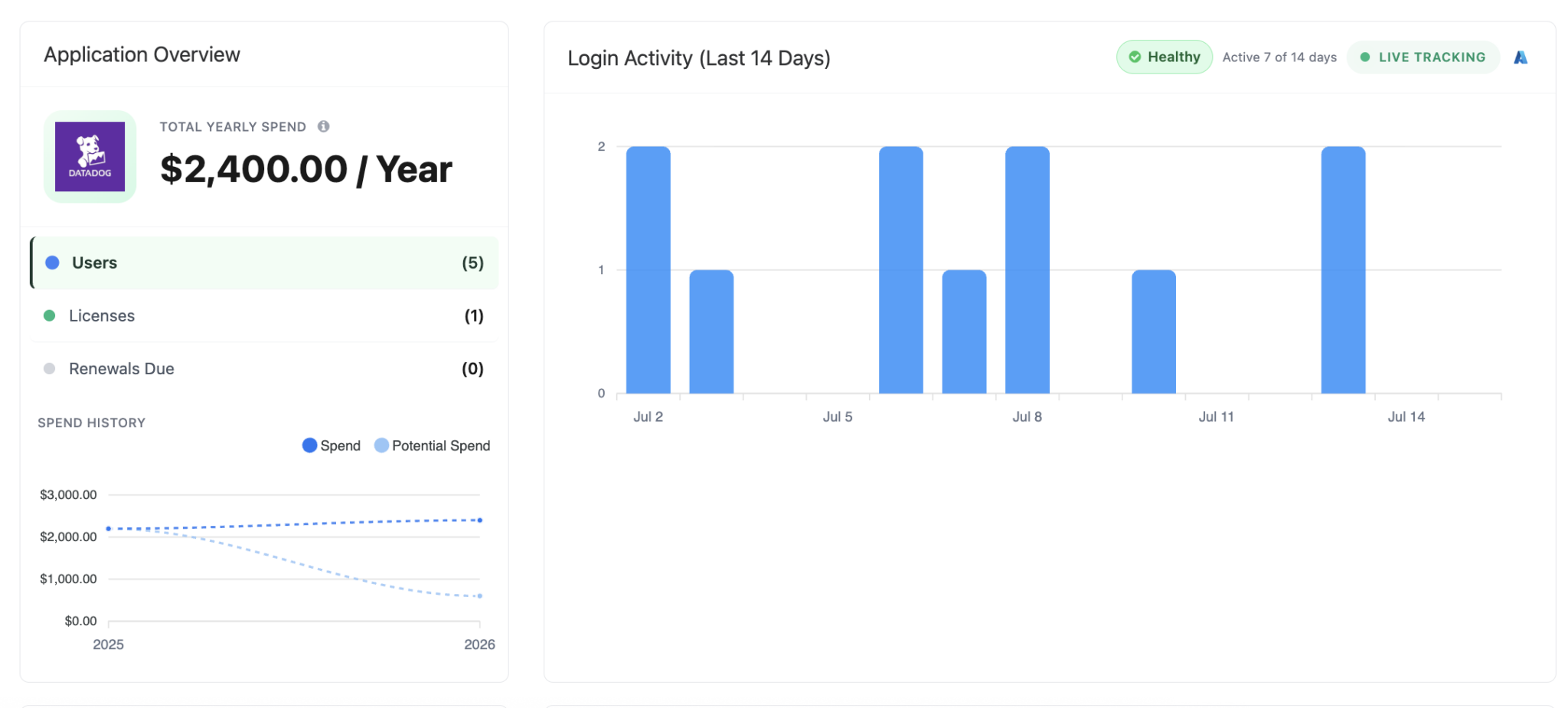
The Reftab Browser Extension monitors login activity to web applications and sends minimal, business-relevant data to your Reftab account. When a user logs into a SaaS application with their work email address, the extension captures:
- The date and time of the login
- The URL of the application (e.g.,
Zoom.com) - The user’s work email address
This information is used to automatically create and update application records in Reftab, giving IT administrators a clear picture of which tools employees are using.
What the Browser Extension Does NOT Do
The Reftab Browser Extension is designed with privacy as a core principle.
It does NOT collect or track:
- ❌ Personal email accounts or logins outside your work domain
- ❌ Browsing history
- ❌ Passwords or credentials
- ❌ Cookies or session data
- ❌ Keystrokes or form inputs
- ❌ Screenshots or page content
- ❌ File downloads or uploads
- ❌ Any activity on personal accounts
The extension only activates when it detects a login event using an email address that matches your organization’s registered work domains in Reftab. All other browsing activity is completely ignored.
Supported Browsers
The Reftab Browser Extension is available for:
| Browser | Status |
|---|---|
| Google Chrome | ✅ Available |
| Mozilla Firefox | ✅ Available |
| Microsoft Edge | ✅ Available (through Chrome) |
| Internet Explorer | 🔜 Coming Soon |
How It Works
Step 1: Installation
The browser extension is installed on employee browsers, either manually or through centralized deployment (recommended for organizations).
Step 2: Domain Detection
Within your Reftab account, you as the admin establish ownership of your work domain. The extension only monitors logins that use your registered domain(s).
Step 3: Login Detection
When a user logs into a web application using their work email, the extension detects this authentication event.
Step 4: Data Transmission
The extension securely sends the login date, application URL, and user email to Reftab.
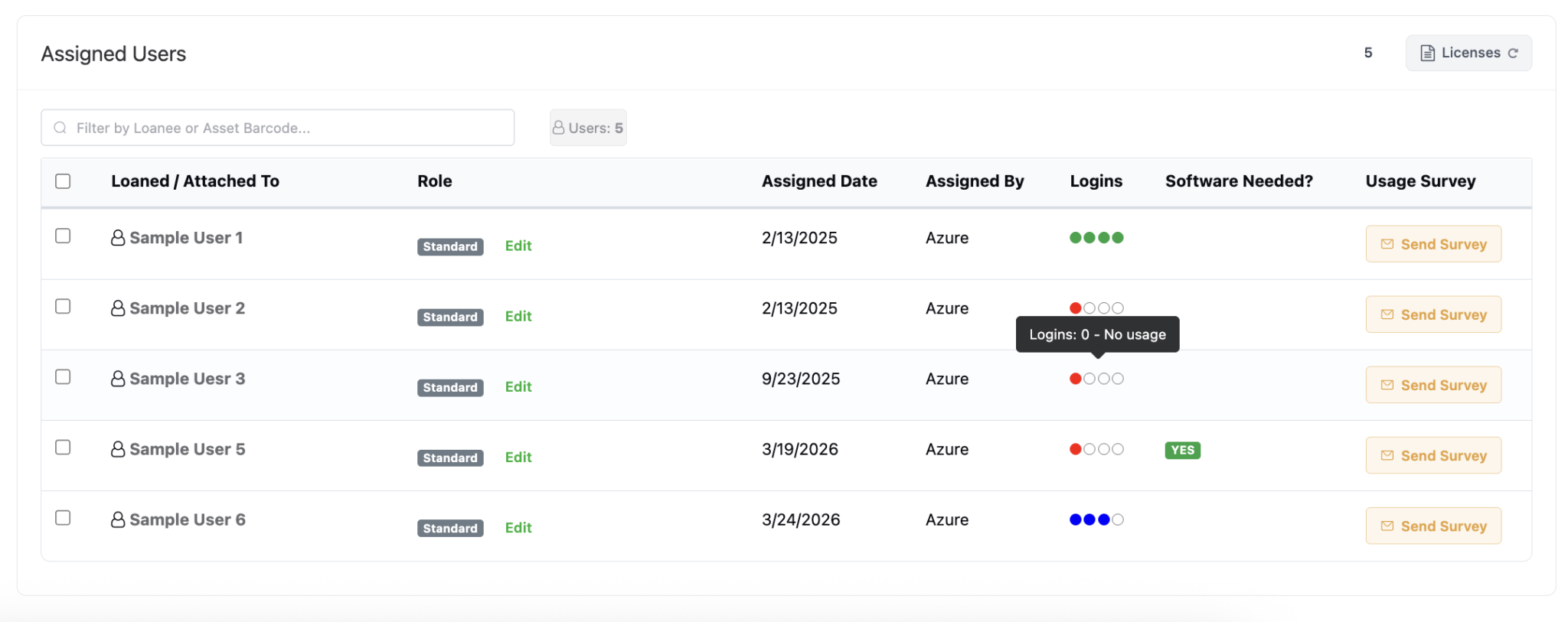
Step 5: Application Discovery
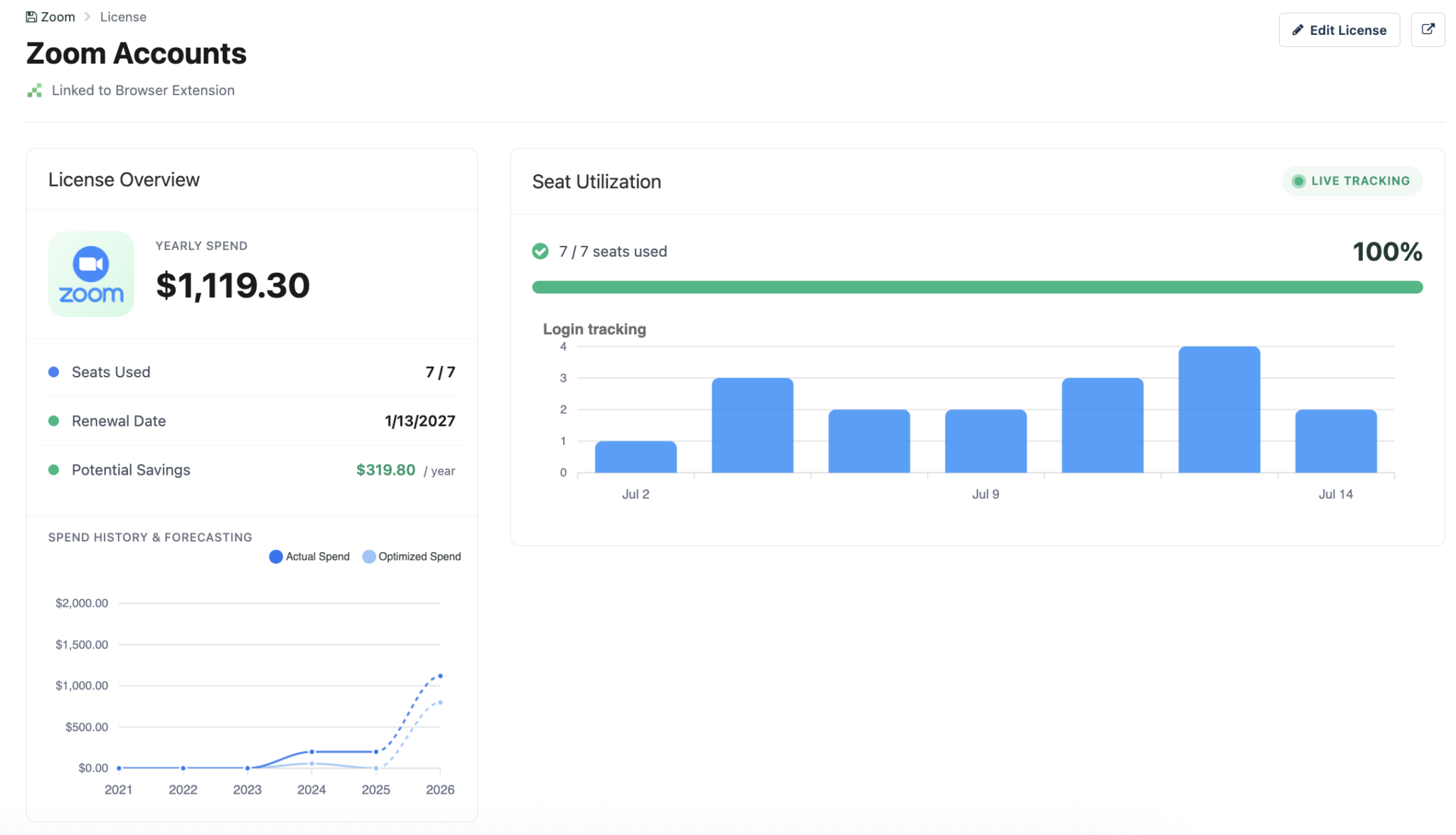
Reftab automatically creates or updates an application record, tracking usage over time. This data populates dashboards showing:
- Which applications are being used
- Who is using each application
- How frequently applications are accessed
- Potential shadow IT discoveries
Authentication Modes
The Reftab Browser Extension can operate in two modes, each providing different levels of user verification:
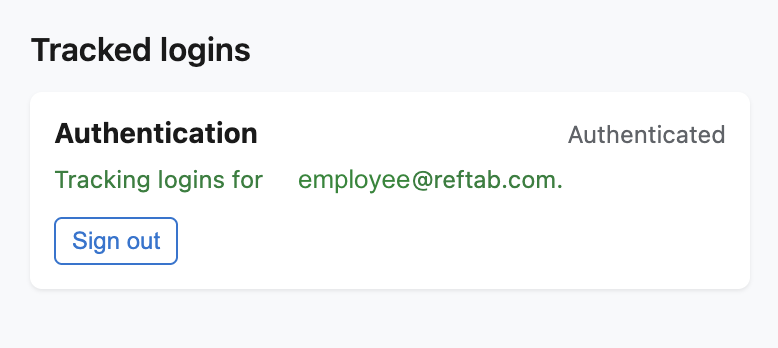
Authenticated Mode (Recommended)
In authenticated mode, the user signs into the browser extension with their Reftab credentials or through SSO. This provides:
- ✅ Verified user identity — IT can confirm the extension user matches the email address
- ✅ Higher data confidence — Login data is reliably attributed to the correct employee
- ✅ Compliance readiness — Verified data is more suitable for audits and reporting
When to use: Best for organizations that need reliable user attribution and have the ability to guide employees through a brief authentication step.
Unauthenticated Mode
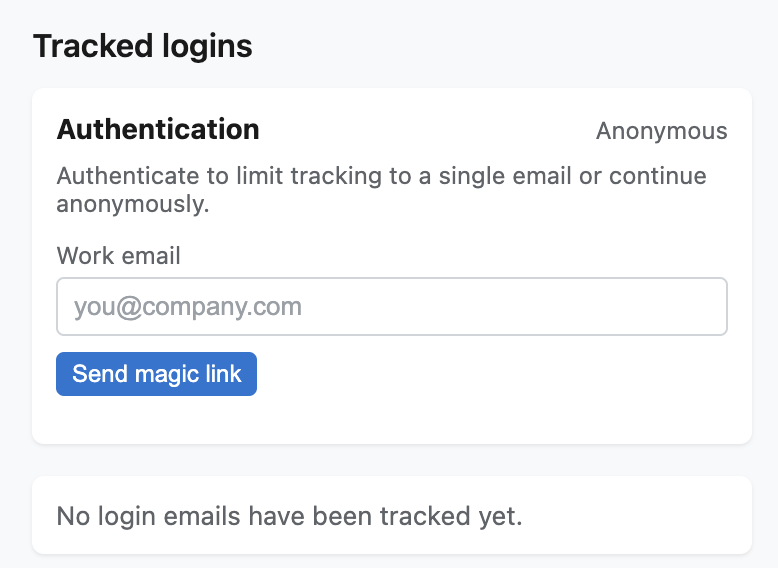
In unauthenticated mode, the extension operates without requiring the user to sign in. This provides:
- ✅ Frictionless deployment — No user action required beyond installation
- ✅ Faster rollout — Ideal for large-scale deployments
- ⚠️ Unverified attribution — Data is marked as “unauthenticated” in Reftab
When to use: Best for quick deployments where ease of installation is prioritized, or as an initial rollout before migrating to authenticated mode.
How to Untrack a User
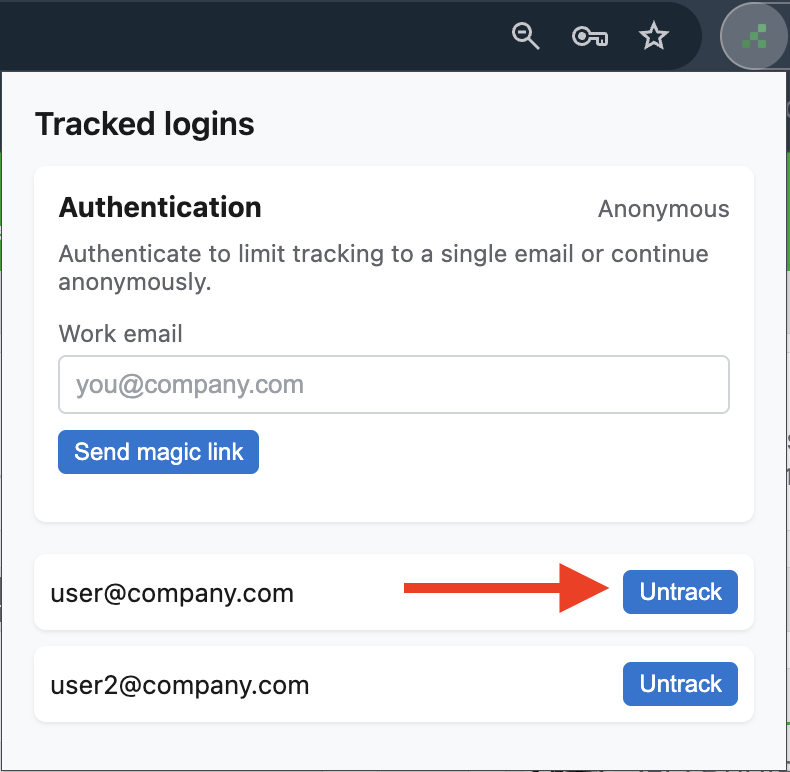
The extension automatically detects email addresses used to log into websites, but only for email addresses that match your registered domain. For example, if your organization has registered “acme.com” as its domain, the extension will only detect logins from “@acme.com” email addresses. It will never pick up personal email addresses like “@gmail.com” or any other unrelated domains. If the extension detects multiple email addresses under your domain, such as “userA@acme.com” and “userB@acme.com,” it will monitor logins for both going forward. To see which email addresses are currently being tracked, simply click on the extension icon. From there, you’ll see a list of all tracked email addresses, each with an “Untrack” button next to it. Clicking “Untrack” tells the extension to stop monitoring logins for that email address.
How to Identify Authentication Status in Reftab
Within Reftab, user data from the browser extension is clearly labeled:
- Authenticated users appear with a verified badge

- Unauthenticated users are marked accordingly, allowing IT to follow up if needed

Both modes send data to Reftab. The difference is in the confidence level of user attribution.
Deployment Options
Manual Installation
Employees can install the extension directly from the browser’s extension store:
Centralized Deployment (Recommended)
For organizations using device management tools, the extension can be pushed to all managed browsers automatically:
Google Workspace (Chrome)
- Navigate to Google Admin Console → Devices → Chrome → Apps & extensions
- Add the Reftab extension by ID or URL
- Set installation policy to “Force install”
Microsoft Intune (Edge/Chrome)
- Navigate to Microsoft Endpoint Manager → Apps → All apps
- Add a new app and select the browser extension
- Assign to user or device groups
Group Policy (Windows)
Use Group Policy to deploy extensions to Chrome or Edge browsers across domain-joined machines.
Configuring Work Domains
For the browser extension to function correctly, your organization’s email domains must be registered in Reftab:
- Log into your Reftab account as an administrator
- Navigate to Settings → Browser Extension
- Follow prompts on screen
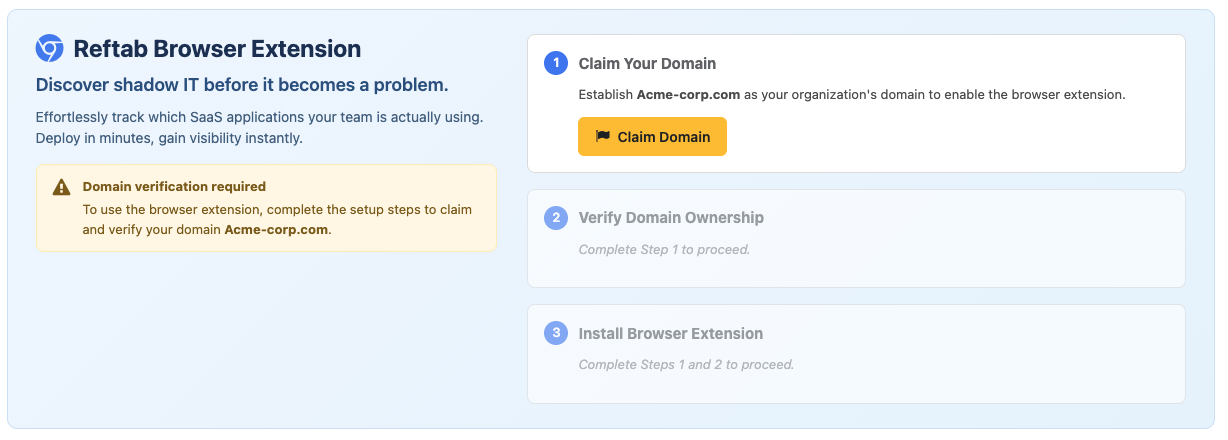
The browser extension will only track logins that match these registered domains. Personal email accounts and domains not on this list are completely ignored.
Frequently Asked Questions
Will the extension slow down my browser?
No. The extension is lightweight and only activates during login events. It has negligible impact on browser performance.
Can the extension see my passwords?
No. The extension cannot see, access, or transmit passwords. It only detects that a login event occurred and captures the email address used.
What if I use my personal email for a work application?
Logins using personal email addresses (outside your registered work domains) are not tracked. Only work domain logins are captured.
Can my employer see my browsing history?
No. The extension does not capture or transmit browsing history. Only login events to web applications are detected.
How do I know if the extension is working?
You can click on the Reftab extension icon in your browser toolbar to see its status. In Reftab, administrators can view discovered applications and user activity.
Can I disable the extension?
This depends on how it was deployed. If installed via centralized policy, it may be managed by your IT department. If manually installed, you can disable or remove it from your browser’s extension settings.
Best Practices for Rollout
1. Communicate with Employees First
Before deploying the extension, send a clear communication to employees explaining what it does and more importantly, what it doesn’t do. (See the email template below.)
2. Start with a Pilot Group
Consider deploying to a small group first (e.g., IT department) to validate functionality before a company-wide rollout.
3. Configure Domains Before Deployment
Ensure all work email domains are registered in Reftab before the extension is installed. This prevents missed data.
4. Choose Your Authentication Mode
Decide whether to use authenticated or unauthenticated mode based on your organization’s needs and deployment capabilities.
5. Monitor and Review Data
After deployment, regularly review the discovered applications in Reftab. Use this data to update your software inventory and identify optimization opportunities.
Employee Communication Template
Use the following email template to communicate the browser extension rollout to your employees. Feel free to customize it for your organization’s tone and policies.
Subject: New Browser Extension to Help Us Manage Software Licenses
Hi Team,
We’re introducing a browser extension to all staff. This helps IT’s effort to evaluate app usage and meet security certification requirements. Additionally, GDPR requires [Company] IT to maintain an up-to-date inventory of all SaaS applications in use.
What is this extension?
Reftab is a platform we use to keep track of the IT assets we all use across [Company]. The Reftab Browser Extension helps IT identify which business applications our team uses. When you log into a work-related web application using your @[yourcompany].com email address, the extension notes which application you accessed.
Why do we need it?
To monitor application usage and performance while staying aligned with our security certifications. In addition, GDPR requires [Company] IT to keep an accurate, current record of all SaaS tools in use.
What this extension does not do
- ❌ Does NOT track your browsing history
- ❌ Does NOT capture passwords or personal information
- ❌ Does NOT monitor personal email accounts or non-work logins
- ❌ Does NOT record keystrokes, screenshots, or page content
- ❌ Does NOT track anything outside of work application logins/
Do I need to do anything?
No action is required on your part. The extension will be installed automatically and runs quietly in the background. You won’t notice any difference in your day-to-day browsing.
If you have any questions or concerns, please reach out to the IT team at [it-support@yourcompany.com].
Thank you for your understanding and support!
Best regards,
[Your Name]
IT Department
Summary
The Reftab Browser Extension is a powerful yet privacy-conscious tool that gives IT teams more shadow IT tracking capabilities. By deploying the extension across your organization, you can:
- Discover shadow IT and unapproved applications
- Track software usage for compliance with security certifications
- Make data-driven decisions about software investments
- Maintain security visibility into cloud applications
With simple deployment options, clear privacy boundaries, and valuable insights, the Reftab Browser Extension is an essential tool for modern IT asset management.
Need help? We're here for you
For any questions or assistance, feel free to reach out to us.
Ready to simplify IT asset management?
No credit card. No watered-down trial. Create a free account and see firsthand what Reftab can do.