
How do I use custom expression fields?
In this guide, we’ll show you how Reftab can automatically calculate field values using formulas that reference other fields.
For example, if your laptop refresh rate is 4 years from the date it was purchased, you can set a “Refresh Date” by using an expression field that sets a value by adding 4 years to the purchase date. This is what that expression would look like: {{purchase_date}} + 4 – by setting this up, you avoid manual work and can further automate alerts on old equipment.
We will cover the following in this guide:
- How to Enable an Expression Field
- How to Use an Expression Field on an Asset
- Expression Examples
- Expression Field Reference FAQ
Note: Existing fields can’t be converted to expression fields without losing their data. You’ll need to create a new field instead.
How to Enable an Expression Field
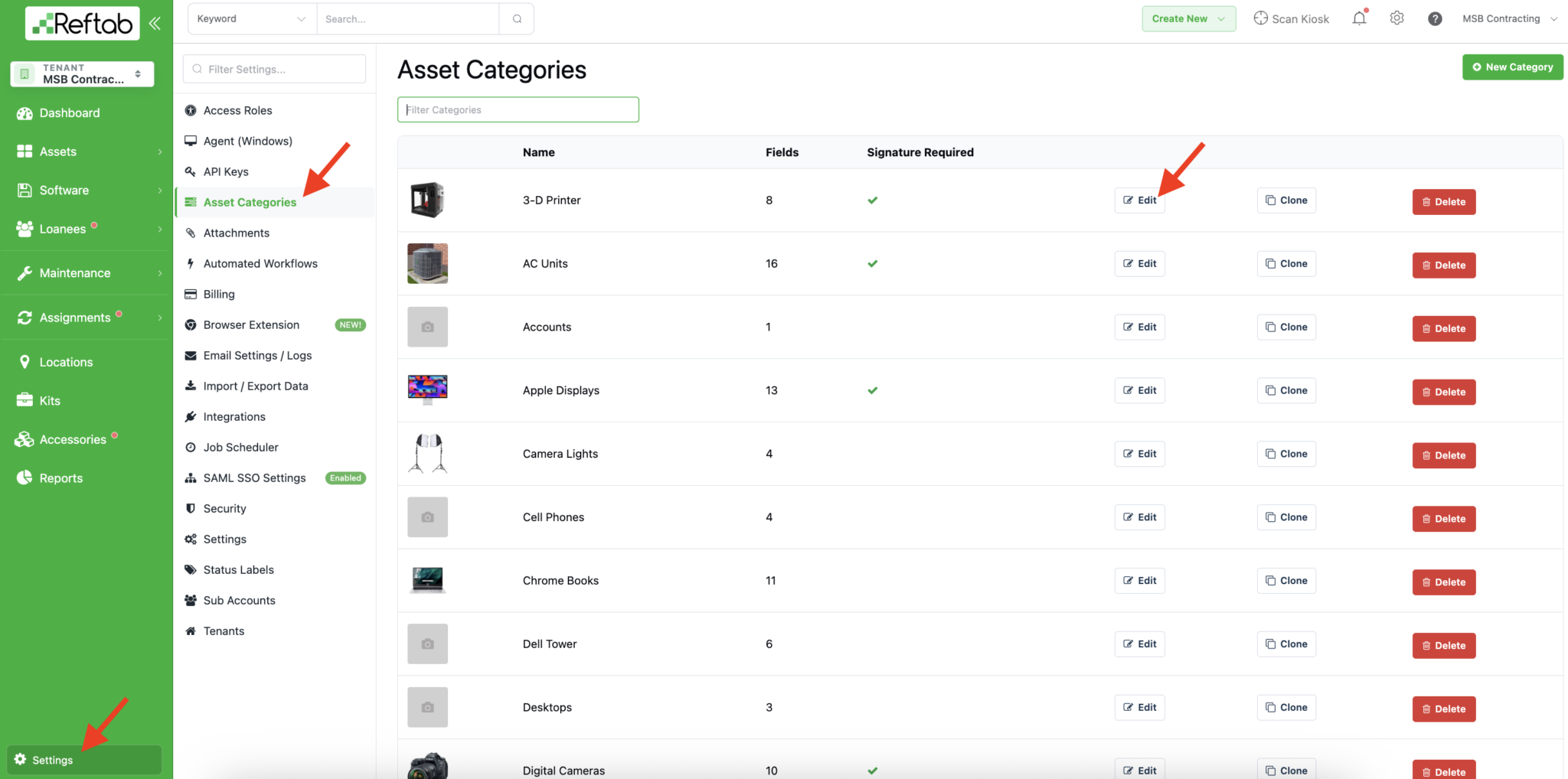
1. Navigate to Asset Categories
Settings → Asset Categories → Click Edit on the category where you want the expression to be used.
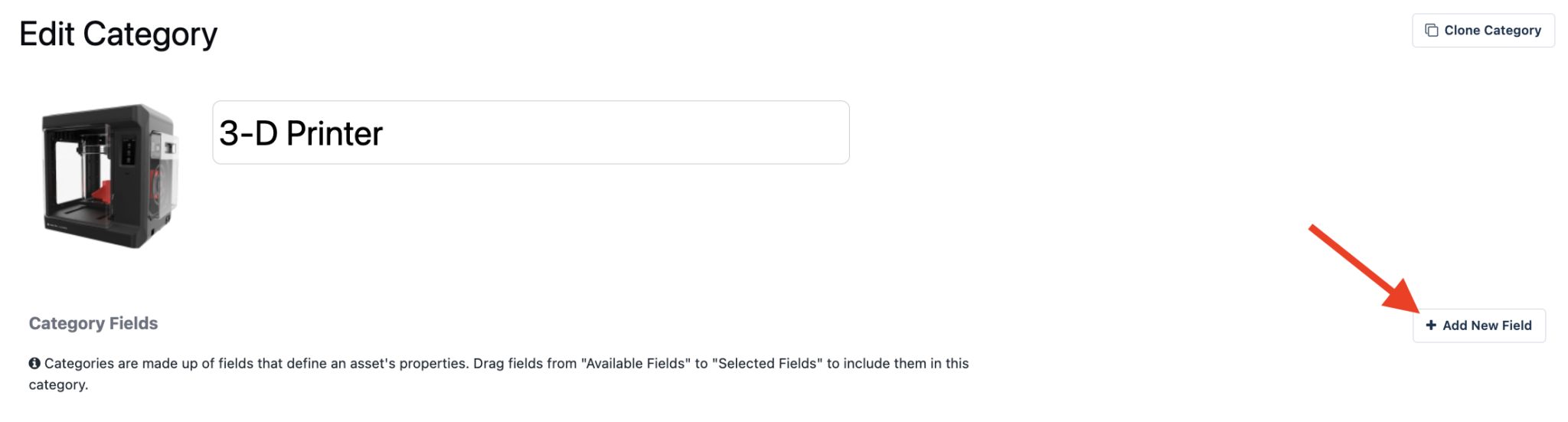
2. Add a New Field
Create a new field. (For further information, see our guide on customizing categories and fields)
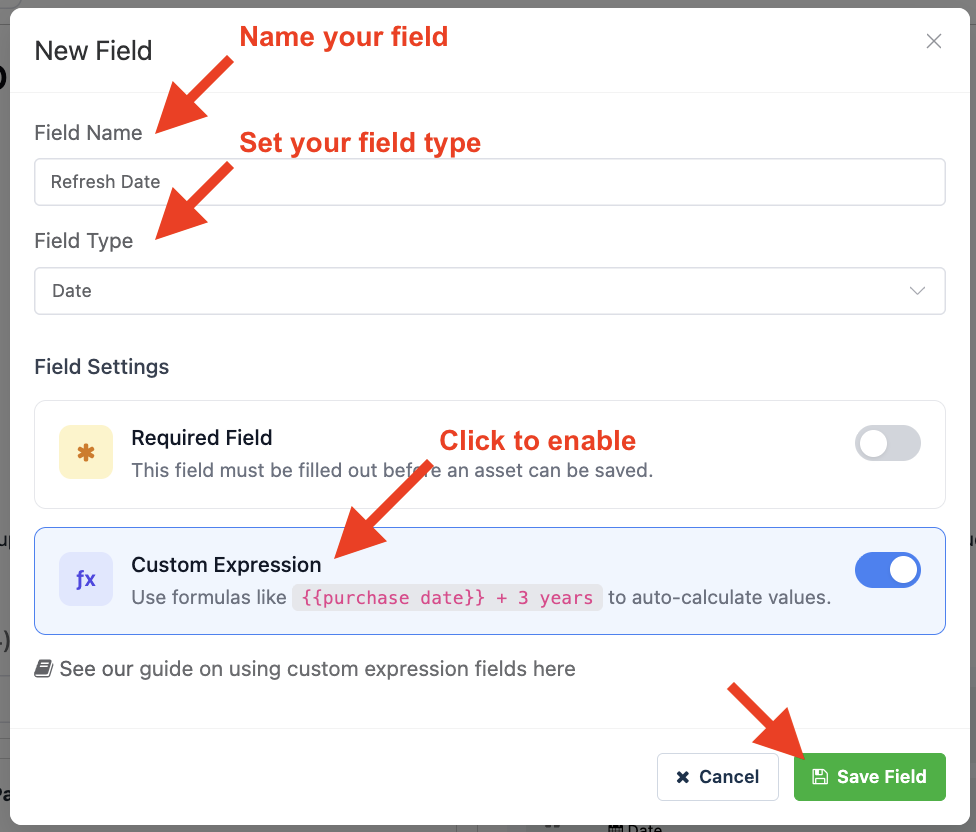
3. Enable the “Custom Expression” Option
In the field configuration:
- Select your Field Type
- DATE – If you’re needing to calculate dates, make sure to set a field type of “date”
- MONETARY – If you’re needing to calculate currency values, set field type to “monetary”
- It’s important to note that you are not able to utilize monetary type expression fields in scheduled workflows
- TEXT – If you’re setting text, make sure to set your field type to “text”
- Toggle the Custom Expression option
This converts the field into an expression-based field.
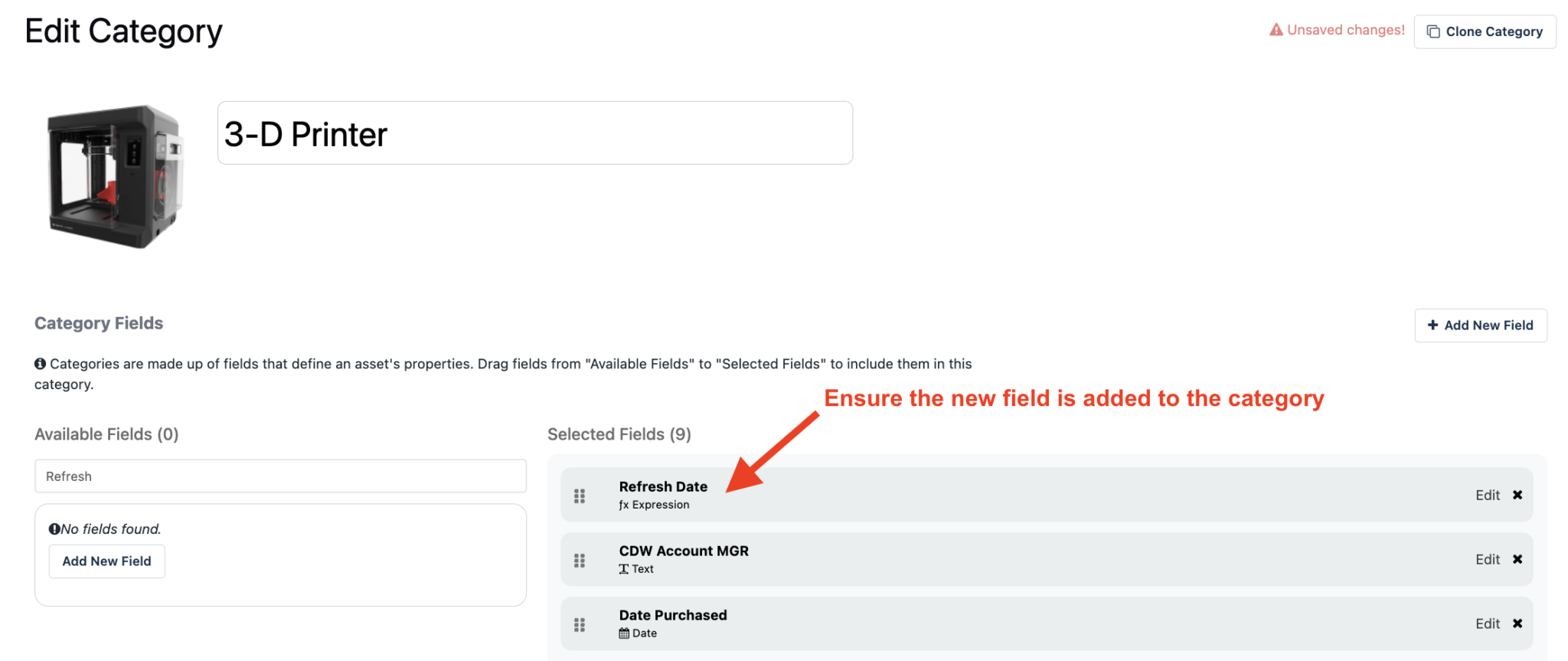
4. Save the Category
Once saved, the field will appear on each asset in that category and will accept expression logic.
How to Use an Expression Field on an Asset
1. Open an Asset in the Category
Go to Assets, open an asset that belongs to the category where your Expression Field is configured.
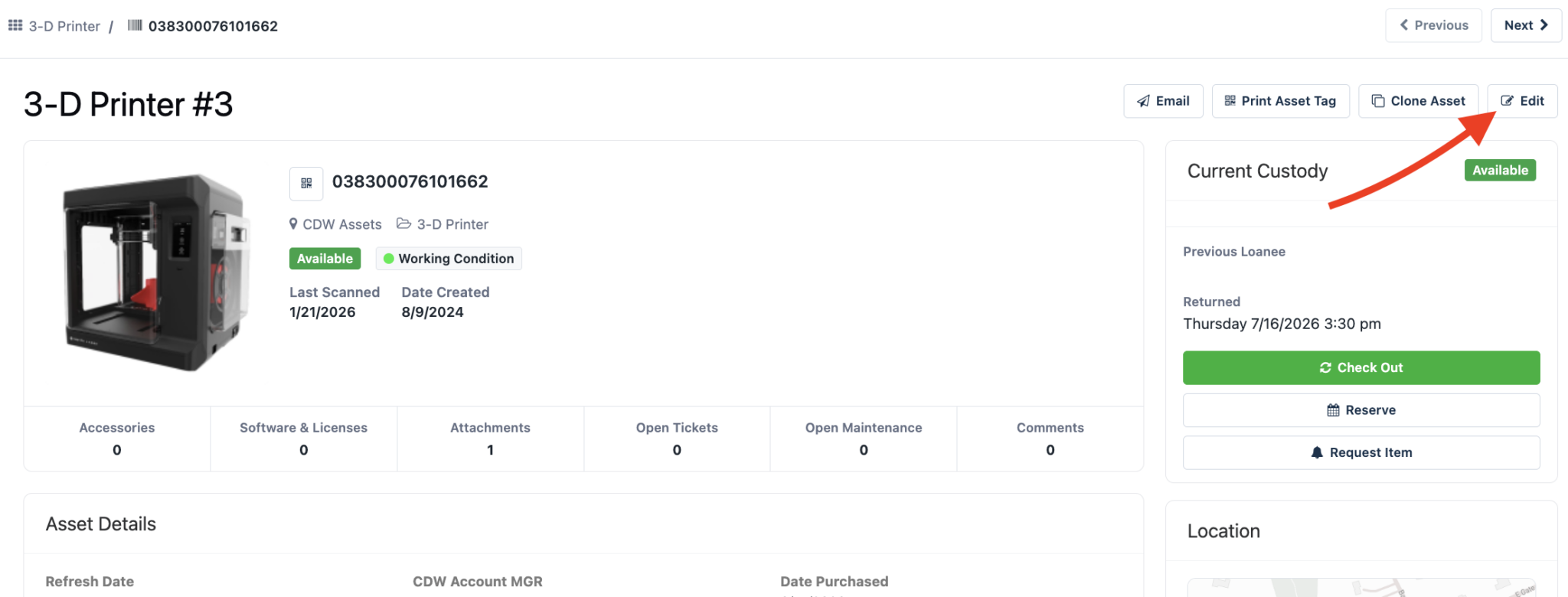
2. Edit the Expression Field
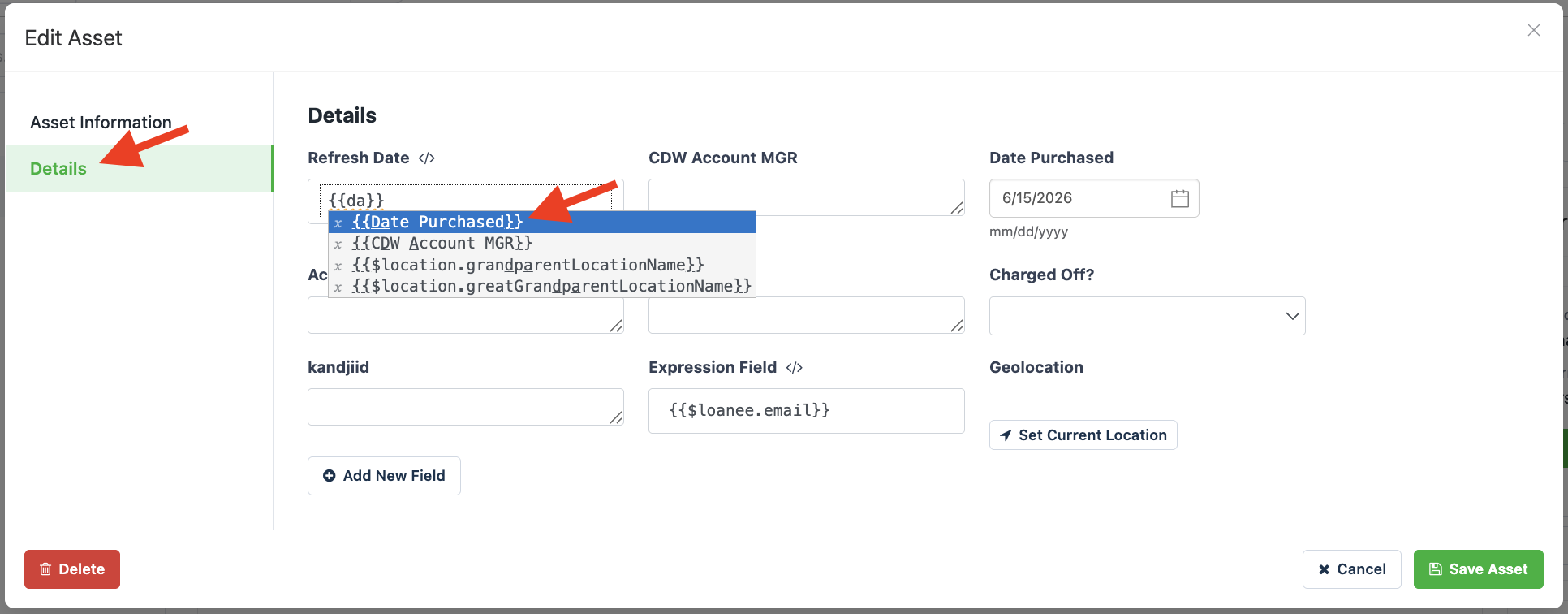
Click Edit, then enter your formula in the Expression Field input. You will start by typing two curly braces: “{{” (without quotes) then you can select the field as it appears in the list.
Then type in the operation you want to perform such as “+ 4 Years"
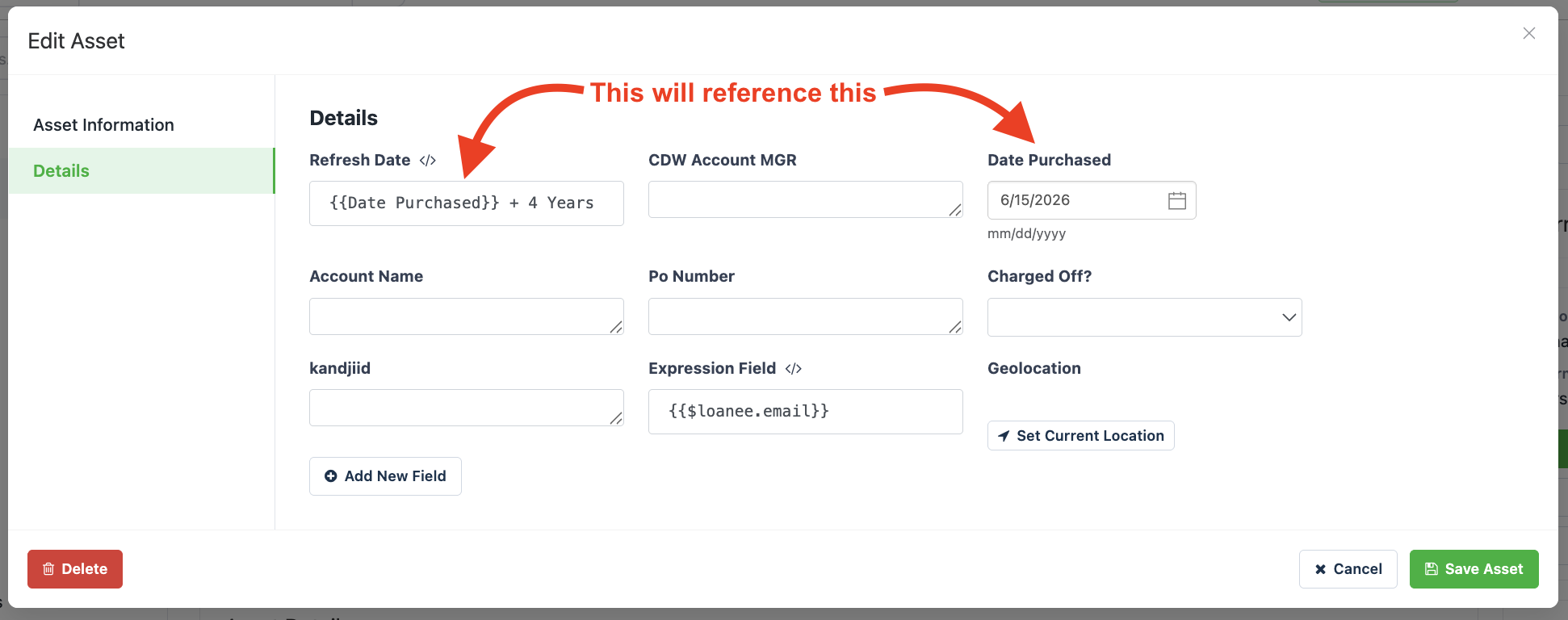
Expressions can reference other fields, perform math, concatenate, and use conditional operators.
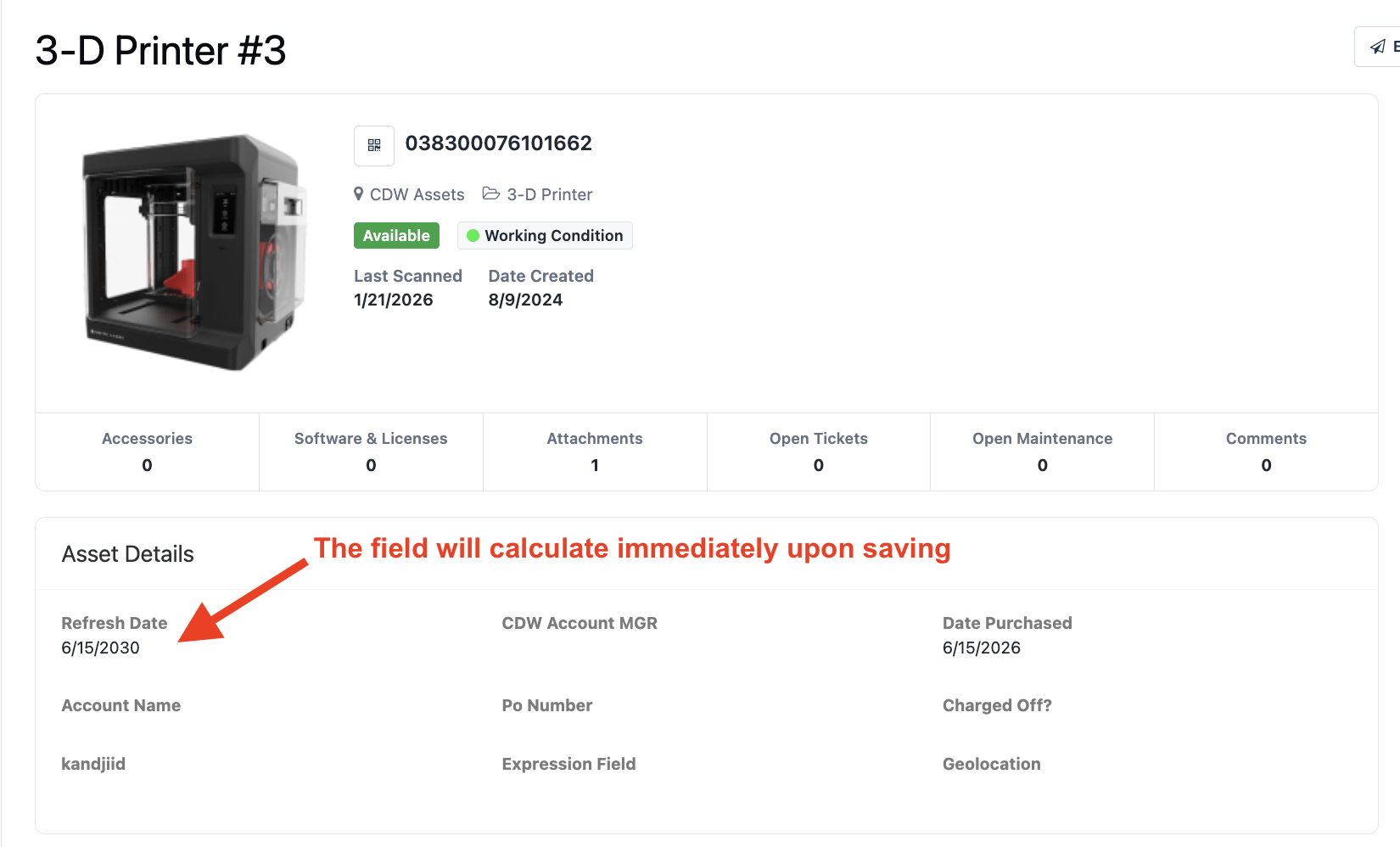
3. Save the Asset
The field will evaluate instantly.
Other Expression Examples
Example 1: Calculate The Tax Paid
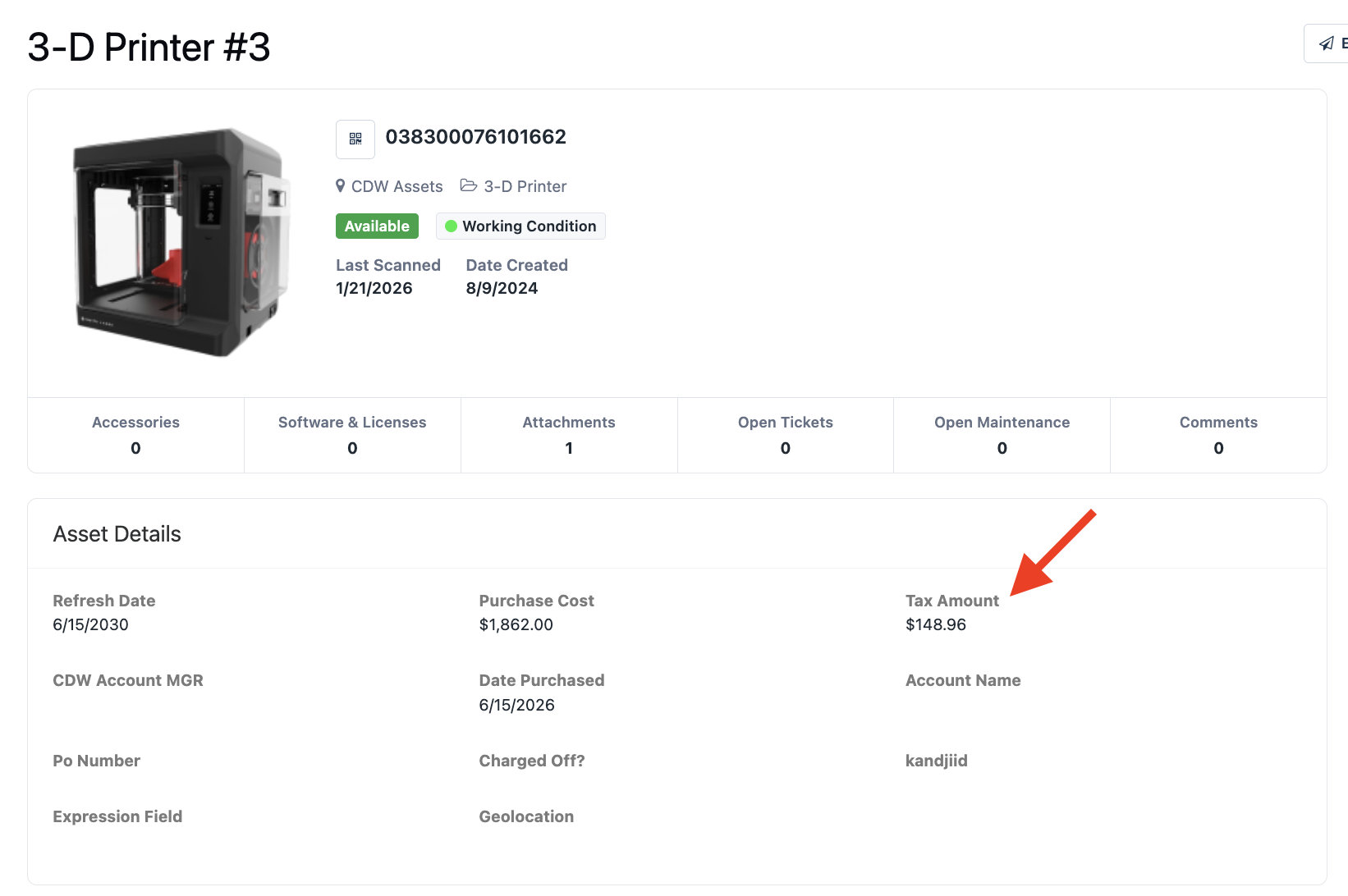
This example showcases how you can derive the tax amount from a purchased item where you know the total purchase price and the tax percentage. (This assumes you have a field called “Purchase Price” with the final price of the item)
Formula
This example assumes an 8% tax rate.
{{Purchase Price}} * .08
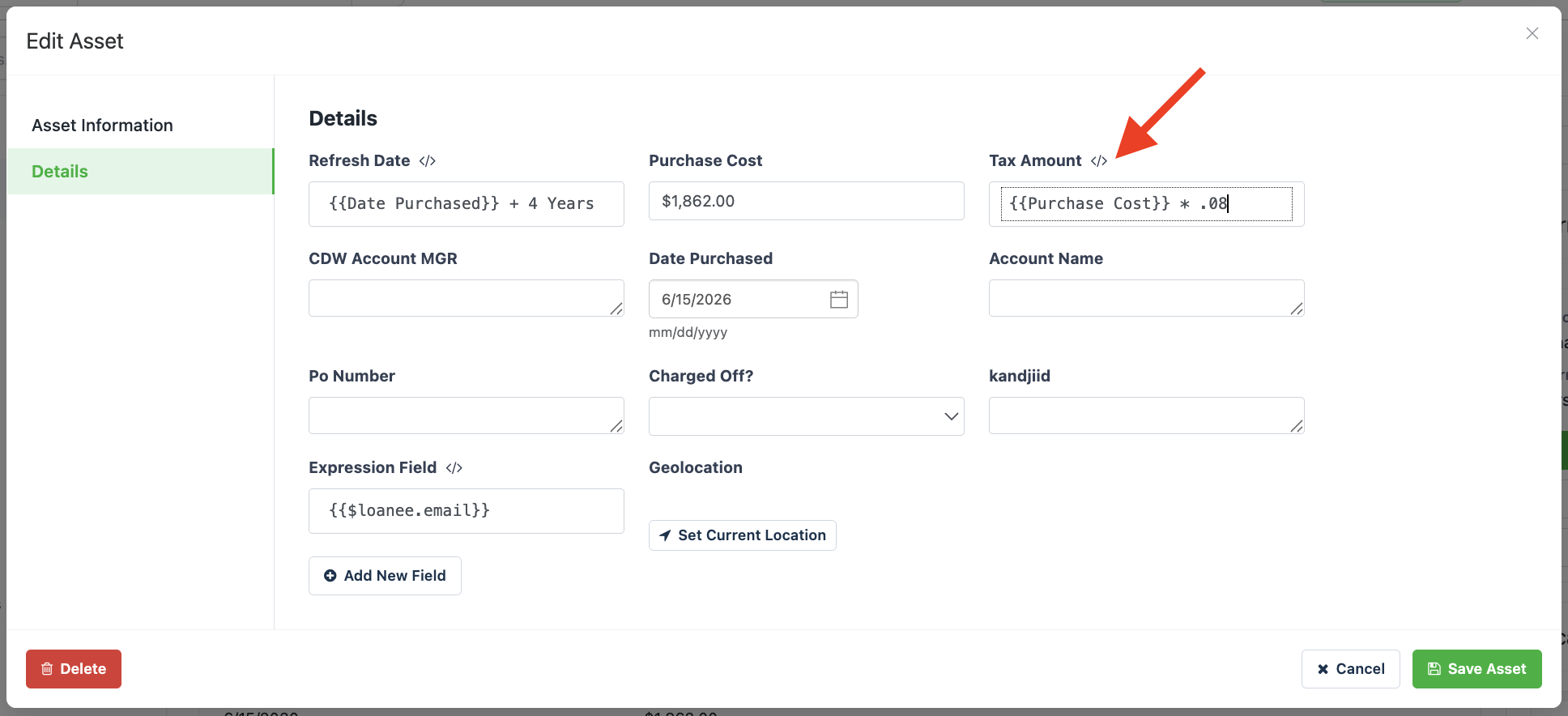
Result
Automatically calculates the amount of tax paid from the total purchase price.
For more examples and information on how to fully leverage expression fields, see our Expression Field Reference FAQ.
Suggested Next Steps: Now that you’ve got a handle on using expression fields, try setting up automated workflows. Workflows can trigger actions based upon conditions. For example, if a date on an asset has passed, you can trigger a workflow to change the status label of assets automatically or send an email. To create workflows, visit “Settings” > “Automated Workflows”.
Need help? We're here for you
For any questions or assistance, feel free to reach out to us.
Your assets, simplified. Begin your journey with us!
50 assets free forever with unlimited inventory & software tracking. Includes email alerts, mobile apps, reports, custom asset tags and more.