
How to Set a Default Value on a Field
A default value pre-fills a field on every new asset that has the field, so your team doesn’t have to enter the same value each time. You set it once on the field, and each asset starts with that value.
1. Go to Settings > Asset Categories and edit the field you want to add a default value to.
2. Toggle the default value setting then enter your default value.
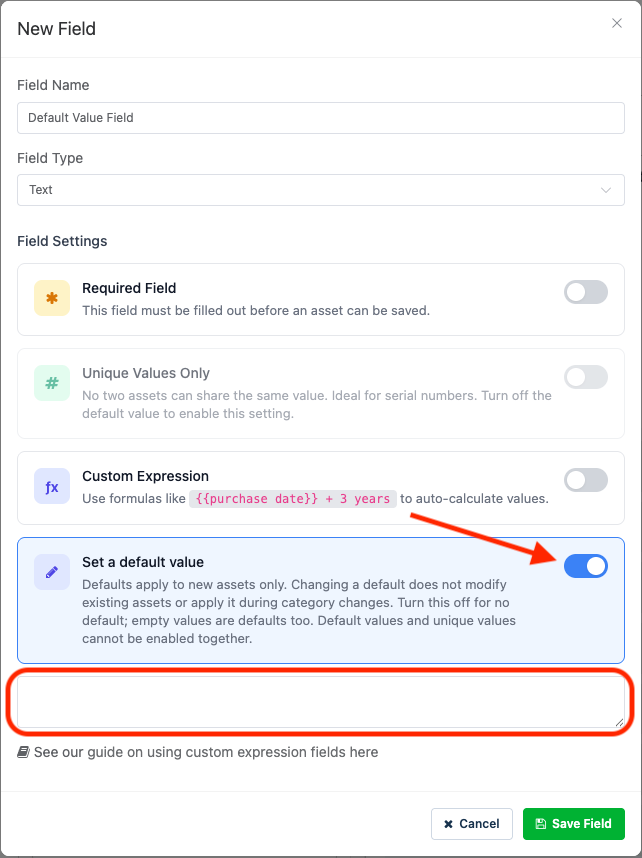
3. Save.
Which fields support it, and editing on an asset
Every field type supports a default value except Asset fields.
The default is a starting point. If it isn’t true for a particular asset, edit the field on that asset. This changes only that asset, and the field’s default stays the same.
When the default is applied
| Asset Creation | What happens |
|---|---|
| Created manually | The field is pre-filled with the default. |
| API | If the new asset is created without a value for the field, the default is set. |
| CSV Import | If the field is blank for a row, the default is set. If the row has data in that field, your data is kept. |
| Cloning | The clone gets the default only if the field is empty on the original. Existing data is carried over as is. |
What it doesn’t do
- Defaults apply to new assets only. Adding or changing a default doesn’t update existing assets.
- A default never overwrites data that’s already in the field.
Common Use Case
The most common use case for default field values would be to pre-fill a custom expression value. Setting an expression as the default would allow the calculated values to appear automatically. See Expression Field Reference for more information.
Need help? We're here for you
For any questions or assistance, feel free to reach out to us.
Ready to simplify IT asset management?
No credit card. No watered-down trial. Create a free account and see firsthand what Reftab can do.