
How to Merge Asset Fields
This guide shows how to merge data from one field to another in Reftab. For example, if you’ve ended up with two fields containing the same type of data — say, “Date Purchased” and “Date of Purchase” — this guide explains how to consolidate them by moving data from one field into the other, so your records stay clean and consistent.
In this example we will use Date of Purchase as an example.
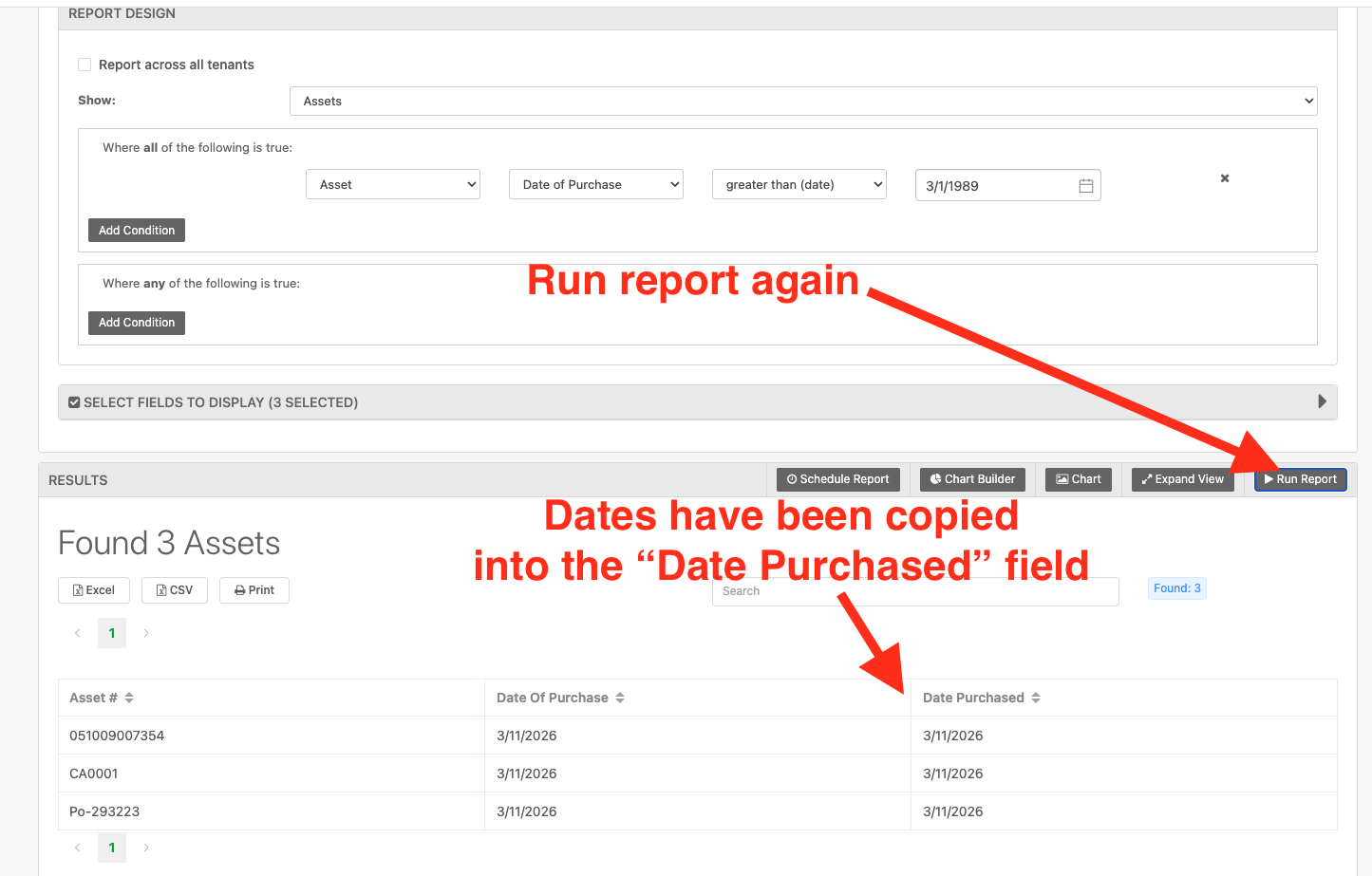
1. Generate a report of affected assets
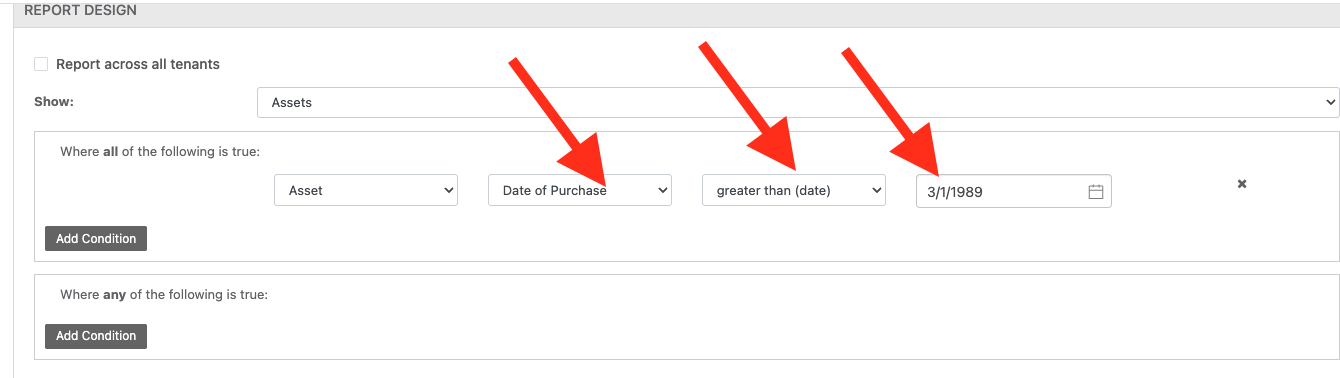
- Go to Reports and create a new report for assets
- Add a filter:
- Date of Purchase → greater than → (any old date that will capture all affected assets, e.g. 3/1/1989)
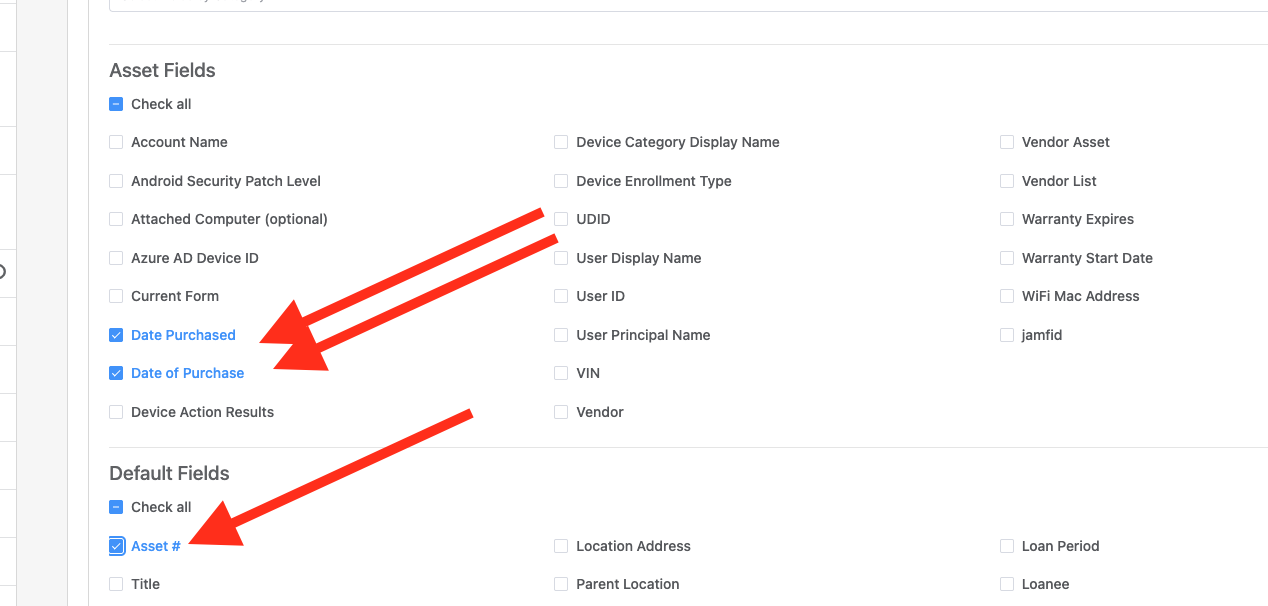
- In Select Fields to Display, include:
- Asset #
- Date of Purchase
- Date Purchased (target field)
2. Export the data
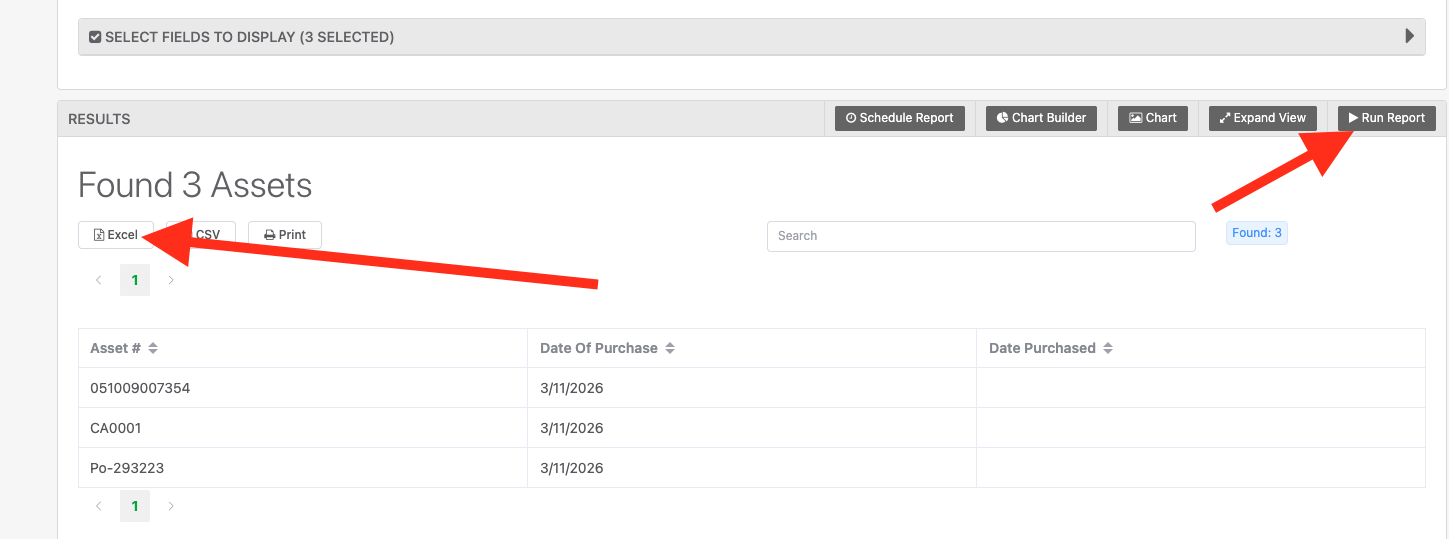
- Run the report
- Click Export → CSV
3. Use Asset Overlay to copy the data
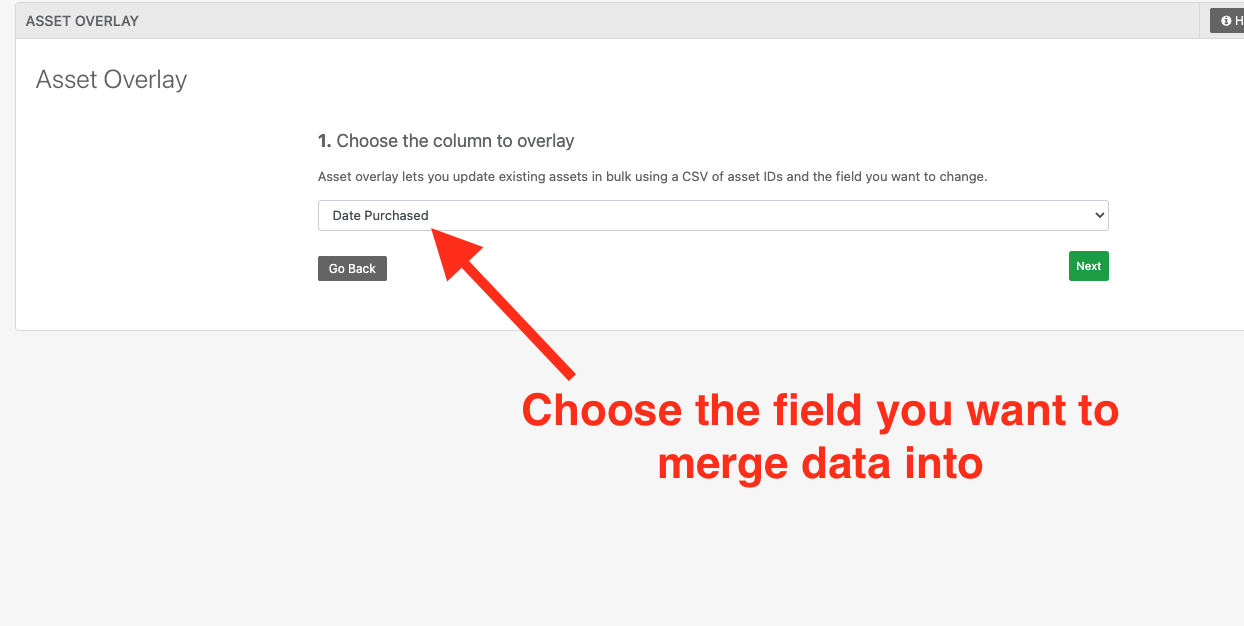
- Go to Settings → Import / Export Data → Asset Overlay
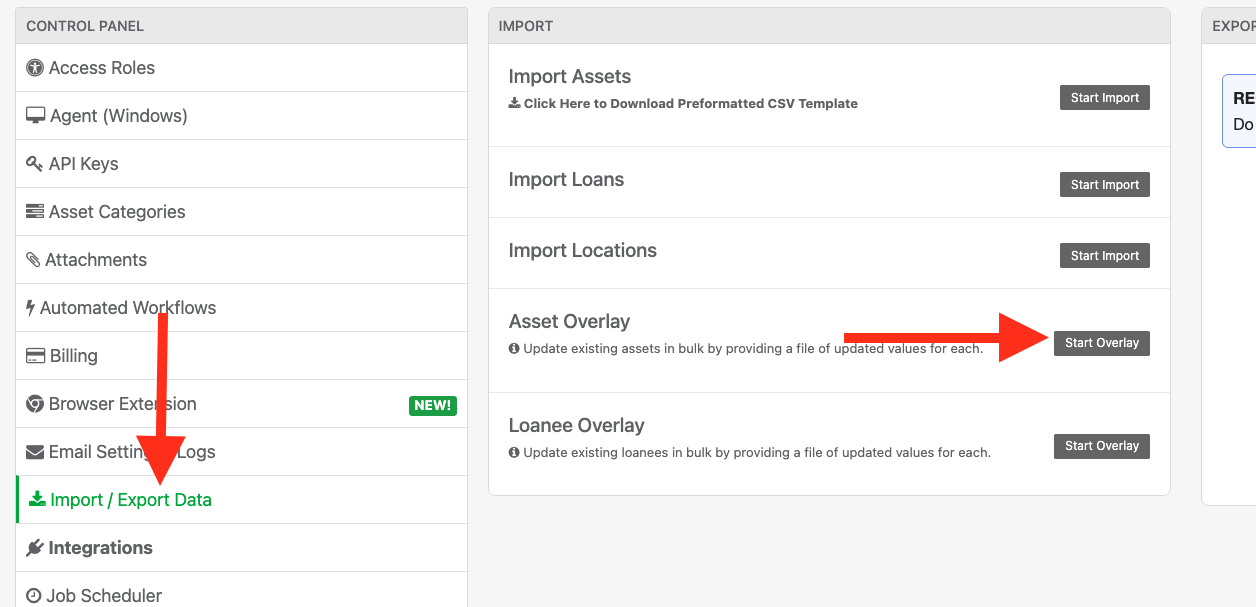
- Choose “Date Purchased” as the destination field
- Upload the CSV you just exported
During mapping:
- Map:
- Asset # → Asset ID
- Date of Purchase → Date Purchased
- Leave the existing Date Purchased column unmapped/blank
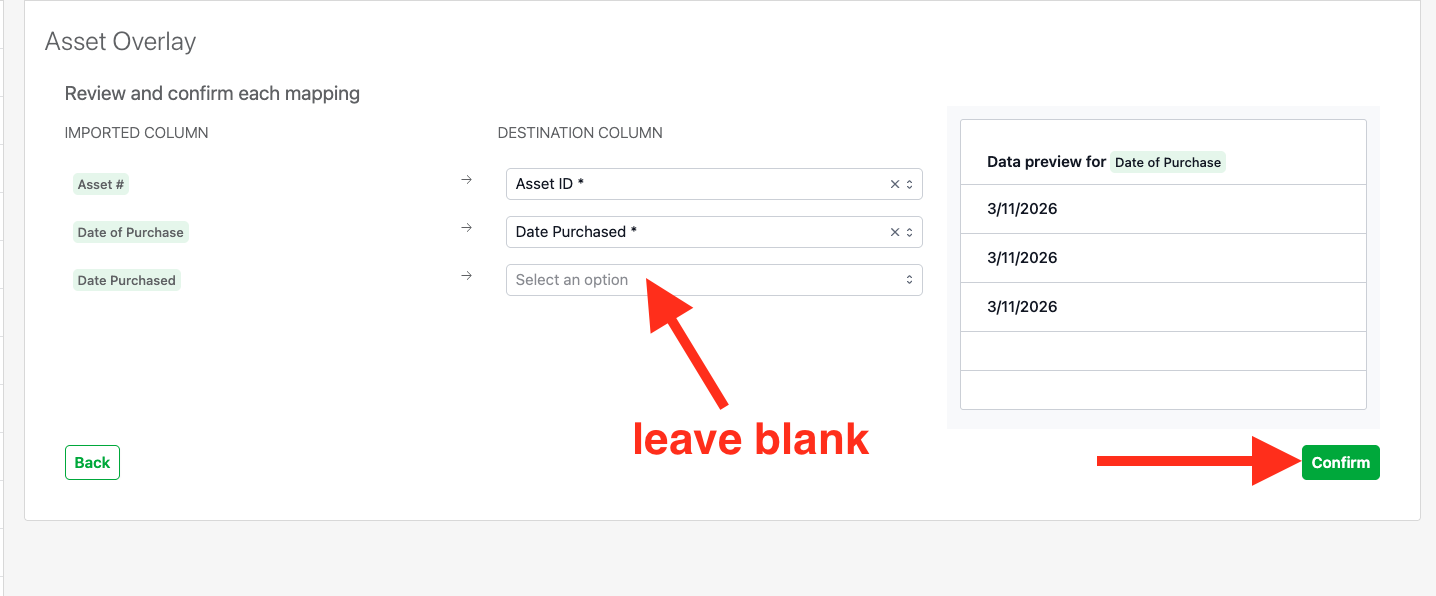
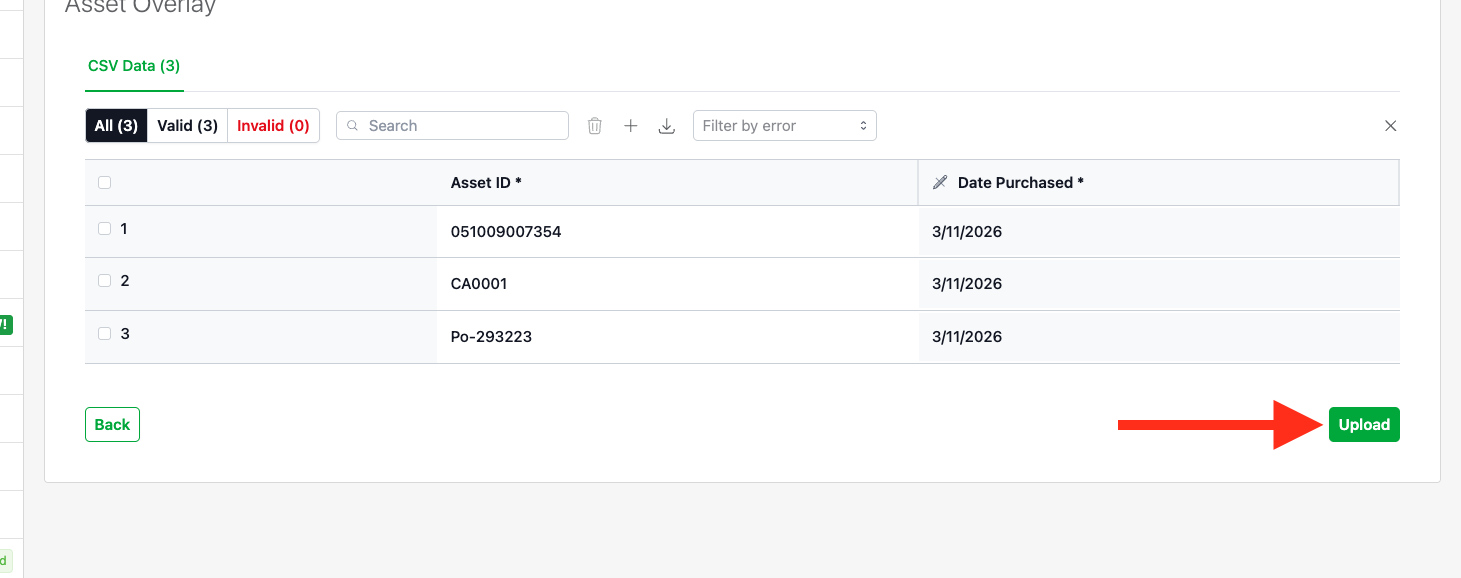
- Confirm and upload
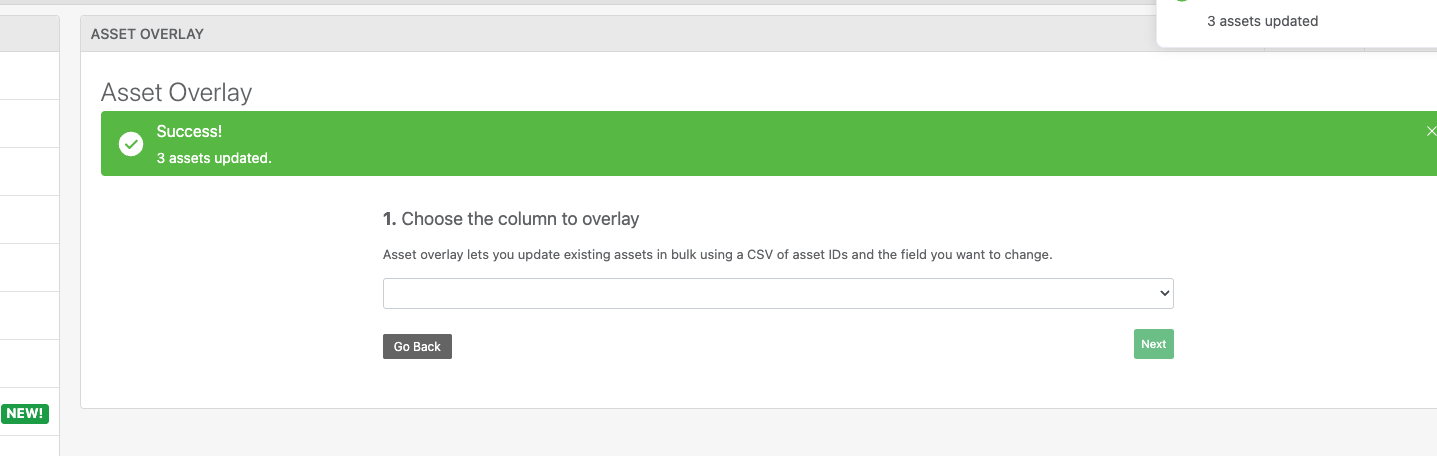
4. Verify the update
- Re-run the same report
- Confirm the Date Purchased field now contains the correct values
5. Remove the old field
- Go to Settings → Asset Categories
- Edit the category

- Locate Date of Purchase
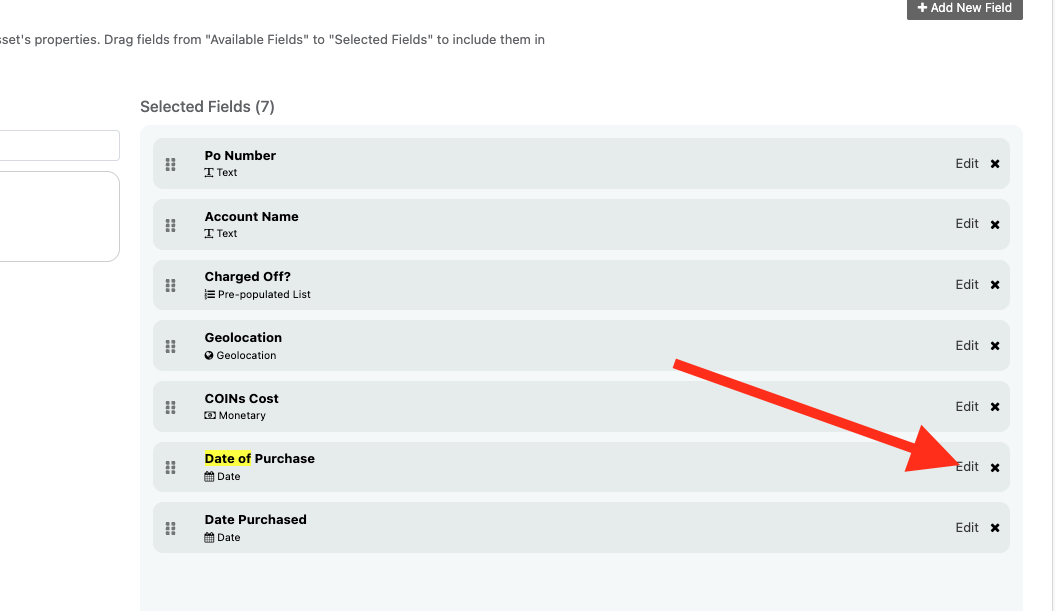
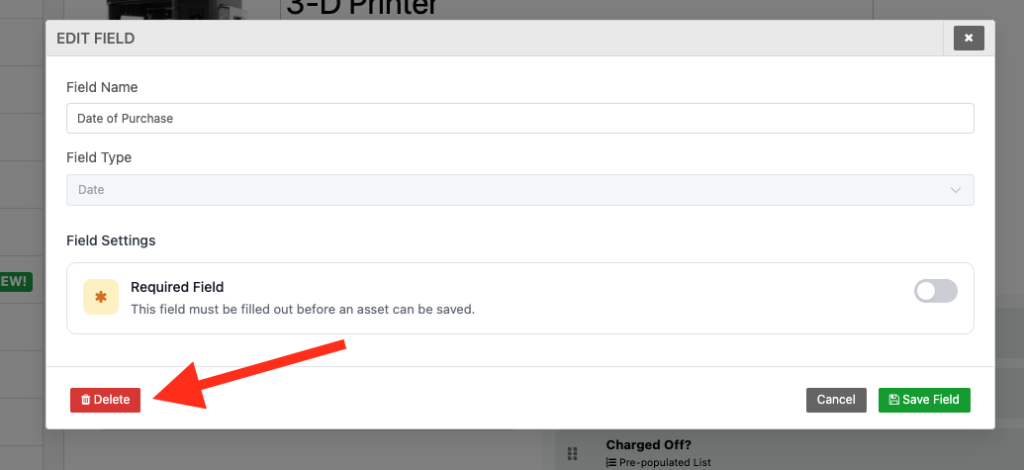
- Delete the field
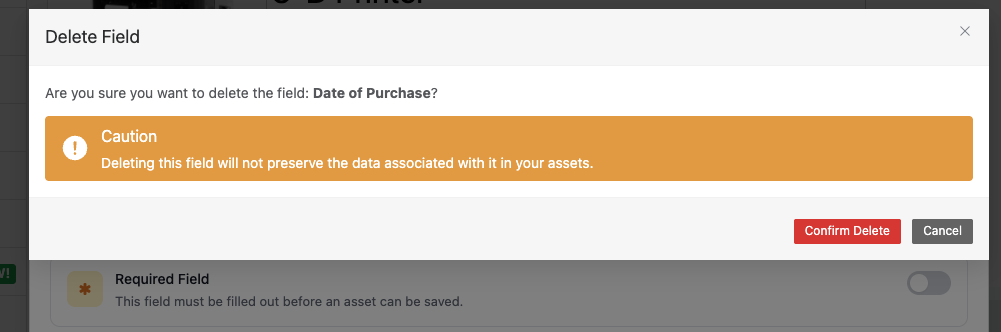
⚠️ Note: Deleting the field permanently removes it, so make sure the data looks correct before doing this.
Need help? We're here for you
For any questions or assistance, feel free to reach out to us.
Your assets, simplified. Begin your journey with us!
50 assets free forever with unlimited inventory & software tracking. Includes email alerts, mobile apps, reports, custom asset tags and more.