
How to automatically update asset details and field data using workflows
By using Reftab’s automated workflows, you can update asset field data automatically based upon certain triggers and optional conditions.
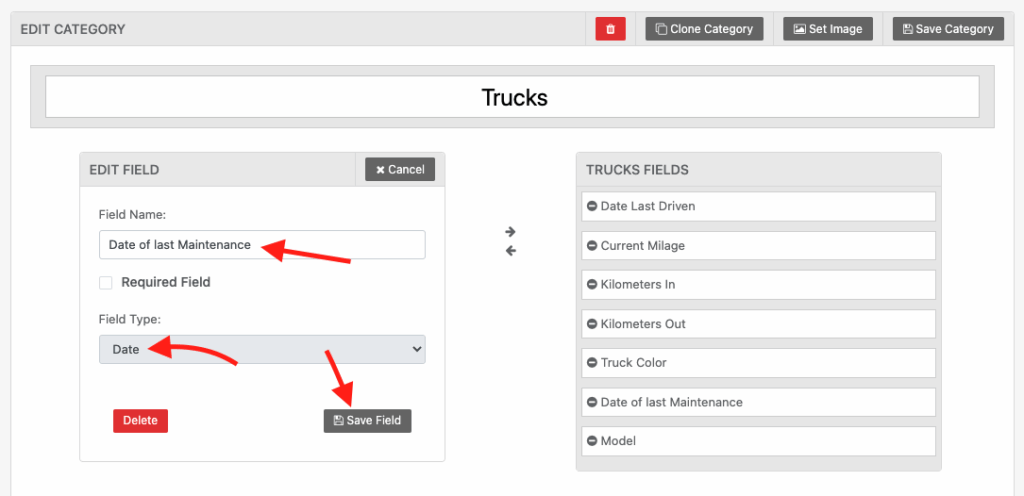
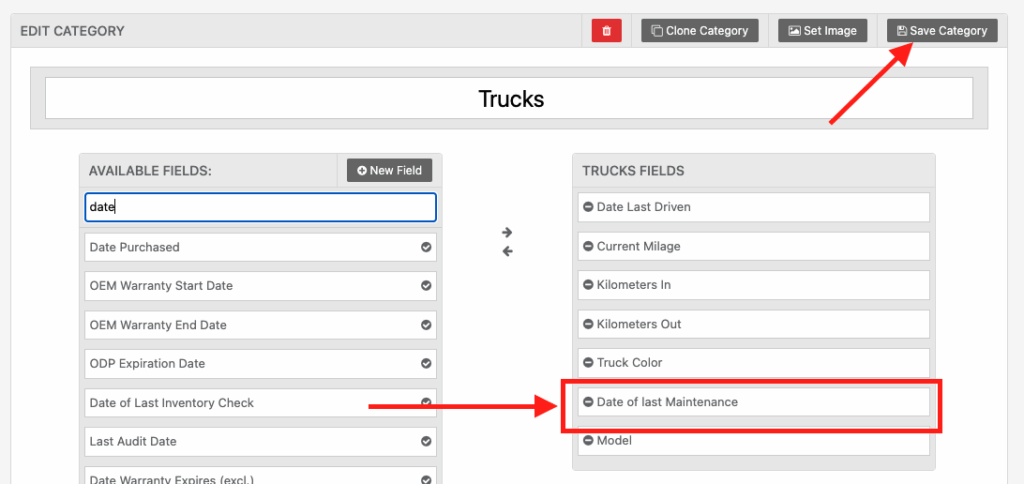
For example, if you perform maintenance periodically on assets, you may want to see the “Date of last completed maintenance” on the asset level. To do this, edit your category and add a new field “Date of last completed maintenance” and save it as a date field.
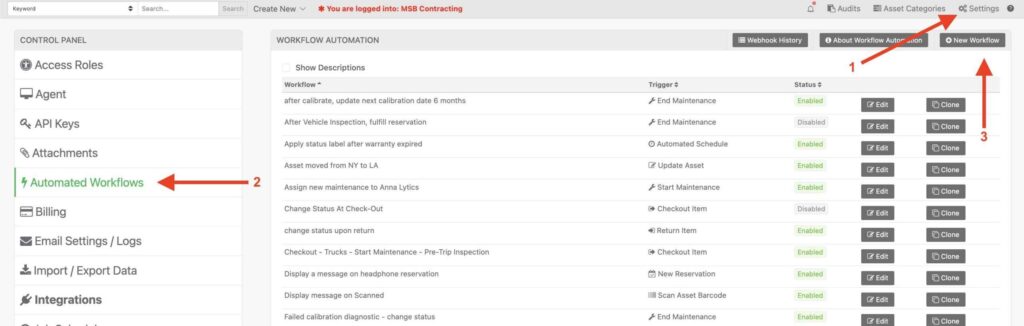
Then, click “Settings” > “Automated Workflows” > “New Workflow“
On the next page, select a trigger of “Finish Asset Maintenance“. This means the workflow will run whenever a maintenance form is completed on an asset.
Next, you’ll be able to add optional conditions that will allow this workflow to run or not run on certain assets, categories of assets, types of maintenance, etc. This is optional but in this example, we’ll add a condition so that this workflow only runs on the category of “Trucks”.
Next, choose an action of “Change Asset Field” and select ‘Date of Last Maintenance’.. Then, in the last drop-down choose ‘Now’.
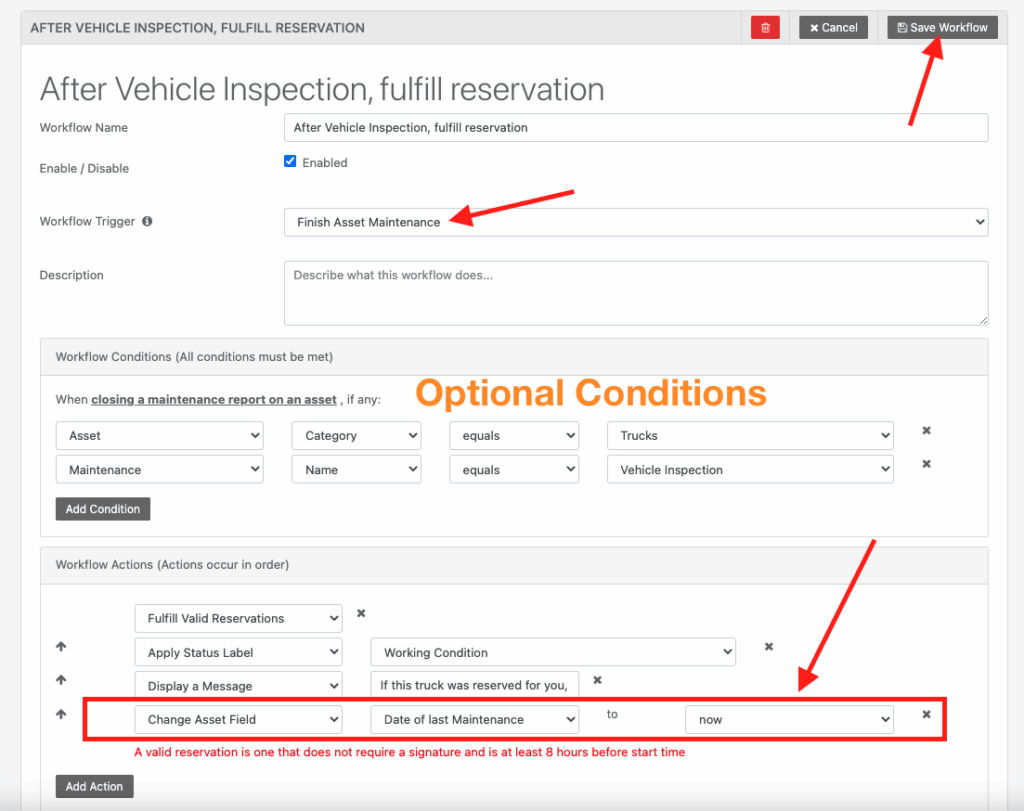
When done, click “Save Workflow“.
Now, whenever someone completes a maintenance form on a Truck, the field “Date of Last Maintenance” will auto-populate with the date and time it was completed.
NOTE: This will not update to the override date if selected when closing the maintenance form.
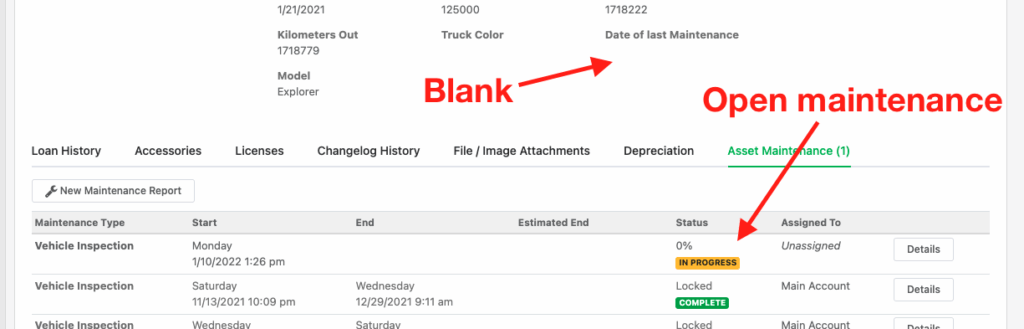
On the screenshot below, you can see “Date of Last Maintenance” is blank and there is an open maintenance form.
When we complete and submit the maintenance form:

The “Date of Last Maintenance” will be captured on the asset.
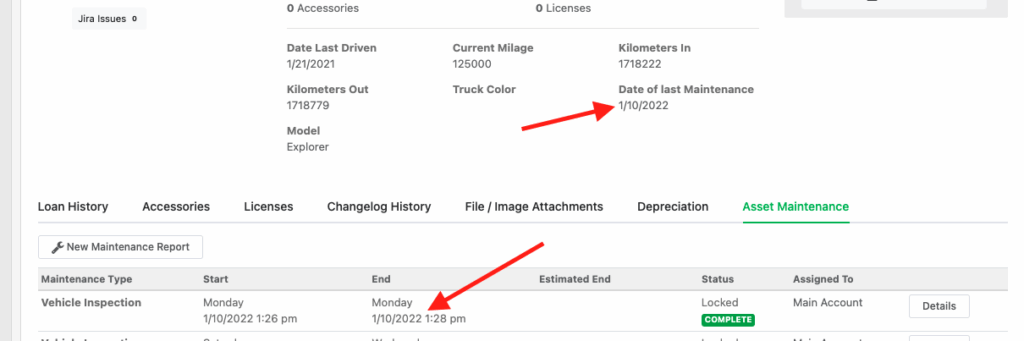
This is really helpful because now on the asset table I can easily see on the page this important date. It will help me understand a timeframe of when my trucks were last maintained. This way I can avoid having to go into each asset’s maintenance history one-by-one or even run a report.

Note: You can select other relative dates such as “next month”, “next three months”, “next year”, etc. This means that if you wanted to store a date for “Next Maintenance Due Date” select one of the other options within the workflow action.
For values that should be calculated from other asset fields rather than changed by an action, see how to use custom expression fields.
Chaining workflows together
You can chain workflows together so that for example, if a certain amount of time has passed since a truck’s date of last maintenance, you can automatically assign new maintenance work so that each truck is kept up-to-date with it’s maintenance.
In the screenshot below, I have workflow with a trigger of “Schedule” and a condition that looks if any asset has a “Date of last maintenance” less than last month – meaning older than 30 days, then I automatically start a new maintenance in the Workflow Actions section.
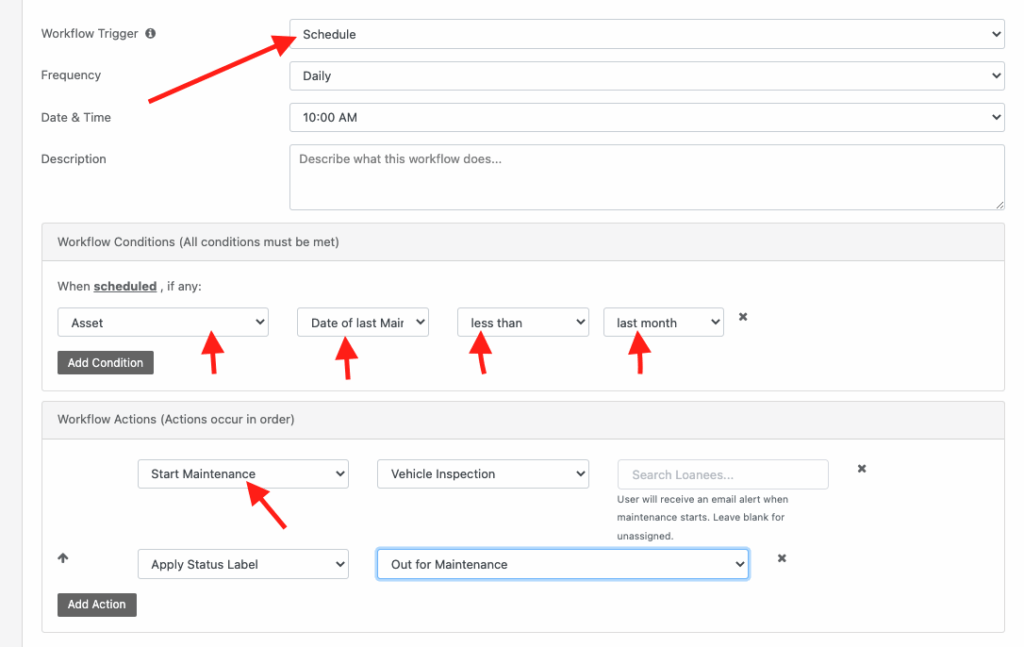
Everyday at 10:00am Reftab will comb through all my assets and if something is overdue for maintenance, will open a new maintenance form and apply a status label of “Out for Maintenance”.
For example, my Trucks without any maintenance date would display like the below image:
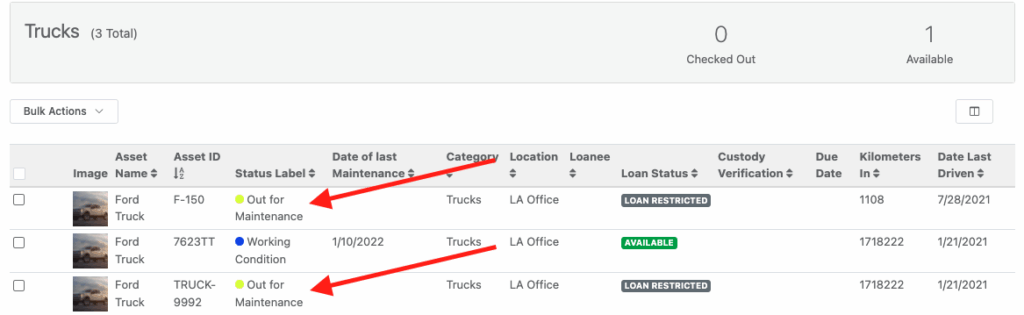
If I click into one of them, I see an open maintenance:

There’s a lot you can do with workflows, especially when you start to chain them together as shown in this article.
Need help? We're here for you
For any questions or assistance, feel free to reach out to us.
Your assets, simplified. Begin your journey with us!
50 assets free forever with unlimited inventory & software tracking. Includes email alerts, mobile apps, reports, custom asset tags and more.