
How to Setup Slack Channel Integrations
Reftab makes it easy to keep your team informed by sending automated notifications directly to your Slack channels. Whether it’s a new asset check-in, upcoming maintenance, or reservations, you can seamlessly integrate Slack to ensure everyone stays up to date in real time.
Step 1: Create a new app in Slack: Click here to access this page.
2. Click “From Scratch”

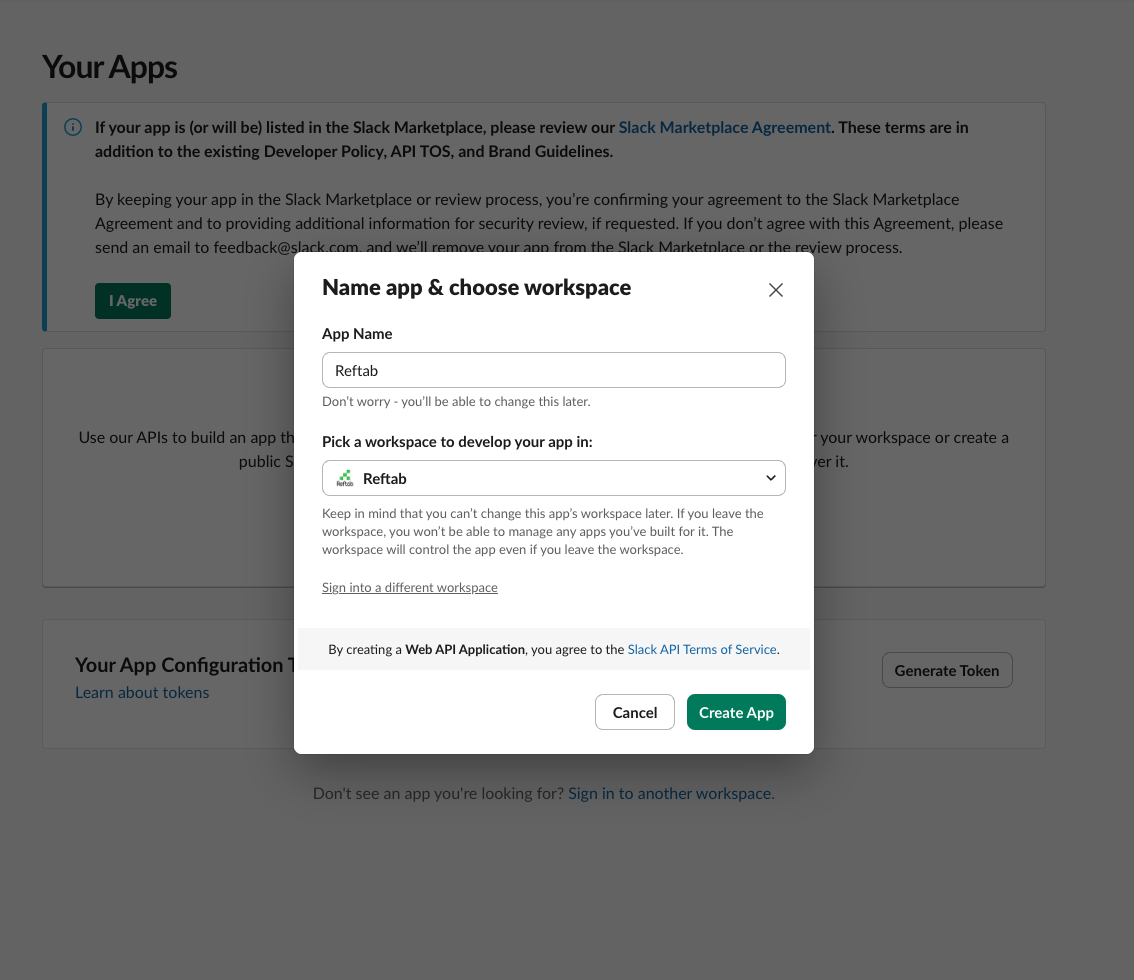
3. Name your new app and choose the Workspace you would like to develop this app in
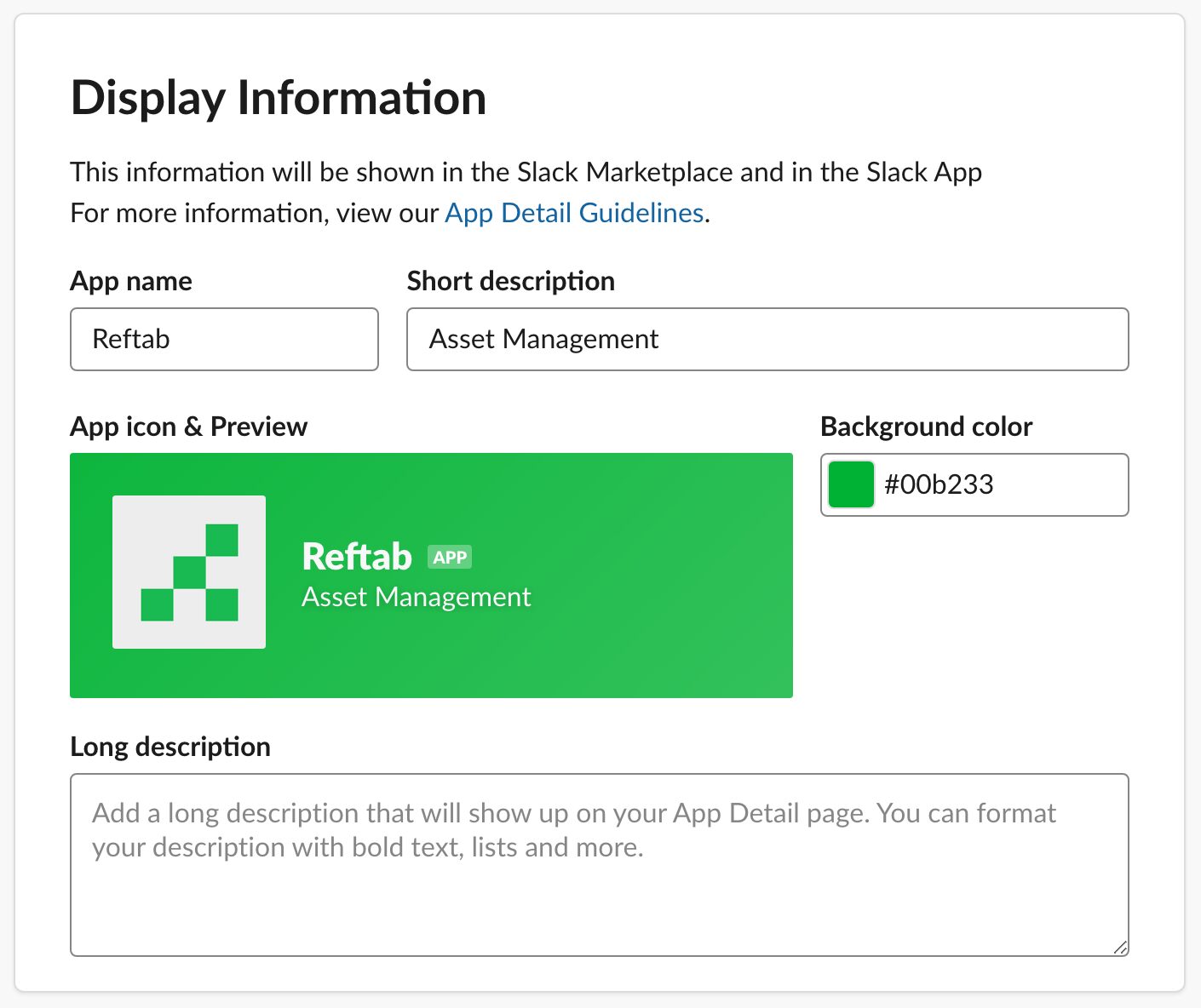
4. Scroll down until you see Display Information enter the Reftab app display information as shown:

5. In the Side Menu select “Incoming Webhooks”

6. Toggle Incoming Webhooks

7. Once toggled, select “Add New Webhook to Workspace”

8. Select which channel you would like to send messages to
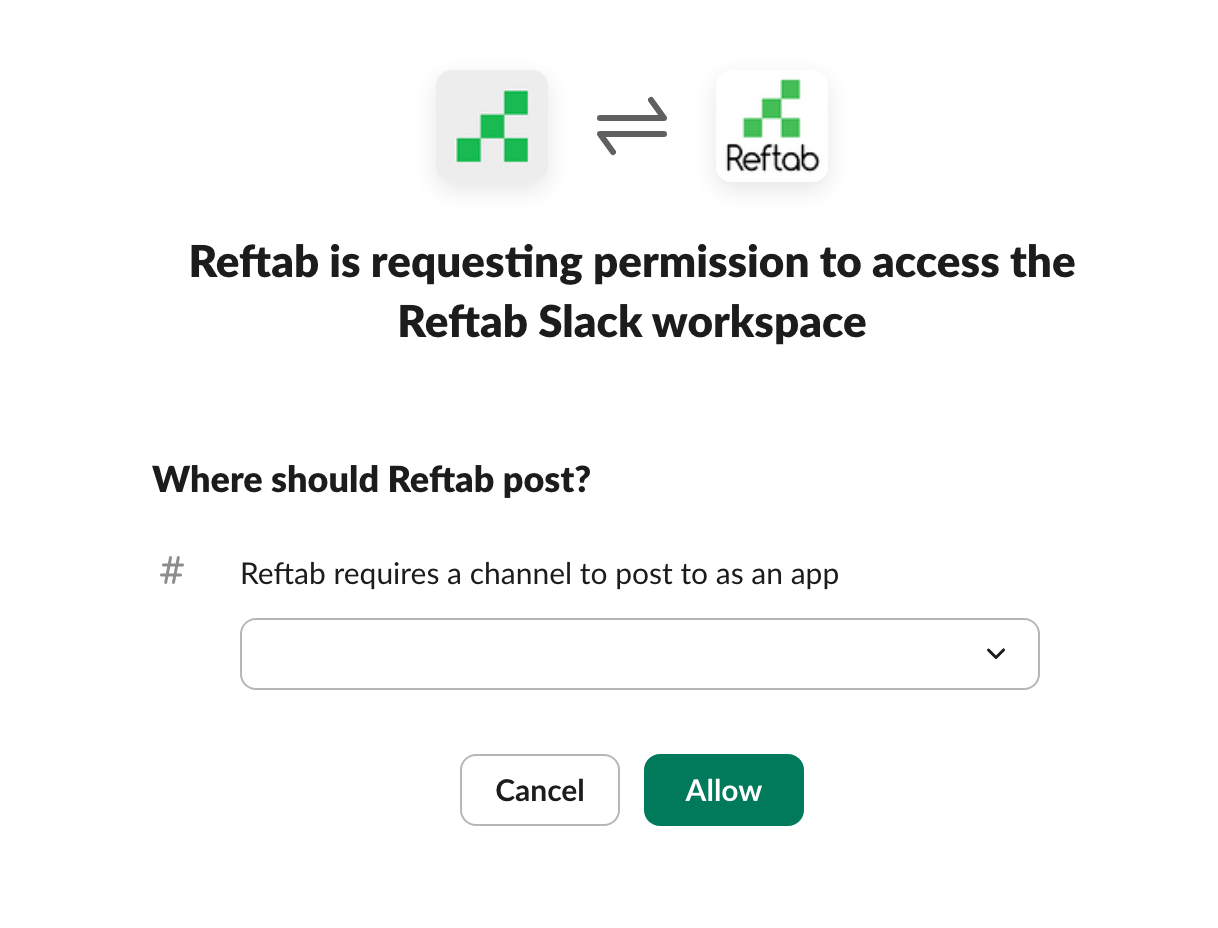
9. Copy the webhook URL then head to Reftab

10. Back in Reftab, head to Settings > Automated Workflows

11. Click New Workflow

12. Name your workflow
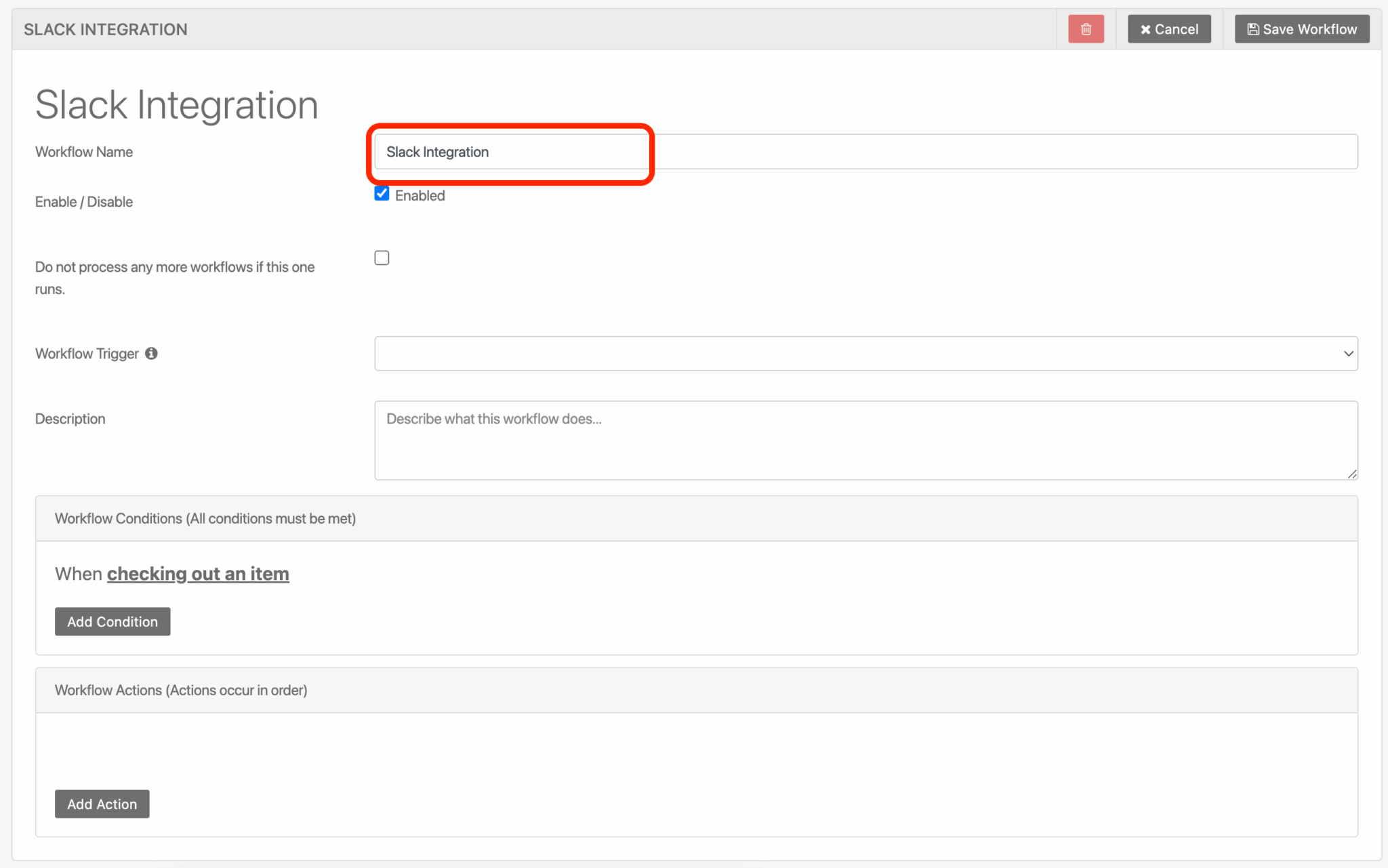
13. Select Check Out Asset

14. Add an Action of Webhook

15. Paste your Webhook URL from Slack

That’s it! Now, each time an asset is checked out Reftab will post a slack message similar to the one below:

Workflow Triggers that Currently Support Slack Messages
By changing the workflow trigger in step 12, you will also receive notices for those actions in Reftab. The following triggers are currently supported:
- Create New Asset
- Update Existing Asset
- Checkout Item
- Create Reservation
- Cancel Reservation
- Return Item
- Scan Asset Barcode
- Start Asset Maintenance
- Finish Asset Maintenance
(Advanced) How to send messages to multiple channels
Due to the nature of Reftab’s automated workflows, you are able to add an unlimited number of conditions. For example, if you wanted separate Slack channels to receive messages depending on the Location of a checkout, you can add a condition for the Location:

For each additional channel, you will want to create a new webhook URL. This can be done by following Steps 7 to 9. Keep in mind, all conditions of your workflow must be met in order to send the webhook. This means, for each location you want to send a message, you will need a new workflow. Be sure to follow Steps 10 to 15 when creating all new workflows.
Need help? We're here for you
For any questions or assistance, feel free to reach out to us.
Your assets, simplified. Begin your journey with us!
50 assets free forever with unlimited inventory & software tracking. Includes email alerts, mobile apps, reports, custom asset tags and more.