
How Do I Customize a Category and Fields?
Categories group assets together of similar type. This guide will explain how to customize your Reftab account to track any type of asset you need. If you wanted to track laptops, you would create a category called “Laptops” and then add fields. Fields are the individual attributes you want to track on each laptop. For example, “Brand”, “Serial Number”, or “Warranty Expiration Date” would be possible fields on your laptops category.
Importing an existing spreadsheet? Reftab can also create categories and fields while you import multiple asset types from one file.
We will cover the following:
- Adding New Categories
- Adding New Fields
- Signature Settings
- Low Quantity Level Alerts
- Preset Asset Titles
Adding New Categories
1. Navigate to Settings > Asset Categories > New Category

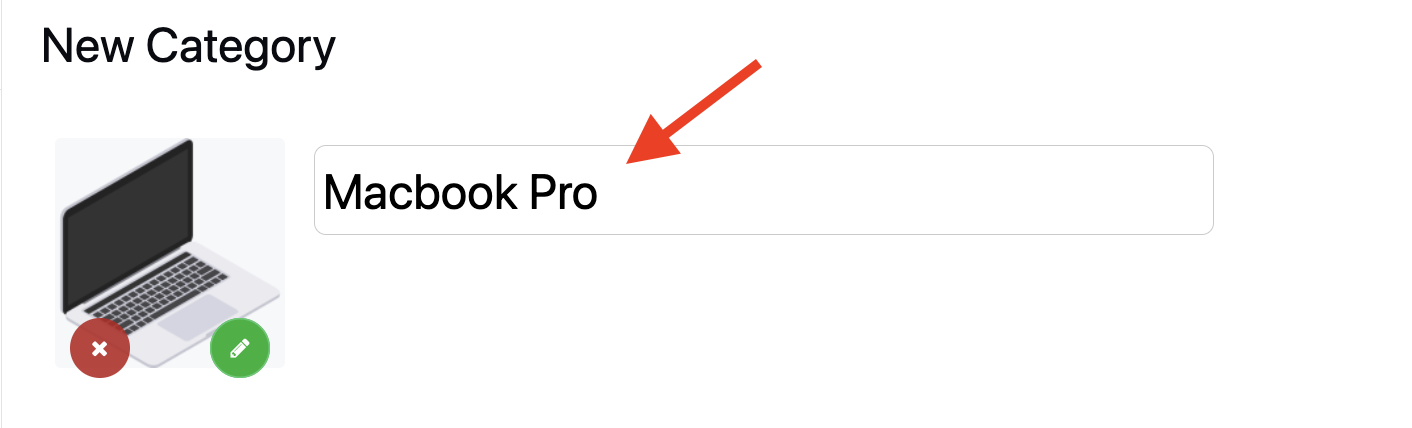
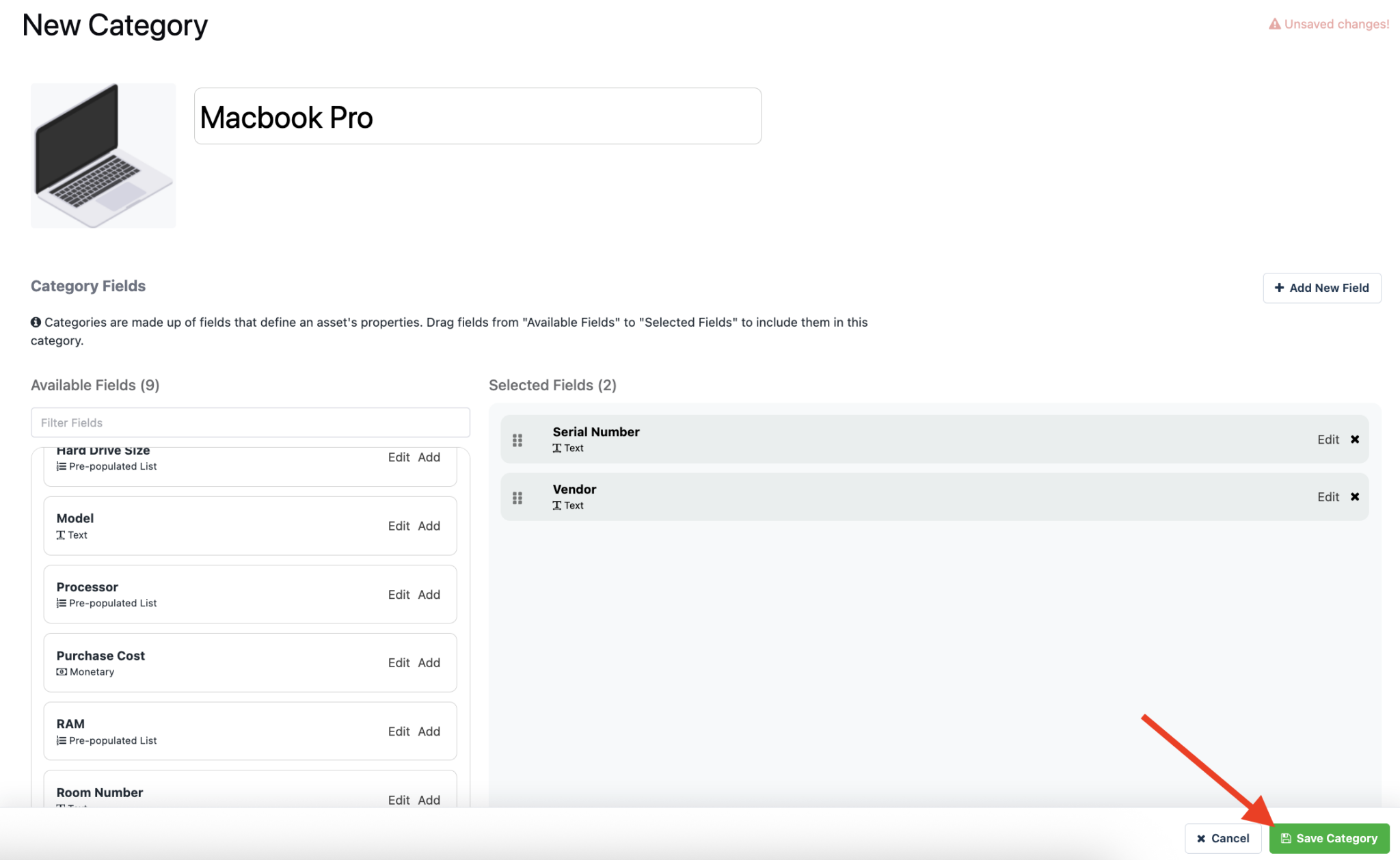
3. Name your category, and optionally, assign an image.
Adding New Fields
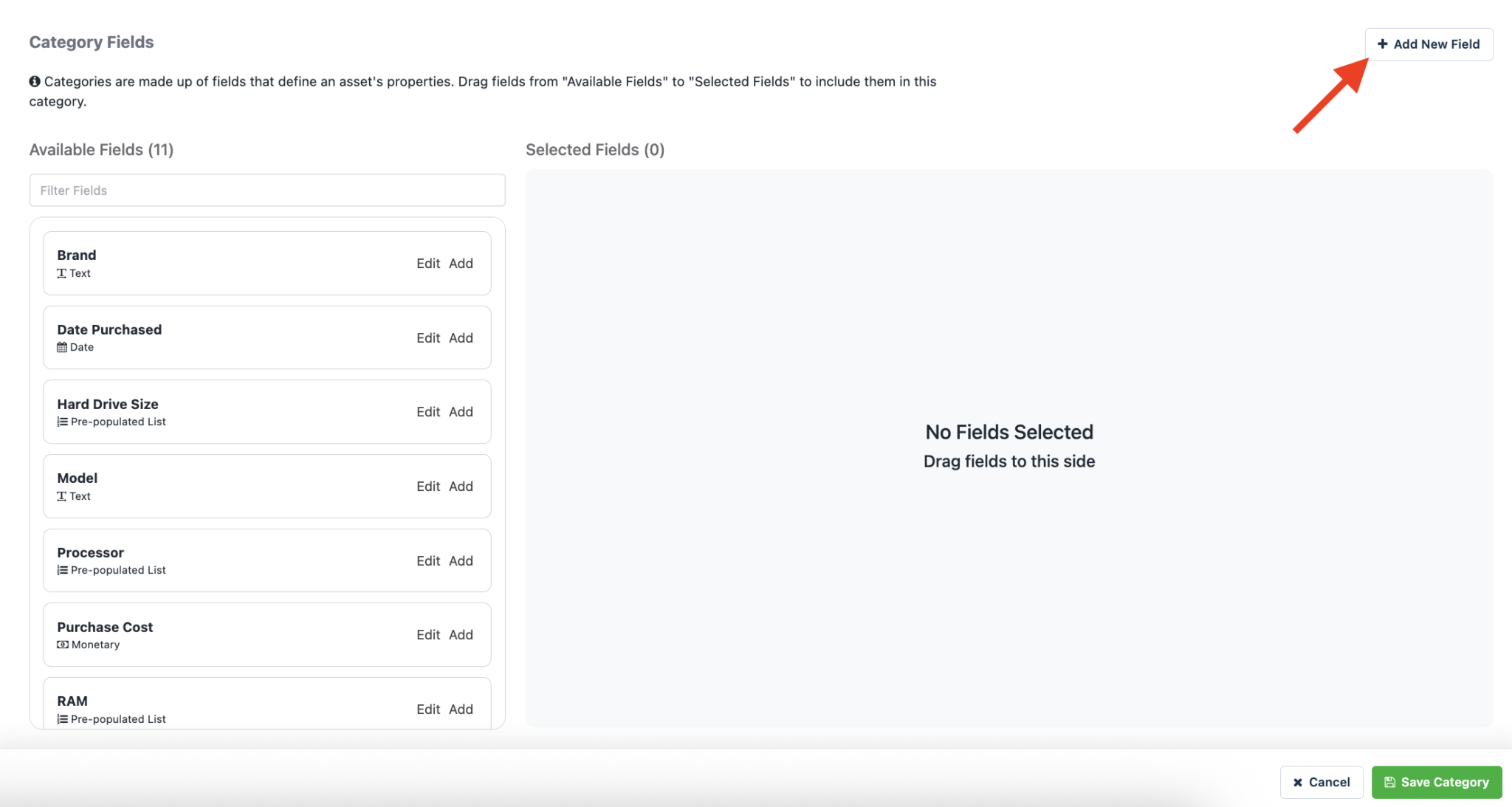
1. To add a new field, click Add New Field.
2. Give your field a name, type, and save.
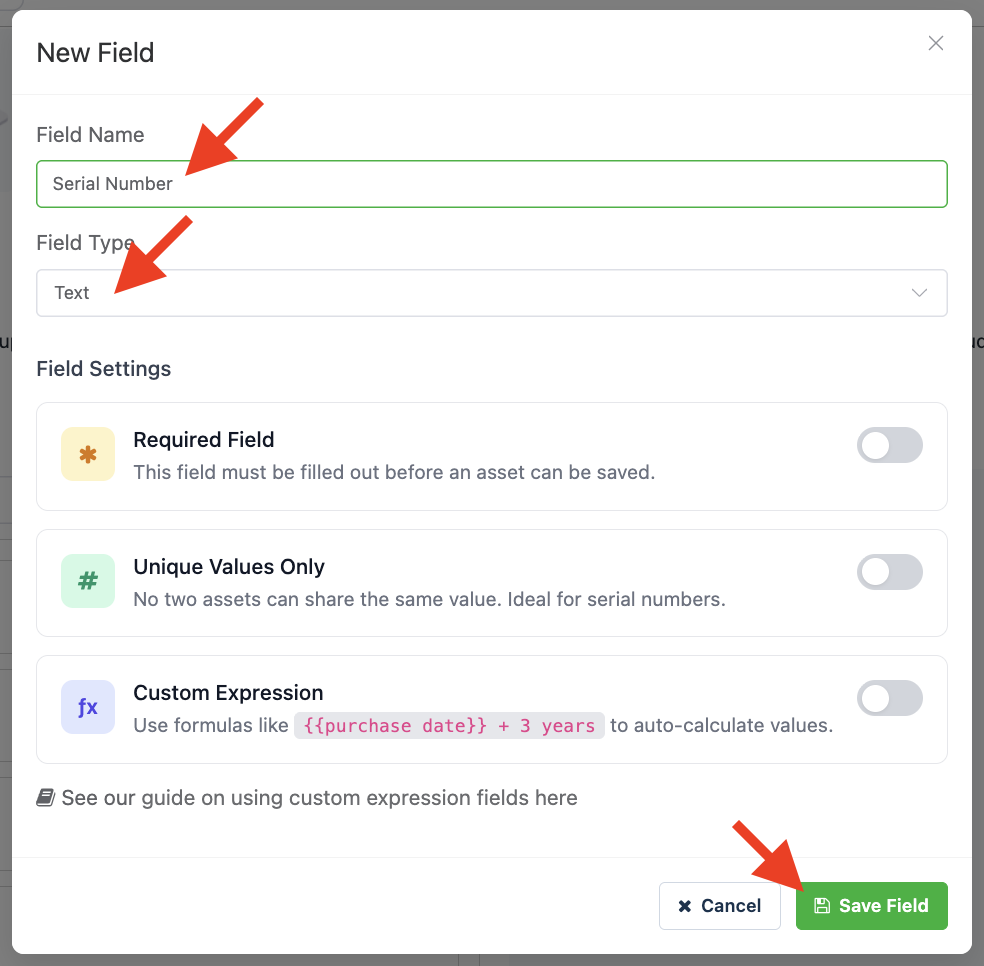
Note: You will want to use the correct data type for each respective field. For instance, if tracking a field called “Purchase Cost”, that would be a field type of Monetary.
Fields can also be configured as calculated expression fields when you want Reftab to derive a value from other asset data.
3. Once your field is saved, click Add, or drag and drop the field to the right.
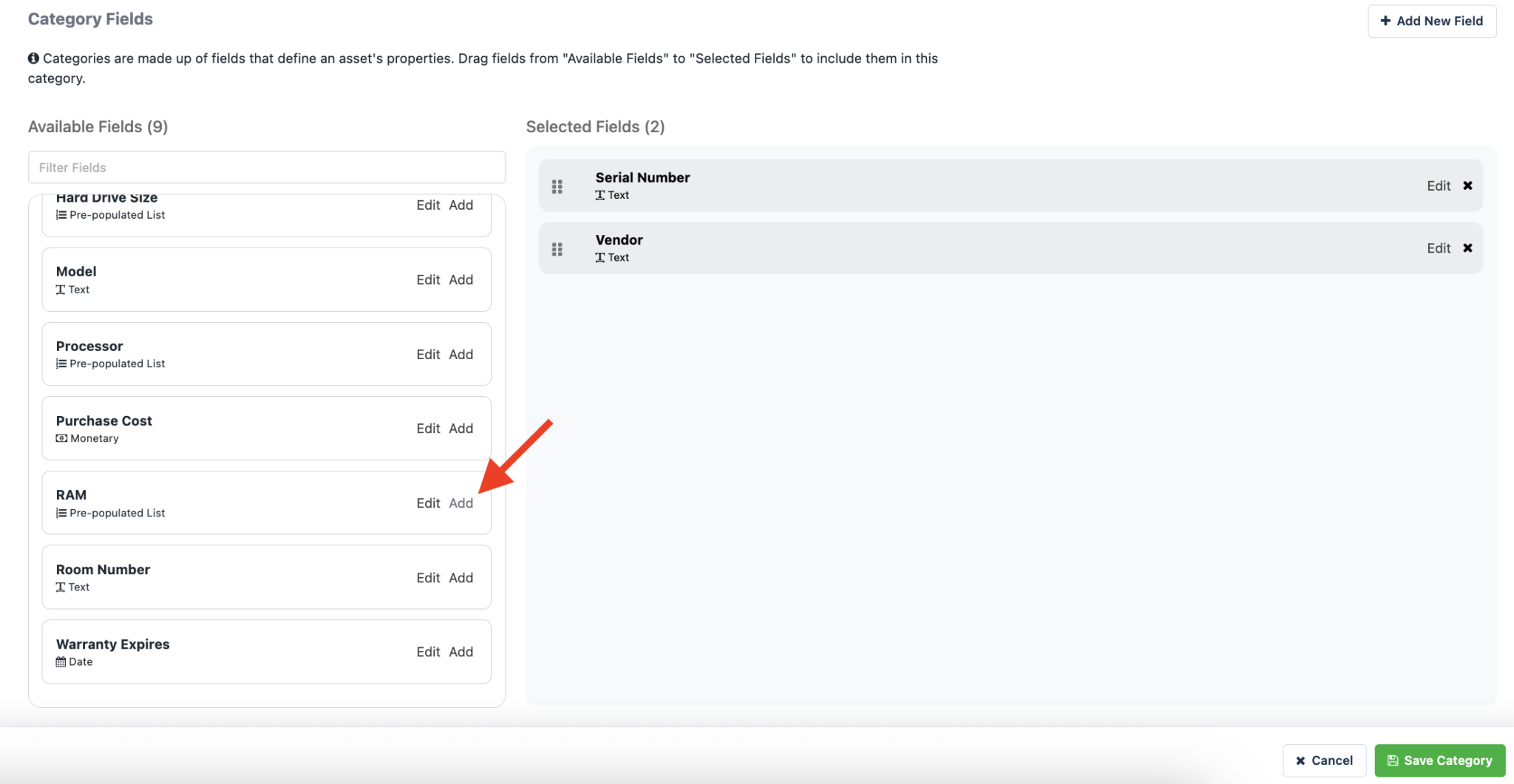
4. Once you have added your desired fields, click Save Category.
Optional Settings
Signature Settings
5. You may choose to enable signatures for items in this category when checking out or reserving. To enable, toggle the setting and setup your agreement statement.

For more options and settings related to electronic signatures, see this guide: Requiring Electronic Signatures Upon Checkout
Low Quantity Level Alerts
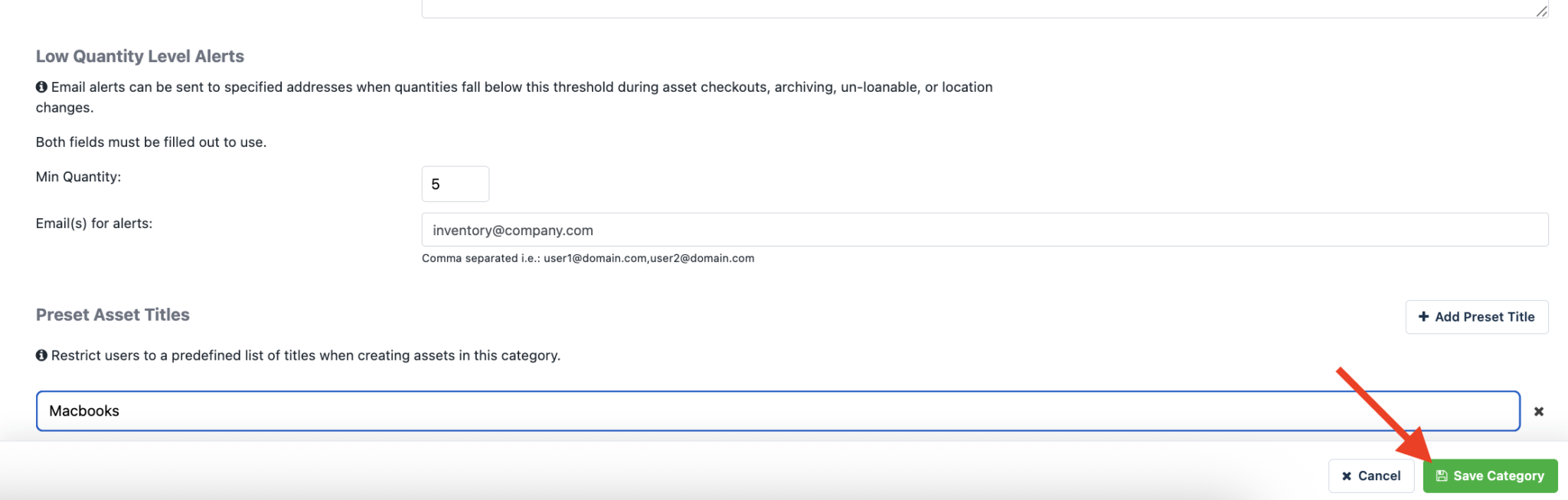
6. Email alerts can be sent to specified addresses when quantities fall below this threshold during asset checkouts, archiving, un-loanable, or location changes.

Note: Multiple emails can be assigned for alerts, separated with semicolons.
Preset Asset Titles
6. To setup preset asset titles, click Add Preset Title, then assign a preset title for the category.
Preset titles restrict users to a predefined list of titles when creating assets in this category.

Note: Multiple preset asset titles can be added by clicking Add Preset Title.
7. Once done with your configurations, click Save Category
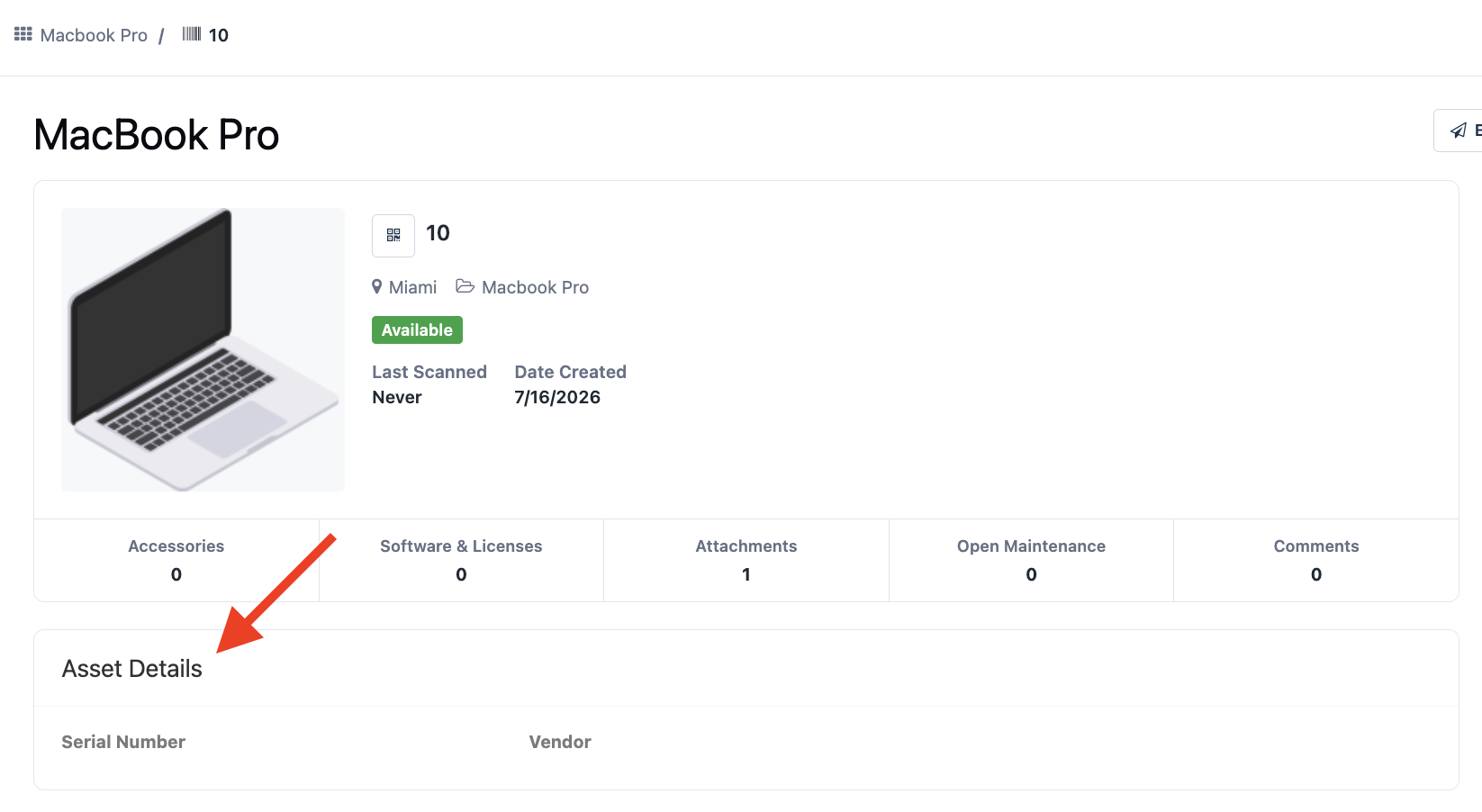
Now when creating a new asset, the category you select will have the fields available for use.
Need help? We're here for you
For any questions or assistance, feel free to reach out to us.
Your assets, simplified. Begin your journey with us!
50 assets free forever with unlimited inventory & software tracking. Includes email alerts, mobile apps, reports, custom asset tags and more.