
How do I integrate Reftab with Apple Business Manager?
This guide walks you through connecting Reftab with Apple Business Manager (ABM). Once integrated, your Apple devices automatically sync into Reftab, improving asset discovery and eliminating manual data entry. Setup takes just a few steps.
Generate API Key From Apple Business Manager
Configure ABM Fields within Reftab
Generate API Key From Apple Business Manager
- First, sign in to your Apple Business account (https://business.apple.com/).
- Next, click on “Settings“, then “API“.
- Click “Add API Account“.
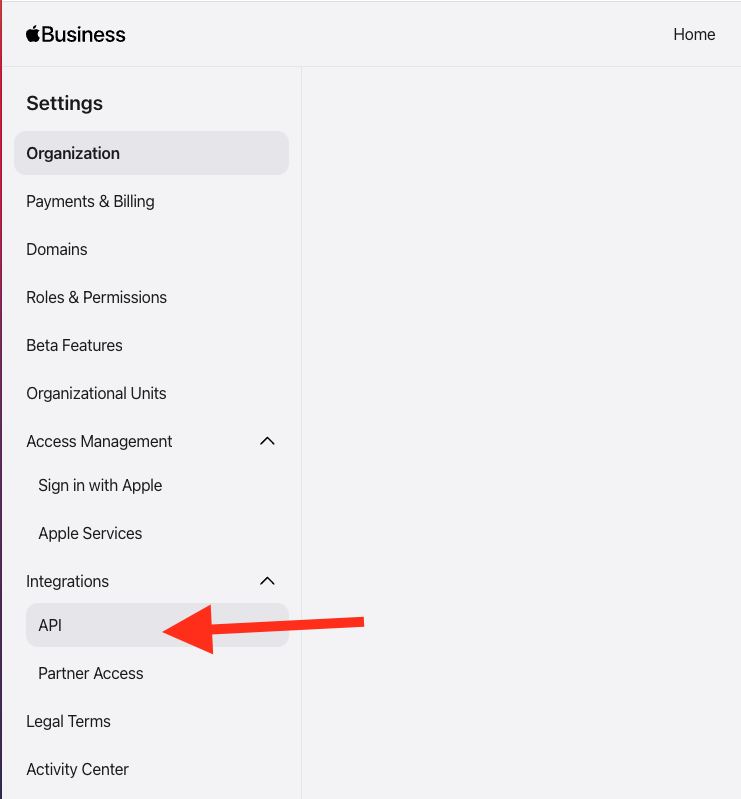
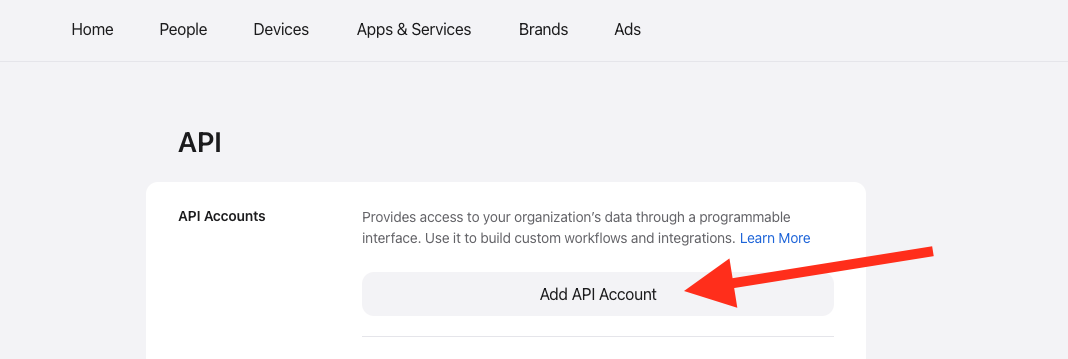
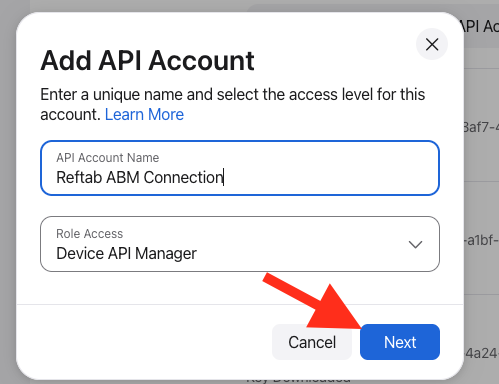
4. Next, name the API account, and give it the Device API Manager role, then click next.
5. Next, ABM will provide you with a private API key, click “Generate & Download” and save this file for later.
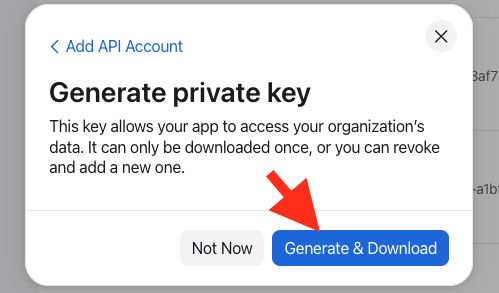
*NOTE* You must save this private api key at this stage, as it can only be downloaded the one time during this step.
6. After saving the private key, click “Manage“, then copy and paste your Key ID and Client ID into a text file – We’ll paste these into Reftab in the next steps.

Configure ABM Fields within Reftab
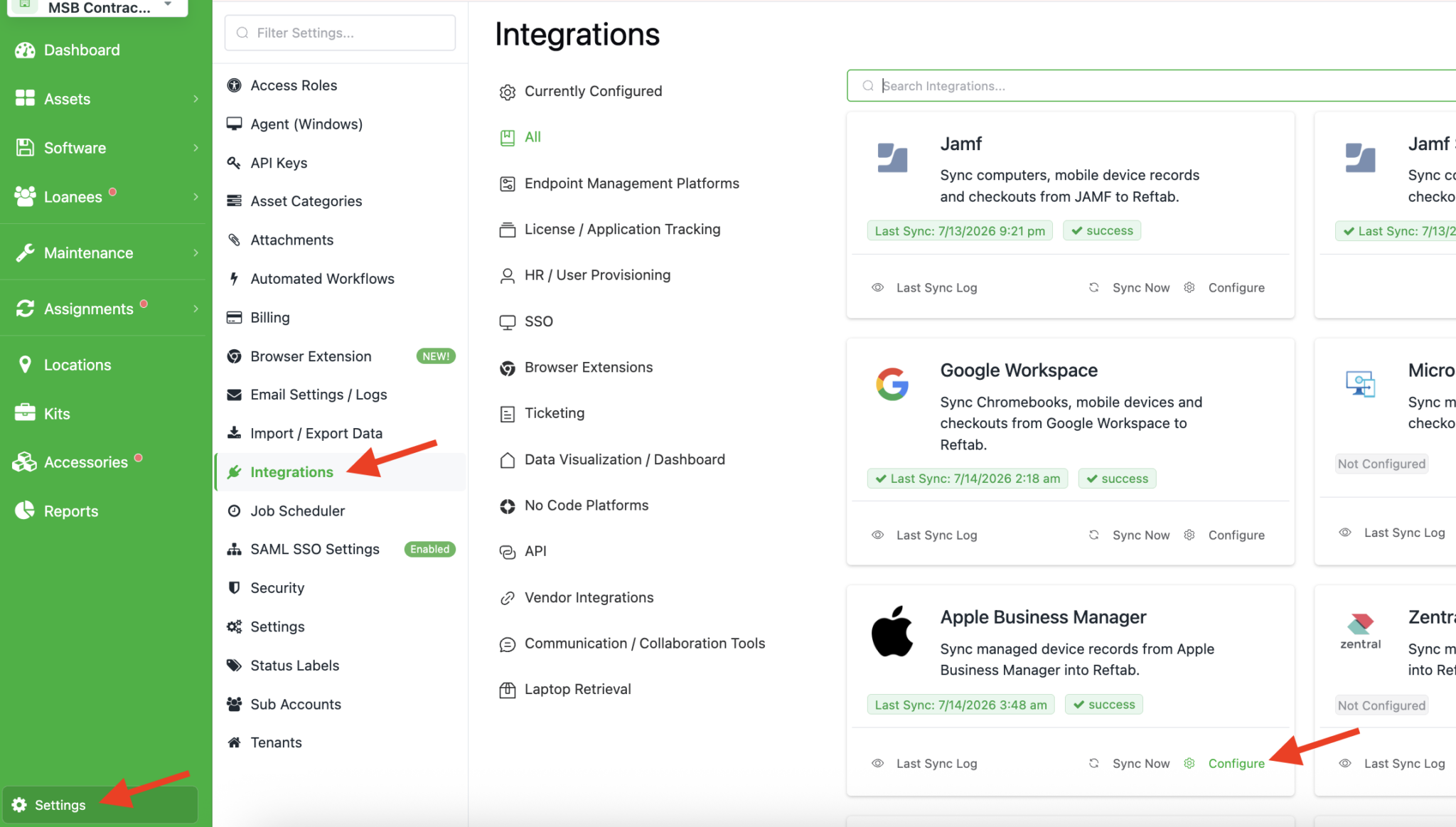
- Now we will login to Reftab and navigate to Settings > Integrations > Apple Business Manager > Configure.
2. Next, input your Client ID and Key ID.
3. Then, paste the contents of the previously downloaded Private Key.
(You will need a text editor to open the .pem file in order to copy it’s contents.)
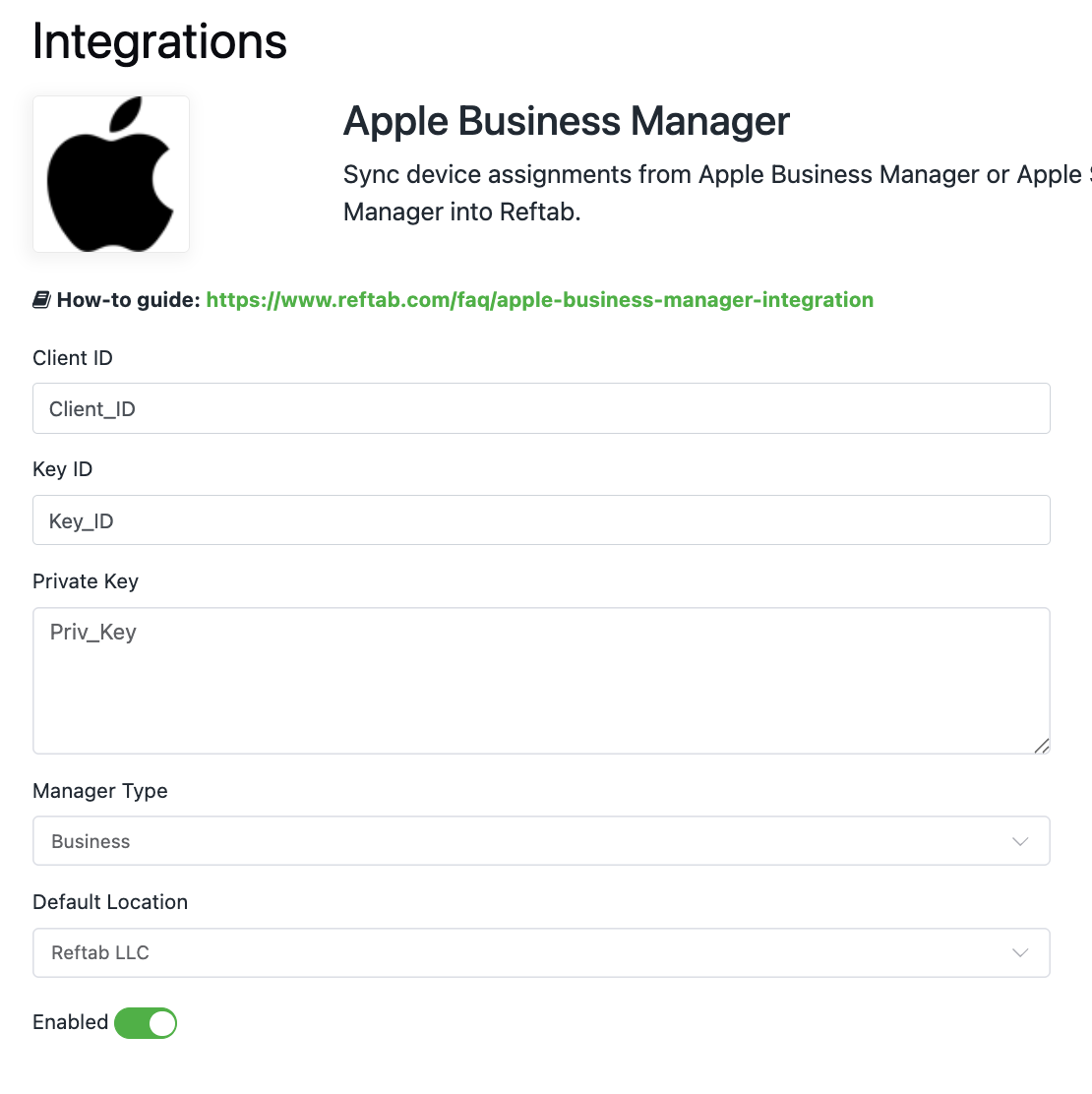
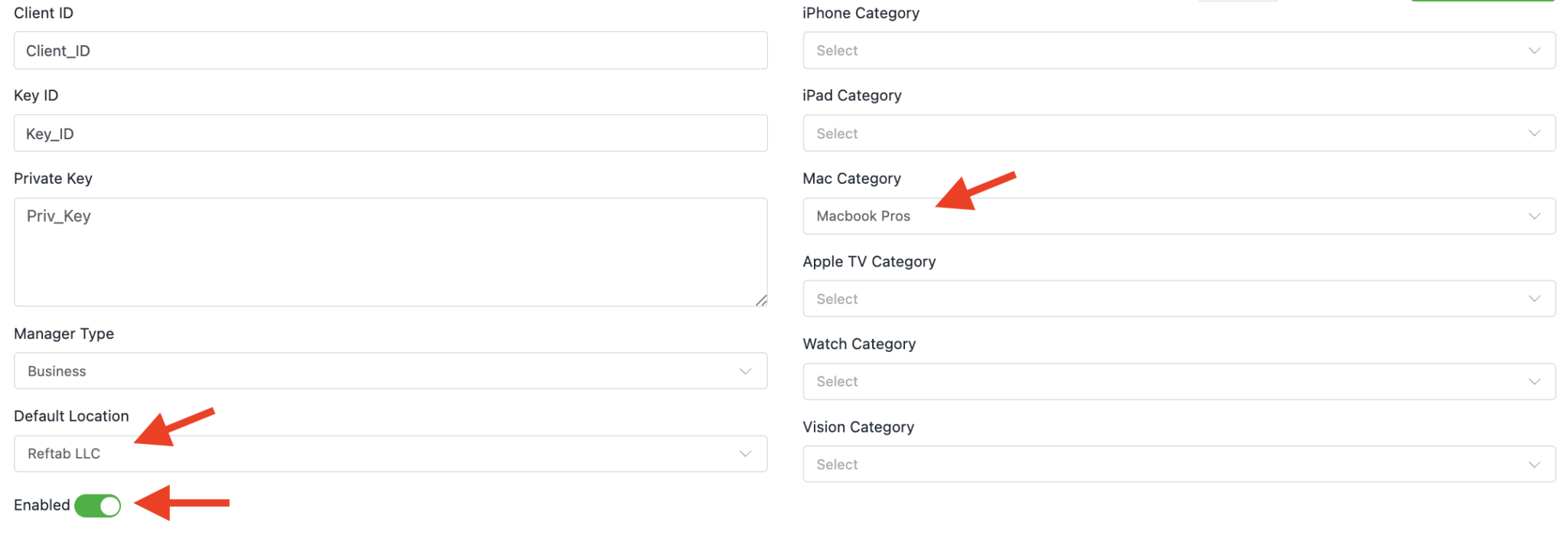
4. Next, set a Default Location, and enable the integration.
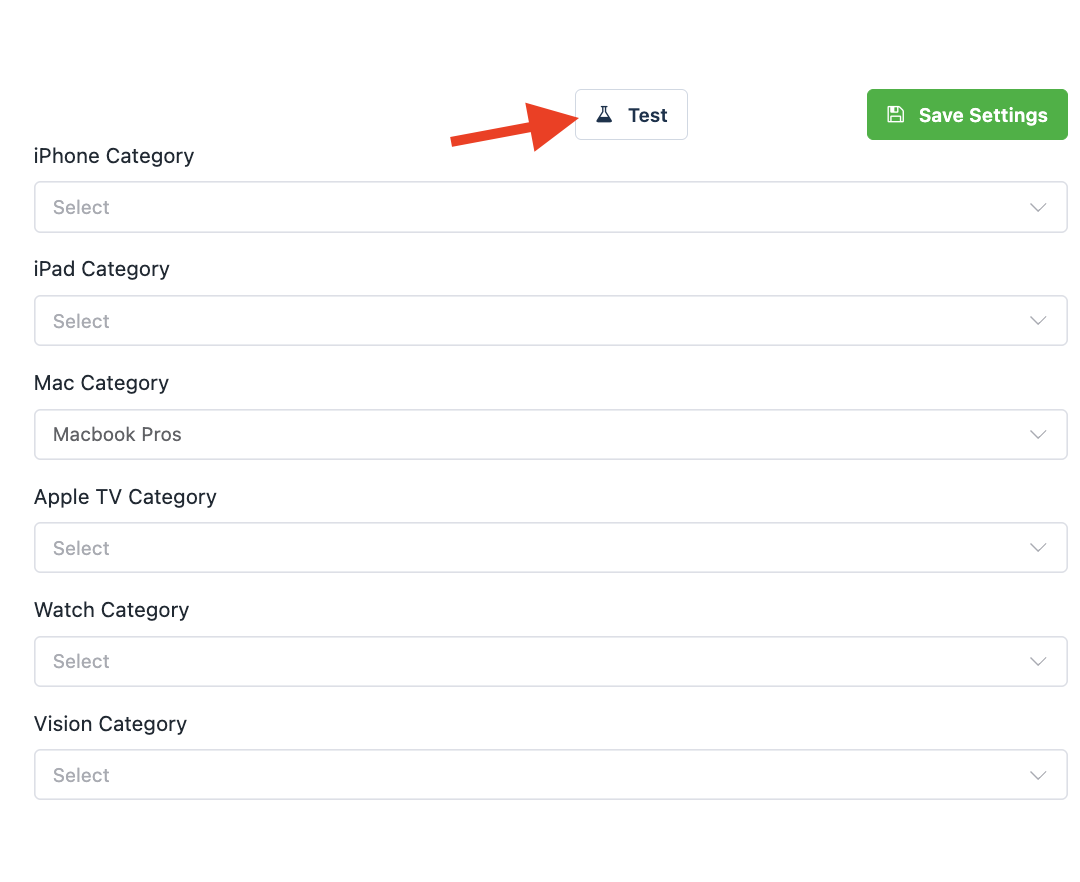
5. Next, map at least one ABM category to your respective Reftab category. The categories you see are all the available categories of devices that Apple sends from ABM. For example, if ABM sends “iPhones” you can have those iPhones saved into your Reftab category also called, “iPhones”, etc.
For information on creating new categories within your Reftab account, view this guide.
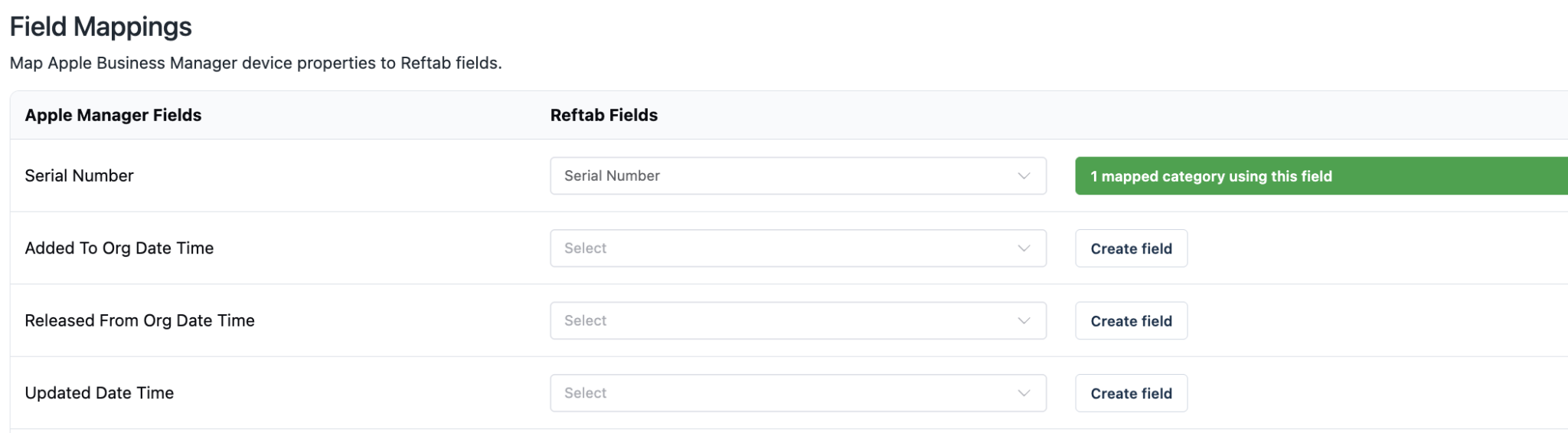
6. Next, map your ABM device properties to your desired fields. Fields are the details about devices. For example, serial number, device model, etc…
IMPORTANT: You must map serialNumber to a field in Reftab. This is what Reftab uses to generate an asset ID for your imported ABM devices. Serial number is also used to prevent duplicate assets from being created. (more information on how Reftab prevents duplicate assets can be found here)
7. Once you have mapped your fields, click “Save Settings“

8. Next, click “Test“- If any issues occur you will be provided a relevant error message.
Start First Sync
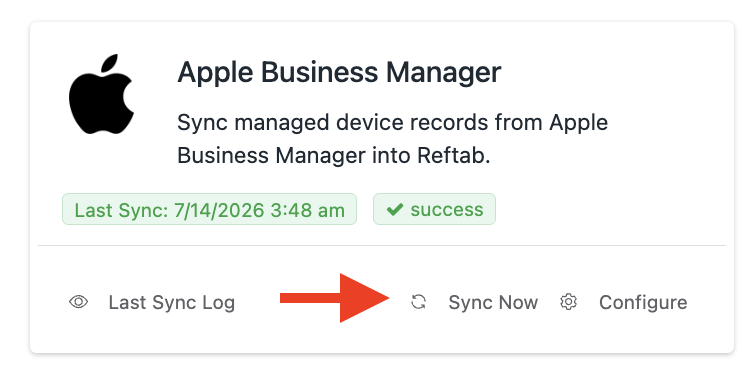
Once the test is successful, you can go ahead and run a sync from the integrations page.
Important Notes
- Devices marked as Released in ABM will be skipped by the integration.
Need help? We're here for you
For any questions or assistance, feel free to reach out to us.
Ready to simplify IT asset management?
No credit card. No watered-down trial. Create a free account and see firsthand what Reftab can do.