
How Do I Integrate Reftab with Zentral
This guide walks you through connecting Reftab with Zentral. Once integrated, your inventory will automatically sync into Reftab, improving discovery and eliminating manual data entry. Setup takes just a few steps.
Generate API Key From Zentral
Configure Zentral within Reftab
Start First Sync
Generate API Key From Zentral
- Aligning with Zentral’s best practices, you will need a dedicated service email for the integration.
- Sign into Zentral as the super user and add the service account to your Zentral instance. Grant all employee read permissions to this profile.
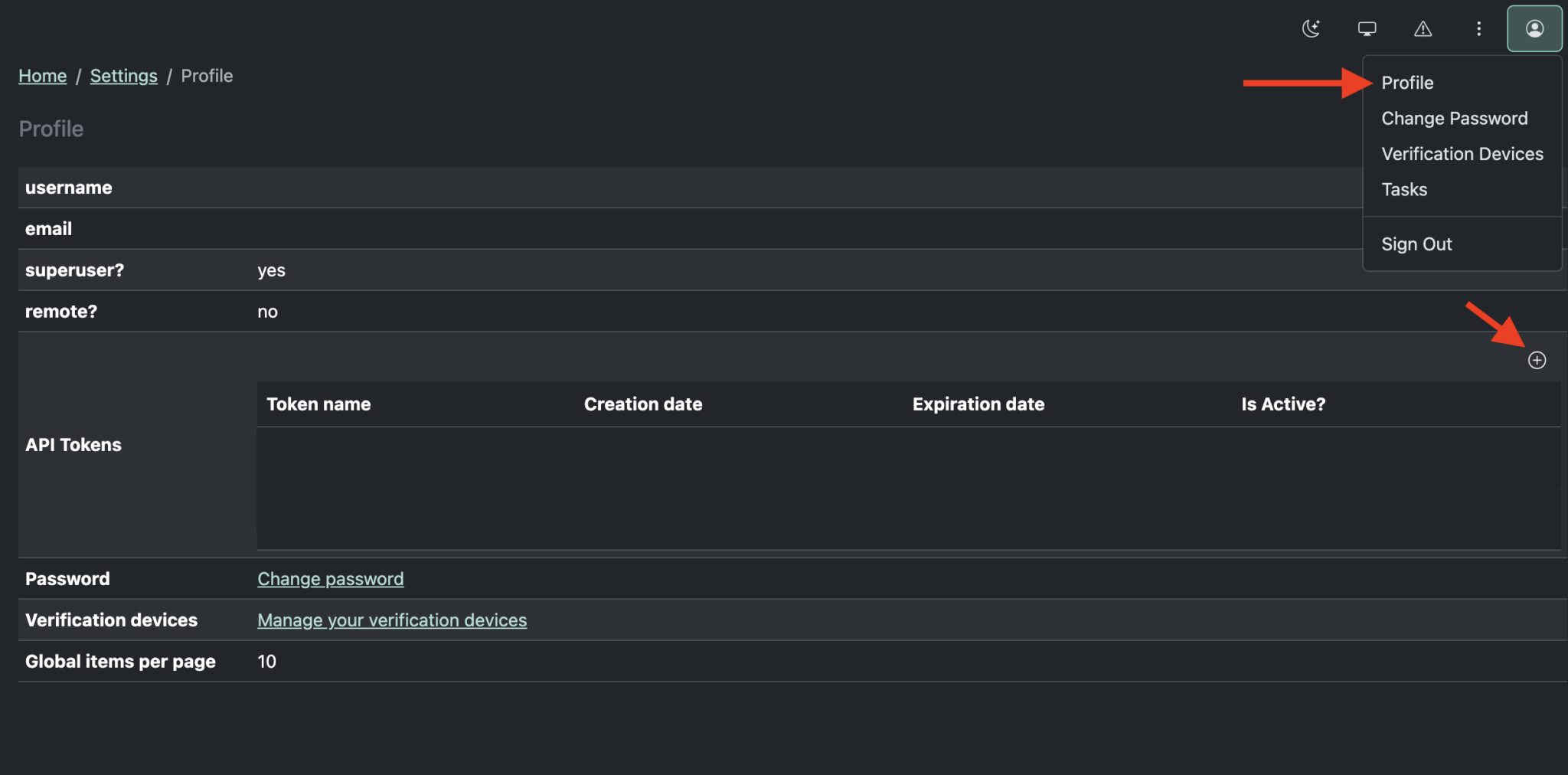
- Next, sign into this new account in Zentral and click on the profile icon in the top right, then Profile.
- Then, click on the + button in the API Tokens section to create a new token.
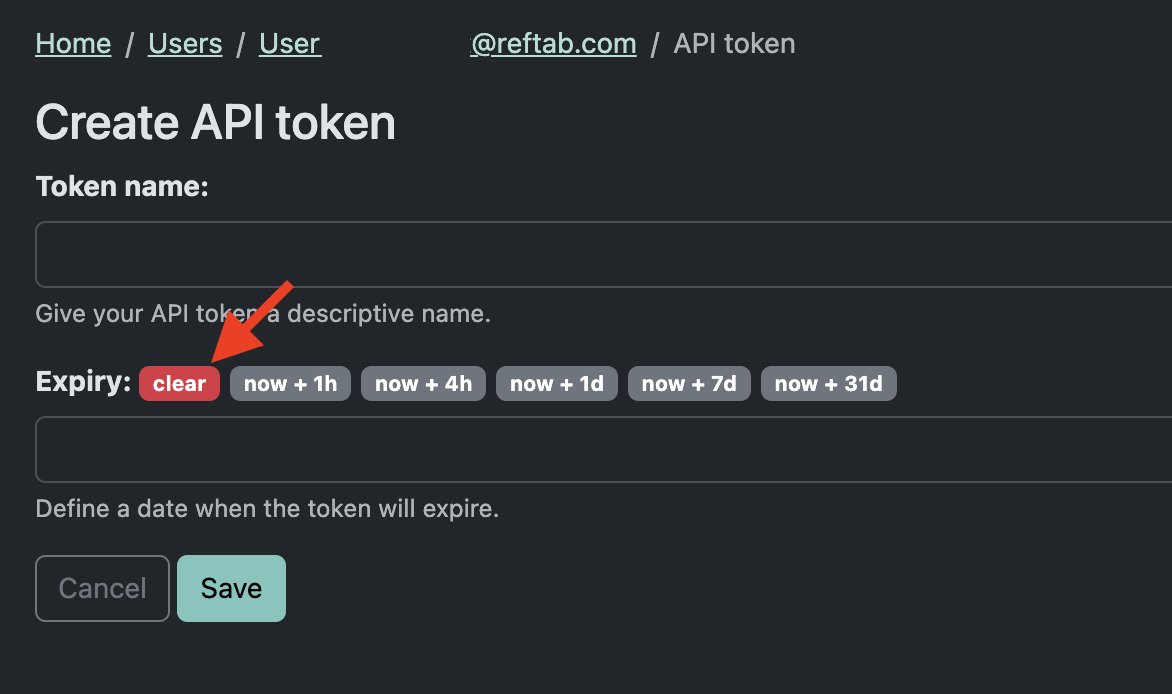
Here you will input a name for the token, then set the expiration to clear for an indefinite lifespan. Then save.
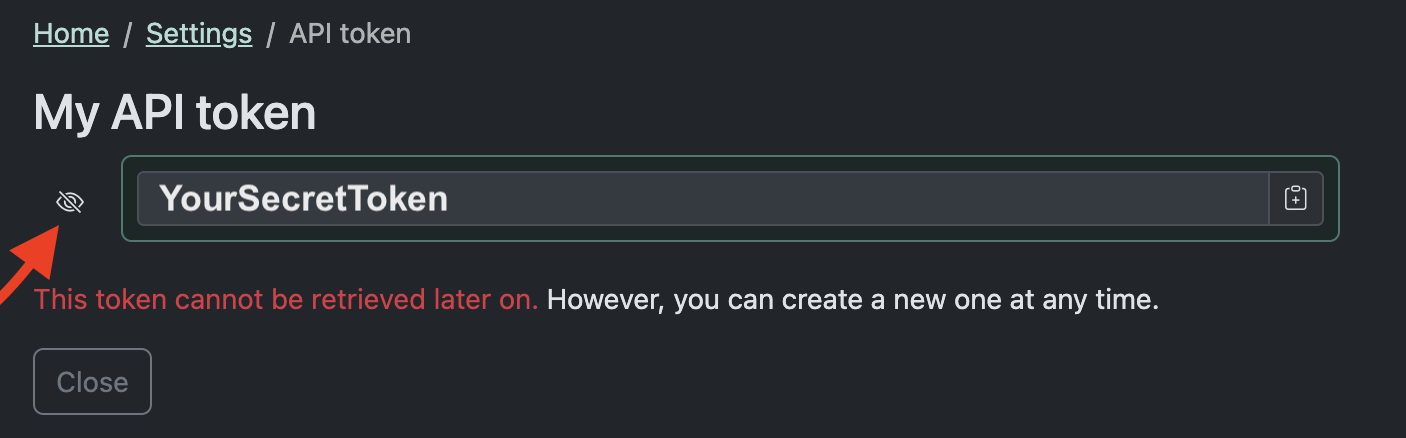
After saving the token, you will be able to reveal it by clicking the eye, copy this to the clipboard.
**Please note, this token will only be available during this screen.**
Configure Zentral within Reftab
1. Now we will login to Reftab and navigate to Settings > Integrations > Zentral > Configure.

2. Next you will fill out your credentials:
Host: Your Zentral domain
Token: The secret api token we copied earlier
Default Location: The default location devices and application will be synced into
3. Ensure you toggle the integration to Enabled. Then assign your Zentral categories to Reftab categories on the right hand side.

4. Map Serial Number, and any other Zentral device properties to your corresponding Reftab fields.
**Please Note, if setting Zentral up AFTER manually adding devices to Reftab, Serial Number is required to match to the pre-existing assets on sync, ensure this is mapped**

5. Once you have mapped your fields, click “Save Settings“

6. Next, click “Test“- If any issues occur you will be provided a relevant error message.

Start First Sync
Once the test is successful, you can go ahead and run a sync from the integrations page.

Need help? We're here for you
For any questions or assistance, feel free to reach out to us.
Ready to simplify IT asset management?
No credit card. No watered-down trial. Create a free account and see firsthand what Reftab can do.