
How to Set Up Onboarding and Offboarding Notifications
Reftab can notify you about onboarding and offboarding tickets in three ways: built-in emails, ticket subscriptions, and workflows. In this guide, we’ll walk through each one so the right people hear about a ticket without having to check the queue.
| Option | Who gets notified | Good for |
|---|---|---|
| Built-in emails | The ticket owner | Keeping the person responsible for a ticket up to date |
| Subscribing to a ticket | Anyone who subscribes | Following a specific ticket’s updates and completion |
| Workflows | Anyone you choose, by email, Slack, or Teams | Alerting a team or channel when a ticket is created |
In this guide:
- Turning on and customizing onboarding and offboarding emails
- Subscribing to a ticket
- Sending your own notifications with workflows (email, Slack, and Teams)
Turning on and customizing the built-in emails
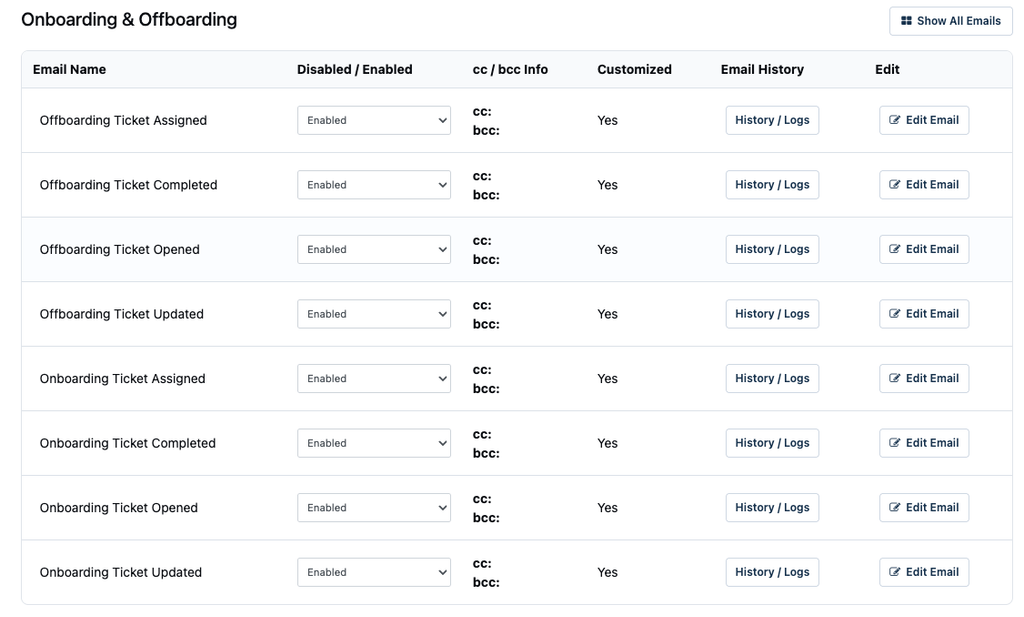
Reftab includes eight onboarding and offboarding emails, and you choose which ones are enabled. They go to the ticket owner, so a ticket with no owner sends no emails.
There are four emails for each ticket type:
- Ticket Opened: a new ticket was created
- Ticket Assigned: the ticket was assigned to an owner
- Ticket Updated: the ticket changed
- Ticket Completed: the ticket was completed
To manage them:
1. Head to Settings > Email Settings / Logs.
2. Select the “Onboarding & Offboarding” card at the top of the page.
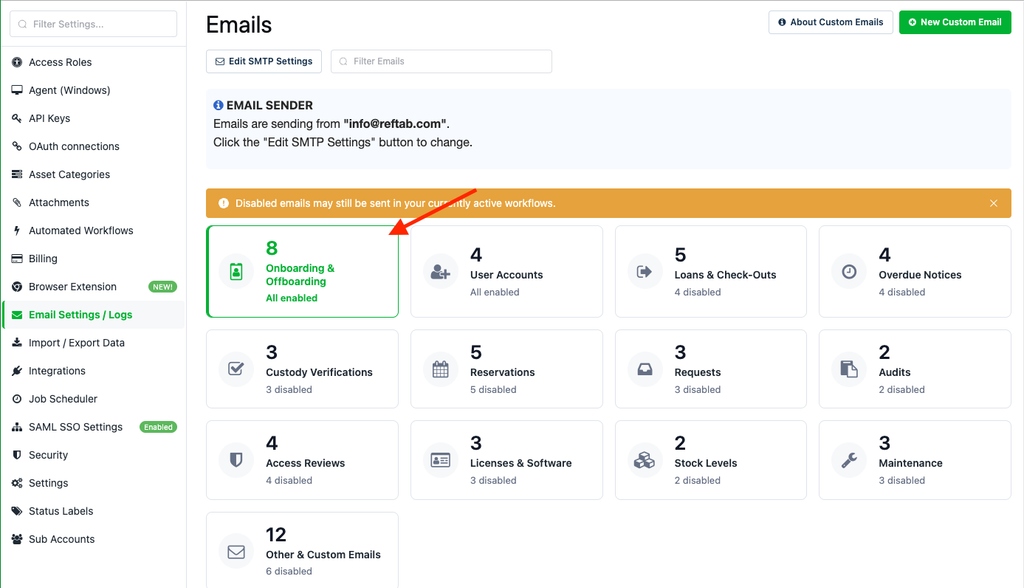
3. For each email, use the Disabled / Enabled dropdown to turn it on or off.
4. Add any addresses to the cc / bcc info if you’d like others copied.
5. Click “Edit Email” to customize the wording.
6. Click “History / Logs” to see when an email was sent.
Subscribing to a ticket
Subscribing to a ticket sends you an email whenever it’s updated or completed, even if you’re not the ticket owner.
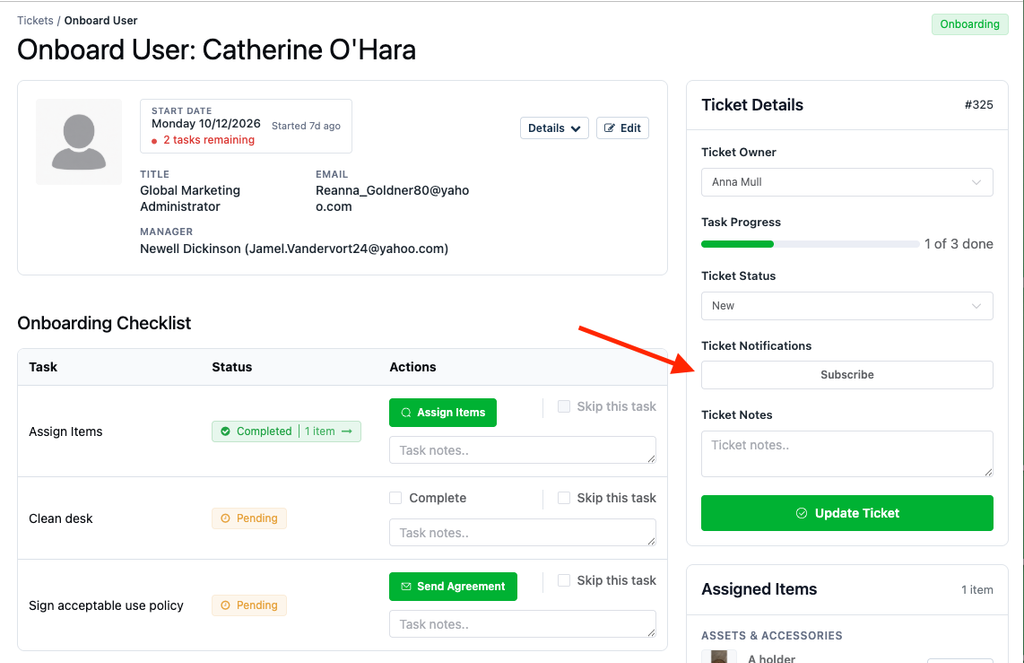
1. Open an onboarding or offboarding ticket.
2. In the Ticket Details panel, find Ticket Notifications and click “Subscribe”.
3. The button changes to “Subscribed”, and you’ll now receive updates for that ticket.
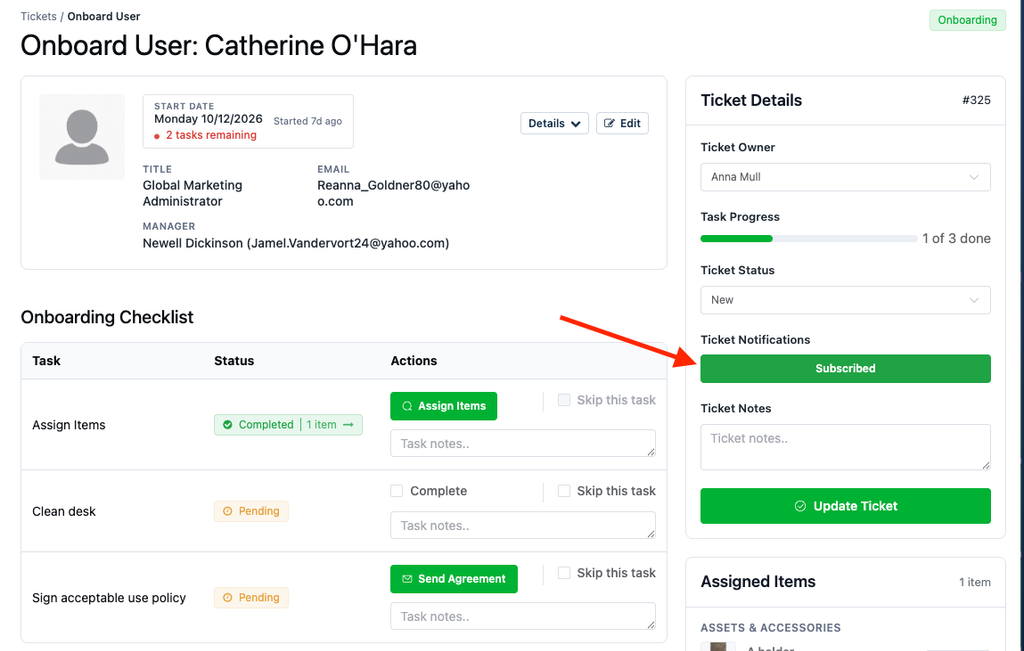
To stop receiving notifications, click “Subscribed” again to unsubscribe.
Sending your own notifications with workflows
Workflows let you notify anyone, not just the ticket owner, the moment a ticket is created. Reftab has two triggers for this, Onboarding Ticket Created and Offboarding Ticket Created, and both support the Send Email and Webhook actions. Each workflow has one trigger, so create one workflow for onboarding and another for offboarding.
To set one up:
1. Head to Settings > Automated Workflows and click “New Workflow”.
2. Give your workflow a name, such as “Offboarding Slack Notice”.
3. Under Workflow Trigger, choose “Onboarding Ticket Created” or “Offboarding Ticket Created”.
4. Under Workflow Actions, choose the action you’d like:
- Send Email: pick an email template and enter the address to notify. To write your own message, see Does Reftab Allow Creating Custom Emails?Webhook: paste a webhook URL to post to Slack or Microsoft Teams (see below).
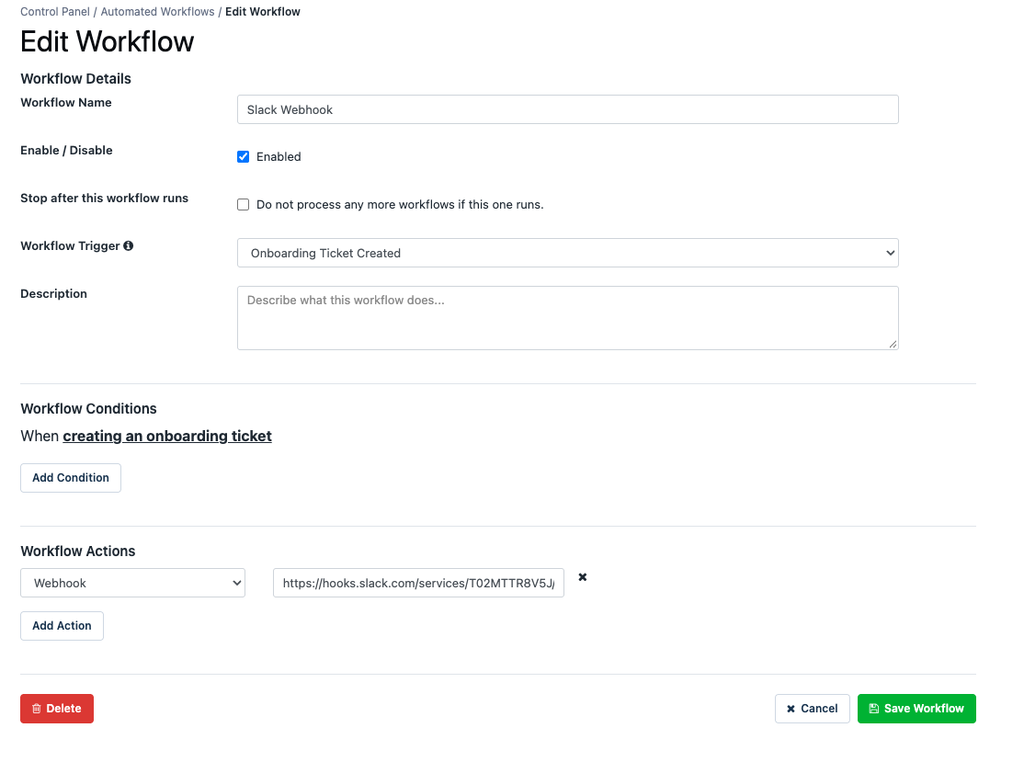
5. Click “Save Workflow”.
Sending notices to Slack or Teams
Slack and Teams both receive notices through a webhook URL. If you haven’t created one yet, follow the steps in our guides, then come back here and paste the URL into a Webhook action:
Want onboarding and offboarding notices in different channels? Create a separate webhook URL for each channel. You can also add conditions to a workflow, but every condition must be met for the webhook to send.
Continue reading
Need help? We're here for you
For any questions or assistance, feel free to reach out to us.
Ready to simplify IT asset management?
No credit card. No watered-down trial. Create a free account and see firsthand what Reftab can do.