
How to Access the User Portal
In this FAQ, you’ll learn how to use Reftab’s User Portal to access the system, reserve items, and view your submitted reservations via Web (web browser) and using Reftab’s Mobile apps.
If you haven’t setup your User Portal yet, click here for a full walkthrough.
Table of Contents
Step 1: Accessing the Portal from Web
Step 1a: How to make a Reservation
Step 1b: How to view your items and current reservations
Step 2: Accessing the Portal from the Mobile App
Step 2a: How to make a Reservation by Scanning the Barcode
Step 2b: Making a Reservation from the Asset list
Step 2c: Viewing your items and current reservations
Step 1: Accessing the Portal from the Web
To login, visit: https://www.reftab.com/login, Sign in with your email address and password.
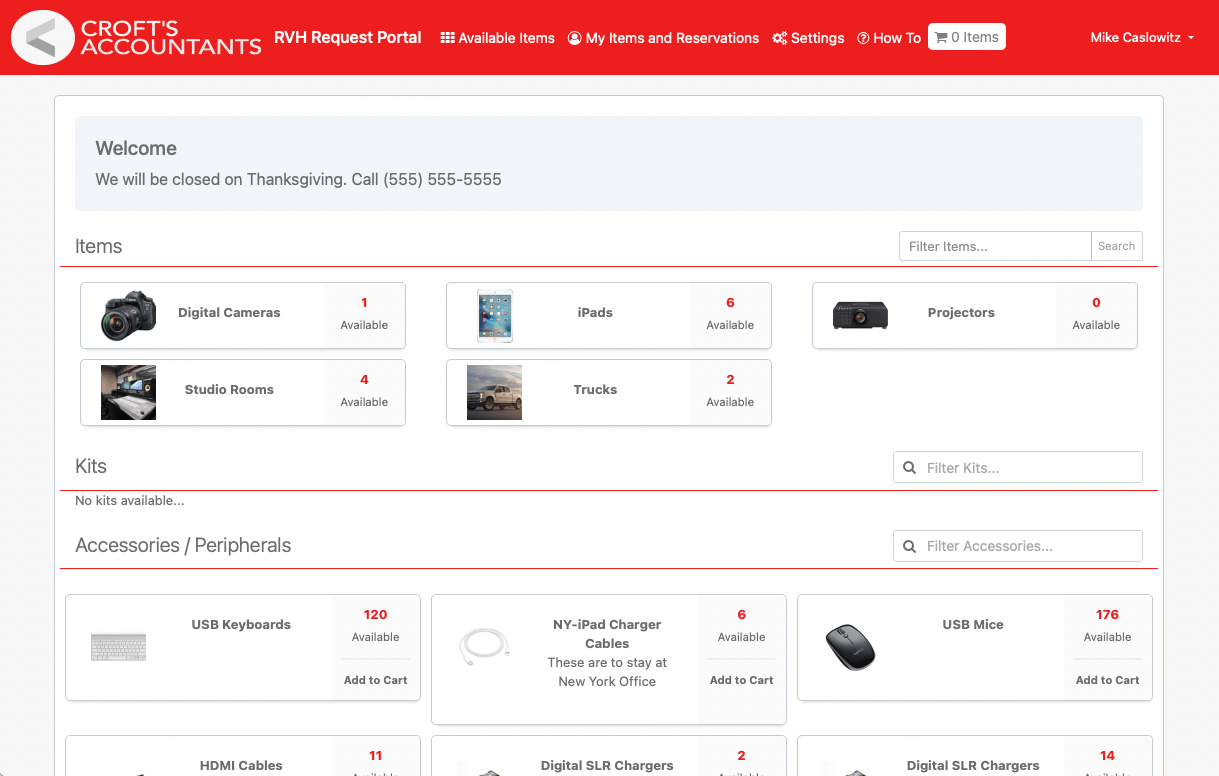
After logging in you will see the, “Available Items” page. Here, you can see multiple categories such as Assets, Kits, Accessories, and Software (depending on your current permissions.)
Step 1a: How to make a Reservation
Find the item you want to reserve.
Browse the page and select your item (e.g., Digital Cameras). The availability is listed next to each item.
- If it shows 0 Available (e.g., Projectors), all units are currently reserved—but you can still make a reservation for a future date.
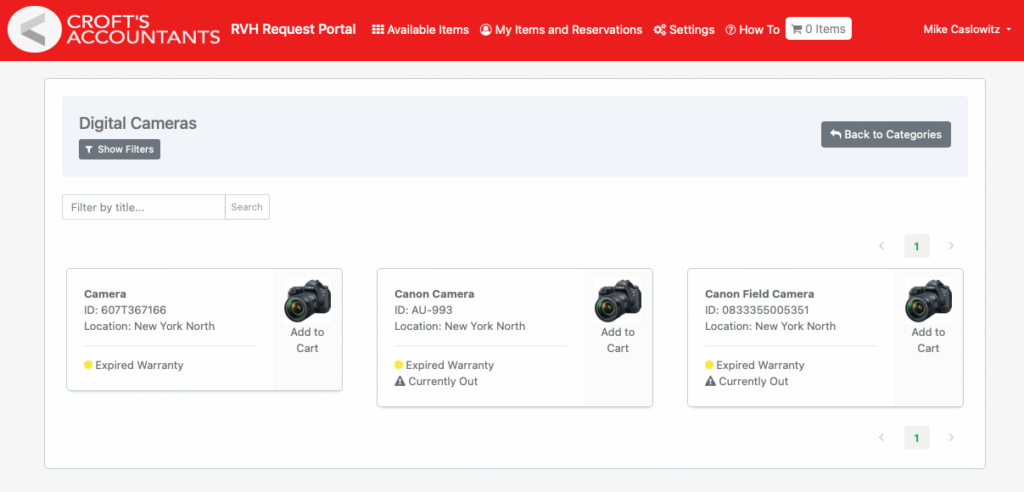
View and filter available items.
On the item page (e.g., Digital Cameras), you can either:
- Click Add to Cart for the item you want, or
- Click Show Filters (below the category name) to narrow your search.
Use filters to sort by Location, Field, or Available Dates.
- For future reservations, filtering by Available Dates is most helpful.
- Select your Start and End date, then click Filter Items. Only items available during that time will appear.
For more details on an item, click its name to view the full asset page.
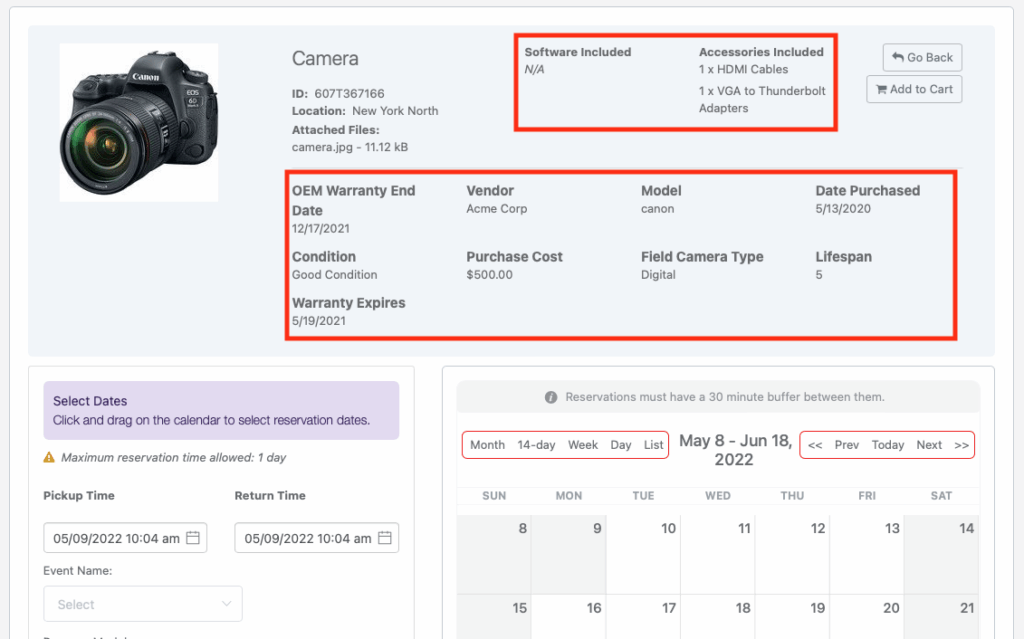
Review item details.
This page shows more information about the selected item. What you see may vary based on your permissions and your organization’s settings. Continue below to learn how to complete your reservation.
Reserve the item.
Use the calendar on the right to view existing reservations. To reserve, click and drag across your desired dates. On the left side, fill out the required fields. When you’re ready, click the green “Submit Reservation” button to confirm.

Step 1b: How to view your items and current reservations
Manage your reservations.
Click My Items or Reservations in the top navigation bar to:
- View or edit your current reservations
- See which items are currently checked out to you
Check this page regularly to stay on top of your pickup and return dates.

Edit reservations (if permitted).
If allowed by your permissions, you can edit your reservations or loans from this page. For example, if a project is extended, update the return date to avoid overdue notices.

Step 2: Accessing the Portal from The Mobile App
Use the Reftab mobile app.
Reftab is available on both the Apple App Store and the Google Play Store. Download the app using the provided links, then log in with your credentials. After logging in, you’ll land on the main dashboard.
Step 2a: How to make a Reservation by Scanning the Barcode
Scan items with your phone.
From the main screen, access the built-in Barcode Scanner.
- Use your device’s camera to scan an item’s barcode.
- The app will automatically bring up that item’s details.

Reserve items in the app.
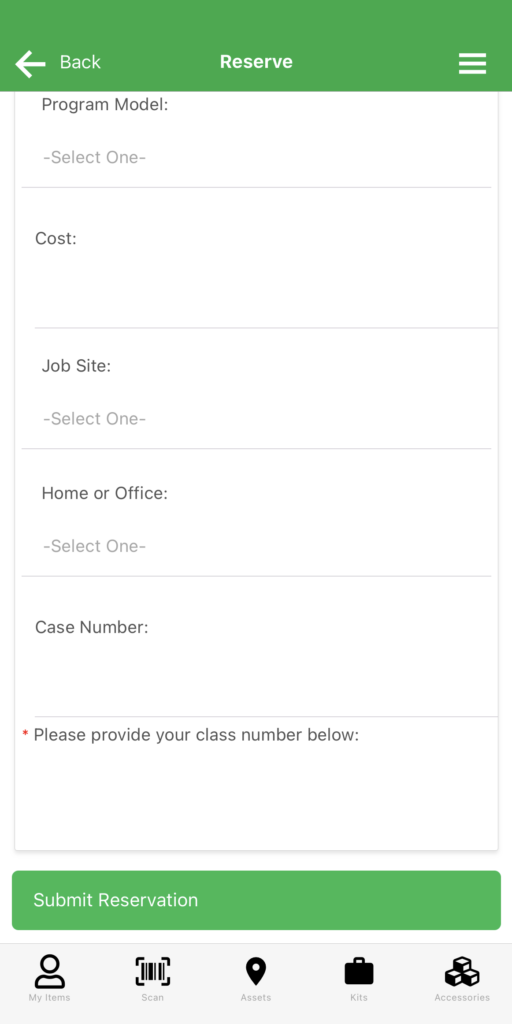
After scanning or selecting an item, tap the Reserve button.
- You’ll be taken to a screen to enter the required loan details and complete your reservation.

Submit your reservation.
Complete all required fields and tap the green “Submit Reservation” button to confirm. Use the My Items tab in the bottom navigation to view your current reservations and loans.
Step 2b: Making a Reservation from the Asset List
Browse asset categories.
Tap the Assets icon in the bottom navigation bar to open the Asset Categories page. From there, select the asset you want to reserve.

Select your asset.
After picking a category, you’ll see a list of assets. Choose the one you want to reserve and follow the steps outlined earlier.

Reserving kits and accessories.
Kits and accessories are reserved the same way as assets.
- Kits include multiple items reserved and checked out together.
- Accessories are interchangeable items like keyboards or charging cables.
Step 2c Viewing your current Items and Reservations
Track your items and reservations.
Tap My Items on the navigation bar to see your current loans and reservations. Click any item or reservation for detailed information. Track pickup and return dates.


Need help? We're here for you
For any questions or assistance, feel free to reach out to us.
Ready to simplify IT asset management?
No credit card. No watered-down trial. Create a free account and see firsthand what Reftab can do.