
How to Add Barcodes to Accessories and Kits
- How to Add Barcodes to Accessories
- How to Add Barcodes to Kits
- How to Print Barcodes for Accessories and Kits
How to add barcodes to Accessories
In order to add a barcode to an accessory you will first need to edit the accessory.

Once you are in the Edit Accessory screen, you will find a text box labeled, “Barcode ID.” You are able to add a custom ID to this field. Unfortunately, we do not offer an auto-generated ID for these at this time. The system will error if the barcode is in use, because of this it is recommended to use an alphanumeric value such as “ACC-1.”

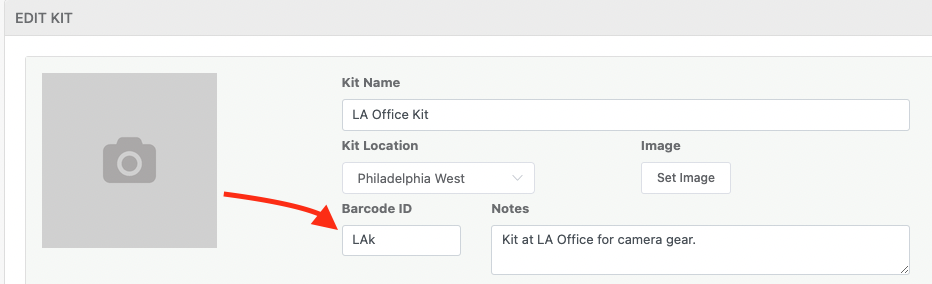
How to add barcodes to Kits
To add barcodes to Kits the process is generally the same. You will need to edit the specific kit, from there you will see the Barcode ID field. The same goes as above, we recommend alphanumeric values such as “KIT-1” to avoid duplicates.
How to Print Barcodes for Accessories and Kits
To print barcodes for Accessories or Kits, you can head to the respective tab and click “Print Barcodes.”

At this point in time, it is important to think about where these barcodes will be placed. Accessories for instance, if you have a box of keyboards it may be worth placing one barcode on the box. You can then scan the box each time a keyboard is removed/replaced. If you are looking to place individual barcodes on each accessory, you have the option of choosing the quantities, as shown below:

Need help? We're here for you
For any questions or assistance, feel free to reach out to us.
Ready to simplify IT asset management?
No credit card. No watered-down trial. Create a free account and see firsthand what Reftab can do.