
How To: Tag and Manage Deployed Assets in Reftab
This guide is designed for individuals managing deployed assets that have not yet been tagged with asset labels. It walks you through ordering pre-printed asset tags and importing a corresponding asset list into Reftab, ensuring the assets are preloaded into the system with Asset IDs. This is an alternative method to placing asset tags on items at the same time as adding a new asset record.
Before proceeding, ensure that you have distinct categories created for asset types like Printers, Monitors, Docking Stations, etc. See our guide here on creating categories in Reftab: Guide: How to Customize Categories
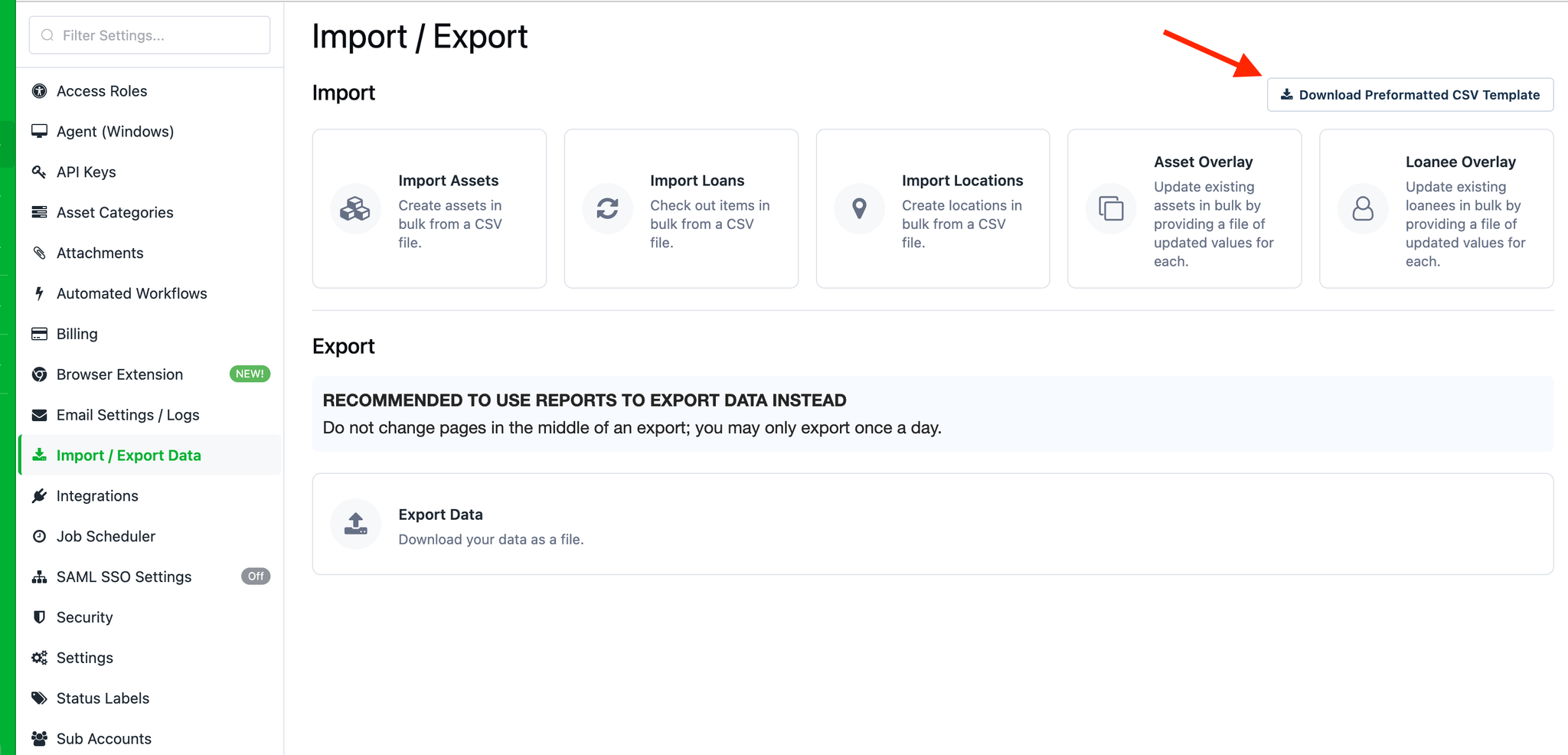
Next, navigate to “Settings” > “Import/Export Data” in your account and click the link to download pre-formatted CSV templates. This will generate a zip file containing separate CSV files for each category you created. These files can be used to add rows of Asset ID’s that will be imported into Reftab to create asset records.
NOTE: If your existing spreadsheet contains several asset types, you can use Reftab’s multi-category importer instead of preparing a separate file for each category.
This is an example of a list of CSV files included in the Zip folder. Notice that a file exists for each category.

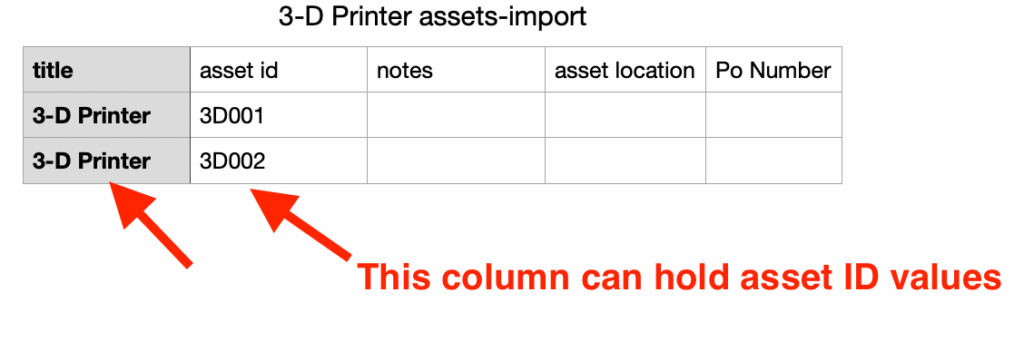
Next, open the appropriate CSV file for the category of assets you want to add, and fill in rows with data such as Asset ID and Title.
For example, for a category like “3-D Printers,” you could add asset id’s such as: 3D001, 3D002, etc… this means that when you order labels, you’ll want to ensure you order a roll of labels with a QR-code or barcode generated with this string of values such as 3D001, 3D002, etc…
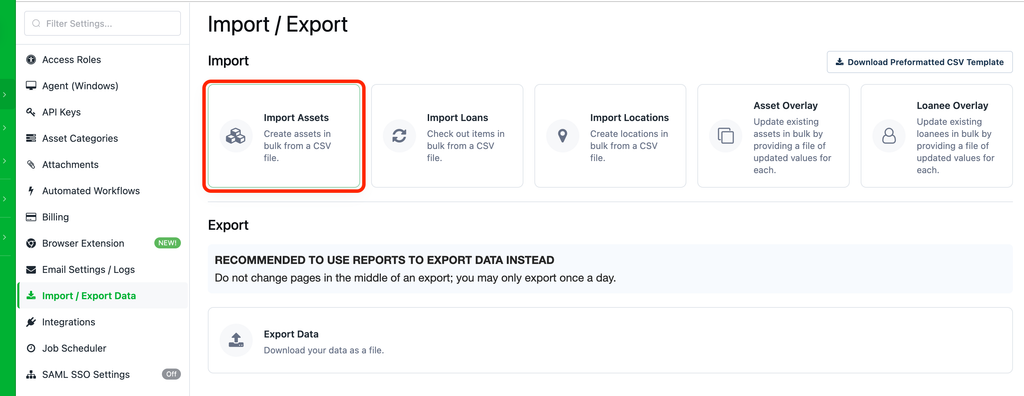
Next, import your file. On the Import/Export Data page select “Import Assets”
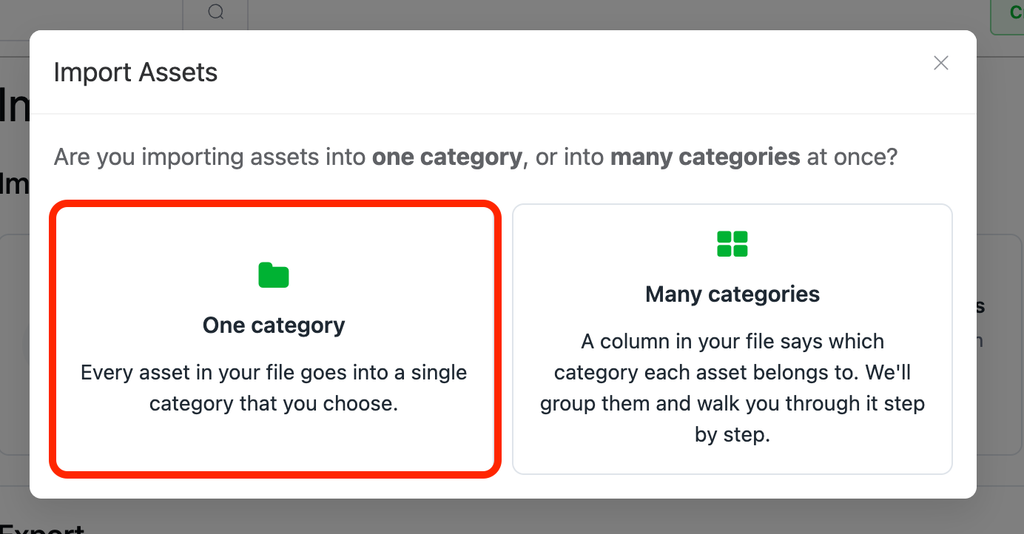
Then select “One Category”
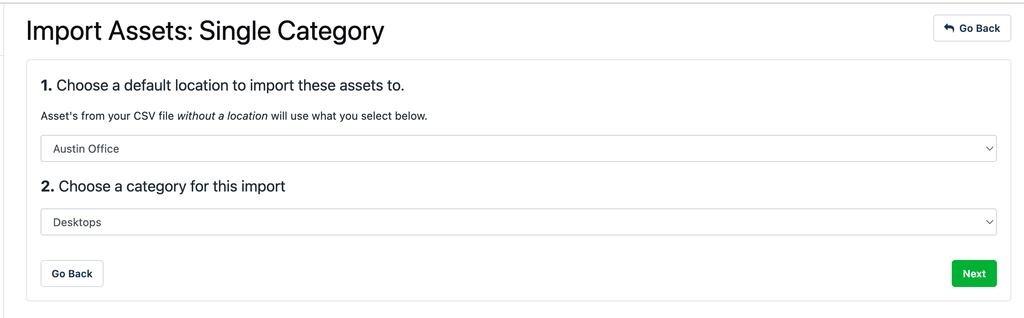
You’ll then be prompted to select a Default Location and a Category for this import
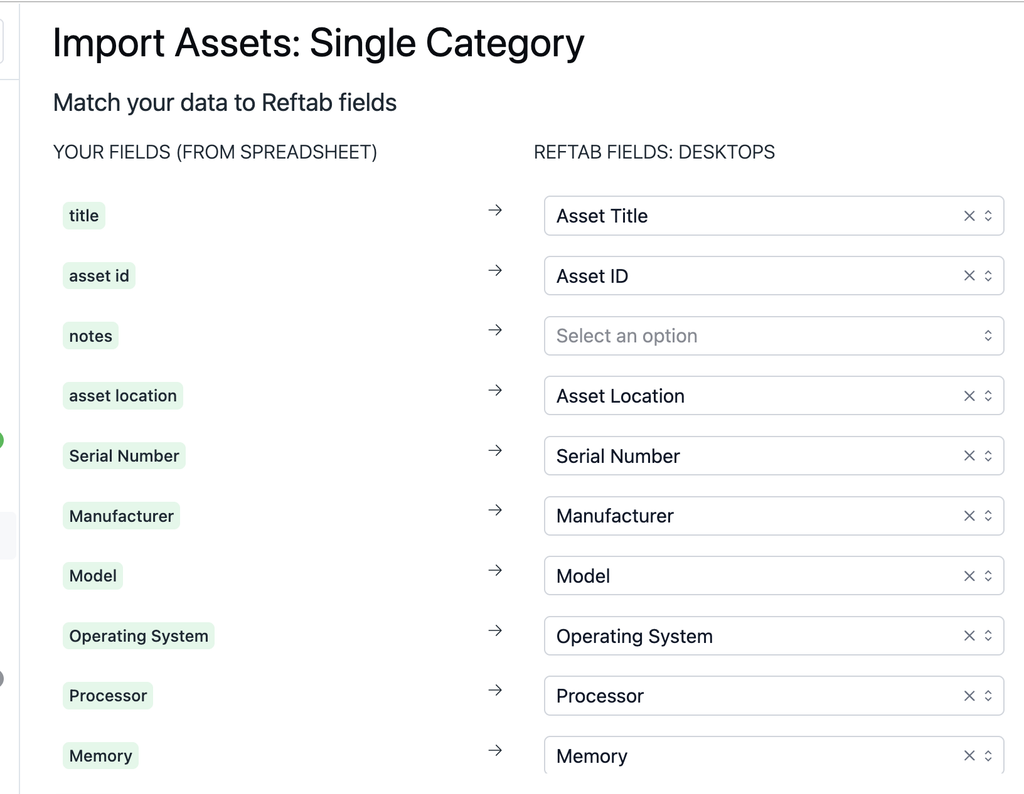
You’ll then be prompted upload your file. After uploading ensure your fields are properly mapped:
Next, apply tags to assets. If you have your roll of asset tags pre-printed, you can physically place the asset tag on your devices. Remember to ensure the Asset IDs on the tags correspond to the information you logged in Reftab.
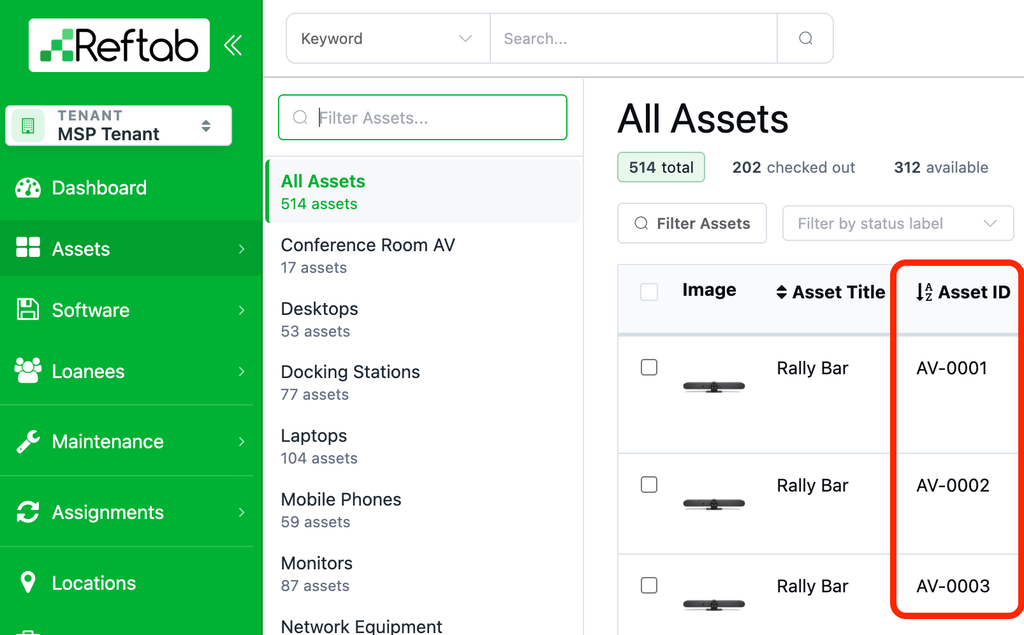
Finally, verify imported assets. Navigate to the relevant category in Reftab to confirm assets appear with the correct details. Match imported Asset IDs with physical labels affixed to devices.
Maximizing Asset Management After Tagging
Managing assets effectively after tagging involves leveraging Reftab’s features:
- Use the Reftab Mobile App to scan asset tags for quick updates or verification. Learn more.
- Edit asset information such as location, status, or custom attributes as needed. How to Edit in Bulk.
- Track changes and maintenance using Reftab’s work order and scheduling tools. Learn about Maintenance Work Orders.
- Allow users to reserve and manage assets through the Reftab User Portal. How to Access the User Portal.
- Check in/out assets in bulk for efficient management. Check In | Check Out.
- Define permissions using user access roles for controlled information access. Default Access Roles Explained.
Need help? We're here for you
For any questions or assistance, feel free to reach out to us.
Ready to simplify IT asset management?
No credit card. No watered-down trial. Create a free account and see firsthand what Reftab can do.