
How to check out assets and accessories in bulk?
n the desktop site, you can check items out in bulk by using the check boxes next to each asset.
You can select assets across multiple categories and include accessories and / or kits.
Use the check boxes to select assets:
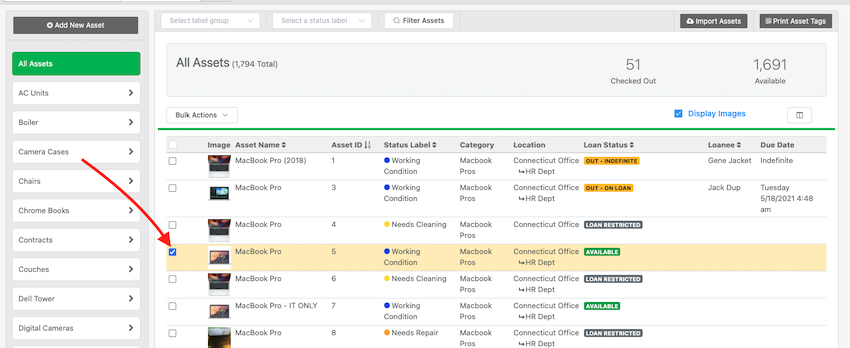
NOTE: You can select multiple assets across multiple categories.
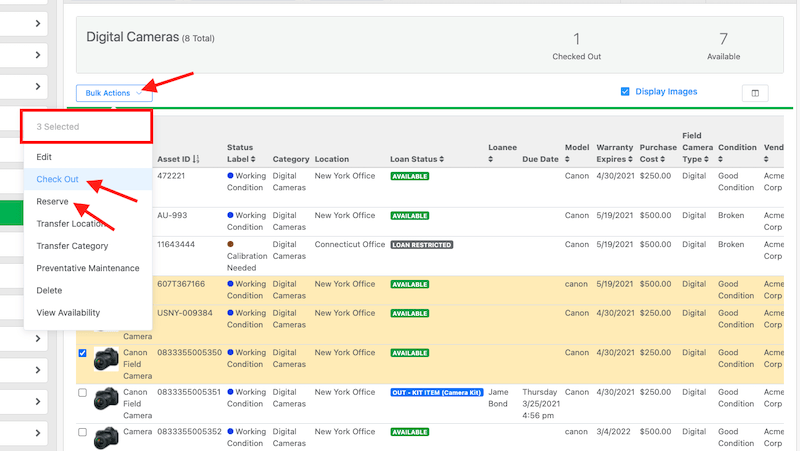
Click “Bulk Actions” > “Check Out” (or Reserve)
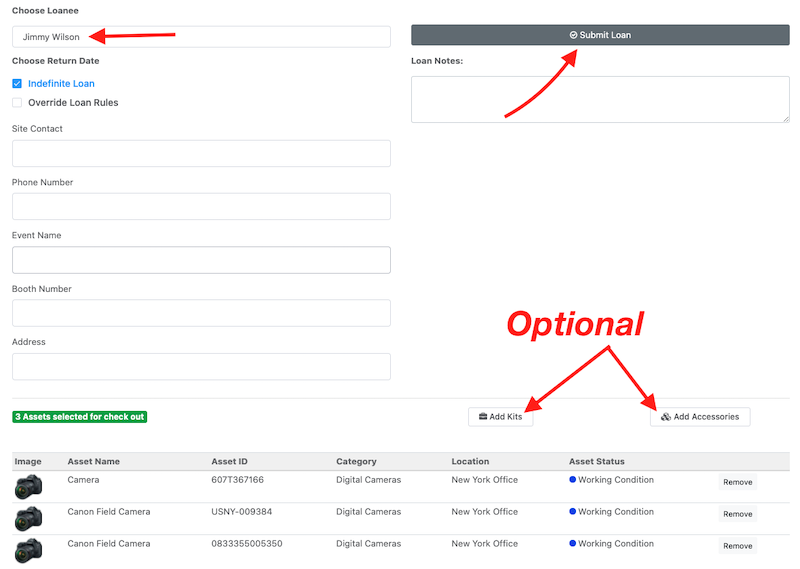
On the next page, you can select a loanee, due date and click “Submit Loan“
You can optionally choose to add accessories and / or kits to the bulk check out.
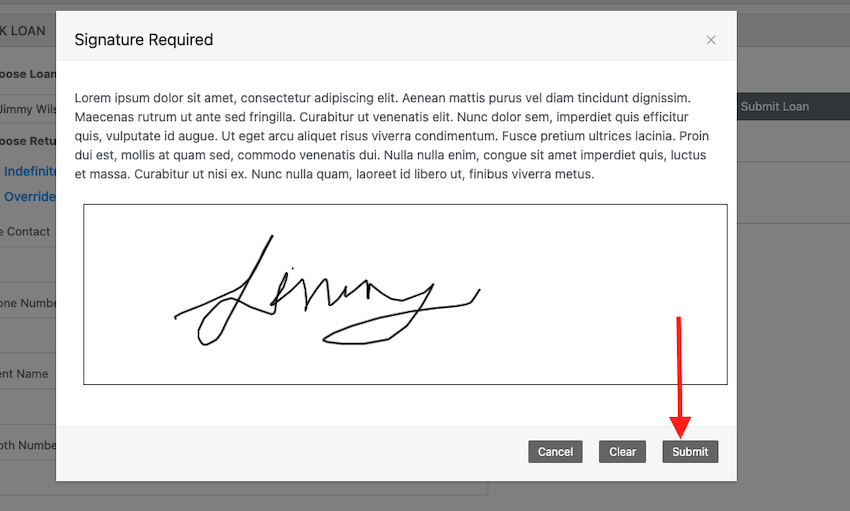
If a signature is required, the loanee can sign on the page which will save their signature against each asset loan.
When check out is complete, all items will be listed under your chosen loanee:
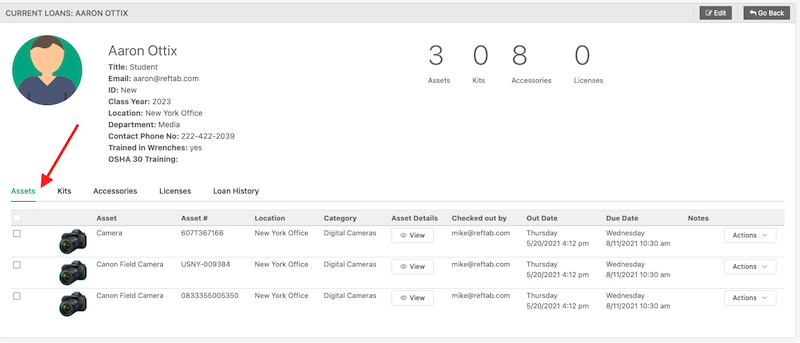
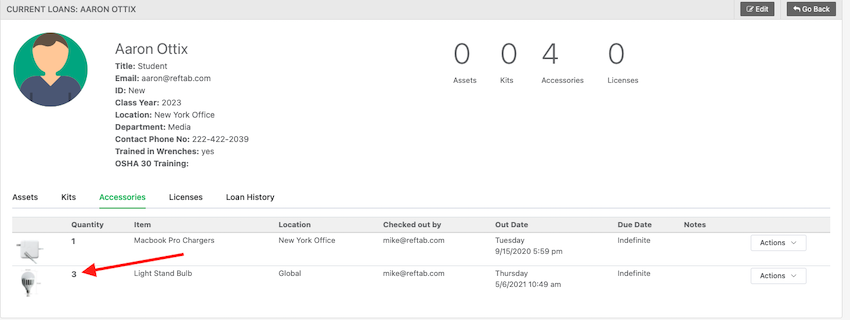
When viewing a loanee, if the loanee has multiple accessories checked out, Reftab will organize by due date:
For example the image below shows 3 Light Stand Bulbs checked out to a user. Reftab knows that these three are due at the exact same time.
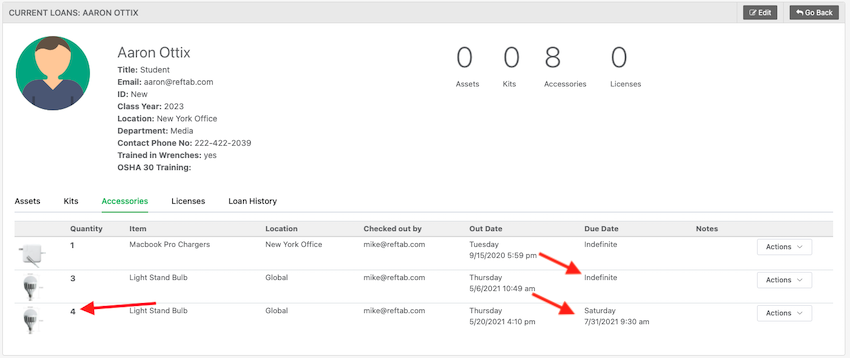
If additional Light Stand Bulbs are checked out to the same user with a different return time, Reftab will organize those into another line:
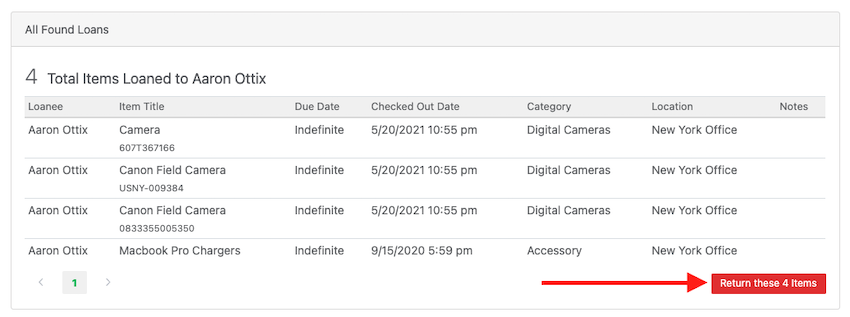
You can bulk check in all items from the loanee page, the loans page, the mobile app, or on each individual asset / accessory page.
For example, on the loans page, you can click “Actions” > “Find all Matching Loans”

You can return all items in bulk by clicking “Return“
Need help? We're here for you
For any questions or assistance, feel free to reach out to us.
Ready to simplify IT asset management?
No credit card. No watered-down trial. Create a free account and see firsthand what Reftab can do.