
How to Filter Assets by Reservation Availability
When searching through assets, you may need to find items that will be available during a specific time period. This post shows how to filter assets based upon reservation dates so that items unavailable during your desired times are hidden, and only items available will display. By doing so, you wont need to waste time searching through pages of items and instead, get to what you need quickly.
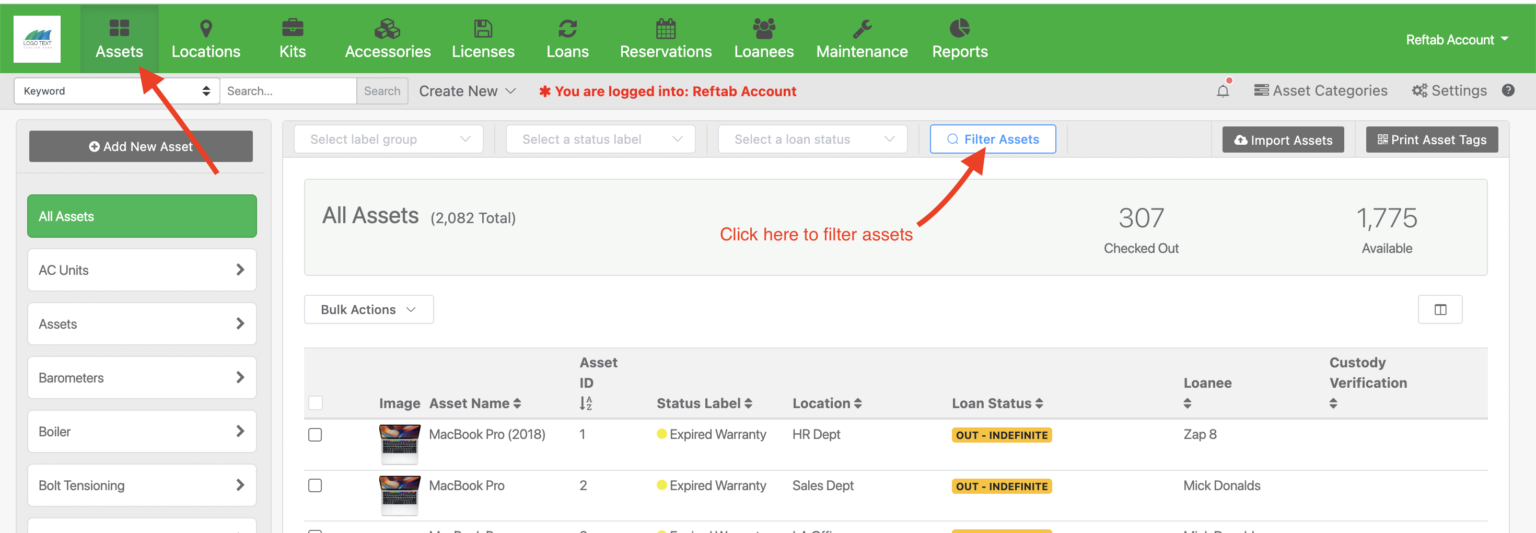
To start, go to the assets page and click, “Filter Assets”
Next, use the date pickers to select start and end dates to filter for and click, “Filter Assets“

The assets that display are ones that have no reservations during your selected time frame. Also, assets checked out, but have due dates before your selected start date, will display.
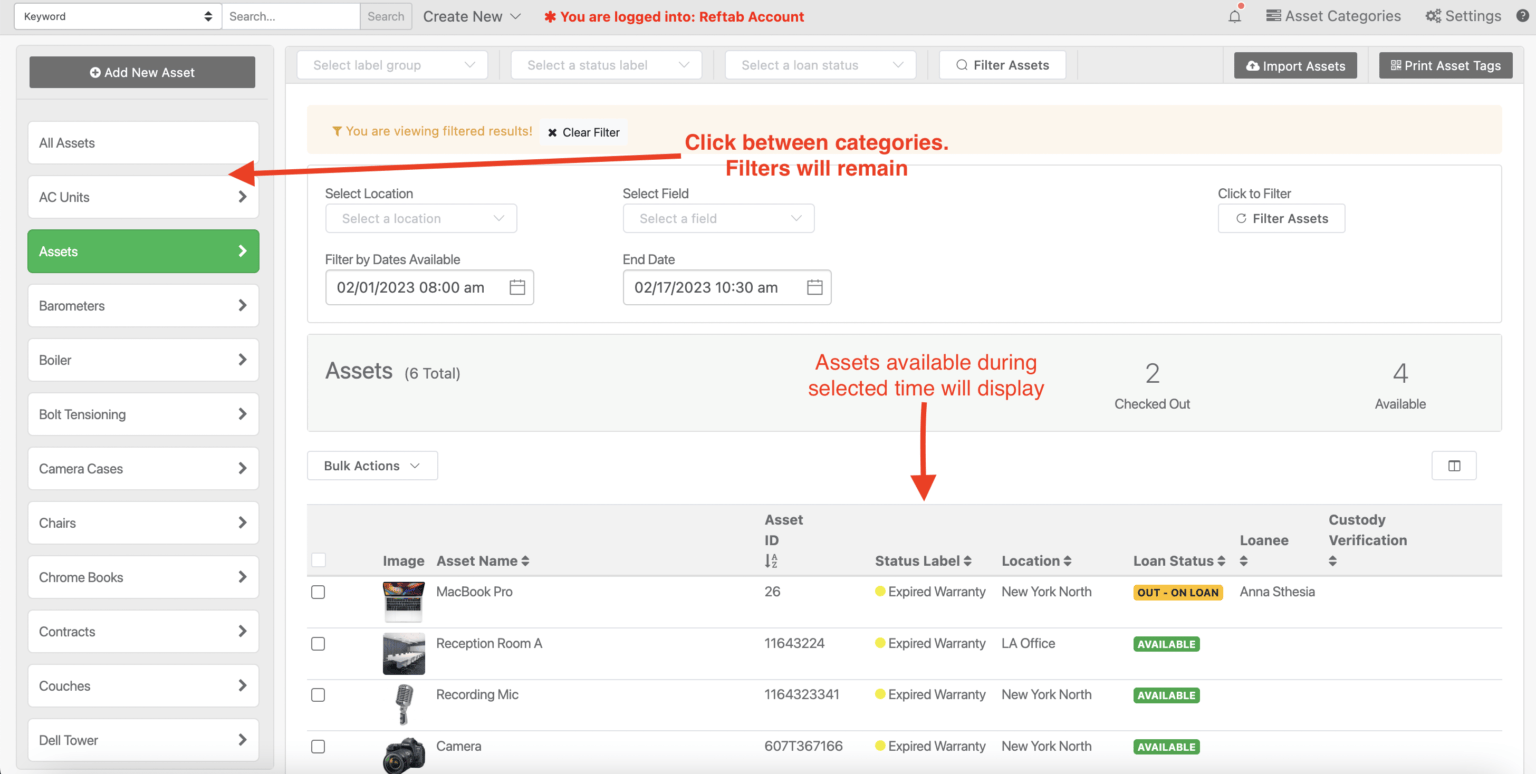
You can then use the checkboxes on the left side to select multiple assets at a time to reserve or check out. You can also click across different categories on the left side. Your selected assets and filters will remain.
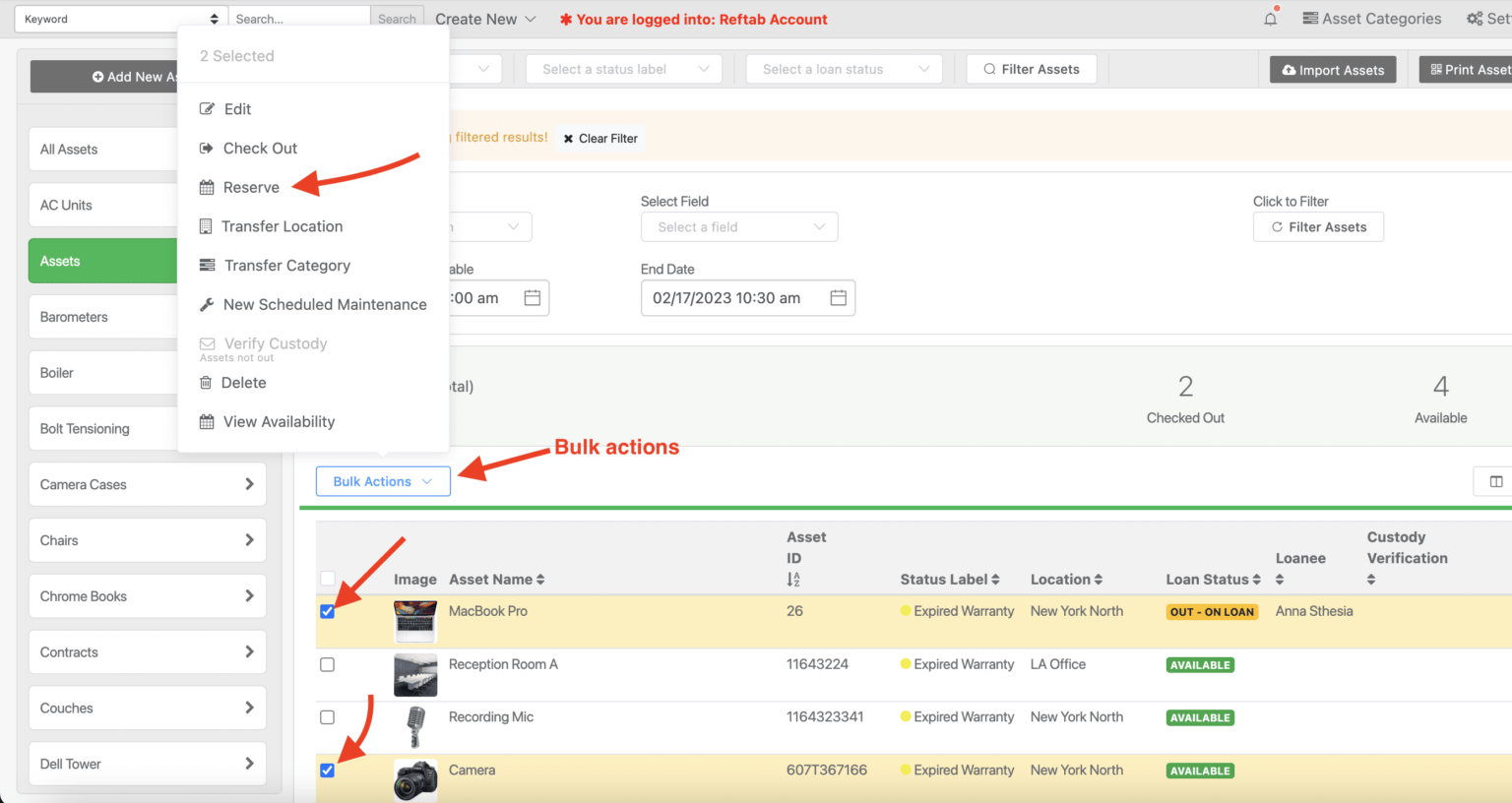
Next, you can click “Bulk Actions” > “Reserve” and the items you’ve selected can be reserved.
That’s it! You can now filter for assets based upon loan and reservation availability.
If you’d like to setup a user portal for a more self-service aspect, see our guide here: https://www.reftab.com/faq/how-to-customize-your-user-portal
Need help? We're here for you
For any questions or assistance, feel free to reach out to us.
Your assets, simplified. Begin your journey with us!
50 assets free forever with unlimited inventory & software tracking. Includes email alerts, mobile apps, reports, custom asset tags and more.