
Reftab Reservation and Checkout Settings FAQ
Reftab gives admins several ways to control how users reserve, check out, and return assets. These settings help organizations manage shared equipment, prevent overbooking, limit how long items are in use, and give staff enough time to prepare items before pickup.
This guide explains the main reservation and checkout settings available in Reftab, what each setting does, and when you may want to use it.
Quick List of Reservation and Checkout Settings
| Setting | What It Helps You Control |
|---|---|
| Business Hours | The open and closed times when users can schedule pickups and returns for each location |
| Reservation Time Blocks | The specific time blocks users are allowed to select when reserving items |
| Maximum Loan / Reservation Times | How long users can reserve or check out specific items |
| Reservation Minimum Notice Times | How much notice is required for specific categories and locations |
| Default Checkout Hours | The default due date/time automatically selected during checkout |
| Maximum Assigned Items | How many items a user can have assigned or checked out at one time |
| Maximum Reserved Items | How many active reservations a user can have at one time |
| Future Reservation Scheduling Window | How far into the future users can schedule reservations |
| Maximum Overdue Limit | Whether users with overdue items can continue checking out more items |
| Reservation Early Fulfillment | How early a reservation can be fulfilled before the scheduled pickup time |
| Reservation Buffer Time | The required gap between one reservation ending and the next one starting |
| Location Reservation Booking Window | How far ahead reservations can be booked for a specific location |
Business Hours
What are Business Hours?
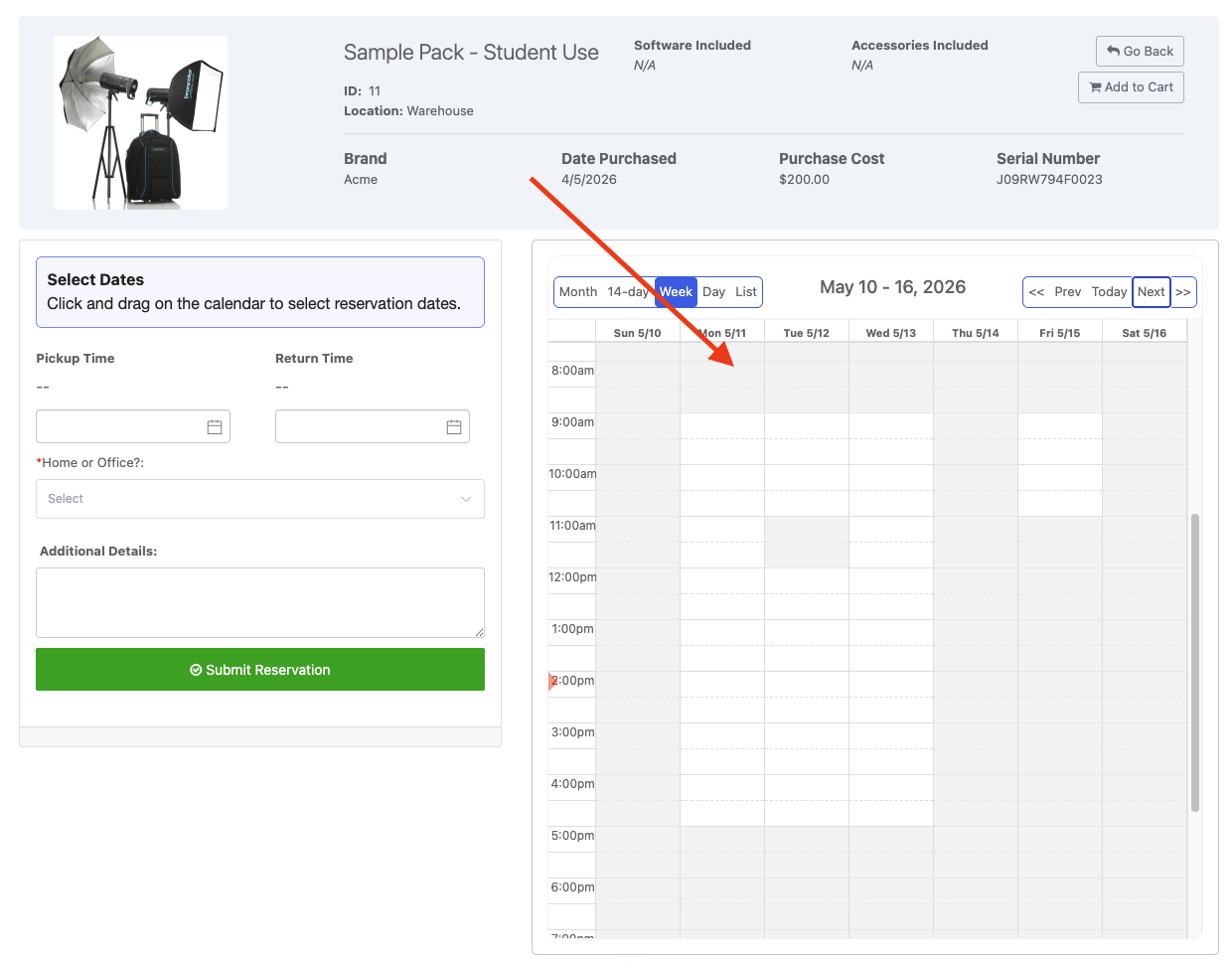
Business Hours let admins set open and closed times for each location in Reftab.
These hours control when users can schedule reservation pickup and return times. When a location is closed, those times are blocked on the reservation calendar.
What are Business Hour Exceptions?
Business Hour Exceptions let admins block off specific dates when a location is closed outside of its normal schedule.
Example:
A location may normally be open Monday-Friday, but closed during holiday break, such as Christmas week. Admins can add an exception for those closed dates so users cannot schedule pickups or returns during that time.
Reservation Time Blocks
What are Reservation Time Blocks?
Reservation Time Blocks let admins create preset time slots that users must select when reserving an asset.
Instead of allowing users to choose any pickup and return time, Reftab can show specific clickable blocks on the calendar.
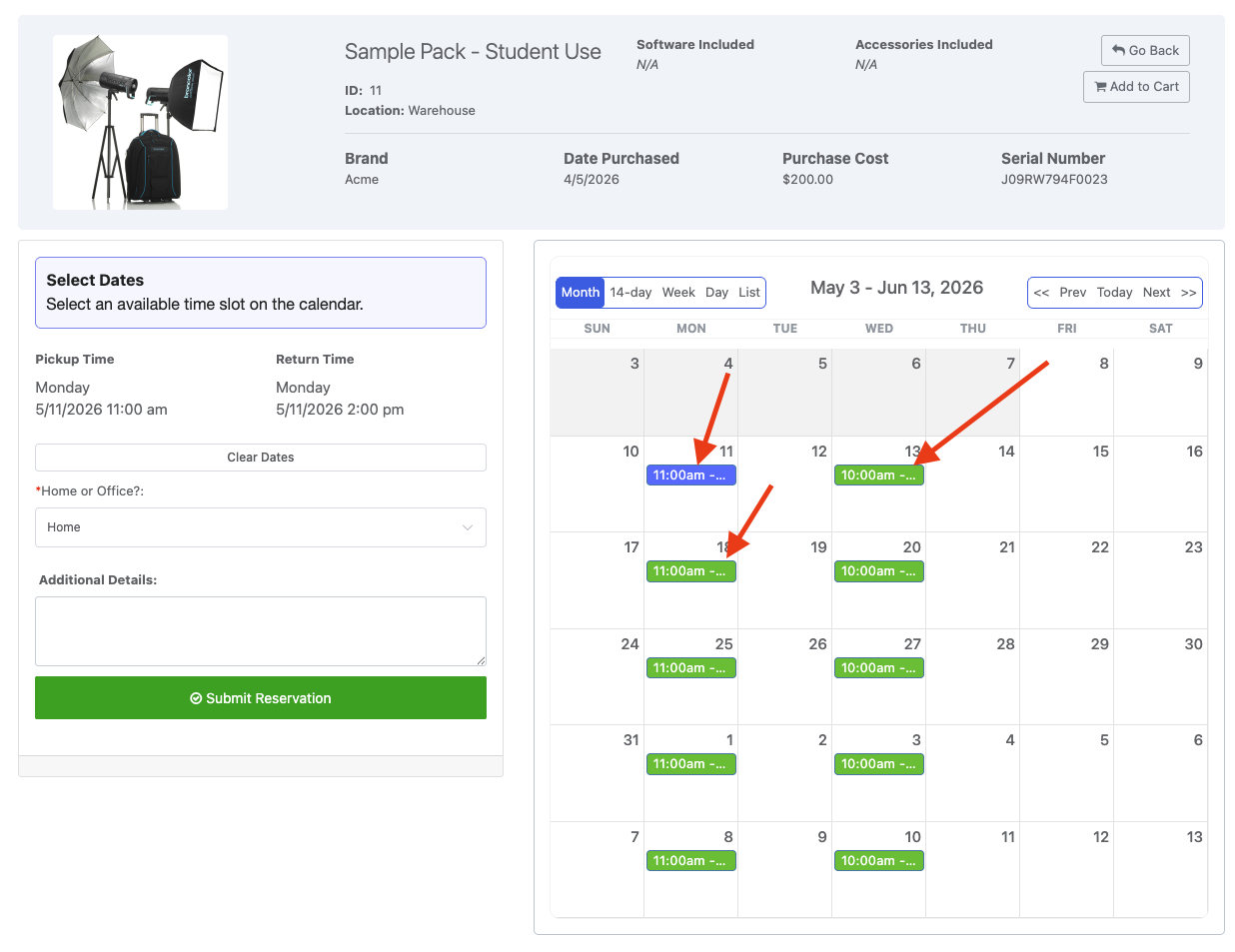
Example:
An admin creates a reservation block from 9:00 AM to 2:00 PM, Monday through Friday.
When users reserve an item, they can only select one of those available blocks. They cannot choose times outside of the configured blocks.
When to use this:
Use Reservation Time Blocks when items can only be picked up, returned, or used during specific windows.
Common examples include:
- Staffed equipment rooms
- School media labs
- Tool cribs
- AV checkout desks
- Lab equipment pickup windows
Maximum Loan / Reservation Times
What are Maximum Loan / Reservation Times?
Maximum Loan / Reservation Times control how long an item can be reserved or checked out.
These limits can be configured by asset category and access role, which means different types of users can have different time limits for the same kind of item.
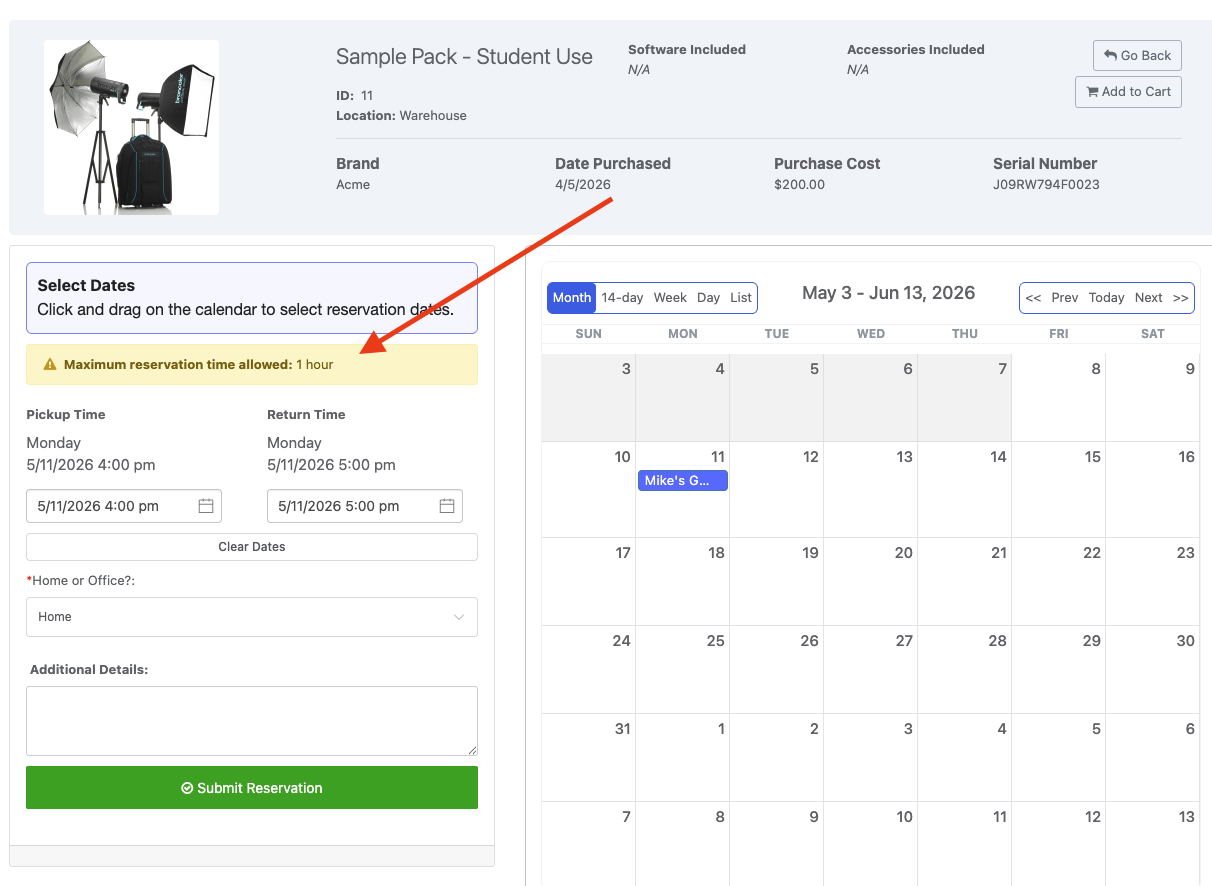
Example:
A camera can be reserved for:
| User Type | Maximum Time Allowed |
|---|---|
| Student | 1 hour |
| Faculty | 4 hours |
| Staff | 8 hours |
When to use this:
Use this setting when you want to limit how long users can keep certain items, especially high-demand equipment.
This is different from the future booking window. Maximum Loan / Reservation Times control how long the item can be used, not how far ahead the reservation can be scheduled.
Reservation Minimum Notice Times
What are Reservation Minimum Notice Times?
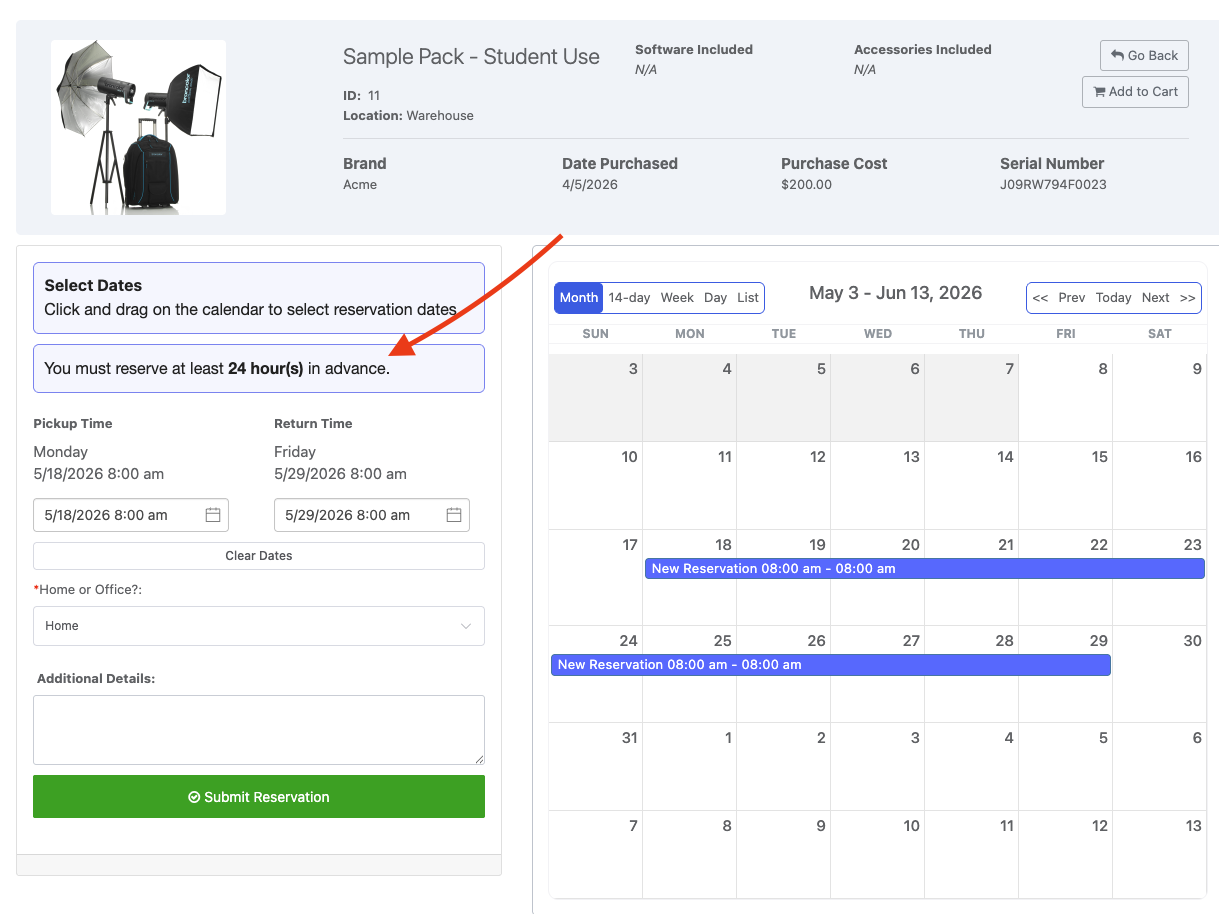
Reservation Minimum Notice Times control how much advance notice is required before a reservation can start.
These rules can be set by category and location Or via a global setting.
To set the global setting, use:

Otherwise, to set by location / category for more granular options use the button “Configure Reservation Minimum Booking Times”

When this is set, users will see a notice informing them of the setting:
Example:
A lab manager sets a 1-hour minimum notice time for lab equipment in the Biology Lab.
If a user tries to reserve that equipment for pickup in 30 minutes, Reftab will prevent the reservation because the required notice time has not been met.
When to use this:
Use Reservation Minimum Notice Times when staff need time to prepare items before pickup.
Common examples include:
- When devices require charging prior to use
- Cleaning equipment
- Preparing lab gear
- Inspecting tool kits
- Pulling equipment from storage
Default Checkout Hours
What are Default Checkout Hours?
Default Checkout Hours automatically pre-select a return time when an asset is checked out.
This is mainly a convenience setting. It helps speed up checkout by filling in a default due date/time.
Example:
If Default Checkout Hours is set to 48 hours, then when an asset is checked out, Reftab automatically selects a return time 48 hours in the future.
When to use this:
Use this setting when most checkouts follow the same standard loan period.
For example, if most equipment is normally checked out for two days, setting a 48-hour default saves staff from manually selecting the return time every time.
Important:
This setting pre-fills the return time. It is not the same as Maximum Loan / Reservation Times, which enforce the maximum amount of time an item can be used.
Maximum Assigned Items
What is the Maximum Assigned Items setting?
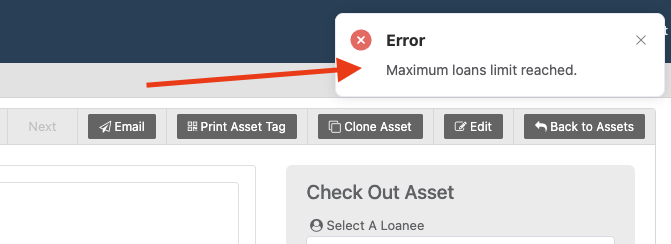
Maximum Assigned Items limits how many items a user can have assigned or checked out to them at one time.
Example:
If the maximum assigned item limit is set to 5, a user cannot have more than 5 items in their possession at the same time.
When to use this:
Use this setting to prevent users from holding too much inventory.
This is helpful for schools, labs, tool rooms, AV teams, or any organization where shared equipment needs to stay available to other users.
Maximum Reserved Items
What is the Maximum Reserved Items setting?
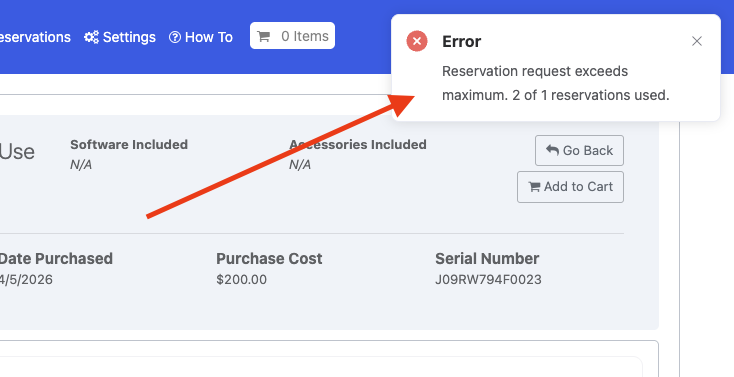
Maximum Reserved Items limits how many active or upcoming reservations a user can have at one time.
Example:
If the maximum reserved item limit is set to 3, a user cannot have more than 3 active reservations.
When to use this:
Use this setting to prevent users from overbooking equipment or reserving more items than they realistically need.
This is different from Maximum Assigned Items.
| Setting | What It Limits |
|---|---|
| Maximum Assigned Items | Items currently checked out or assigned |
| Maximum Reserved Items | Active or upcoming reservations |
Amount of Days into the Future Reservations Can Be Scheduled
What does this setting do?
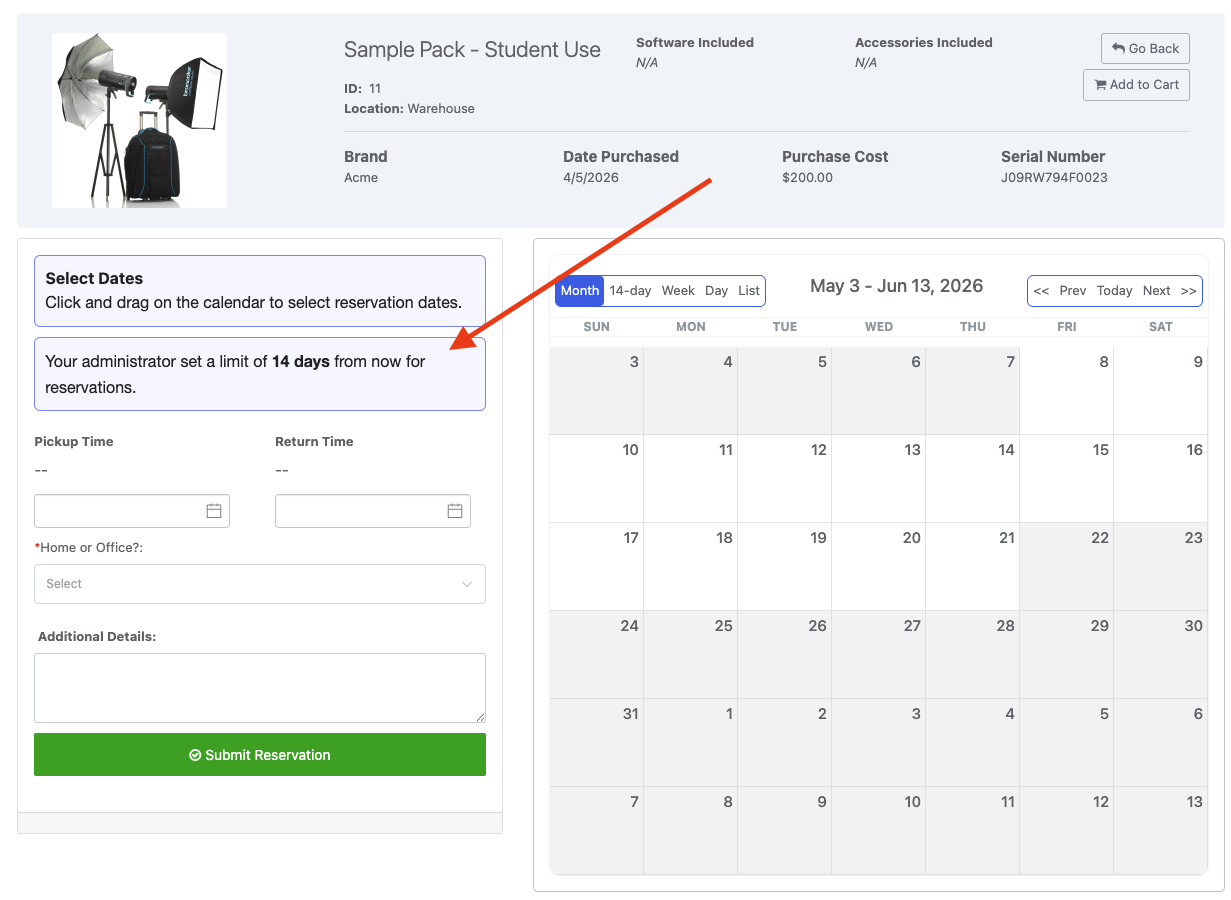
This global setting controls how far into the future users can schedule reservations. When this setting is enabled, the calendar will disable dates that are outside of the range set.
Note: this setting can also be configured by location as well as globally.
Example:
If this setting is set to 30 days, users can only create reservations with a pickup/start date within the next 30 days.
If they try to reserve an item 45 days from now, Reftab will prevent the reservation.
When to use this:
Use this setting when you do not want users booking equipment too far in advance.
This helps keep availability manageable and prevents users from reserving items months ahead of time.
Important:
This setting controls how far ahead users can book, not how long they can keep the item.
Maximum Overdue Limit Amount
What is the Maximum Overdue Limit Amount?
Maximum Overdue Limit Amount controls whether users with overdue items can continue checking out additional items.
Example:
If the overdue limit is set to 1, a user with 1 or more overdue items may be blocked from checking out more equipment.
When to use this:
Use this setting when you want to prevent users from continuing to take more items while they already have overdue equipment.
This helps encourage users to return overdue items before receiving anything else.
Reservation Early Fulfillment
What is Reservation Early Fulfillment?
Reservation Early Fulfillment controls how early a reservation can be fulfilled before the scheduled pickup time.
This setting is entered in hours.
Example:
A user has a reservation scheduled for pickup at 2:00 PM on the 15th.
If Reservation Early Fulfillment is set to 24 hours, the item can be checked out to the user as early as 2:00 PM on the 14th.
If the user tries to pick up the item on the 10th, Reftab will prevent the reservation from being fulfilled because it is too early.
When to use this:
Use this setting when users are allowed to pick up reserved items slightly early, but not too far before the scheduled pickup time.
This is useful when staff want some flexibility while still protecting inventory availability.
Reservation Buffer Time
What is Reservation Buffer Time?
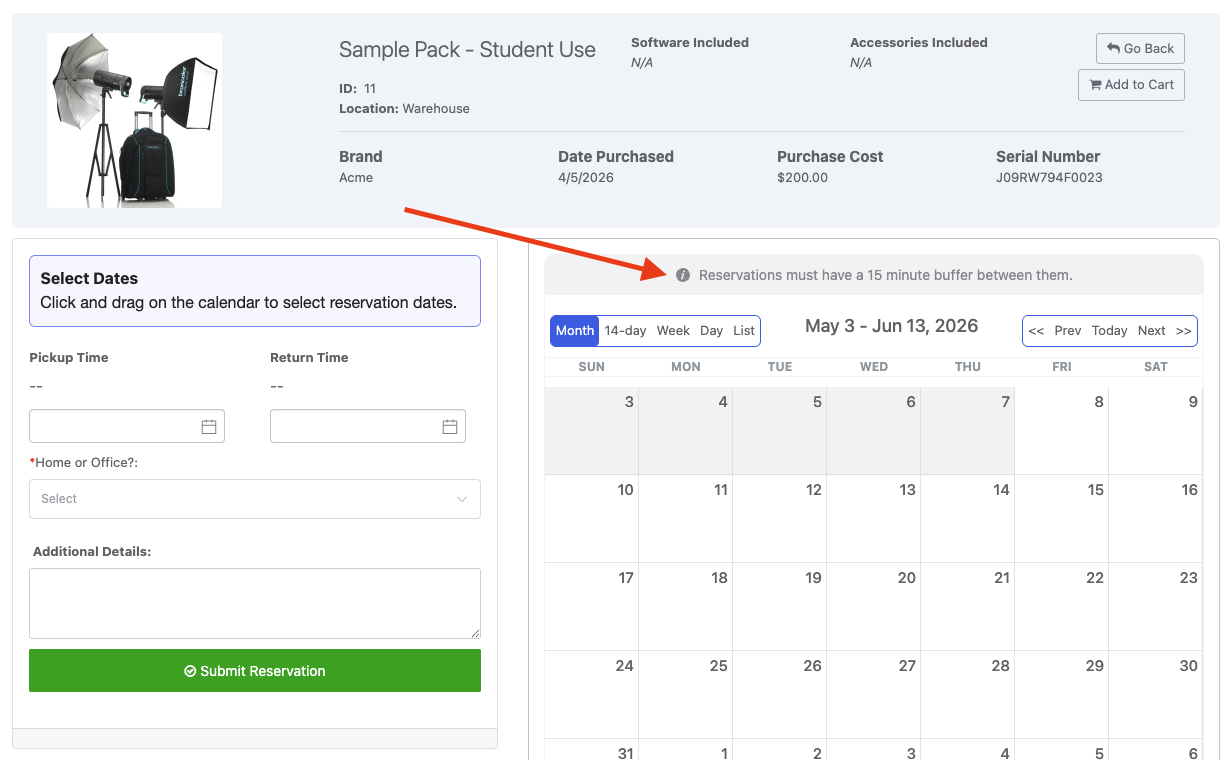
Reservation Buffer Time creates a required gap between the end of one reservation and the start of the next reservation.
This setting is entered in minutes.
Example:
If Reservation Buffer Time is set to 15 minutes, and an item is returned at 10:00 AM, the next reservation cannot begin until 10:15 AM.
If another user tries to reserve the item starting at 10:00 AM, Reftab will prevent the reservation because the buffer time has not been met.
When to use this:
Use Reservation Buffer Time when items need time between uses.
Common examples include:
- Cleaning
- Charging
- Inspection
- Resetting equipment
- Checking accessories
- Moving items between locations
Reservation Booking Window by Location
What is the Reservation Booking Window by Location?
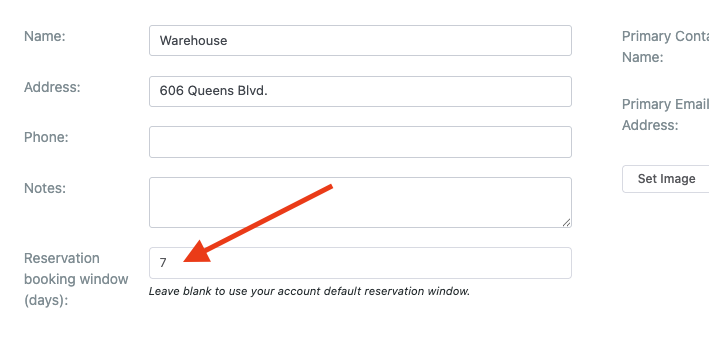
The Reservation Booking Window by Location controls how many days into the future users can reserve items at a specific location.
When editing a location, you’ll see an input for this setting:
Example:
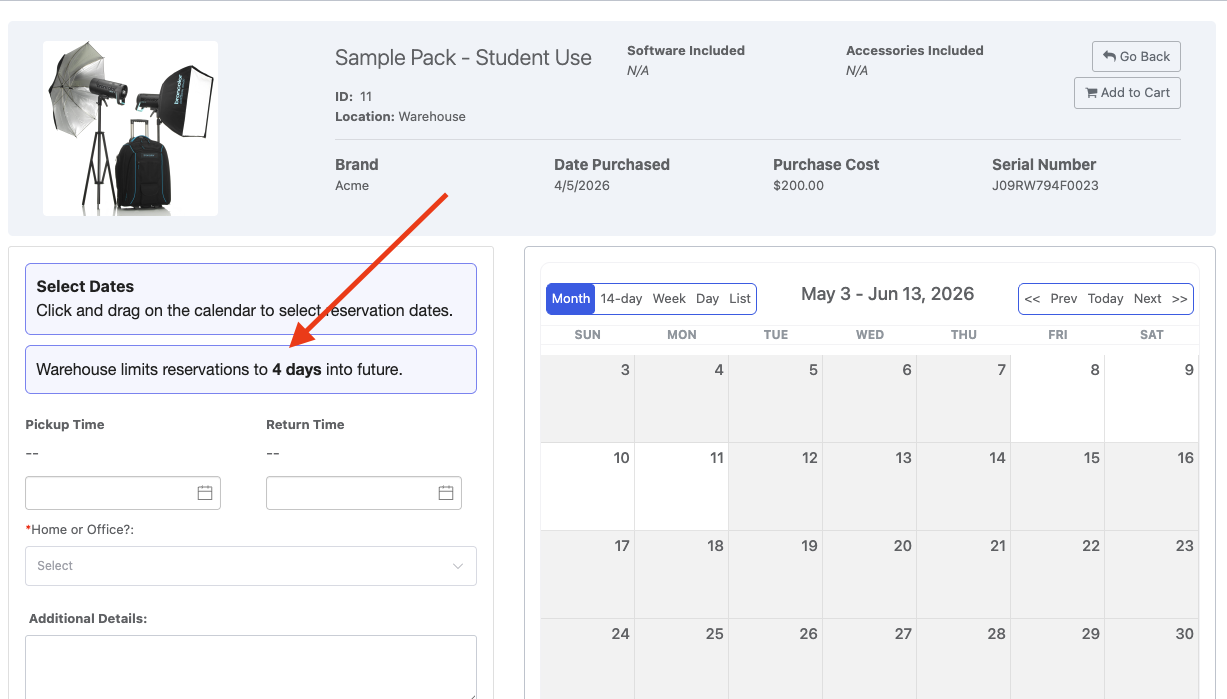
If a location’s booking window is set to 7 days, users can only book items from that location within the next 7 days.
If today is the 1st of the month, users can reserve items from that location for pickup dates between the 1st and the 7th. If they try to select the 10th, Reftab will prevent the reservation.
When to use this:
Use this setting when different locations need different booking rules.
For example:
- One equipment room may allow reservations 30 days ahead.
- Another location may only allow reservations 7 days ahead.
- A temporary job site may only allow reservations 3 days ahead.
Important:
The location booking window overrides the global “Amount of Days into the Future Reservations Can Be Scheduled” setting.
Common Questions
Which setting controls how long someone can keep an item?
Use u003cstrongu003eMaximum Loan / Reservation Timesu003c/strongu003e.u003cbru003eThis controls the maximum amount of time an item can be reserved or checked out.
Which setting controls how far ahead someone can book?
Use u003cstrongu003eAmount of Days into the Future Reservations Can Be Scheduledu003c/strongu003e for a global rule.u003cbru003eUse u003cstrongu003eReservation Booking Window by Locationu003c/strongu003e when a specific location needs its own rul
Which setting prevents last-minute reservations?
Use u003cstrongu003eMin. Reservation Booking Lead Timeu003c/strongu003e for a general advance booking rule.u003cbru003eUse u003cstrongu003eReservation Minimum Notice Timesu003c/strongu003e when specific categories or locations need their own advance notice rules.
Which setting makes checkout faster?
Use u003cstrongu003eDefault Checkout Hoursu003c/strongu003e.u003cbru003eThis automatically pre-selects a return time during checkout.
Which setting prevents users from holding too many items?
Use u003cstrongu003eMaximum Assigned Itemsu003c/strongu003e to limit how many items a user can currently have assigned or checked out.u003cbru003eUse u003cstrongu003eMaximum Reserved Itemsu003c/strongu003e to limit how many upcoming reservations a user can have.
Which setting stops users with overdue items from checking out more equipment?
Use u003cstrongu003eMaximum Overdue Limit Amountu003c/strongu003e.u003cbru003eThis prevents users from continuing to check out more items after they reach the overdue limit.
Which setting controls how early a reserved item can be picked up?
Use u003cstrongu003eReservation Early Fulfillmentu003c/strongu003e.u003cbru003eThis controls how early staff can fulfill a reservation before its scheduled pickup time.
Which setting creates time between reservations?
Use u003cstrongu003eReservation Buffer Timeu003c/strongu003e.u003cbru003eThis creates a required gap between the end of one reservation and the start of the next reservation.
Need help? We're here for you
For any questions or assistance, feel free to reach out to us.
Ready to simplify IT asset management?
No credit card. No watered-down trial. Create a free account and see firsthand what Reftab can do.