
Accessories & Consumables in Reftab
What Are Accessories and Consumables?
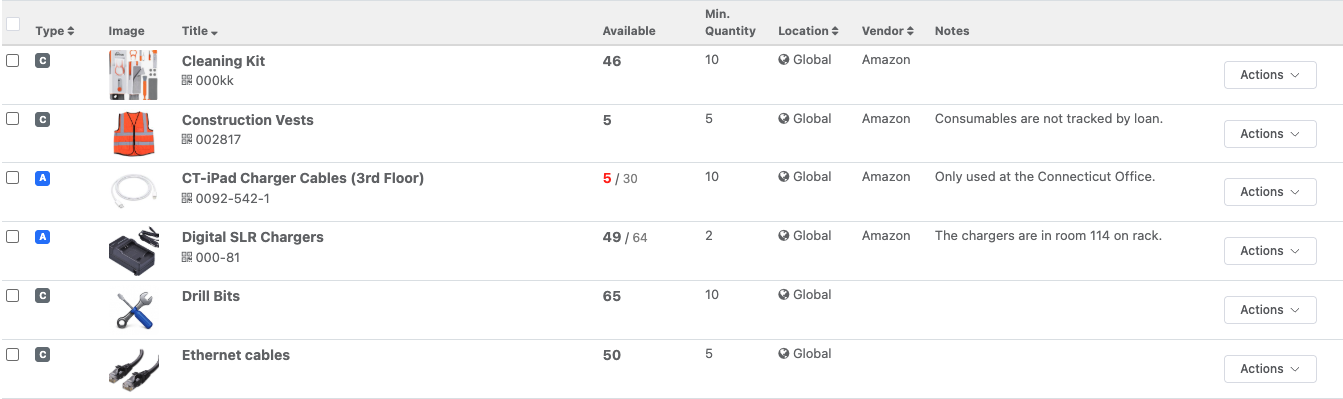
Reftab separates bulk-tracked items into two distinct types: Accessories and Consumables. While they look similar on the surface, they serve different purposes and behave differently in the system.
Accessories are items you track by quantity and check out to people — things like power adapters, docking stations, USB hubs, spare keyboards, and mice. When you check out an accessory to a user, Reftab records who has it, how many units are out, and how many remain available. Accessories can be returned, and Reftab tracks that full loan lifecycle.
Consumables are items that get used up and don’t come back — batteries, printer ink, cable ties, cleaning kits, toner cartridges. Rather than tracking loans, consumables use a transaction model: you add stock when you replenish and subtract stock when you deplete. At any point you can see your current on-hand quantity and a full log of every transaction that affected it.
Should You Even Track These Items?
This is an honest question worth asking before you start adding everything in your supply closet to Reftab.
ITAM best practices generally hold that you do not need to track an item if:
- It does not have a serial number
- It is not configurable
- It does not connect to a network
A $4 USB-A to USB-C cable meets none of those criteria. Tracking it creates administrative overhead with no meaningful return.
That said, cost is a real factor, and this is worth a conversation with your finance team. A common approach is to set an internal threshold — for example, any item costing more than $50 or $100 warrants tracking, anything below does not. Your finance team can help you land on a number that aligns with your capitalization policies.
The good news: Accessories and consumables are not counted toward your Reftab asset quota. You can track as many as you want at no additional cost. So if your organization wants to track everything, there’s no penalty for doing so — just be realistic about the administrative effort of maintaining that data.
Creating an Accessory
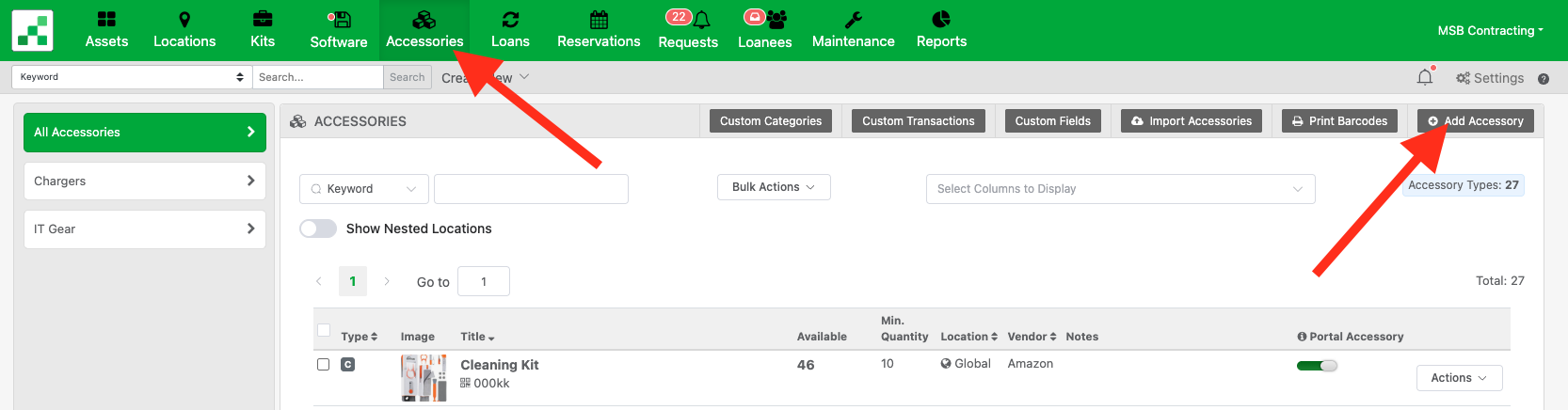
To create an accessory or consumable, go to the Accessories section in the main navigation and click Add Accessory.
Step 1 — Choose the type
You’ll first be asked to select whether this item is an Accessory or a Consumable. This choice determines how the item behaves throughout the system and cannot be changed after creation, so choose carefully.
Step 2 — Fill in the details
| Field | Description |
|---|---|
| Title | The name of the item (e.g., “Dell 65W USB-C Power Adapter”) |
| Category | Group similar items together (e.g., “Charging Accessories”) |
| Quantity | How many units you currently have |
| Minimum Quantity | The threshold that triggers a low stock alert |
| Low Stock Alert Email | The email address to notify when quantity drops below the minimum |
| Location | Assign to a specific location or make available at all locations |
| Display in Request Portal | Whether users can request this item through the self-service portal |
| Order Number / Purchase Date / Vendor | Optional procurement fields for reference |
Once saved, the item appears in your accessories list and is ready for checkouts or transactions.
Checking Out an Accessory
When a user needs an accessory — say a spare power adapter while theirs is being replaced — you can check it out directly from the accessory detail page or from the accessories list.
- Open the accessory record
- Click Check Out
- Select the user receiving the item and the quantity
- Confirm the checkout
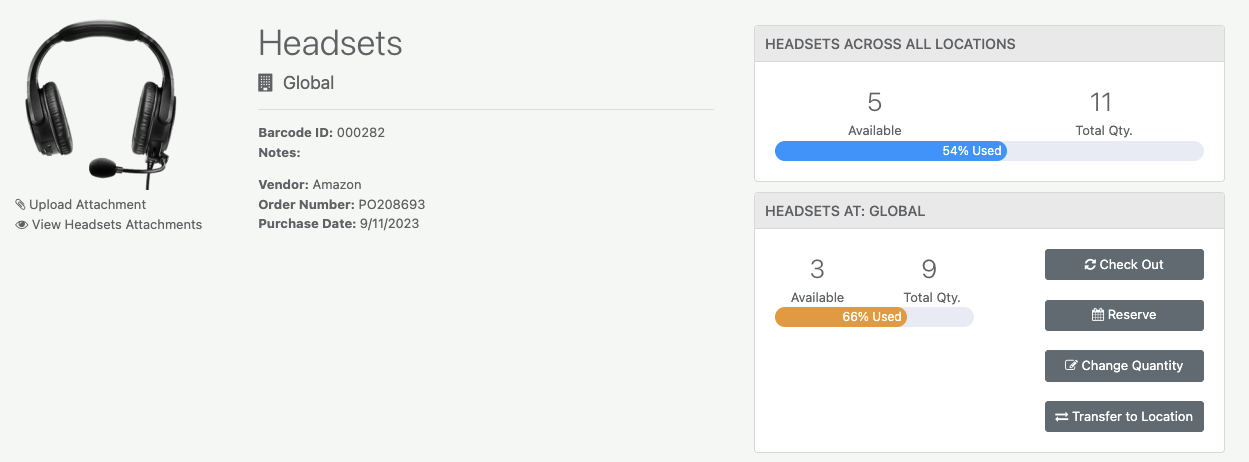
Reftab immediately updates the Available and Total Qty counters on the accessory. The item now appears under the Loans tab of the accessory record, showing who has it, how many units, and when it was checked out.
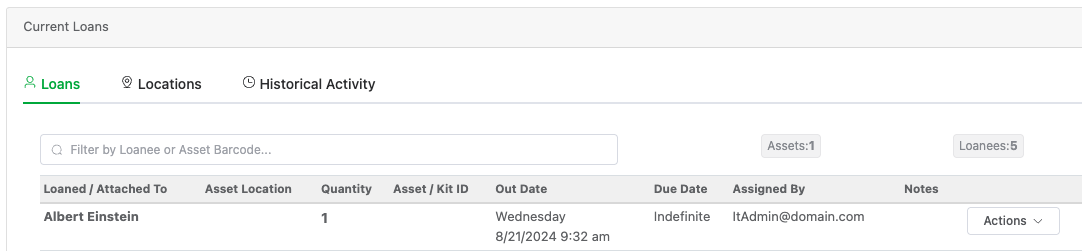
When the user returns the item, you check it back in from the same Loans tab, and the quantity is restored.
Viewing Quantity and Current Status
Every accessory detail page shows a live at-a-glance summary:
- Available — units currently not checked out
- Total Qty — total units owned
For consumables, you’ll see a single Current Qty reflecting what’s on hand after all transactions.

If you’ve assigned the accessory to multiple locations, each location shows its own available and total quantity, and you can transfer stock between locations.
Transactions for Consumables
Consumables don’t use the checkout model — they use transactions. Each time stock comes in or goes out, you log a transaction.
Reftab comes with default transaction types, and you can create custom ones that reflect your actual workflows — for example:
- Restocked from warehouse (additive)
- Issued to field tech (subtractive)
- Inventory correction (set — sets the quantity to an exact number)
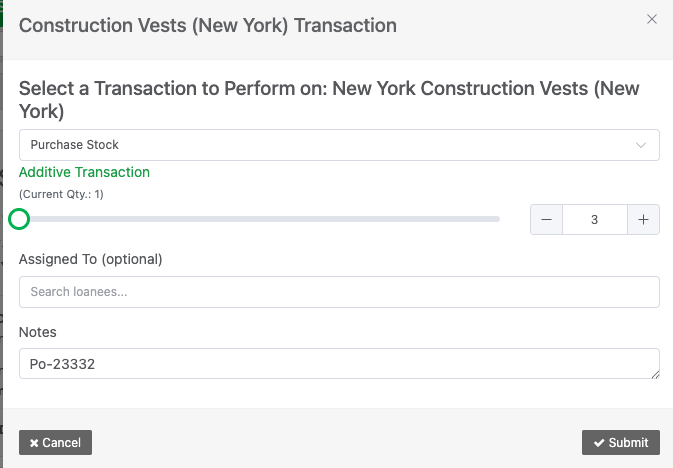
Every transaction type is classified as one of three behaviors:
- Additive — increases the quantity
- Subtractive — decreases the quantity
- Set — overrides the quantity to a specific value (useful for inventory reconciliation)
To log a transaction, open the consumable record and go to the Transactions tab. Select the transaction type, enter the quantity and any notes, and save. The current quantity updates immediately.
Note for maintenance teams: Consumables are particularly well-suited to maintenance workflows — tracking things like replacement parts, lubricants, cleaning supplies, and materials used in recurring service jobs. If your team manages physical plant maintenance or field equipment servicing alongside IT, consumables give you a consistent way to track stock across both disciplines in one place.
How Transactions Are Stored
Every transaction is permanently recorded. The Transactions tab on a consumable record shows a full running log with:
- Transaction type
- Quantity added or removed
- Who performed the transaction
- Date and time
- Any notes attached to the transaction

This gives you a complete paper trail of every stock movement — useful for audits, budget reviews, and understanding where supplies are going.
Historical Activity Log (Accessories)
Accessories have an additional tab called Historical Activity, which goes beyond just the current loans. This log captures every change ever made to the accessory record:
| Column | What It Shows |
|---|---|
| Field Changed / Action Taken | What was modified or what event occurred |
| Quantity | How many units were involved |
| Location | Which location the action applied to |
| Old Value | What the value was before the change |
| New Value | What the value changed to |
| Time | Exact timestamp |
| User | Who made the change |
| Notes | Any notes attached to the action |
You can also filter the history to show Transfers Only — useful when you want to see just the movement of stock between locations.
Historical activity logging requires an upgraded Reftab plan and must be enabled in your account settings. If logging is currently off, you’ll see a notice in the History tab with a link to turn it on.
A Practical Example
Here’s how this looks end-to-end for an IT team:
- You create an accessory: “Logitech MX Keys Keyboard”, quantity 15, minimum quantity 3, low stock alert to
it@yourcompany.com - A new employee starts — you check out 1 unit to them. Available drops from 15 to 14
- Three more employees start — you check out 3 more. Available is now 11
- Eventually, 12 more units get checked out. Available hits 3 — Reftab sends the low stock alert email automatically
- You order more keyboards. When they arrive, you update the quantity. The alert resets
- An employee leaves — you check in their keyboard. Available goes back up
At any point, the Loans tab shows exactly who has a keyboard. The Historical Activity tab shows every checkout, check-in, and quantity change that’s ever happened, who did it, and when.
That’s a complete, auditable lifecycle record — with no spreadsheet in sight.
Need help? We're here for you
For any questions or assistance, feel free to reach out to us.
Ready to simplify IT asset management?
No credit card. No watered-down trial. Create a free account and see firsthand what Reftab can do.