
How to use Postman with Reftab’s API?
Using Reftab’s Open API with Postman streamlines IT asset management by enabling custom integration and automation of asset tracking processes. This guide will show you step-by-step how to use Postman with Reftab’s API.
This procedure assumes you have a Postman account already created.
Reftab API Documentation: www.reftab.com/api-docs
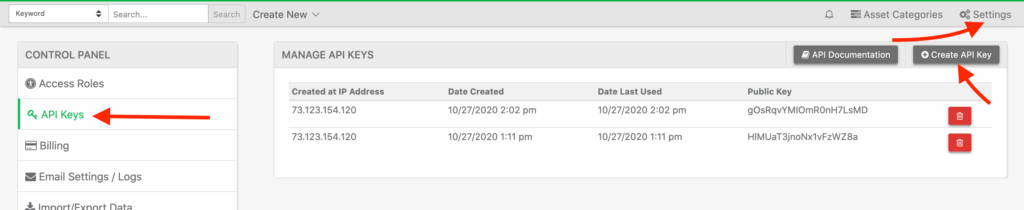
Start by generating API keys from your Reftab account.
Click, “Settings” > “API Keys” > “Create API Key“
Next, copy your public and private key.
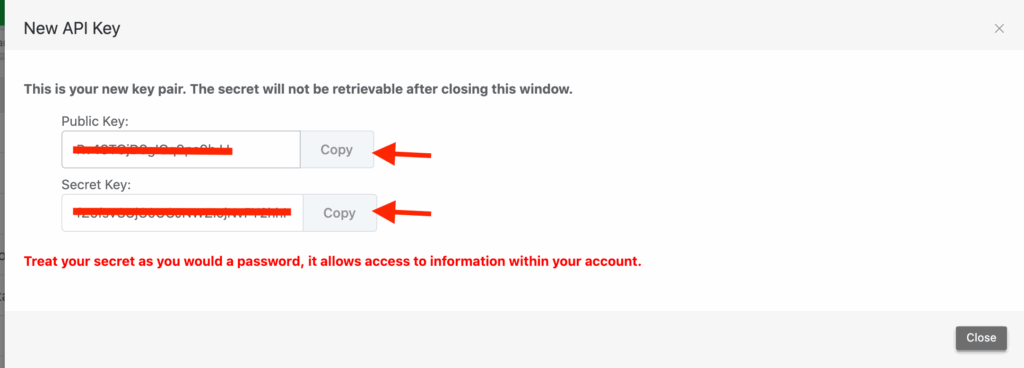
NOTE: STORE THESE KEYS SECURELY. THEY GIVE ACCESS TO YOUR REFTAB ACCOUNT
Next, log into postman and enable the desktop agent.

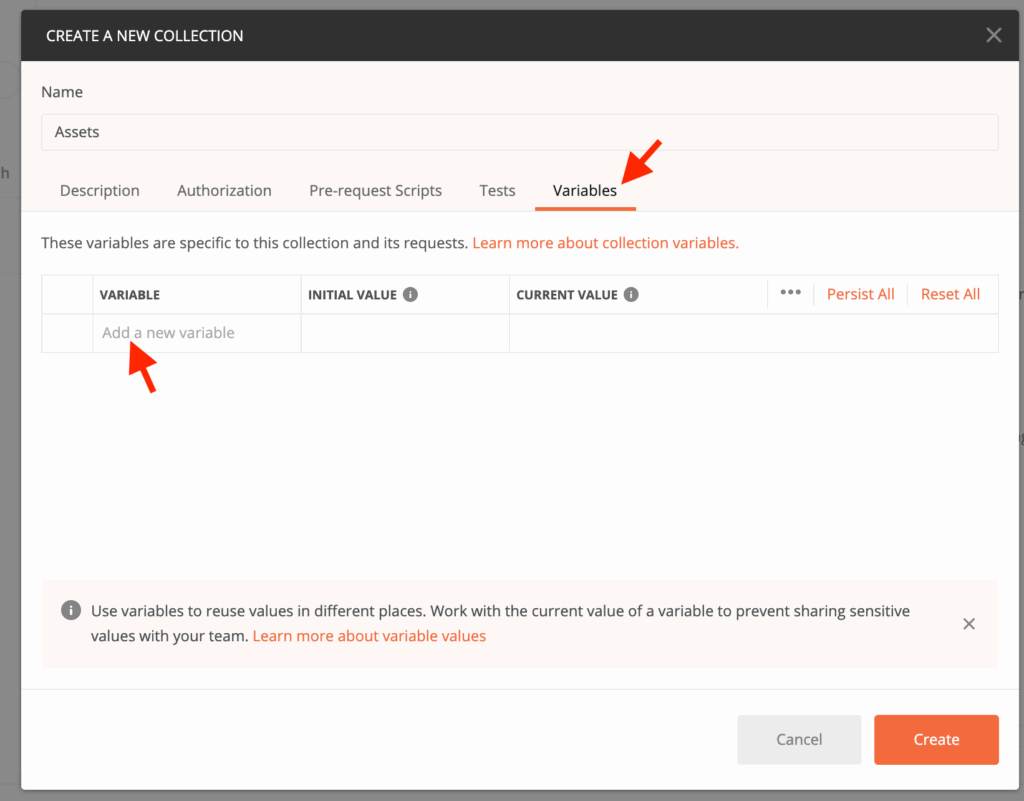
Next, create a new “Collection”.

Use the variables tab to “Add New Variables”
Past your public / private keys:
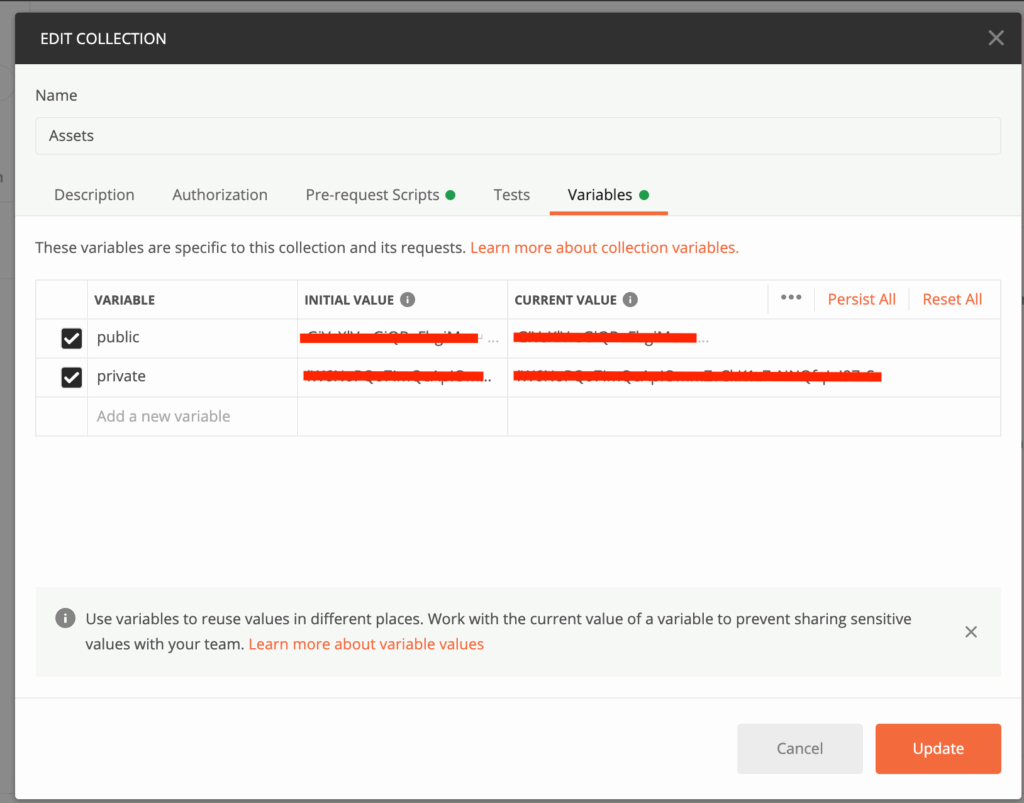
Click “Update”.
Next, click “Pre-request Scripts”
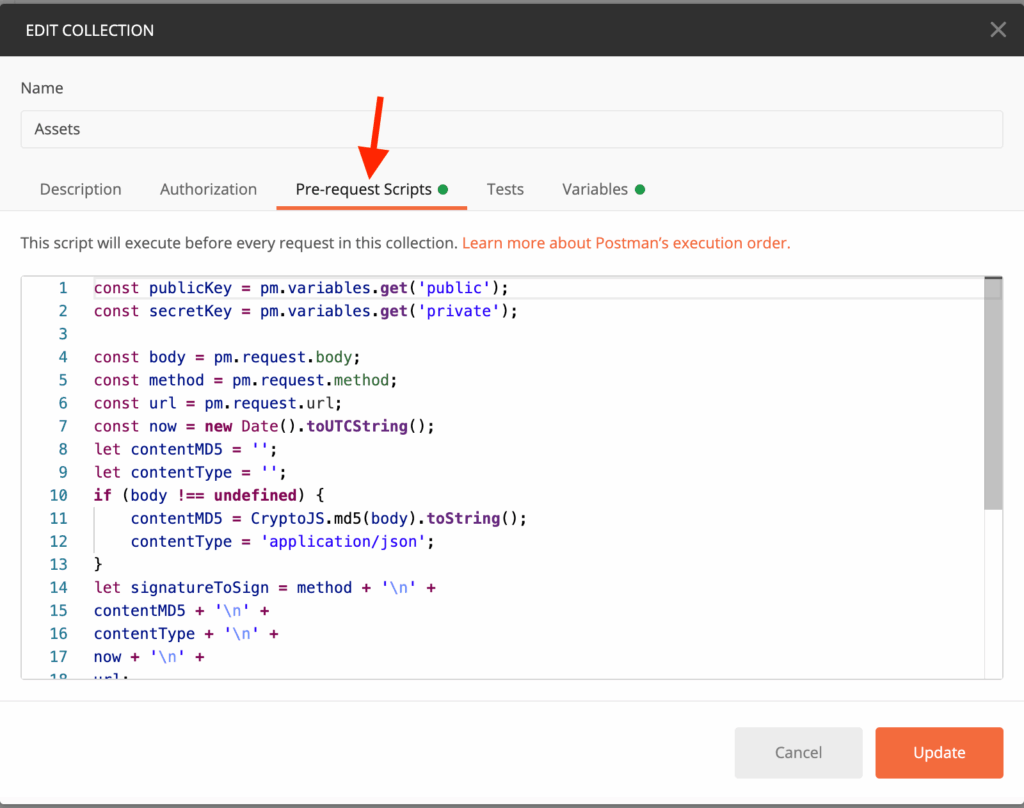
Paste in the below JS code:
pm.request.url.path.forEach((part, index) => {
    if (part.includes('{{')) {
        pm.request.url.path[index] = pm.environment.replaceIn(part);
    }
});
var CryptoJS = require("crypto-js");

const publicKey = pm.variables.get('public');
const secretKey = pm.variables.get('private');

let body = pm.request.body;
const method = pm.request.method;
if (method === 'GET' || method === 'DELETE') {
body=undefined;
}
const url = pm.request.url;
const now = new Date().toUTCString();
let contentMD5 = '';
let contentType = '';
if (body !== undefined) {
contentMD5=CryptoJS.MD5(body.raw).toString();
contentType='application/json';
}
let signatureToSign = method + '\n' +
contentMD5 + '\n' +
contentType + '\n' +
now + '\n' +
url;
signatureToSign = unescape(encodeURIComponent(signatureToSign));
const token = btoa(CryptoJS.HmacSHA256(signatureToSign, secretKey));
let signature = 'RT ' + publicKey + ':' + token;
signature = signature.replace("\n", '');
pm.request.headers.add({
key: 'Authorization',
value: signature
});
pm.request.headers.add({
key: 'x-rt-date',
value: now
});
Click “update”.
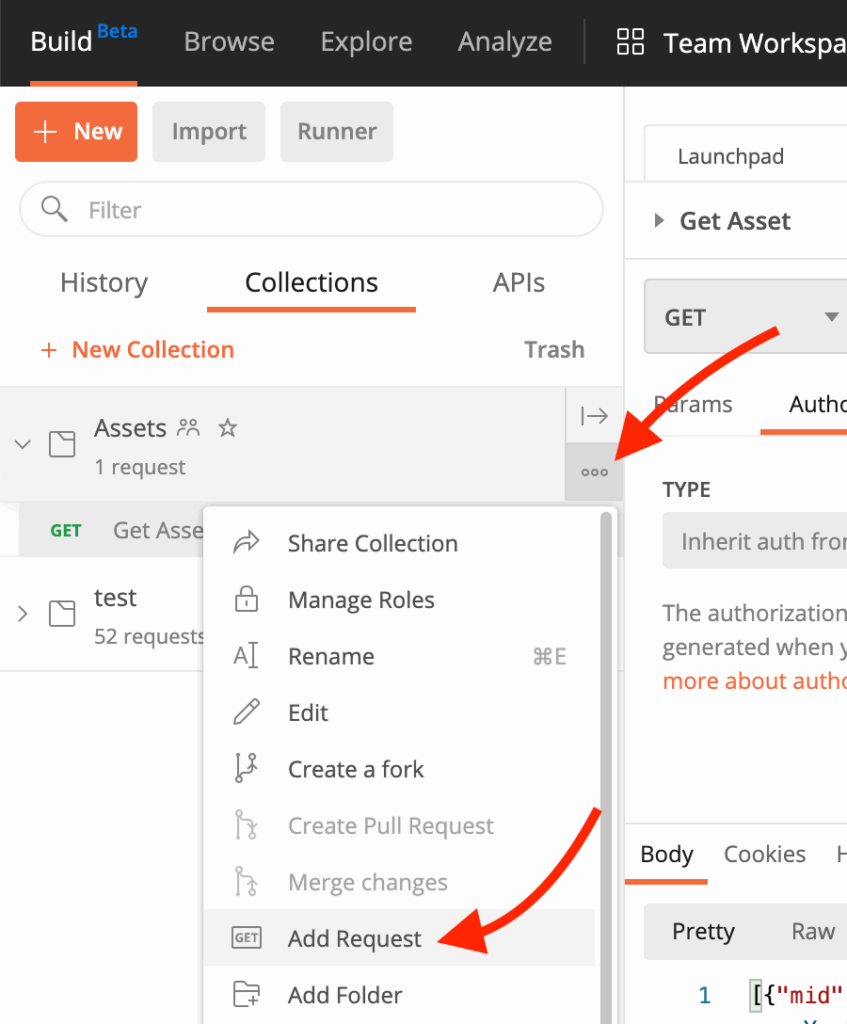
Next to your collection, click the three dots icon and click, “Add Request”
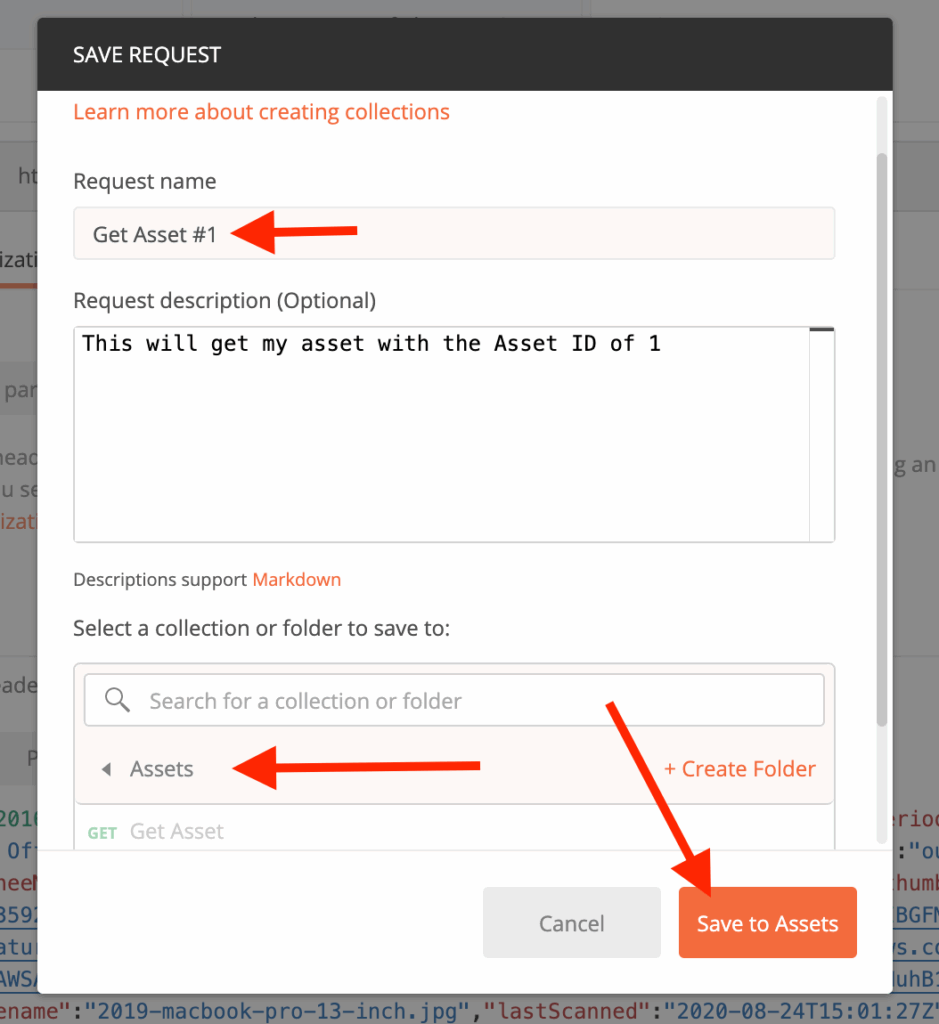
Next, give the request a name and save it to your previously saved collection:
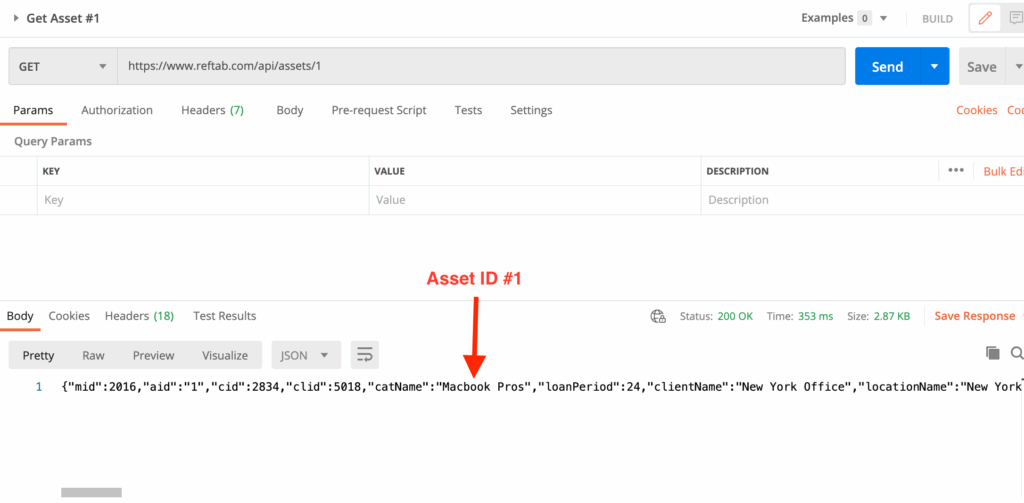
Next, add the URL of the GET request you’d like. In the image below, the URL is: “https://www.reftab.com/api/assets/1” this will GET the asset with an id of ‘1’.
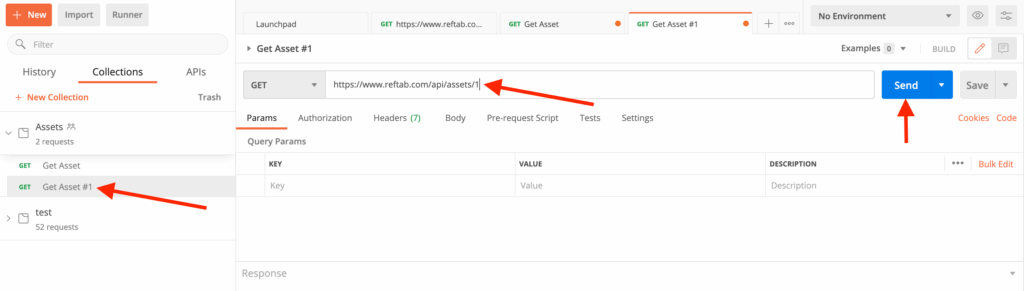
Click “Send” and the response should display:
Need help? We're here for you
For any questions or assistance, feel free to reach out to us.
Your assets, simplified. Begin your journey with us!
50 assets free forever with unlimited inventory & software tracking. Includes email alerts, mobile apps, reports, custom asset tags and more.