
How do I change the display image for an accessory?

By using Reftab’s mobile app, or the desktop site you can change the image of an accessory item.
In order to change an Accessory’s display image, you’ll first need to head to that accessory. Directly below the current image, you should see the option “Upload Attachment.”
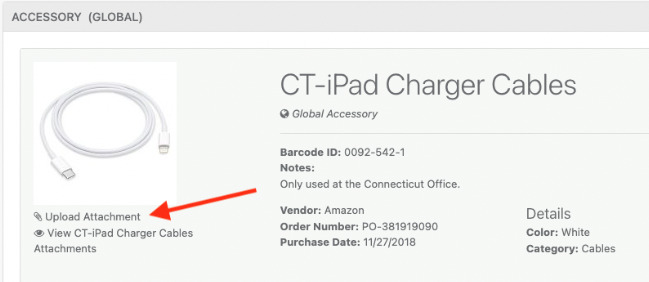
Simply find your new file, images can be selected by either using the Browse button or dragging an image into the new pop up.

After your image has been chosen, you can select Upload and Attach. Your new image will be located under “View *this accessory’s* Attachment” located directly below Upload Attachment. Find the new image you have uploaded and select “Set Image” to the left of the file name.
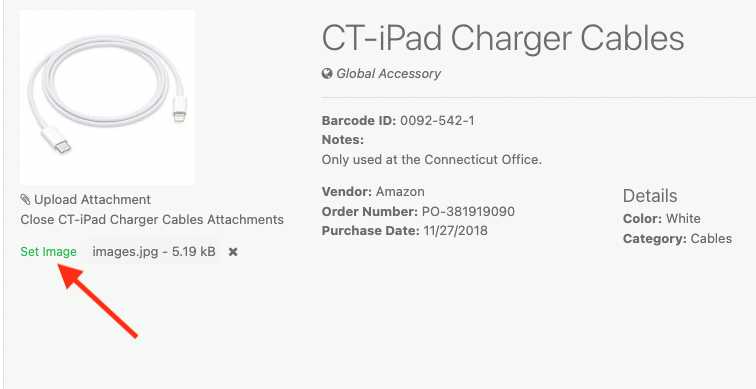
That’s it. You should see the new image displayed on the accessory above.


Reftab
Your IT inventory, finally under control
Try Reftab for free, no strings attached. 50 assets free forever.
Continue reading



Ready to simplify IT asset management?
No credit card. No watered-down trial. Create a free account and see firsthand what Reftab can do.