
Automatically Report on Disabled Users with Equipment
When a user is disabled in Reftab – either manually or, automatically via Reftab’s SCIM integration it is worthwhile to know if a user still has equipment assigned to them so that you can get it back.
Reftab can automate this process by emailing you a list of users who are disabled, but still need to return their equipment. This guide will show you how to setup an automated report to list these types of users.
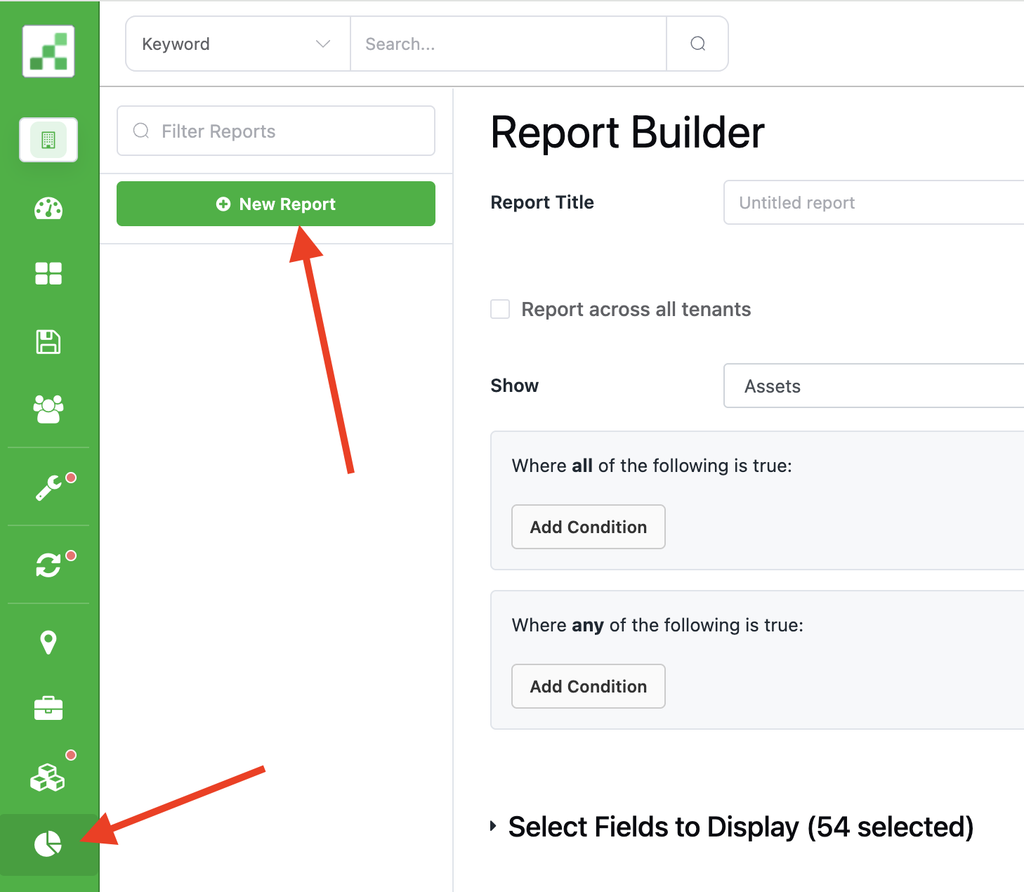
1. Go to the Reports page and click “New Report“
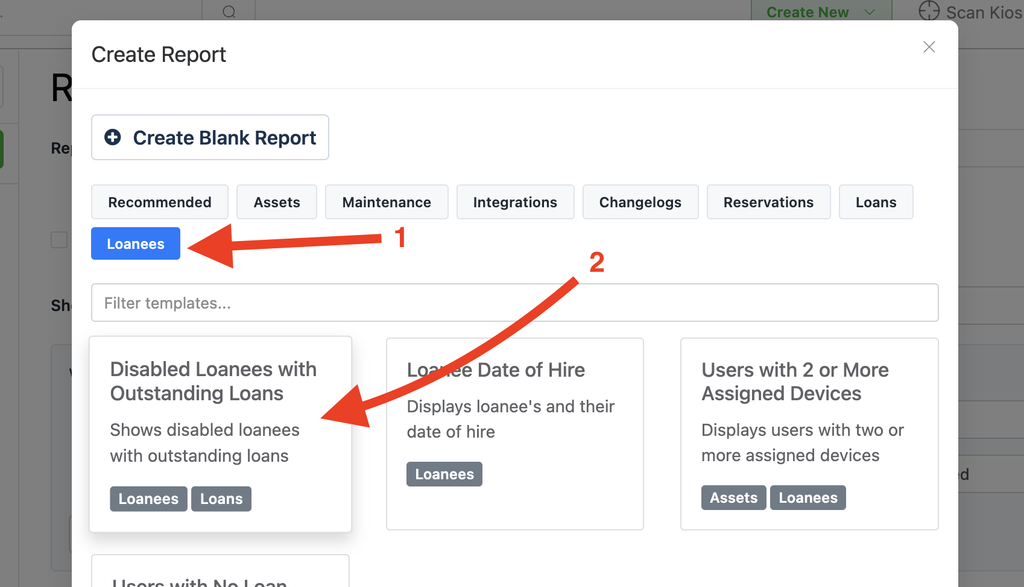
2. Click “Loanees” > “Disabled Loanees with Outstanding Loans“
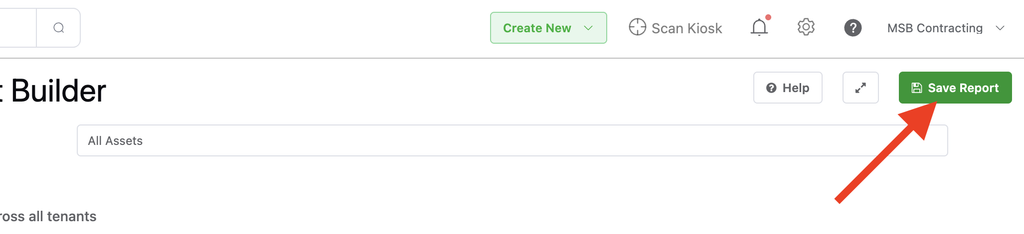
3. Click “Save Report“
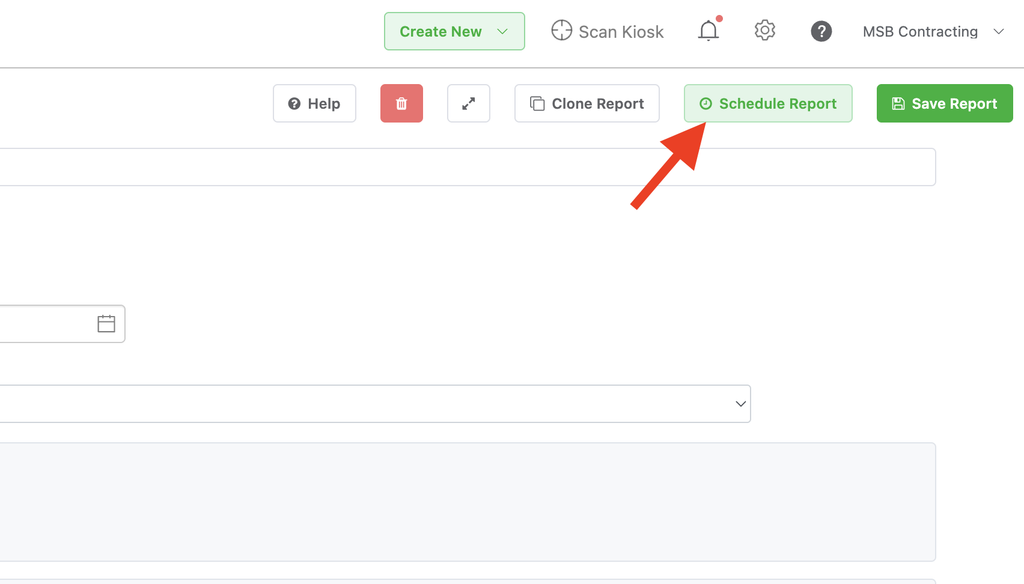
4. Next, click “Schedule Report“
Next, fill out the frequency, (most users have this run weekly) and provide an email address to send the results to:
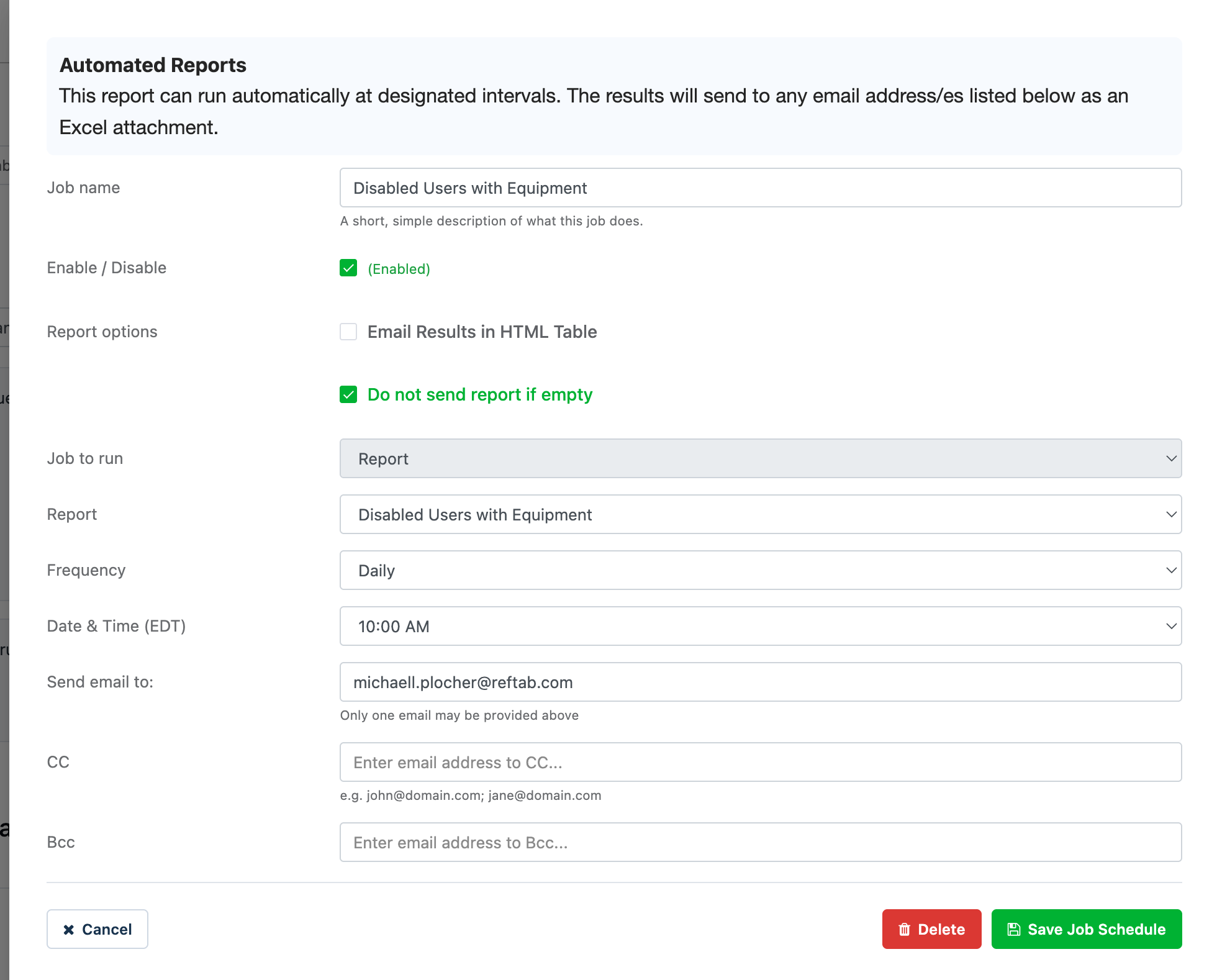
Click “Save Job Schedule“
And that is it! You will now be notified automatically of any users who are disabled and still have equipment assigned to them. As you then check-in the equipment from these users, they will no longer appear on the list.
Next: Verify Users are In Possession of Equipment
As you check assets in and out, it is best practice, every-so-often to email users to ask if they still have custody over their equipment. Users can reply saying “yes” or “no” and include details that let you know how your equipment is being utilized. This is a great way to keep Reftab up-to-date more easily.
Click here to setup a scheduled job to email users a custody verification form
Need help? We're here for you
For any questions or assistance, feel free to reach out to us.
Ready to simplify IT asset management?
No credit card. No watered-down trial. Create a free account and see firsthand what Reftab can do.