
How to edit Locations and Sub Locations?
- How to edit a Location
- How to Delete a Location
- How to Add a Sub Location
- How to Edit a Sub Location
- How to Delete a Sub Location
How to Edit a Location
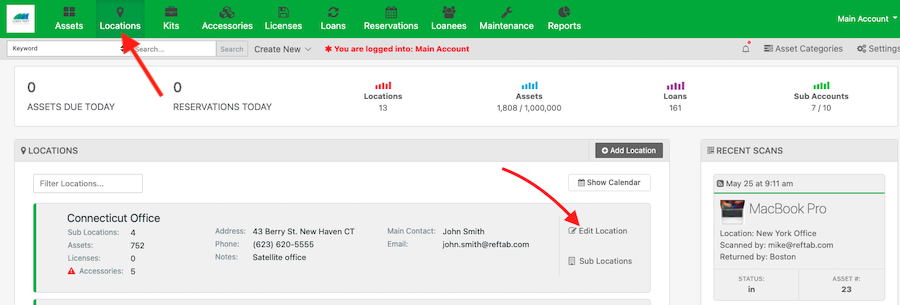
To edit a location, first click the “Locations” tab in the green navigation bar. Then, next to any location click “Edit Location”.
How to Delete a Location
To delete a location, you will need to click the Edit Location button as shown above. You can then choose the red Delete button as show below:

How to Add a Sub Location
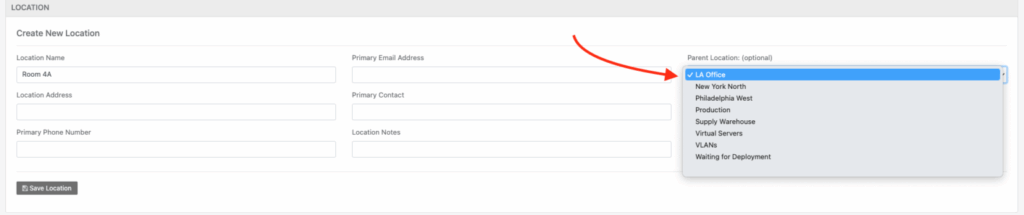
In order to add a Sub Location, head to the Locations tab in the green nav bar. From there choose Add Location. You can fill out all of the necessary information, then choose the “Parent Location” dropdown. This will allow you to create a sub location of the Location you have chosen.
How to Edit a Sub Location
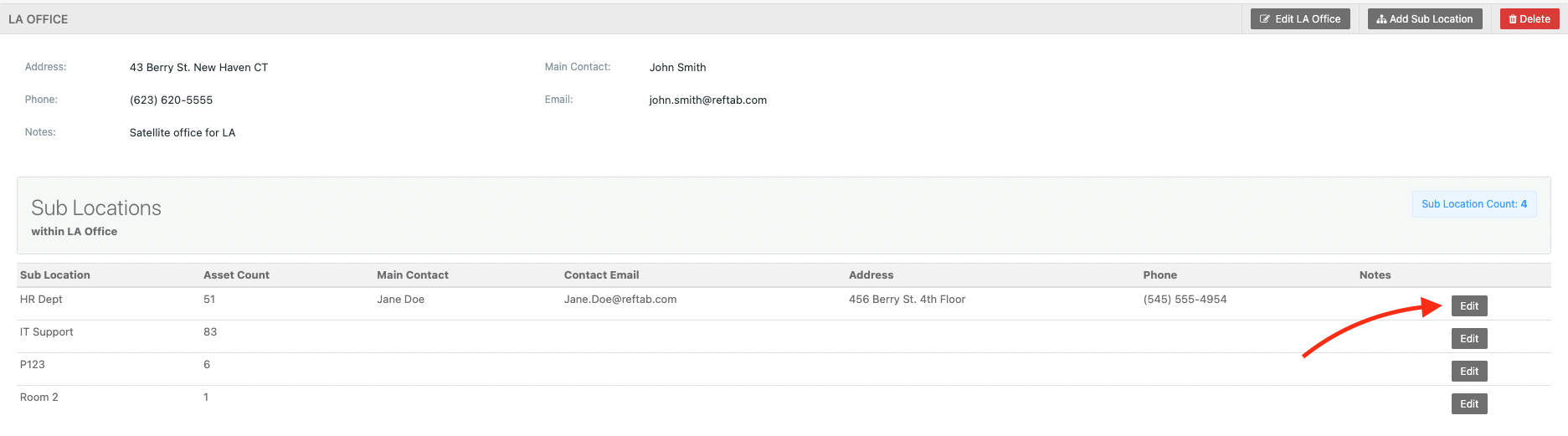
Once again, in the Locations tab click the Sub Location option.

From there you can see all Sub Locations and choose the proper one to edit.
How to Delete a Sub Location
In order to delete a sub location, you will first need to convert it to a Parent Location. To do this, Edit the location as shown above. Then using the Parent Location dropdown, you will need to choose the “Blank” option:
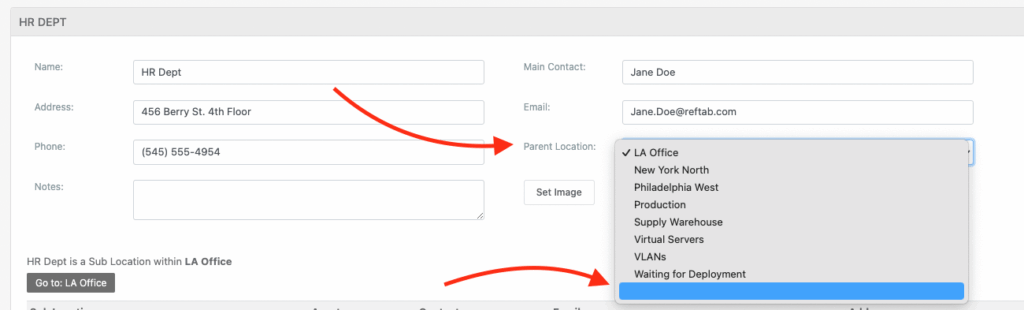
Once saved, this location will no longer be nested beneath the original Parent Location. You can then follow the steps above to Delete this Location.
Your assets, simplified. Begin your journey with us!
50 assets free forever with unlimited inventory & software tracking. Includes email alerts, mobile apps, reports, custom asset tags and more.