
How to start a Reftab subscription
To start a Reftab subscription, you’ll need to log into your Reftab account. If you don’t have an account, create one here.
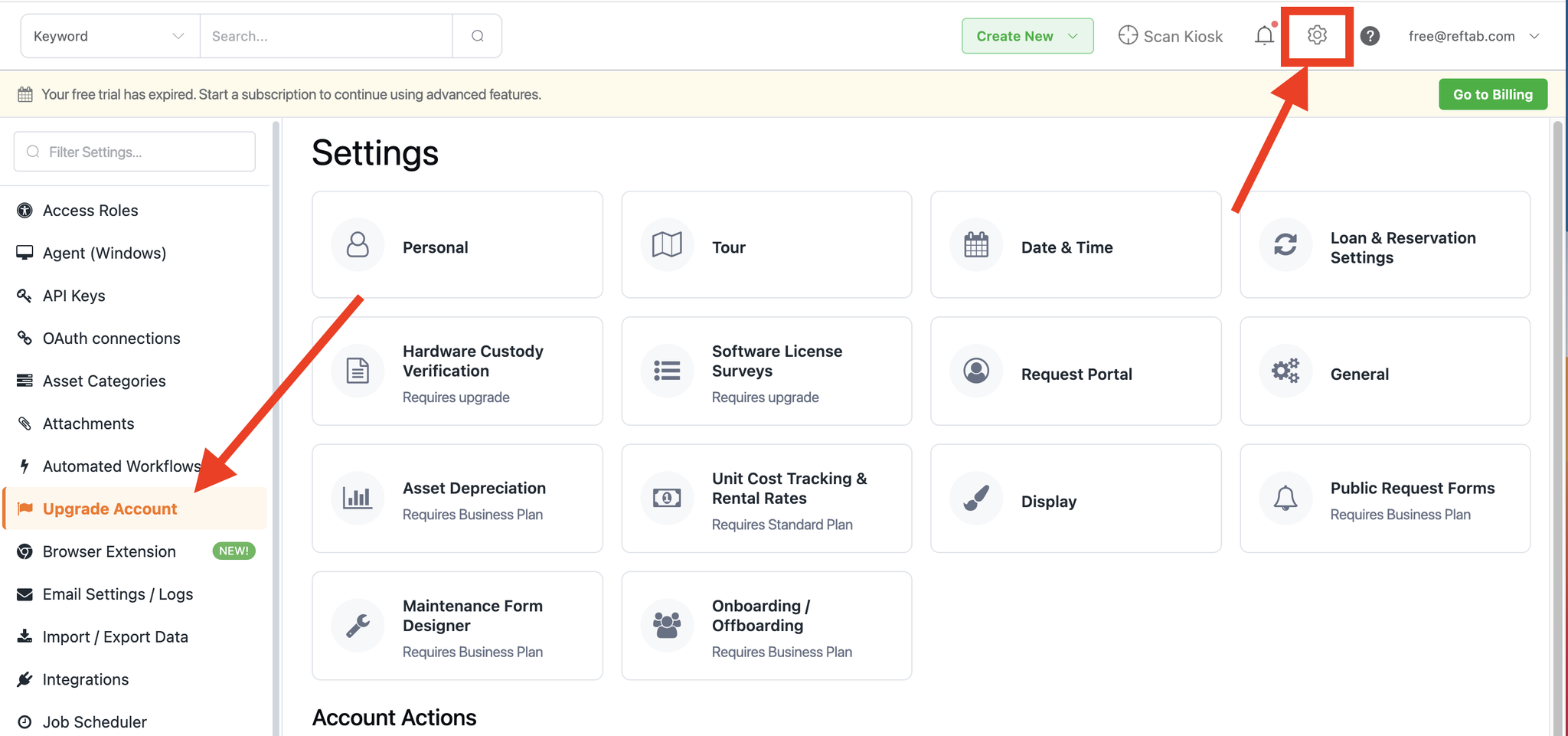
Next, click “Settings” > “Upgrade Account“
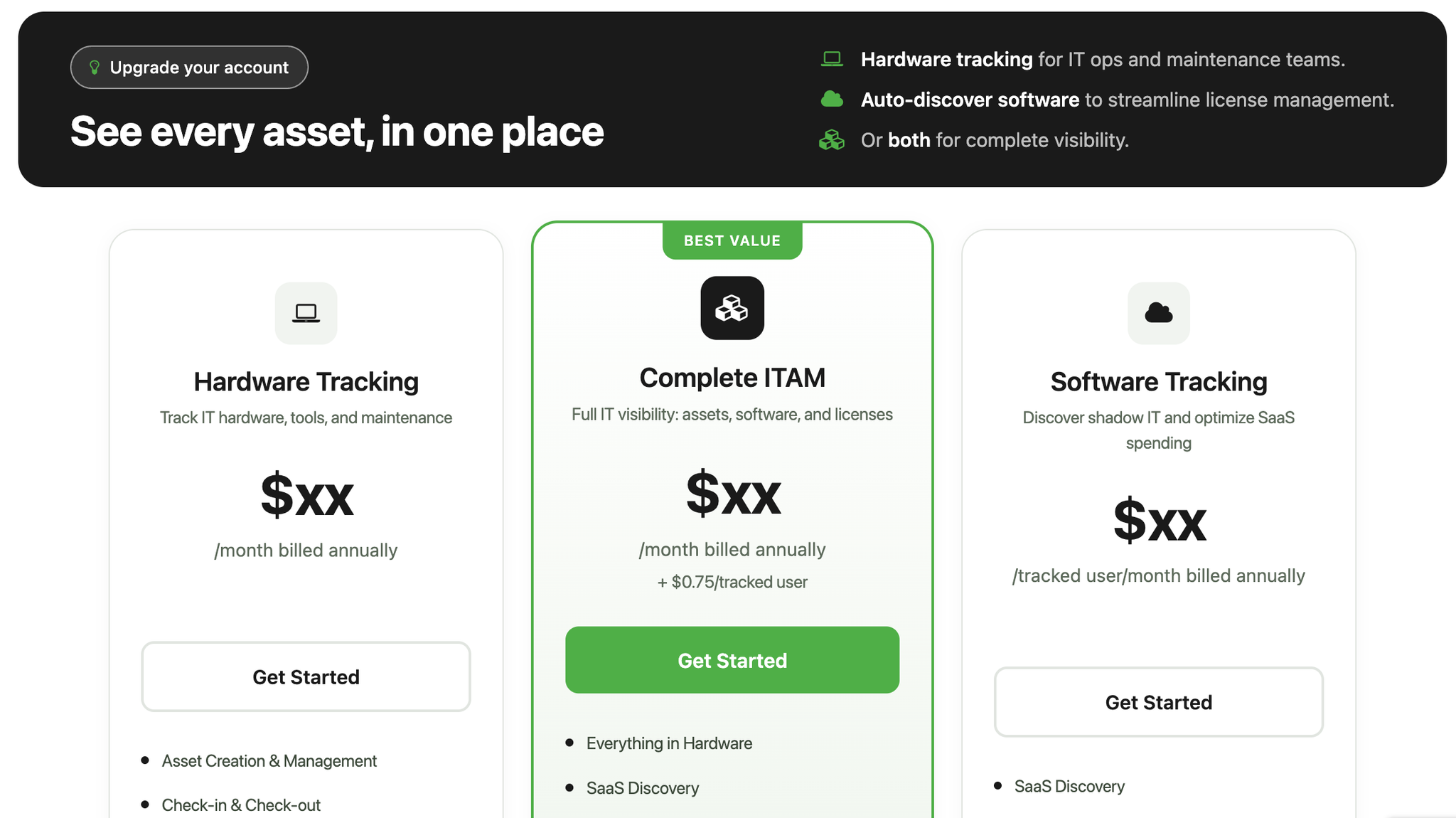
Next, choose the subscription you’d like to start with:
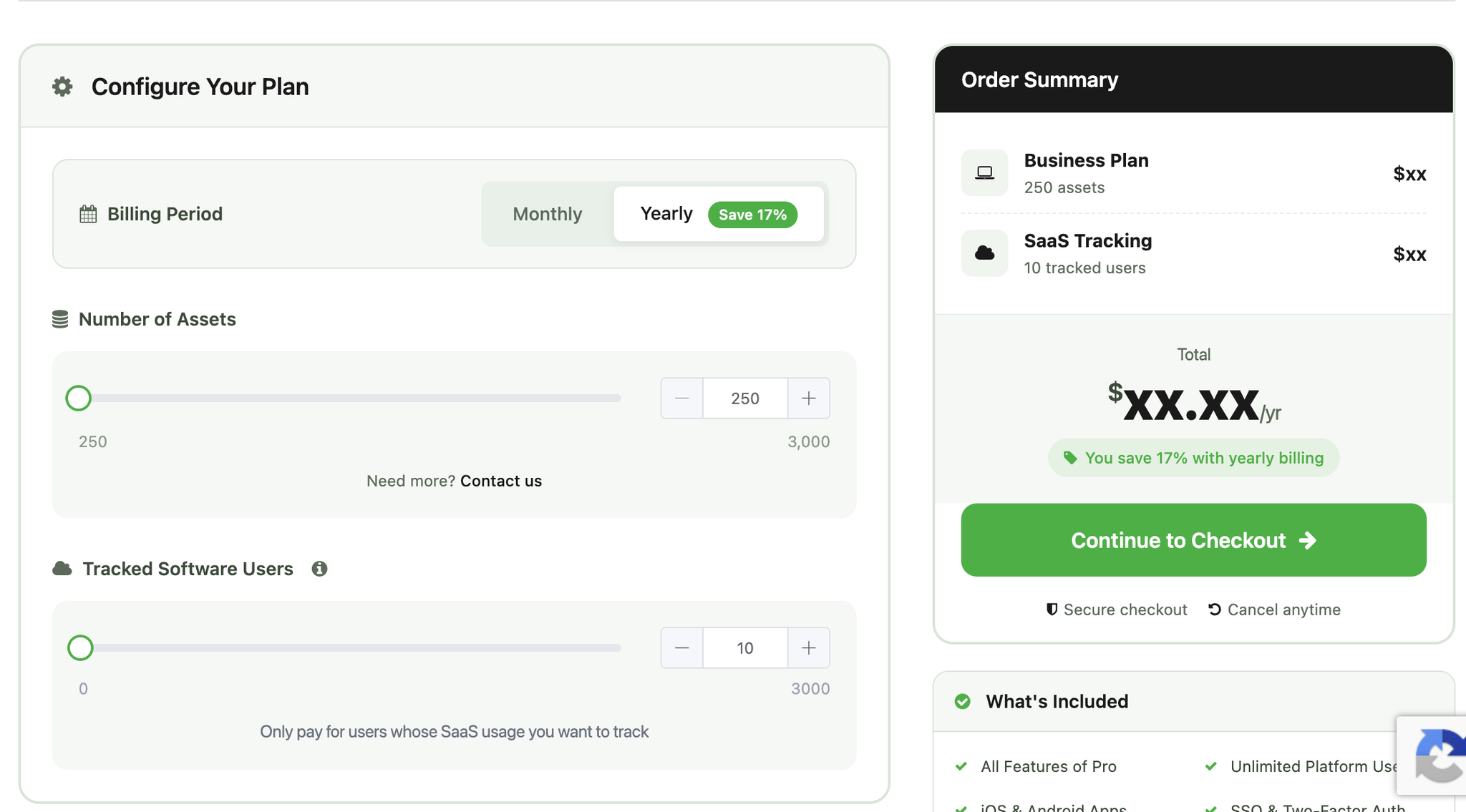
For whichever option you choose, you’ll be able to select either an Asset Count and / or a Tracked Software User count. (Note, you can also select monthly or yearly billing options.)
Use the sliders or the number inputs to enter your amounts and click “Continue to Checkout“
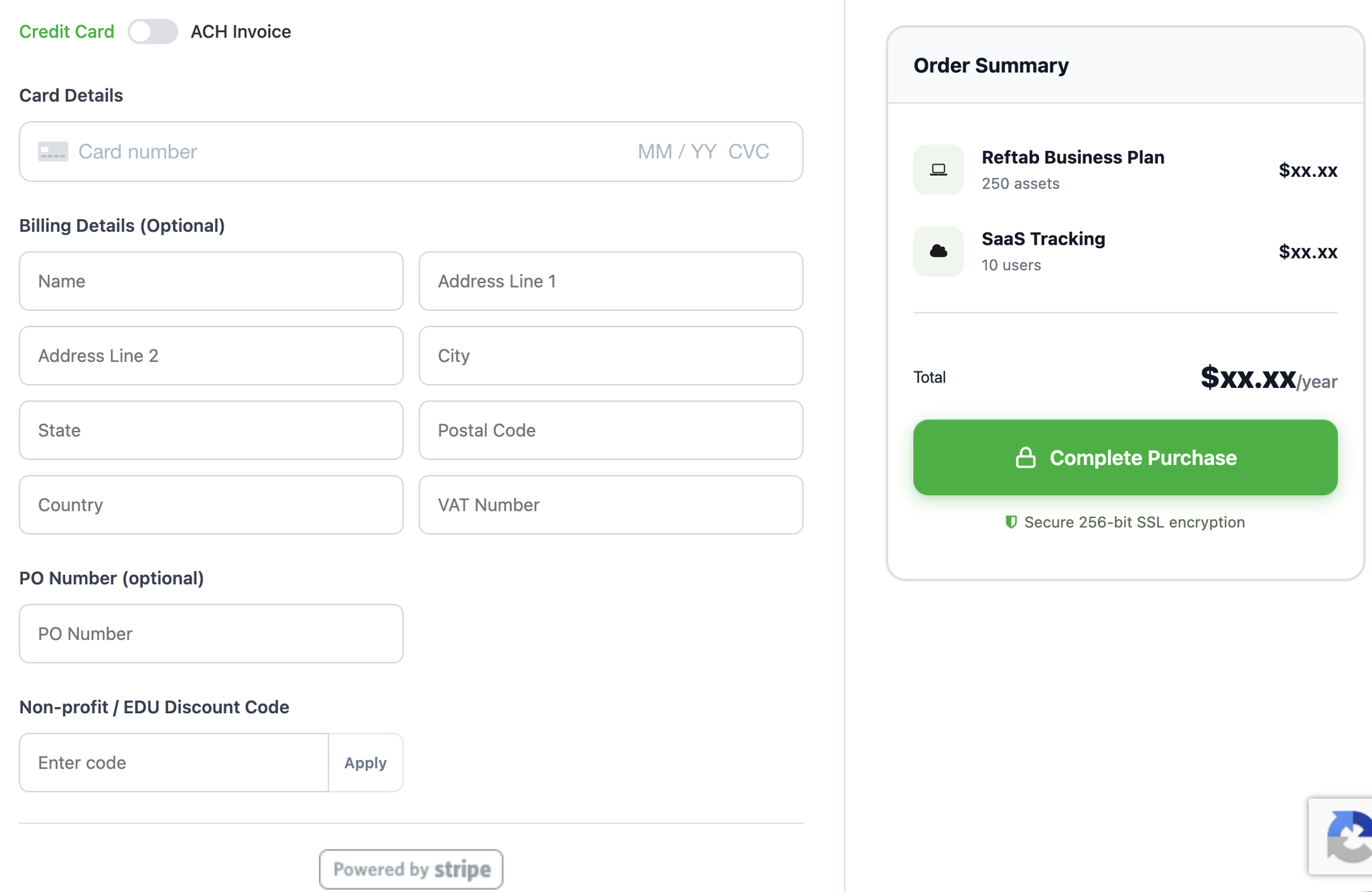
You’ll be on the payment page next. You can choose:
Credit Card or, if you subscribe to the Business Plan, you can choose ACH invoice. Enter details and click “Complete Purchase“.
Once completed, your account will be upgraded immediately. We encourage you to take advantage of our onboarding assistance to get the most out of Reftab from day one. A Reftab representative will reach out by email to help you get started and ensure everything is set up for success.
See our guide on billing history and downlading receipts here.
Thanks for your Reftab subscription!
Need help? We're here for you
For any questions or assistance, feel free to reach out to us.
Ready to simplify IT asset management?
No credit card. No watered-down trial. Create a free account and see firsthand what Reftab can do.