
How do I integrate NinjaOne with Reftab?
The NinjaOne integration allows Reftab to automatically sync hardware asset and software data from NinjaOne. Devices managed in NinjaOne will appear in Reftab, complete with key metadata such as hostname, OS, and more — eliminating the need for manual entry.
In this guide we will cover the following:
Know Before You Start
Before enabling the NinjaOne integration, verify that any existing assets that will be managed by NinjaOne include the required identification fields.
To ensure proper asset matching and prevent duplicates, assets must include:
- Serial Number
- NinjaOne Device ID
Devices missing these fields may be skipped during sync to avoid incorrect updates.
Configuring NinjaOne
To begin you will want to login to NinjaOne as an Administrator. Navigate to Administration > Apps, API > Client App IDs > Add

Next, set the application platform to API Services (machine-to-machine) and name your application. For scopes you will want to enable Monitoring, and set the grant types to Client Credentials. Once done, click Save in the upper right corner.

Once you save you will be presented with your client secret credential. Ensure you copy this token before navigating away from this page, it will be required in later steps.

Back on the API > Client App IDs page, you will want to copy your Client ID as well.

Configuring Reftab
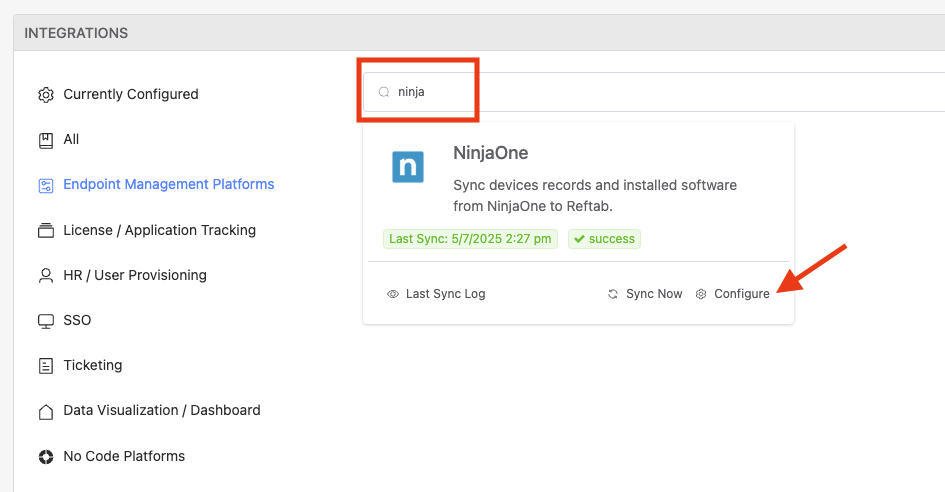
Next, you will want to sign into Reftab and navigate to Settings > Integrations. Search for NinjaOne and click Configure.
Here you will want to fill in your Host URL, Client ID, and Client Secret. Your ID and Secret where copied in previous steps, and your Host URL will be specific to your NinjaOne instance. You can view a list of valid instances in the Additional Information section. You will want to ensure that the check for Enabled is on, and if you require installed software to be imported then you will want to enable that check as well.
Next, set the default location that items will be imported to and the source field for the asset name.

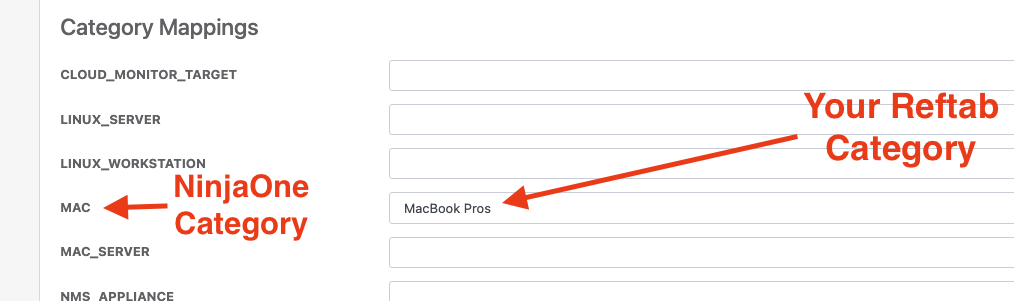
Next, map your Reftab categories to the desired NinjaOne categories.
Likewise, you will also want to map your Reftab fields to the desired NinjaOne fields.

Once the integration is configured, proceed with saving your settings and clicking the Test button. If the test is successful, navigate back to your integrations page and run a manual sync on NinjaOne.

Additional Information
NinjaOne Host URLs
Below a the list of known and valid NinjaOne Host URLs:
- https://ca.ninjarmm.com/
- https://us2.ninjarmm.com/
- https://oc.ninjarmm.com/
- https://eu.ninjarmm.com/
- https://na.ninjarmm.com/
Device Auto Assignment
NinjaOne does not return the device owner via their API. Therefore, it is not possible to perform auto assignment of devices.
Suggested Next Steps
How to Auto-Assign Asset Locations via Loanee Fields in Workflows
Utilize automated workflows to update asset locations based on dynamic custom loanee fields.
Need help? We're here for you
For any questions or assistance, feel free to reach out to us.
Your assets, simplified. Begin your journey with us!
50 assets free forever with unlimited inventory & software tracking. Includes email alerts, mobile apps, reports, custom asset tags and more.