
How do I integrate with Xero?
Reftab integrates with Xero to sync and map invoices to your licenses. In this guide we will cover the following:
Connecting Reftab with Xero
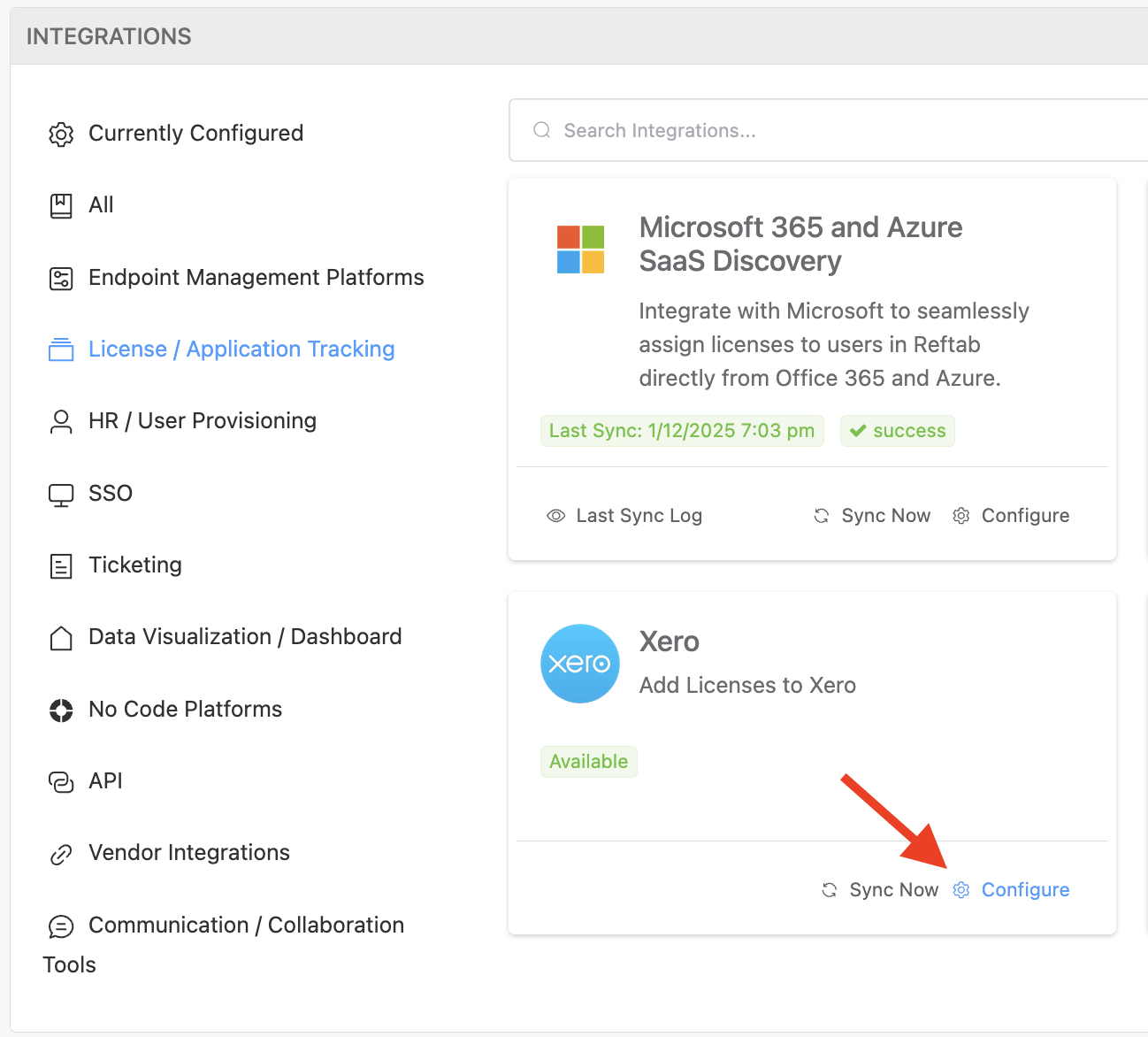
1. Log in to Reftab and navigate to Settings > Integrations > Xero, Configure
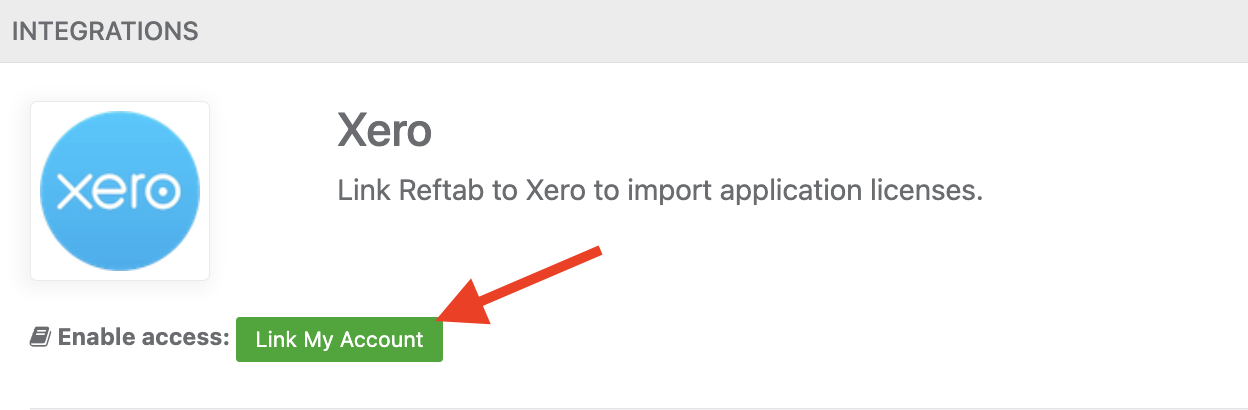
2. Click on Link My Account
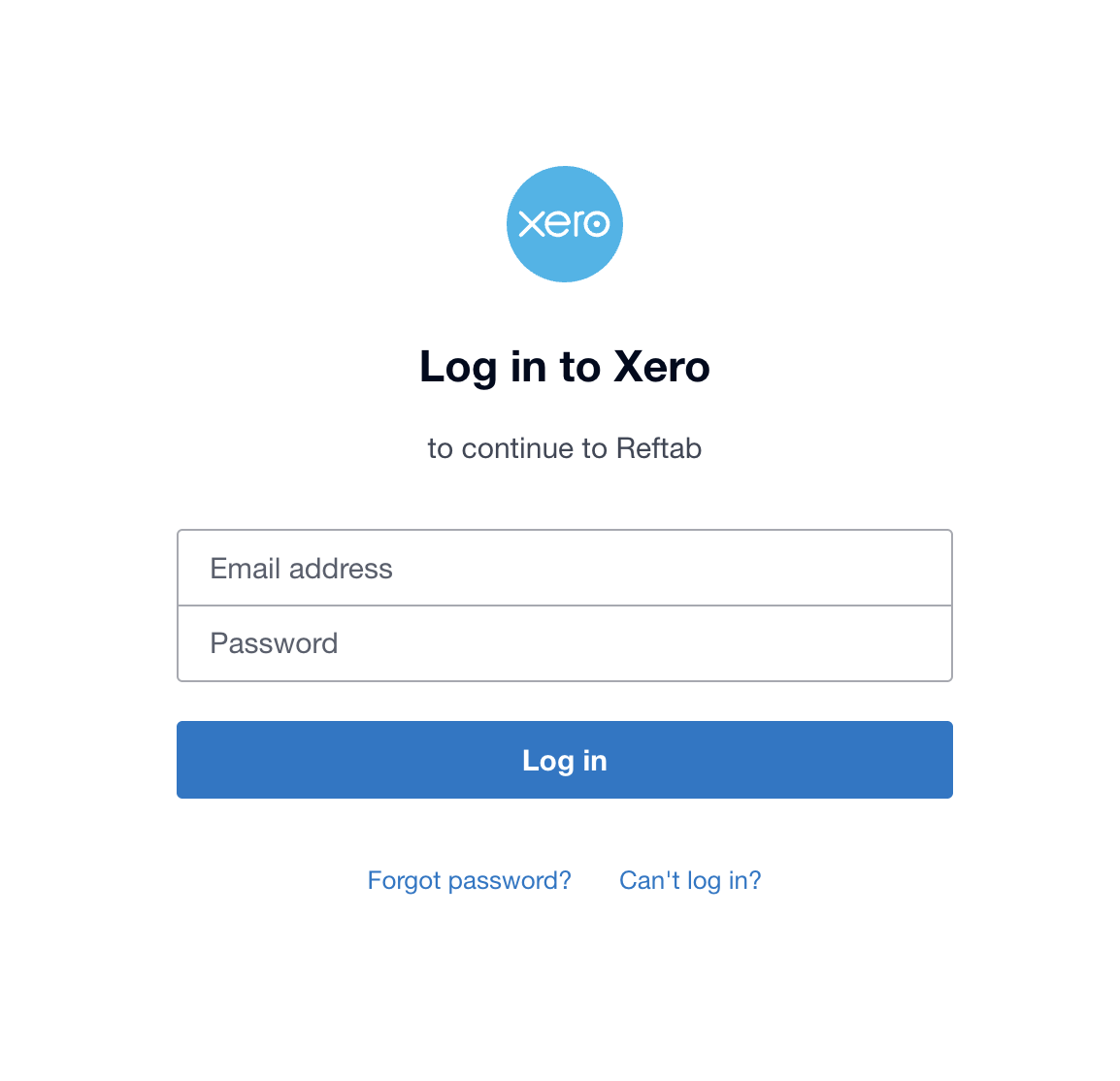
3. You will be presented with a popup OAuth window, sign in to Xero here.
Mapping Invoices to Licenses
Once linked, Reftab will automatically import your paid invoices. From here, you can map each invoice to its respective license:
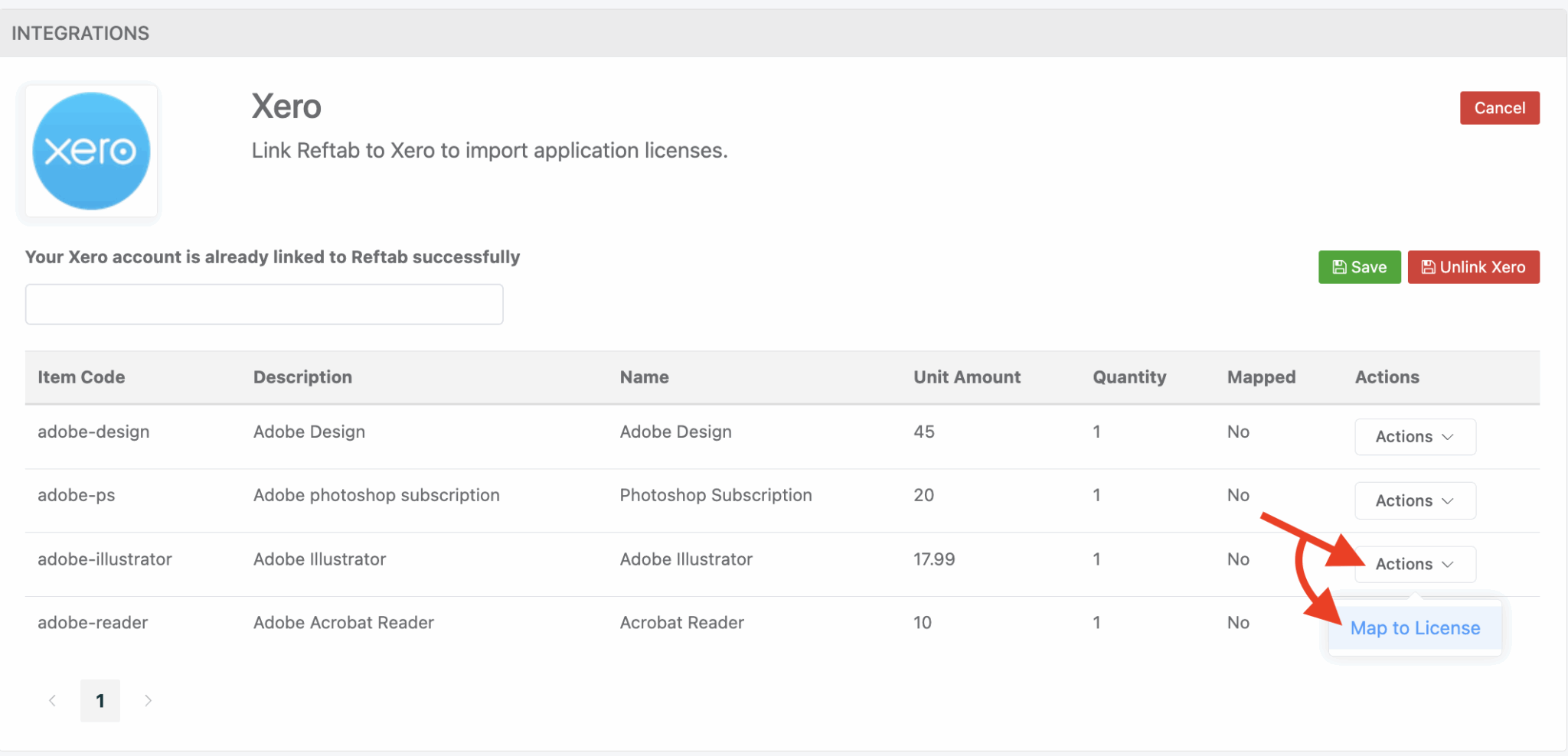
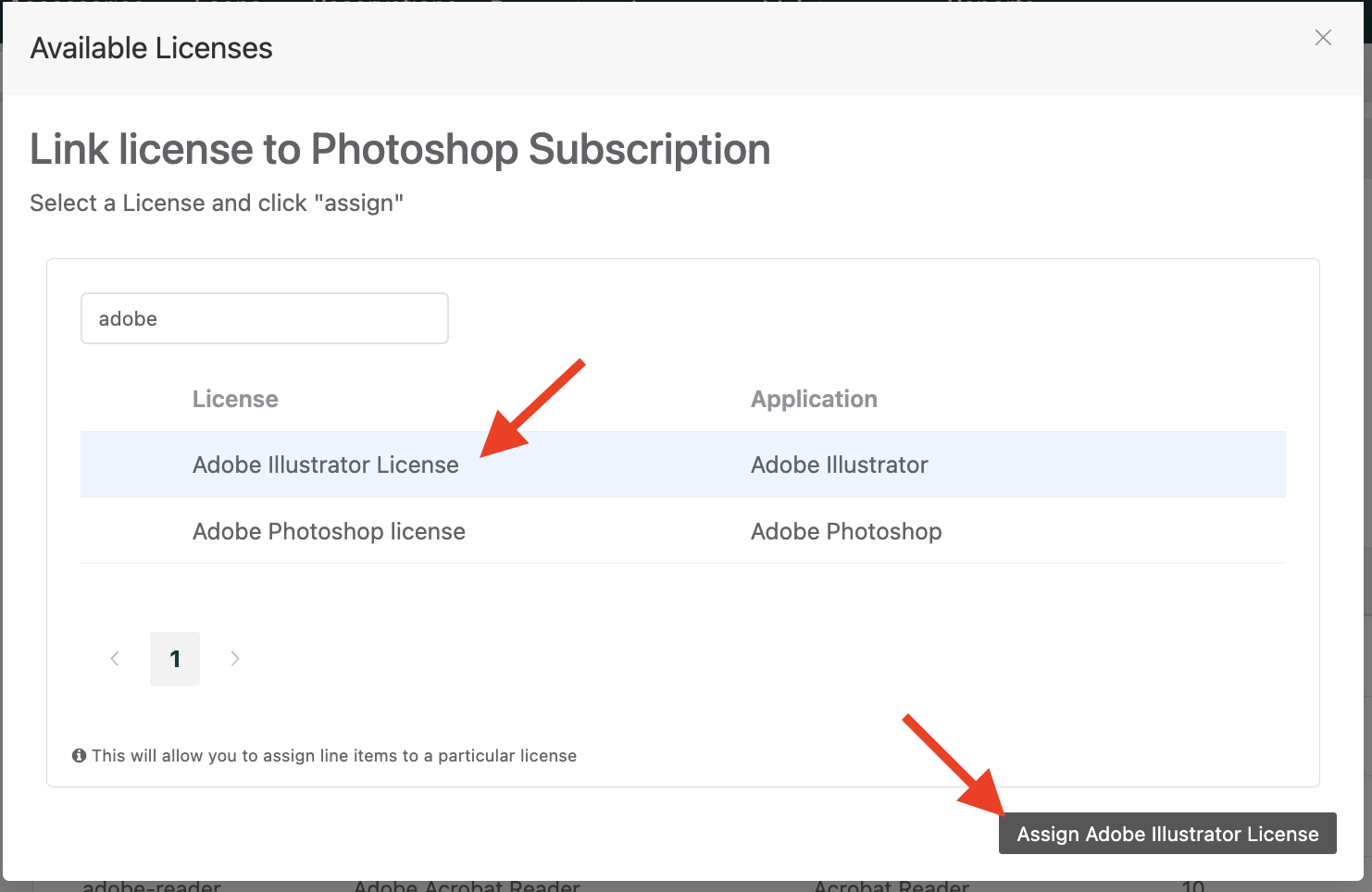
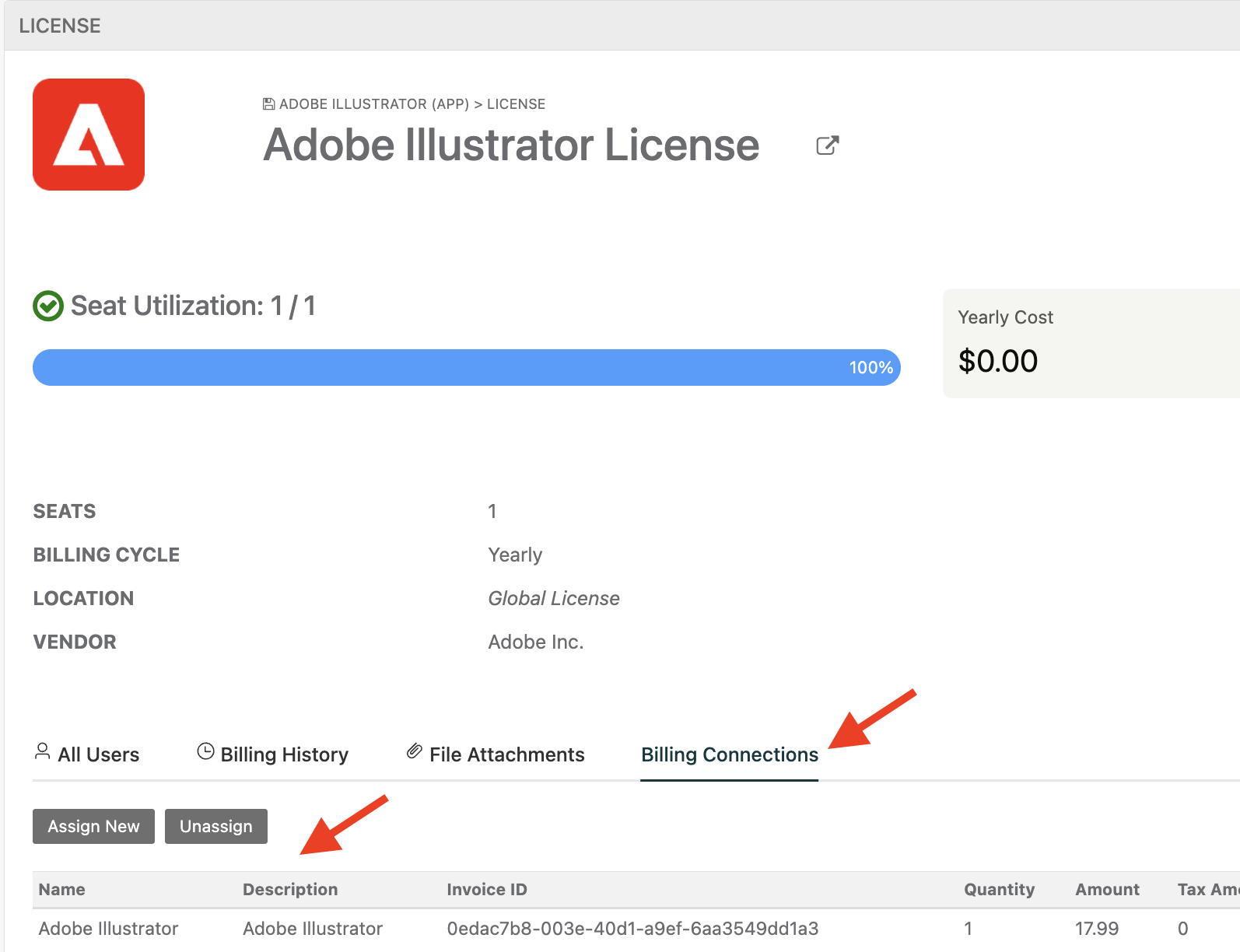
Once assigned, the table will reflect accordingly. Now, when viewing a license with a linked invoice, you will notice a Billing Connections tab that reflects this invoice, here you can also assign and unassign invoices as needed:
Renewals
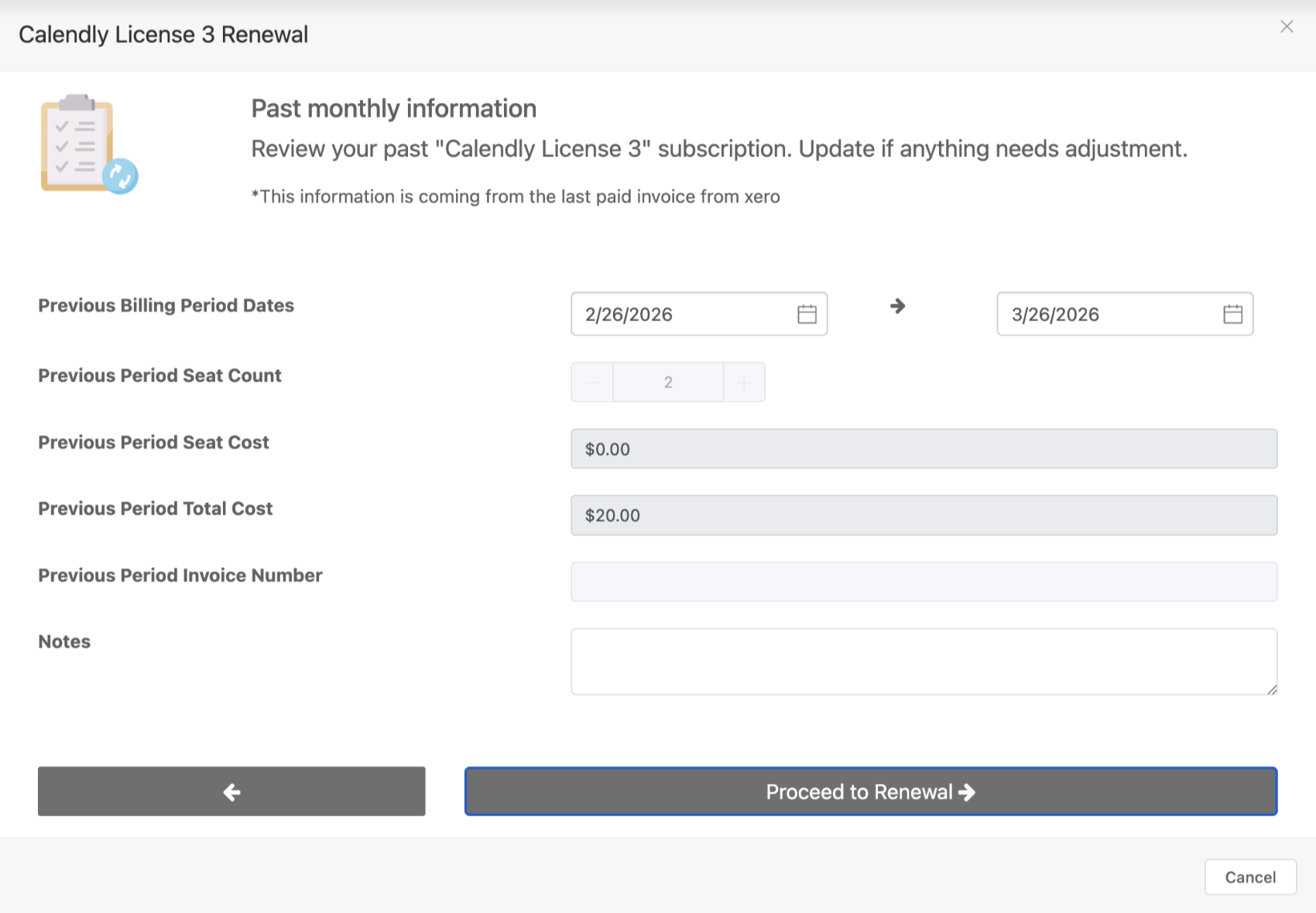
When a license is up for renewal, Xero will automatically populate the new invoice using details from the most recent processed invoice. The system will also indicate that the information has been carried over from the latest invoice, allowing you to review and confirm before proceeding.
Important Notes
- Reftab only picks up paid invoices. Invoices that are unpaid, pending, etc will not be synced into Reftab via the Xero integration.
- Item codes need to be the same for subsequent invoices. For instance, if you mapped “adobe-illustrator” to your adobe illustrator license, when creating the invoice you will want to utilize the same item code to ensure it syncs to your pre existing mapped field.
Need help? We're here for you
For any questions or assistance, feel free to reach out to us.
Your assets, simplified. Begin your journey with us!
50 assets free forever with unlimited inventory & software tracking. Includes email alerts, mobile apps, reports, custom asset tags and more.