
How to Use Reftab for Software Access Reviews for SOC 2 & ISO 27001
What Are Software Access Reviews?
Software Access Reviews are a structured process for verifying that the right people have the right level of access to your software applications. An application owner is assigned to review every user assigned to an app and decide whether each person’s access should be maintained, revoked, or modified.
When the review is complete, Reftab generates a downloadable Excel report documenting every decision made. This report is the primary artifact used to demonstrate to auditors that your organization actively reviews and manages software access.
Why Do Software Access Reviews Matter?
Regular access reviews are a requirement under several major security frameworks:
| Framework | Requirement |
|---|---|
| SOC 2 Type II | CC6.3 — Logical access is removed or modified when no longer needed |
| ISO 27001 | A.9.2.5 — Review of user access rights at regular intervals |
| ISO 27017 | Cloud-specific access control and review requirements |
| HIPAA | Access controls and periodic review of authorization |
| GDPR | Principle of least privilege; data access must be justified |
Auditors will ask: “How do you know the right people have access to your systems?” The Excel export from a completed Reftab access review is your answer because it shows every user, every decision, who made it, and when.
Before You Start
- You need a Business plan to use Access Reviews
- You need Administrator or Editor role to create a review
- The application being reviewed should have users assigned to it in Reftab
- Optionally, set application roles (Admin, Standard, etc.) on users beforehand — these appear in the review and in the export
Step 1 — Create a Review
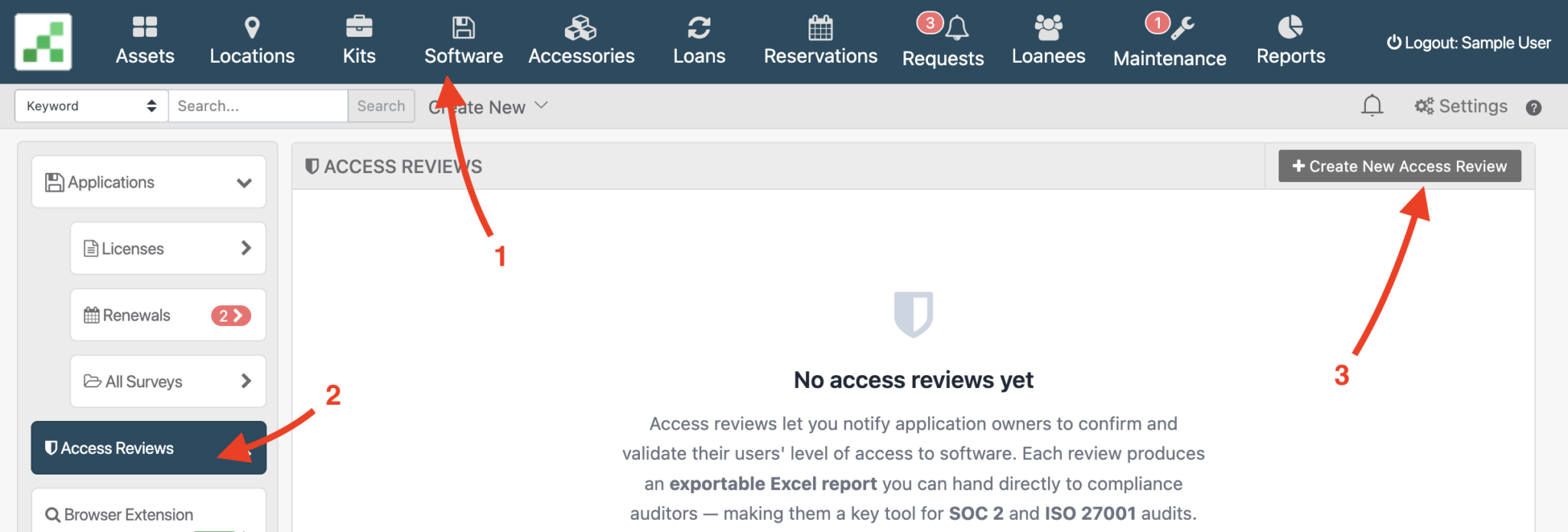
- Navigate to Software → Access Reviews in the left sidebar
- Click Create New Access Review
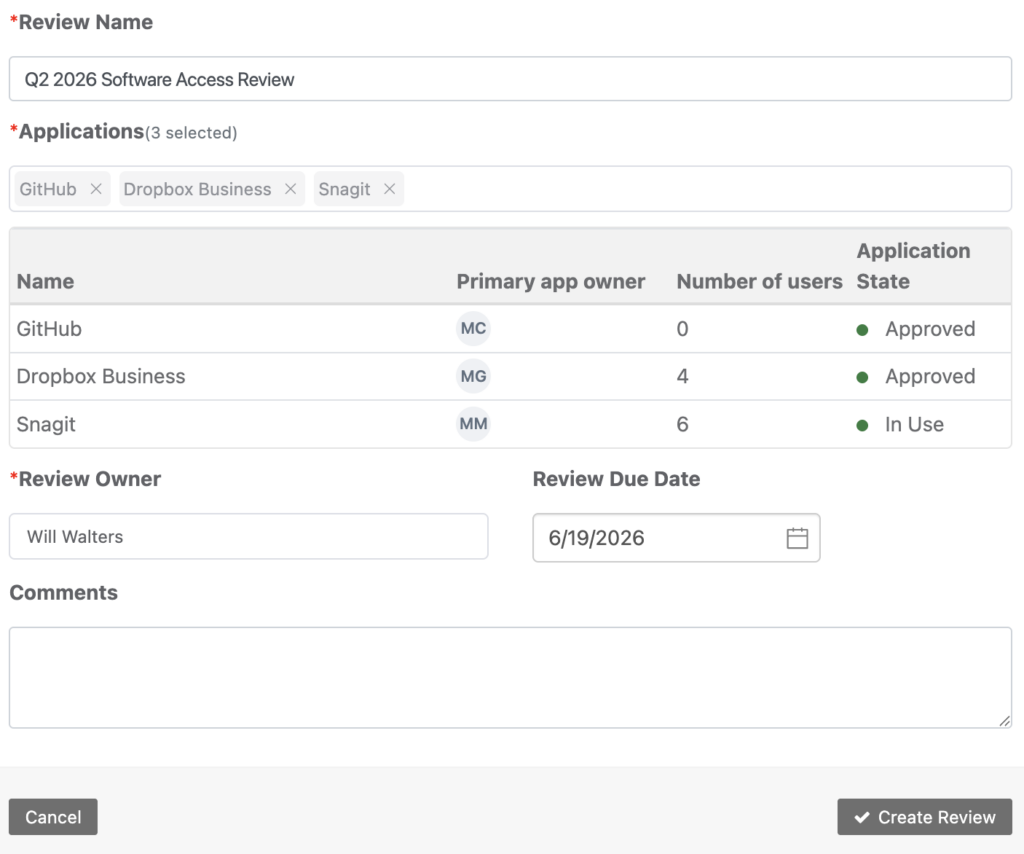
- Fill in the form:
- Review Name — e.g. “Q2 2026 Dropbox Access Review”
- Applications — search and select one or more applications to include. Reftab will auto-populate the review owner from the first application’s primary owner
- Review Owner — the person responsible for reviewing user access. They will receive an email notification immediately upon creation
- Due Date — optional, but recommended for audit trail purposes
- Comments — e.g. “Required for SOC 2 Type II renewal”
- Click Create Review
You are taken directly to the review detail page.
Step 2 — The Review Owner Completes the Review
The review owner receives an email telling them they’ve been assigned to a review. They navigate to the review and work through the Users tab.
For each user listed, they choose one of three decisions:
| Decision | Meaning |
|---|---|
| Maintain | This person should keep their current access as-is |
| Revoke | This person’s access should be removed |
| Modify | This person’s access needs to change (different role or license) |
- Clicking Maintain or Revoke saves immediately
- Clicking Modify opens a dialog to specify what should change (new role, new license, or both)
- The Comments button lets the reviewer add notes against any individual user decision
- The progress charts at the top update in real time as decisions are made
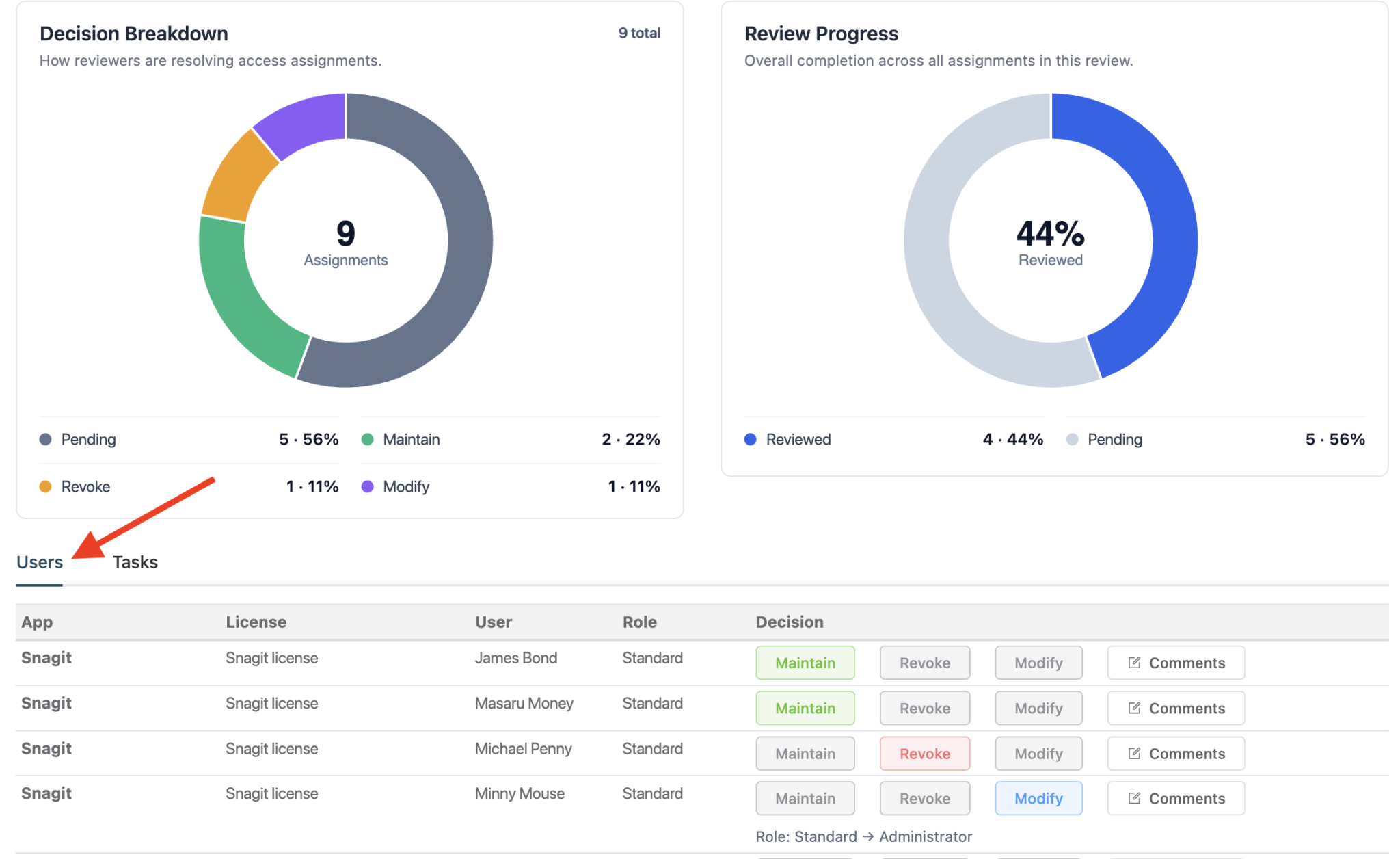
Once every user has a decision, the green “All users have been reviewed” callout appears at the bottom with a Conclude Review button.
Step 3 — Conclude the Review
- Click Conclude Review
- Confirm in the dialog
- Reftab locks all decisions and generates follow-up tasks for any Revoke or Modify decisions
- The review status changes to “Pending Tasks“
If every user was set to Maintain, no tasks are generated and the review is immediately complete — the Tasks tab will show a confirmation banner.
Step 4 — Complete the Tasks
The Tasks tab lists every action that needs to be carried out as a result of the review decisions. These are typically IT admin actions — removing someone from a system, changing their license tier, or updating their role.
For each task:
- Carry out the actual change in the relevant system (e.g. revoke the user in Dropbox)
- Return to Reftab and click Complete on the task (confirm in the popover)
- If a task cannot be completed, click Reject and provide rejection notes explaining why
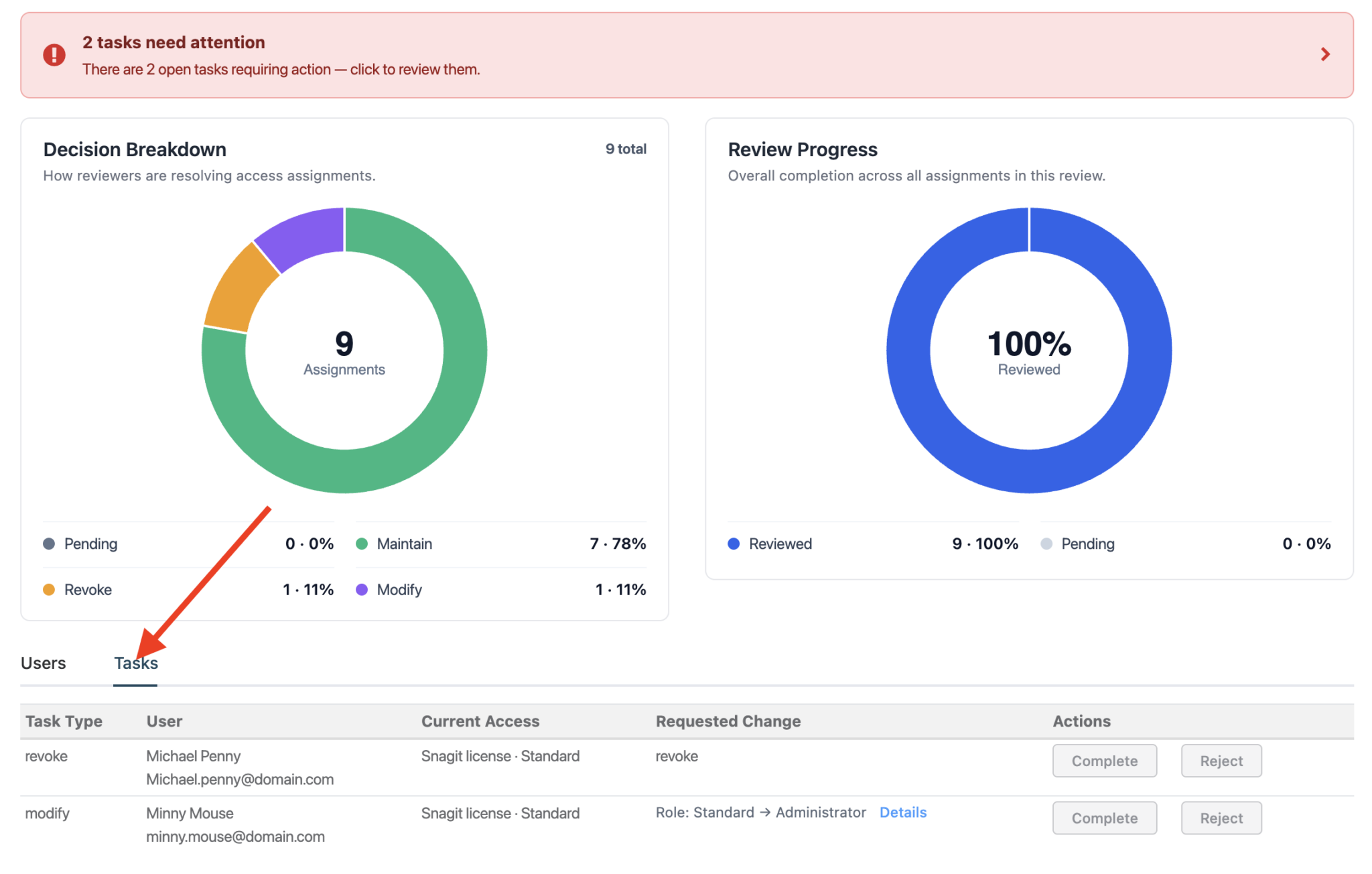
Once all tasks are marked complete, the review status changes to Completed.
Note that if you mark a “revoke” task as complete, the Reftab system will check in the license seat for that user. If you mark a “modify” task as complete, Reftab will update the user’s role accordingly as well.
Step 5 — Export the Excel Report
This is the most important step for compliance purposes.
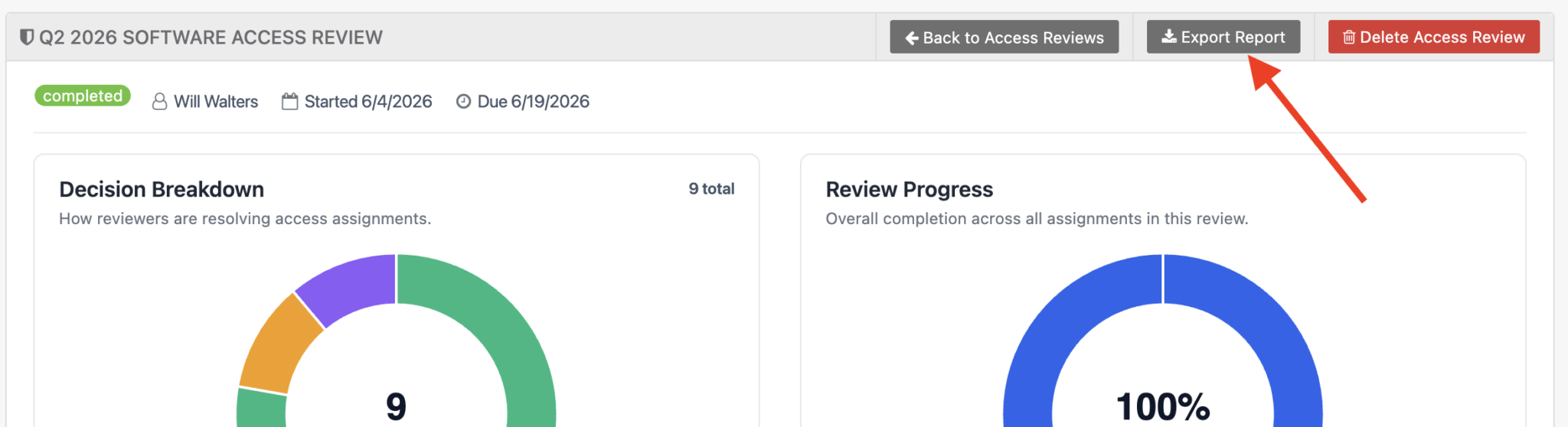
- On the review detail page, click Export Report in the top right
- A
.xlsxfile downloads immediately - The file contains every user, their original access, the reviewer’s decision, who made the decision, and timestamps
This file is what you provide to your auditors. It serves as documented evidence that:
- A named person reviewed access at a specific point in time
- Every user’s access was explicitly approved or actioned
- Follow-up tasks were tracked and resolved
Provide the Excel file to your IT security team, compliance lead, or directly to your auditor when completing your SOC 2, ISO 27001, or other certification review.
Tips
- Run access reviews quarterly for high-sensitivity applications (identity providers, billing, HR systems)
- Run them annually at minimum for all other business software
- Name reviews consistently — e.g. “Q2 2026 — [App Name]” — so exports are easy to find and organise by period
- Set application roles before running reviews so the export includes role-level detail, not just yes/no access decisions
- Keep the exported files in a dedicated compliance folder — auditors often want to see a history of reviews, not just the most recent one
Need help? We're here for you
For any questions or assistance, feel free to reach out to us.
Ready to simplify IT asset management?
No credit card. No watered-down trial. Create a free account and see firsthand what Reftab can do.