
How to Manually Assign Assets in Zendesk
By default, when viewing a ticket in Zendesk, clicking the “Link Assets” button will only show assets currently assigned to the requestor.
However, if you need to link assets that are not assigned to the requestor of the ticket in Zendesk, follow the below steps:
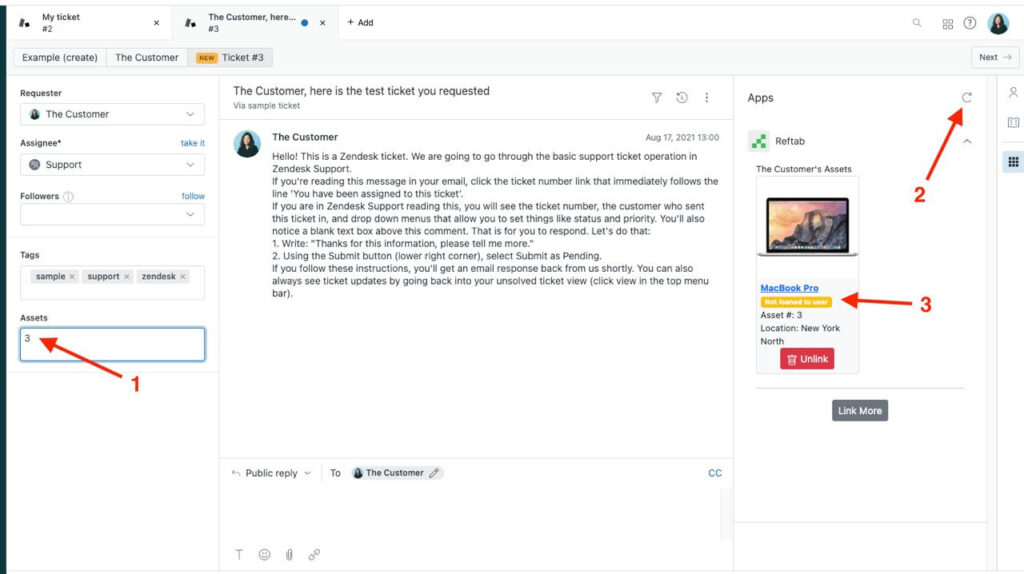
- On the bottom left corner find the field “Assets” and type in a Reftab asset ID.
- Click “Refresh“
- The asset should show and display in yellow “Not assigned to user”
- Lastly, click “Submit” to save.
Need help? We're here for you
For any questions or assistance, feel free to reach out to us.
Ready to simplify IT asset management?
No credit card. No watered-down trial. Create a free account and see firsthand what Reftab can do.