
Consumable Transactions Using Reftab Mobile App
You can scan a barcode or qr-code and pull up consumables on the Reftab mobile app. You can see quantities available and perform transactions.
This guide will show you how to perform a transaction (“Used”,”Purchased”, etc), however, if you’re looking to perform stock take, see our guide here: https://www.reftab.com/faq/how-to-utilize-barcodes-and-scanning-for-stock-take
Tap the, “Add Transaction” button to adjust the quantity when a consumable is being used.

Select a “Transaction Type” and click “Submit Transaction“.
Default available transaction types:
- Purchase Stock
- Used
- Lost
- Found
- Scrapping
- Reversal of Scrapping
- Return to Vendor
To create a custom transaction type, log into Reftab as an administrator and click “Accessories” > “Custom Transactions”
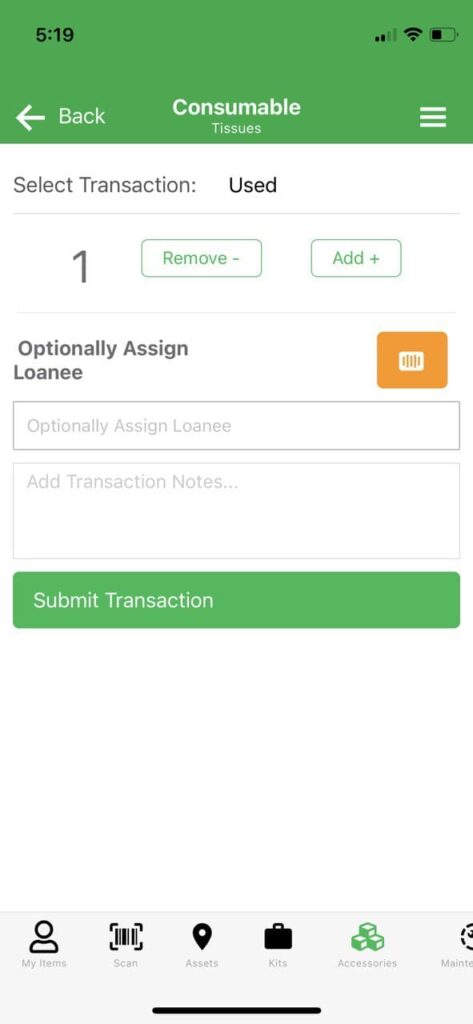
The consumable’s current quantity will adjust accordingly. A record will be logged with the date and time the transaction occurred along with the user account who performed the transaction.
If you would like to pre-set a transaction type to avoid having to select the same transaction over and over again, click “Settings” > “Personal Settings” > “Default Value for Consumable Transactions“
Need help? We're here for you
For any questions or assistance, feel free to reach out to us.
Your assets, simplified. Begin your journey with us!
50 assets free forever with unlimited inventory & software tracking. Includes email alerts, mobile apps, reports, custom asset tags and more.