
Reftab Power BI Integration
You can connect Power BI Desktop to Reftab using a custom connector.
Download the Reftab Connector
Reftab Power BI Connector Download
Place the connector file in C:\Users\{user}\Documents\Microsoft Power BI Desktop\Custom Connectors

Update Registry to allow Reftab signed connector
For more details: https://docs.microsoft.com/en-us/power-bi/connect-data/desktop-trusted-third-party-connectors
Registry Path: Computer\HKEY_LOCAL_MACHINE\SOFTWARE\Policies\Microsoft\Power BI Desktop
Add a new value under the path specified above. The type should be “Multi-String Value” (REG_MULTI_SZ), and it should be called “TrustedCertificateThumbprints”
Thumbprint: 2B4FF54EEE4C14717F04D65213F4BA76CC65050F

Adding the Connector
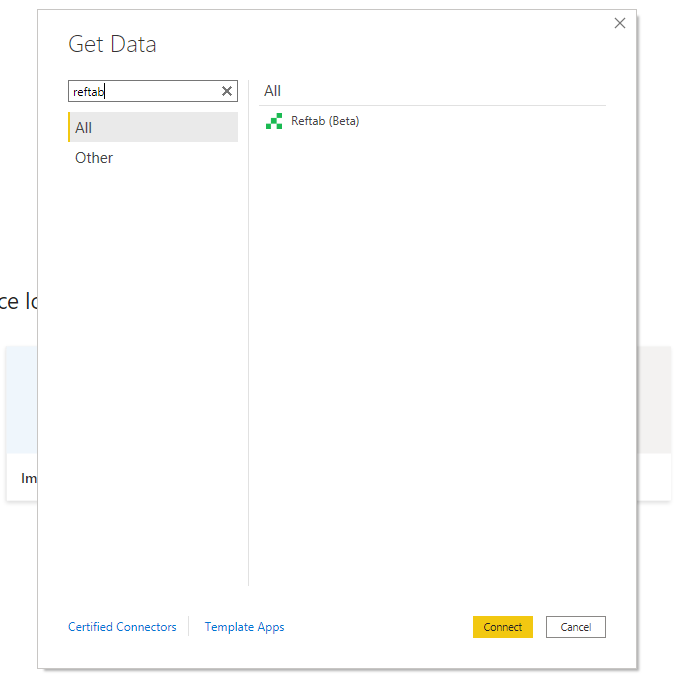
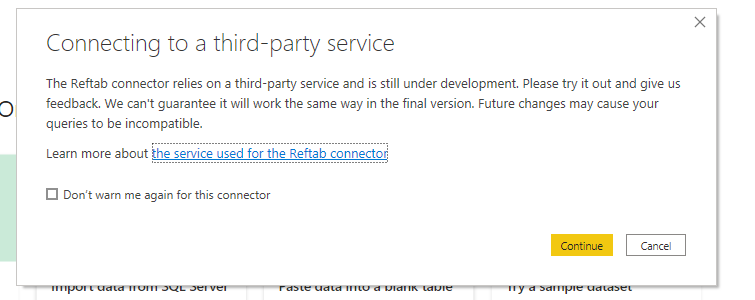
Start Power BI Desktop and add the Reftab Data Connector
Authentication
The first time you add the data connector, you will need to setup the API keys it will use. You can generate these keys in Settings of Reftab.
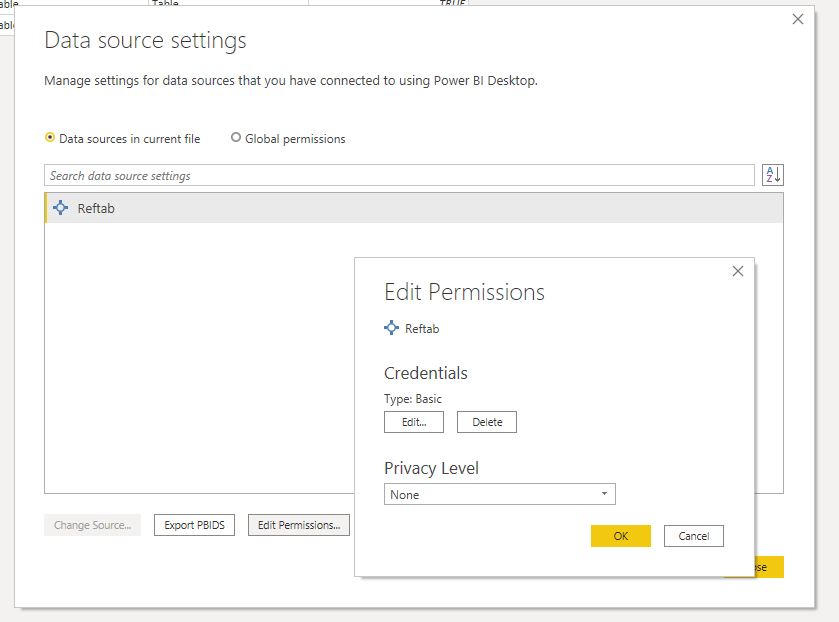
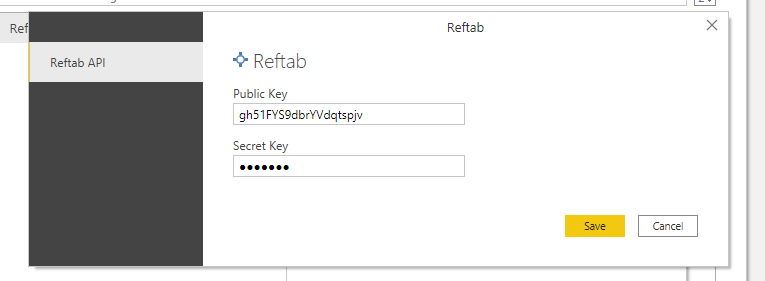
Once you have authenticated, you can fetch Asset, Loan, and Asset Maintenance information from Reftab and transform the data in Power BI.

If you are encountering issues setting up the PowerBI Integration, please see our full troubleshooting guide here: How To Troubleshoot Reftabs Power BI Desktop Connector
Need help? We're here for you
For any questions or assistance, feel free to reach out to us.
Ready to simplify IT asset management?
No credit card. No watered-down trial. Create a free account and see firsthand what Reftab can do.