
Zendesk Error: Custom field of Assets is missing for tickets
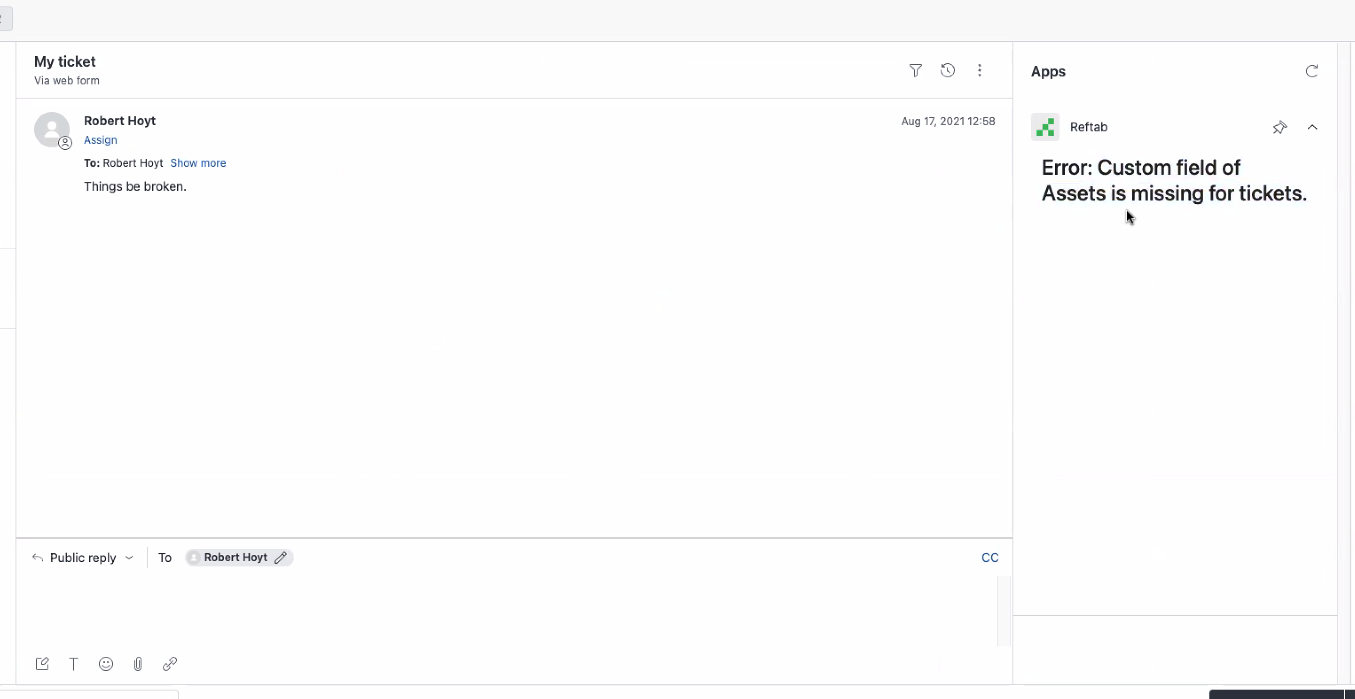
If you are experiencing issues with Zendesk and have encountered the error below, follow the steps in this guide to resolve it.
First log into Zendesk as an admin, and click “Admin Center” then, “Objects and Rules” > “Fields“. Here you will want to confirm that you have the field “Assets” present. (See screenshot below)
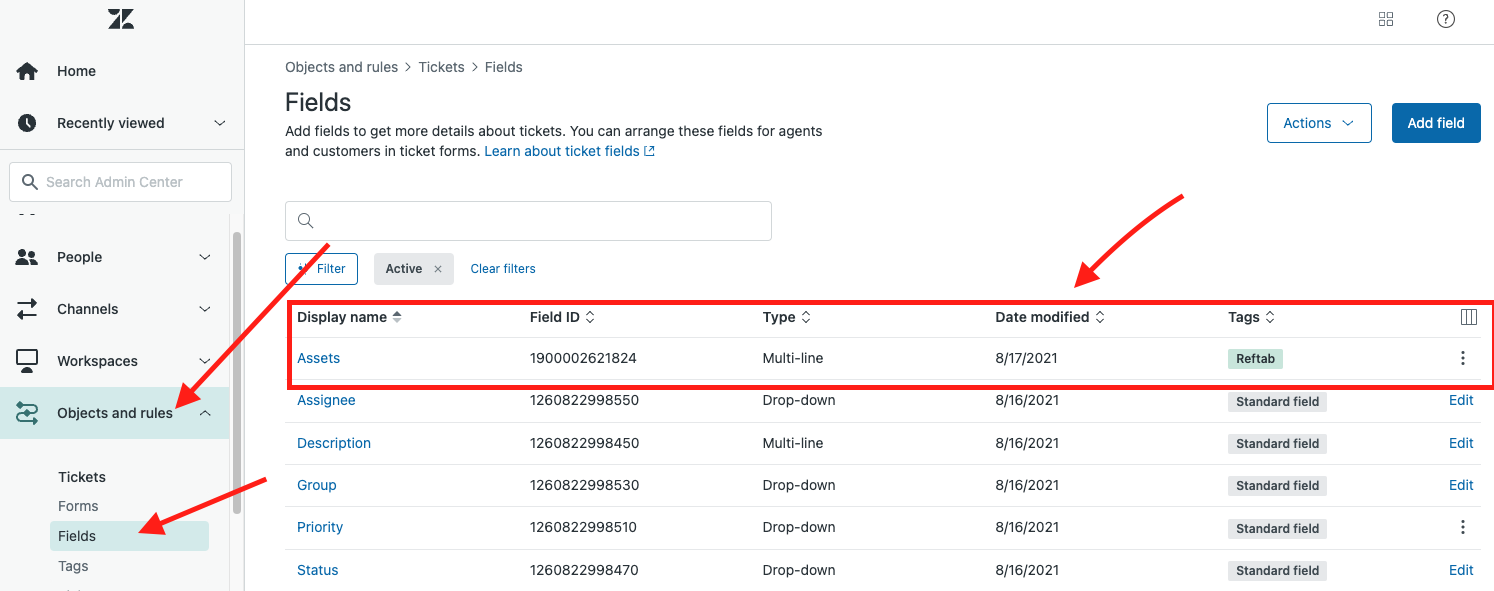
If so, this means the Reftab integration was properly setup. Next you will want to ensure you have Assets set as a field on the default ticket forms in Zendesk. In Zendesk, click “Forms” and click “Default Ticket Form“. Ensure you see “Assets” present there.
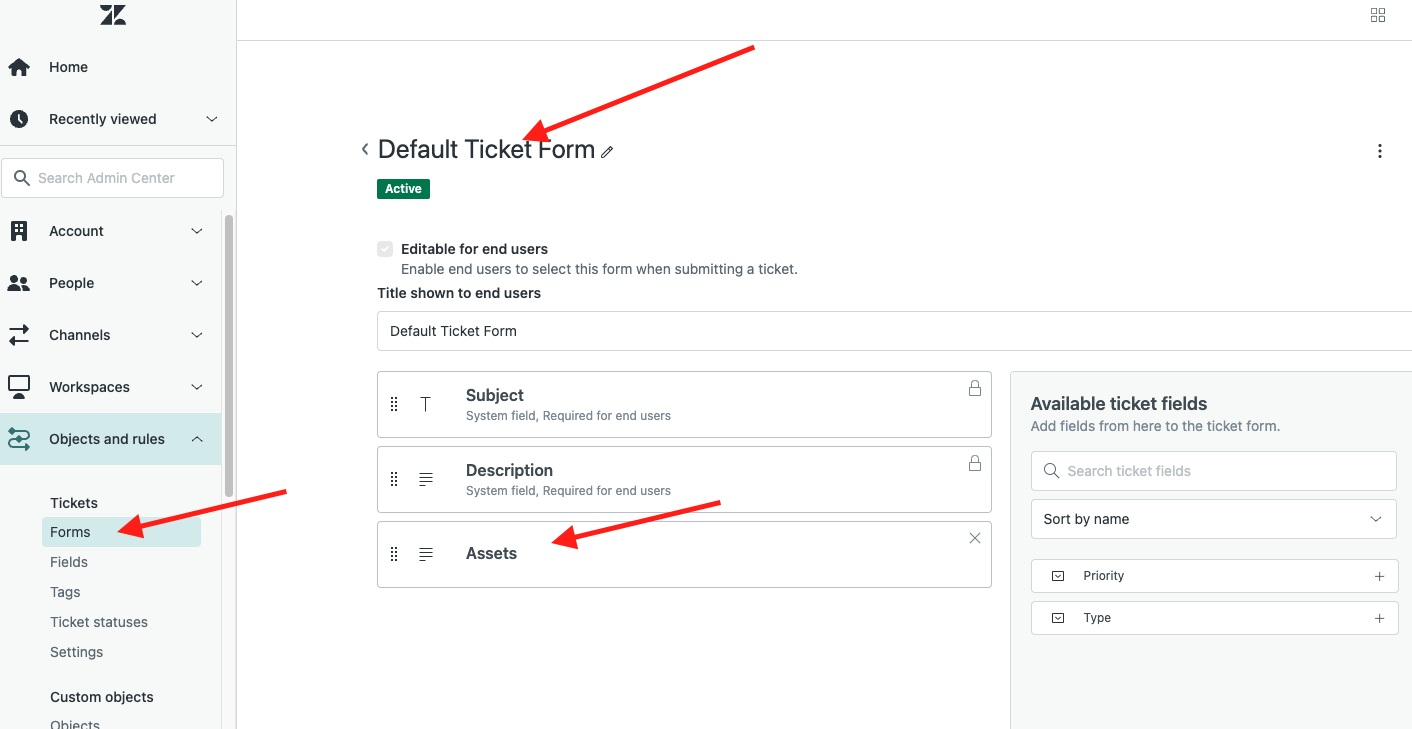
If not present, you will want to add it and save. Once done, the integration should function as expected.
Need help? We're here for you
For any questions or assistance, feel free to reach out to us.
Ready to simplify IT asset management?
No credit card. No watered-down trial. Create a free account and see firsthand what Reftab can do.