
Encountering issues with Intune asset auto-assignment?
The Intune integration does support multiple ways to assign equipment to users. This is entirely dependent on how the user is stored in Intune. If you are encountering issues having assets auto-assigned to users, follow this guide for a possible solution!
There are 3 places your users’ may be stored in Intune. Reftab will check all 3 of those places, depending on your configuration. Those three settings are explained below:
Auto Assign Assets: This setting tells Reftab to attempt to check-out your devices automatically. If this is the only setting on, Reftab will use the Enrolled By user. If an IT administrator is the first user to login to a device, skip this one.
Assign Assets Using Primary User: In Intune, Primary Users can be set, however, Intune does not have an automatic way to set a Primary User. If you manually set Primary Users or have a script that assigns them, you’ll want to use this setting.
Assign Assets Alternative Mode: This is the final check on your devices. This will check the Email Address field, the mail attribute of the associated user, which isn’t necessarily the UPN. This should be your last ditch effort to assign assets.
Login to your Reftab account: https://www.reftab.com
Head to “Settings” > “Integrations” > “Configure” on Intune
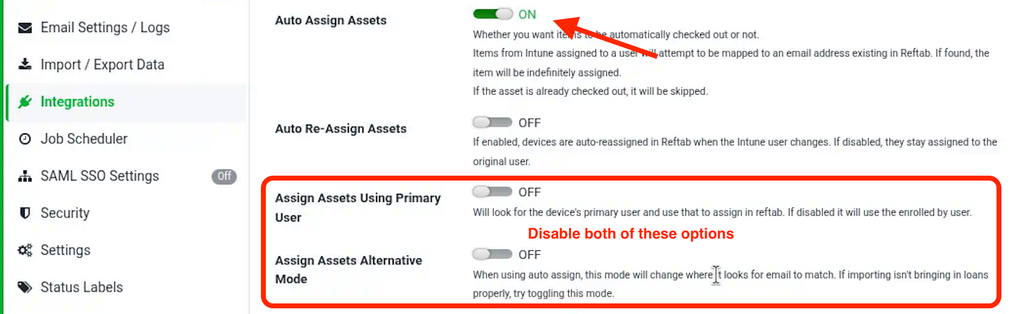
Let’s first ensure that “Auto Assign Assets” is enabled, and disable the two following settings. Make sure to “Save Intune Settings“.
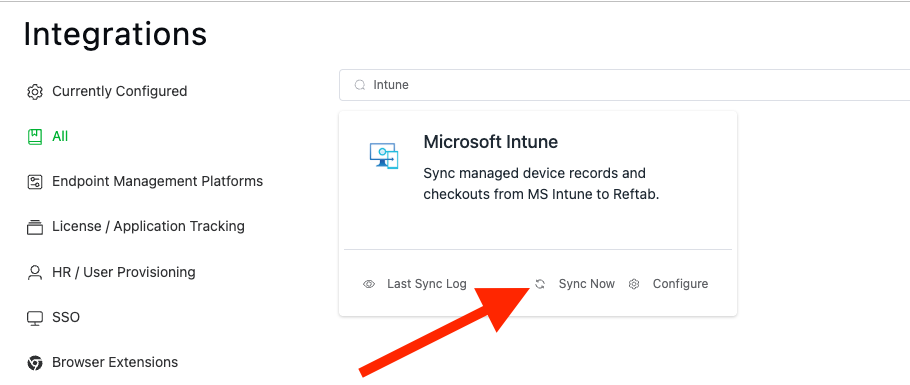
Head back to your integrations page and run an on-demand sync by clicking “Sync Now“.
Head back to your assets and check if they have now been assigned. If the assets are still not checked out continue to Assign Assets Using Primary User.
Assign Assets Using Primary User
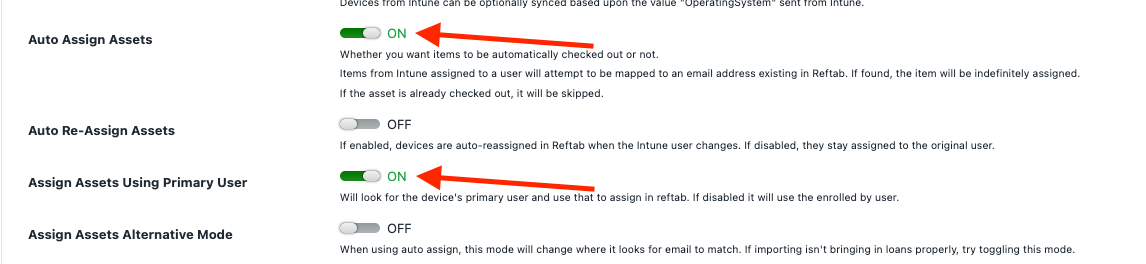
Head back into the Intune settings and then toggle “Assign Assets Using Primary User” to be enabled. Make sure to “Save Intune Settings“.
Attempt another on-demand sync using the button shown below:
After syncing, head back to your assets table and take a look if the devices have been checked out.
If they are still not checked out, you may need to enable “Assign Assets Alternative Mode“.
Assign Assets Using Alternative Mode
Disable “Assign Assets Using Primary User”, and ensure “Auto Assign Assets” is still enabled.
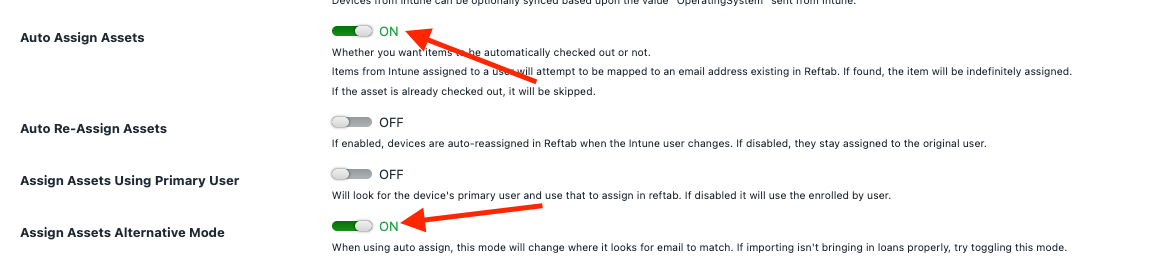
Note: Having all 3 of these options enabled will prevent the integration from working properly. At most, only two of these options should be enabled.
This will look for a matching email address and causes Reftab to search in another field for email addresses, which may be where they are stored. After toggling that option, be sure to save and sync once more.
Need help? We're here for you
For any questions or assistance, feel free to reach out to us.
Ready to simplify IT asset management?
No credit card. No watered-down trial. Create a free account and see firsthand what Reftab can do.