
How to Configure Reservation Reminder Emails
When an item is reserved, by default the user receives an email confirming their reservation. However, you can configure Reftab to send reminder emails about upcoming reservations and overdue reservations to your users. This guide explains how.
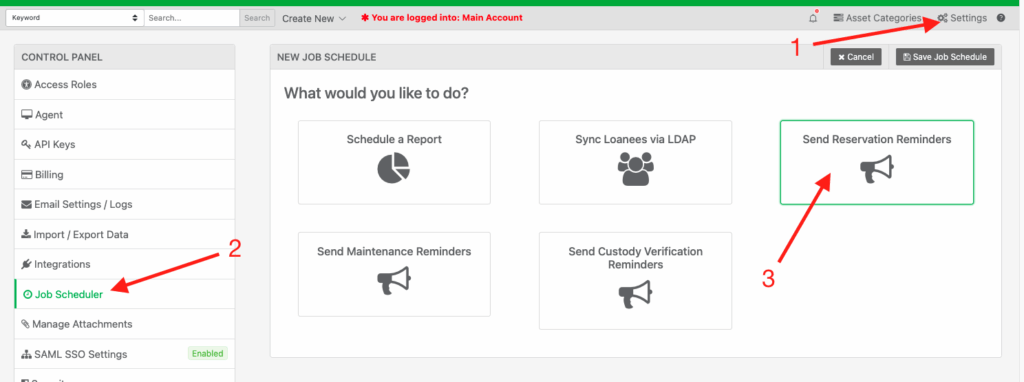
Log into Reftab as an administrator and click “Settings” > “Job Scheduler” > “Send Reservation Reminders“
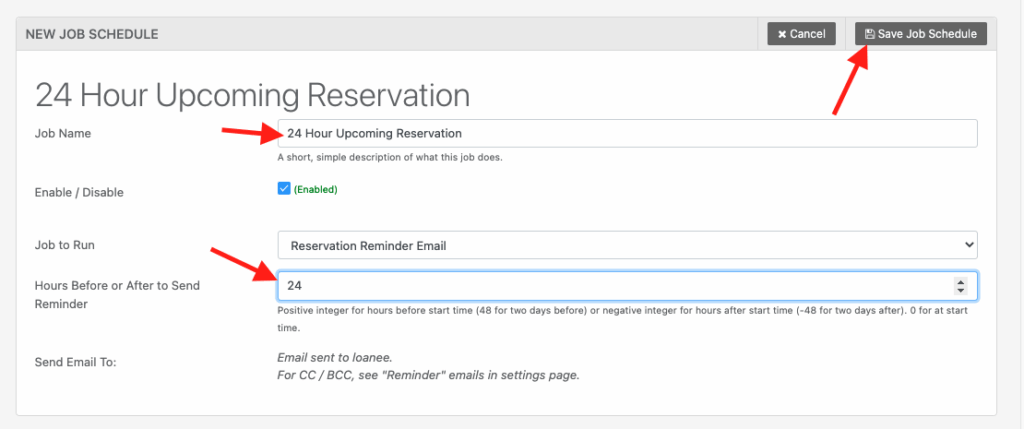
Next, give the job a name that describes what it does such as “24 Hour Upcoming Reservation Reminder”. Then, use the input for “Hours Before or After to Send Reminder” to enter how many hours either before or after the reservation is set to start to send a reminder. In this example, 24 is used to send the reminder 24 hours before a reservation is set to start.
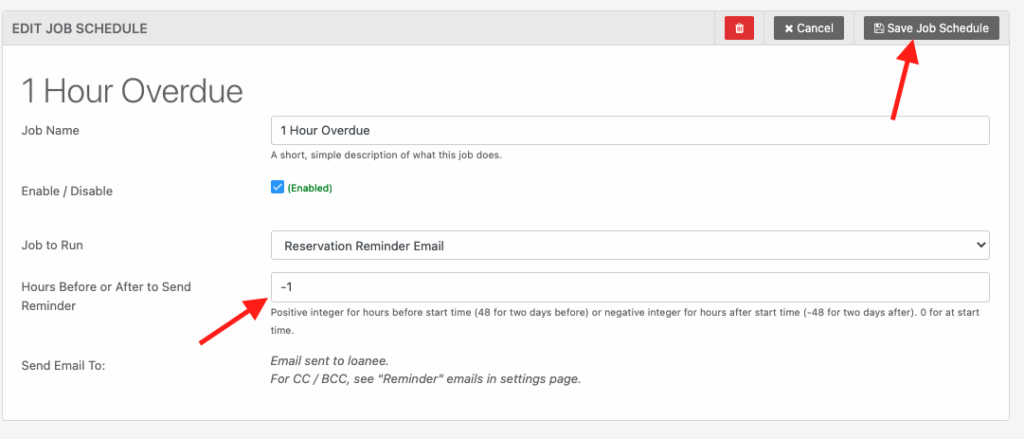
To send additional reminders, add more reservation reminders. For example, if you wanted another email to send 1 hour after a reservation becomes overdue (meaning, no one checked out the item), you would set -1 as the value for Hours Before or After to Send Reminder.
If you want to edit the Reservation Reminder emails, click “Settings” > “Email Settings / Logs” then find the “Reservation Reminder” email and click “Edit Email“

Need help? We're here for you
For any questions or assistance, feel free to reach out to us.
Your assets, simplified. Begin your journey with us!
50 assets free forever with unlimited inventory & software tracking. Includes email alerts, mobile apps, reports, custom asset tags and more.