
Can I create sub locations?
Sub-Locations can store assets within larger locations. For example, a building could be a location and each floor could be a sub location. Or, a company can be a location and each department within the company could be a sub location.
To start, you can set a custom label to overwrite “sub locations” to better fit your business needs:
1) Set a custom name for sub-locations that fits your business needs:
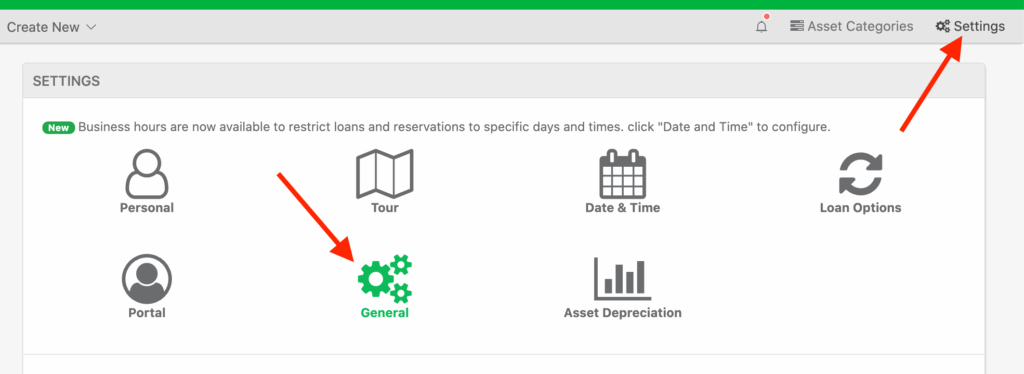
Click “Settings” > “General”
Look for the input for, “Sub Locations Custom Label Name”
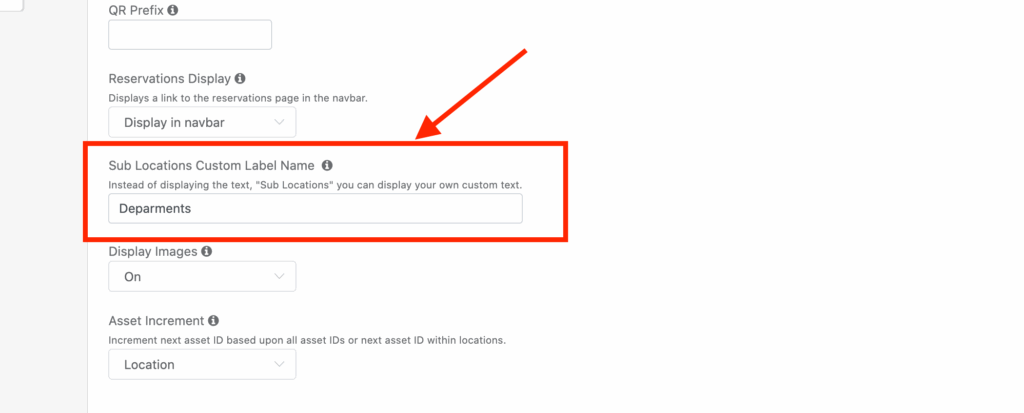
This is where you can use custom text instead of displaying the default, “Sub Locations” in your Reftab account. Click, “Save System-wide Settings” when done:

Make a current location, a sub location:
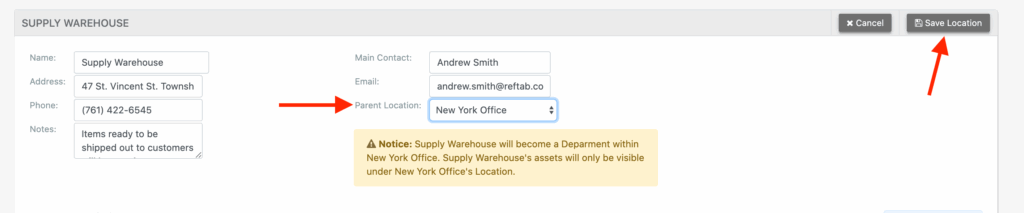
1) Click on any location and click the location name in the gray nav bar and click “Edit Location”

You’ll see a new option, “Parent Location” This is where you can select a parent location of this current location.
To create new sub locations:
1) Create a sub-location
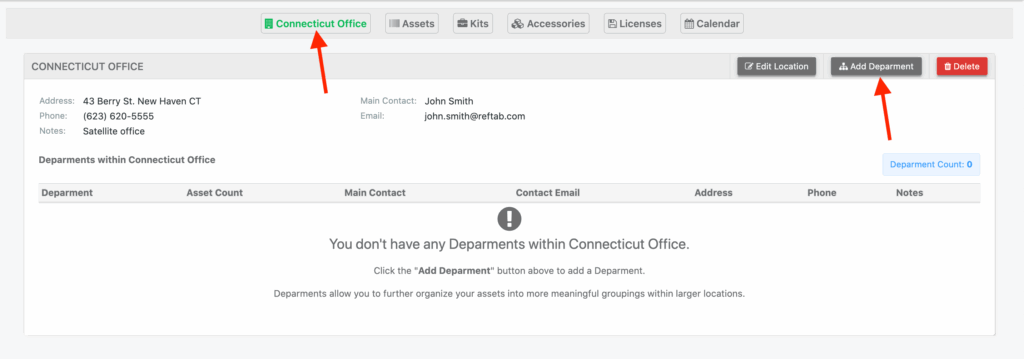
Click “Locations” in the navbar and click on any location

Click the name of the location in the gray navbar and click “Add Sub Location” (Note, your button may display different text)
Fill out the details and click ’save’

Once saved, you can click on your sub location:

You can now add assets / accessories / license to this sub location:
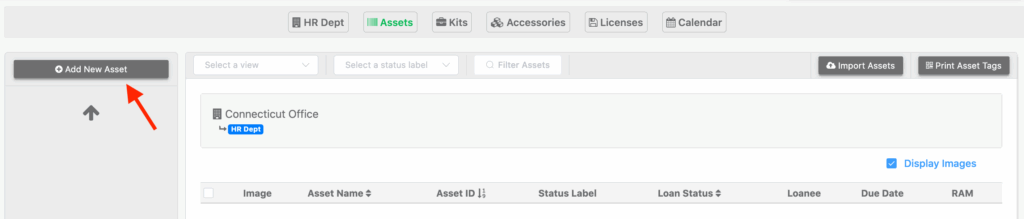
To go back to your parent location, click the name of the sub location in the gray navigation bar and click the button “Go to: your location name”

Need help? We're here for you
For any questions or assistance, feel free to reach out to us.
Your assets, simplified. Begin your journey with us!
50 assets free forever with unlimited inventory & software tracking. Includes email alerts, mobile apps, reports, custom asset tags and more.