
How to Display Zendesk Tickets on Linked Assets in Reftab
When a ticket in Zendesk has an asset from Reftab linked to it, Reftab can display the tickets on the asset page within Reftab.
To do this, you’ll need a Reftab account on the Business plan. You’ll also need to have the Reftab App from the Zendesk marketplace installed from here: https://www.zendesk.com/marketplace/apps/support/559775/reftab/
Next, log into Reftab as an administrator and click “Settings” > “Integrations” > Zendesk “Configure“
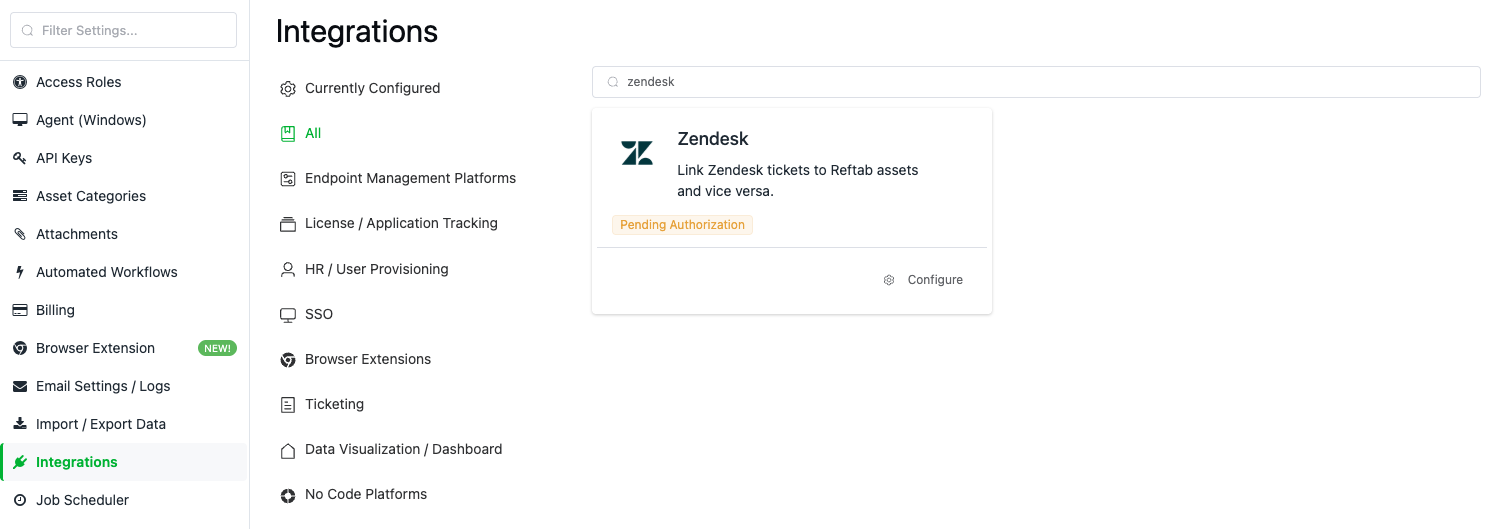
Enter your companies Zendesk domain, and click Save OAuth Setup
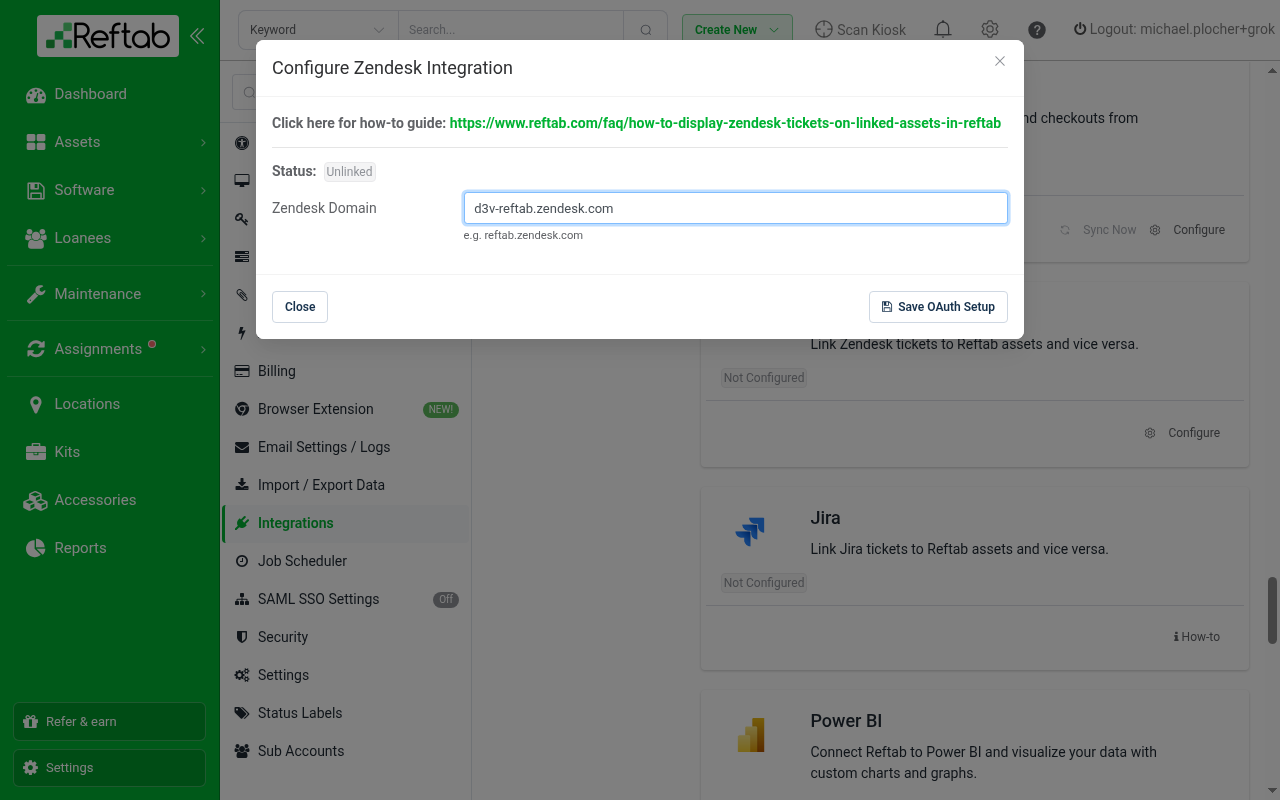
A subsequent window will pop up, requesting an OAuth sign in to your Zendesk environment
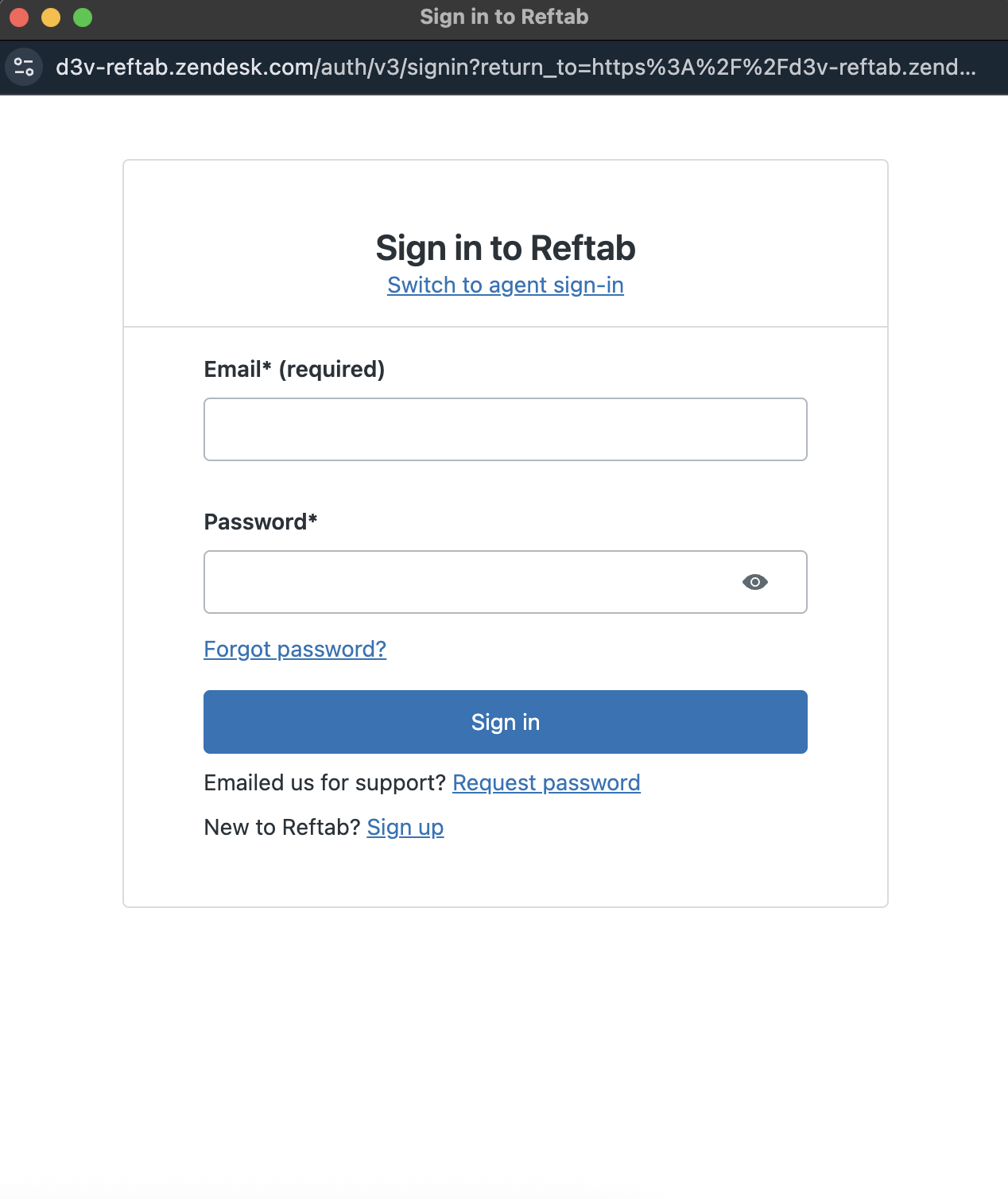
How to Link Tickets to Assets
Once a ticket is placed in Zendesk you will see all assets assigned to a user. This allows you to easily link a ticket to each asset. If the ticket submitted needs to be linked to an asset that is not currently assigned, you are able to enter the Asset ID in the Assets text box located to the left. You can then refresh the apps on the left to see the newly linked asset.
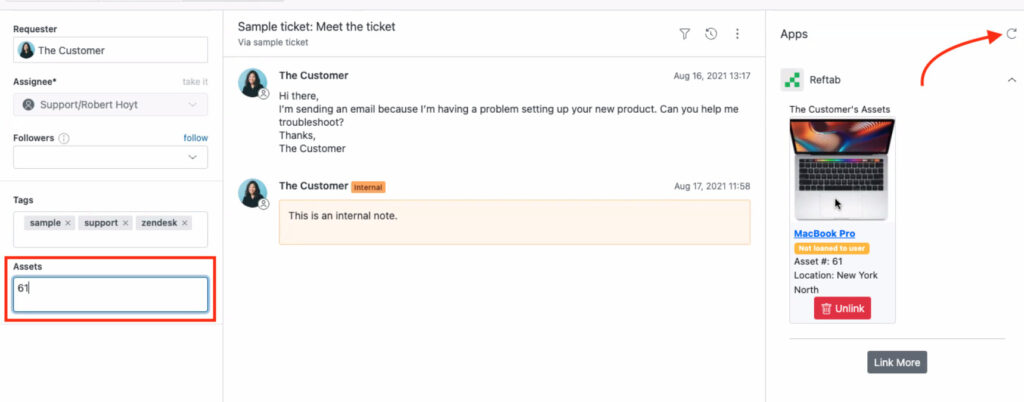
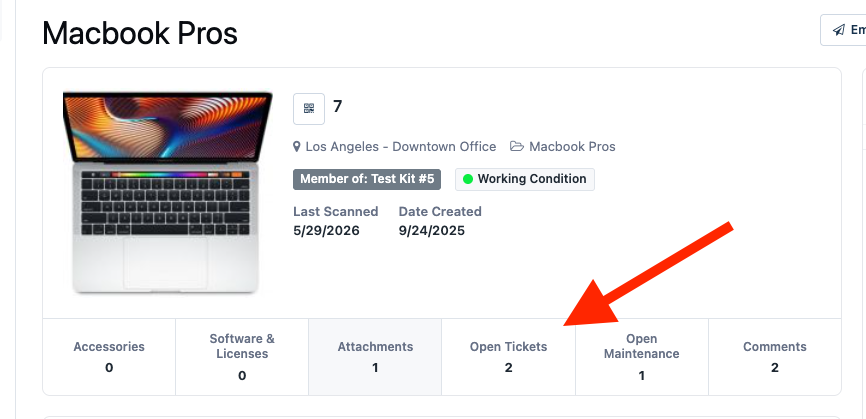
That’s it. Now if an asset is linked to a Zendesk ticket, you can view that asset in Reftab and you’ll see a button under the asset image to click and view the name of the ticket and a link to go directly to the ticket in Zendesk:
Need help? We're here for you
For any questions or assistance, feel free to reach out to us.
Ready to simplify IT asset management?
No credit card. No watered-down trial. Create a free account and see firsthand what Reftab can do.