
How to use a Public Calendar with Reftab
Reftab allows the use of a public calendar. This allows you to keep track of any items due, reservations, or maintenance orders from your current calendar application. In this guide, we will show you how to link your Reftab calendar feed to Google Calendar. However, the calendar format, ICS feed, allows you to share calendar data to any calendar service.
To get started, head to the Locations tab and choose your Location. From there, you can view this specific location’s calendar, by choosing the Calendar option at the top.
Within Reftab

This calendar shows any items due for return, all current reservations and any upcoming maintenance orders. In order to link this calendar, click “Enable Public Calendar” located in the upper right hand corner.
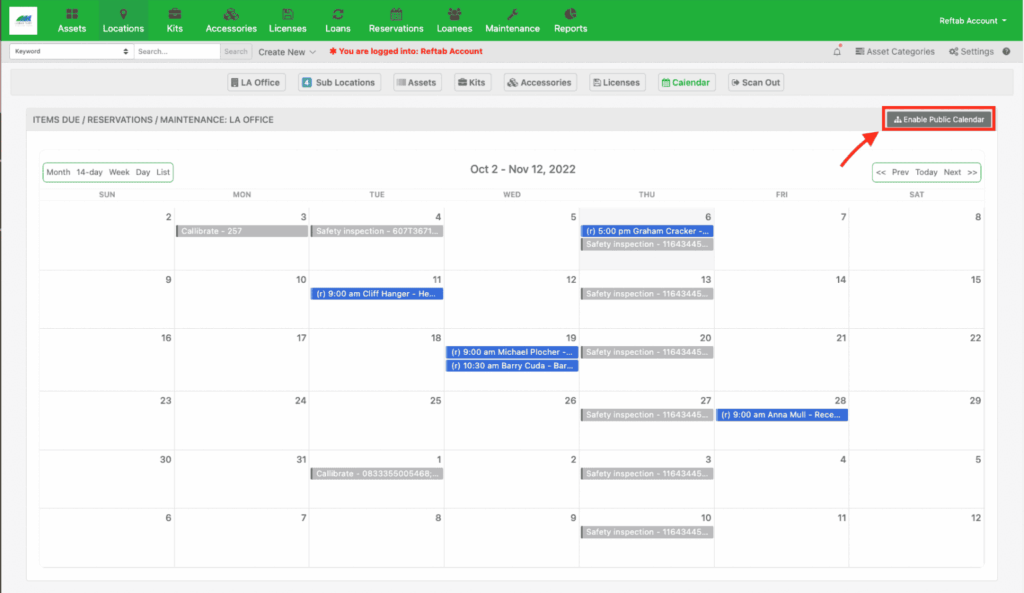
You’ll notice a link appear giving you the option to Copy this link. Click “Copy” and head to your calendar app.

Google Calendar
Once in your Google Calendar, click the settings button at the top.

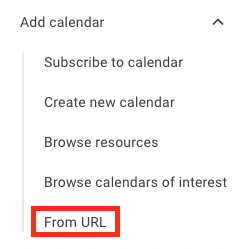
On the left side of this screen, click “Add Calendar ^” and choose “From URL.”
Paste the link you copied into this bar and click “Add Calendar.”
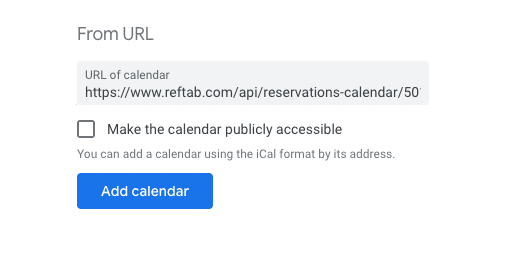
Google will then fetch all of your events in the background. This may take some time depending on how many events you already have populated within Reftab.
Need help? We're here for you
For any questions or assistance, feel free to reach out to us.
Ready to simplify IT asset management?
No credit card. No watered-down trial. Create a free account and see firsthand what Reftab can do.