
How to Create Recurring Data Backups
Protecting your data is a shared responsibility. Reftab maintains backups of our systems as part of our business continuity and disaster recovery processes. However, organizations should also maintain their own copies of important business data to help protect against accidental changes, deletions, or other data loss.
Reftab makes this easy by allowing you to schedule reports that automatically export your latest data and email it to your team.
Create an All Assets report
Create an All Assets report that displays your assets along with all field values.
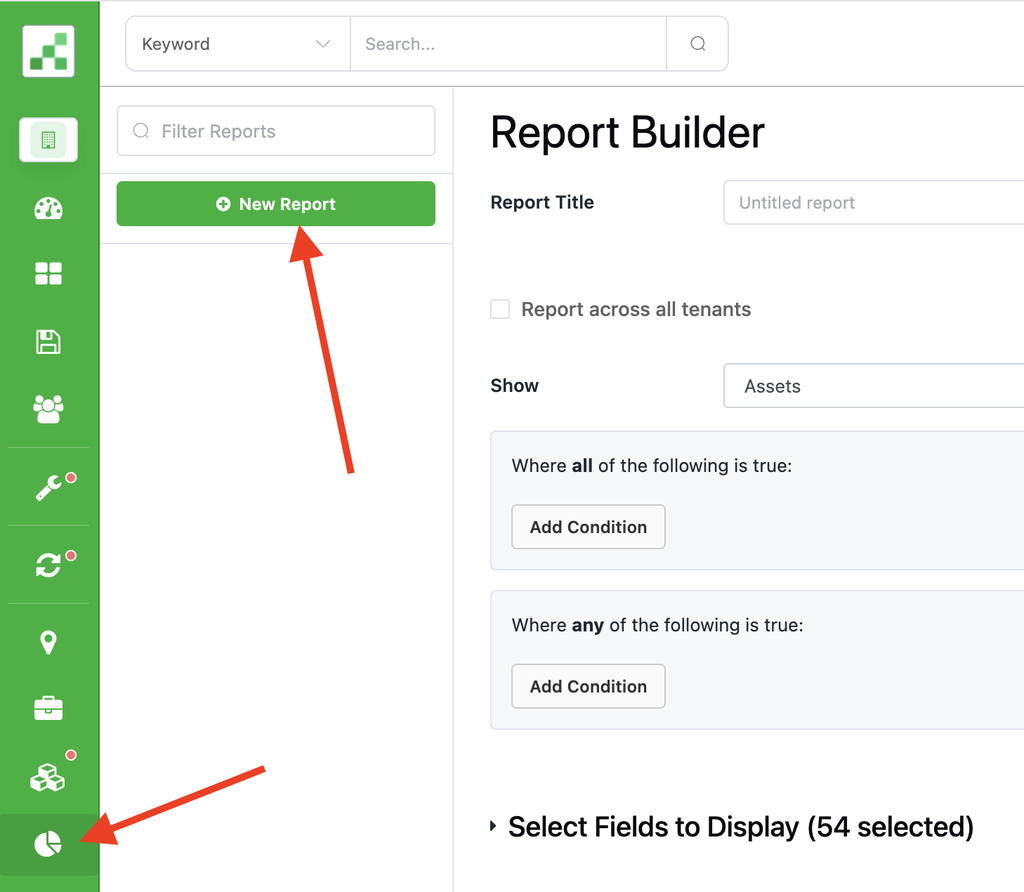
1. Click the Reports icon in the navigation bar and then click “New Report“
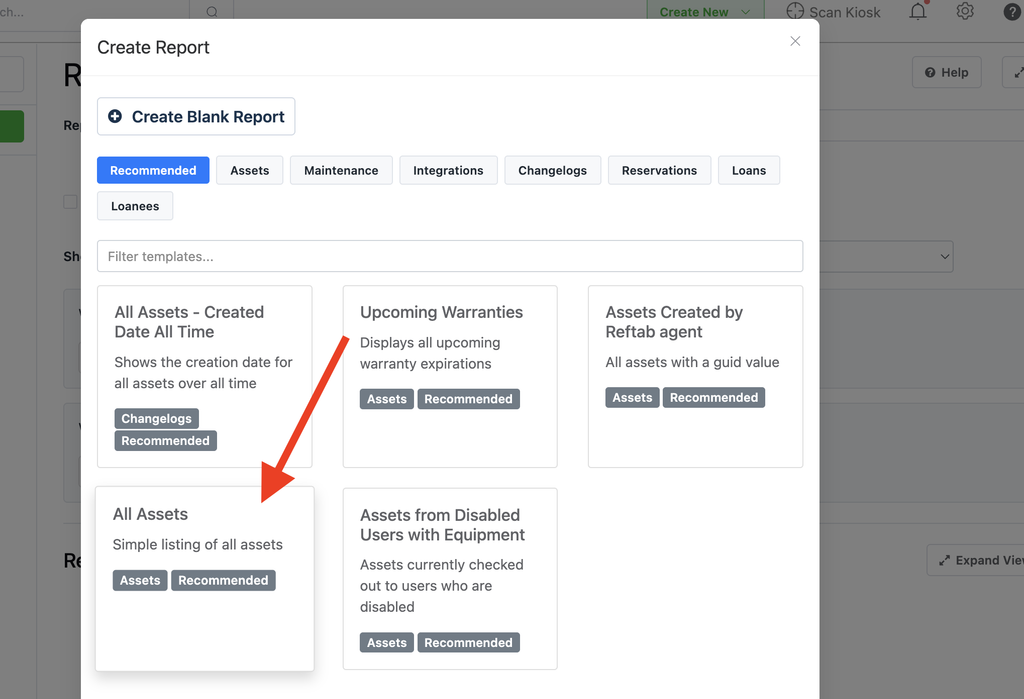
2. In the “Recommended” section click “All Assets”
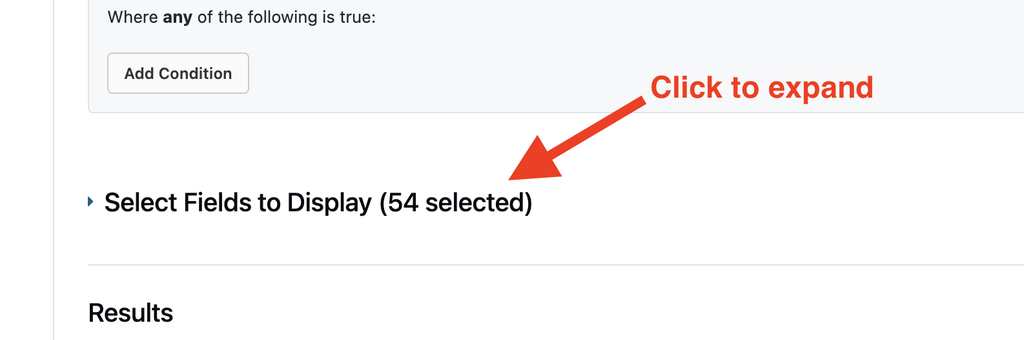
3. Next, the reports page will display the report design. Scroll slightly down and click, “Select Fields to Display”
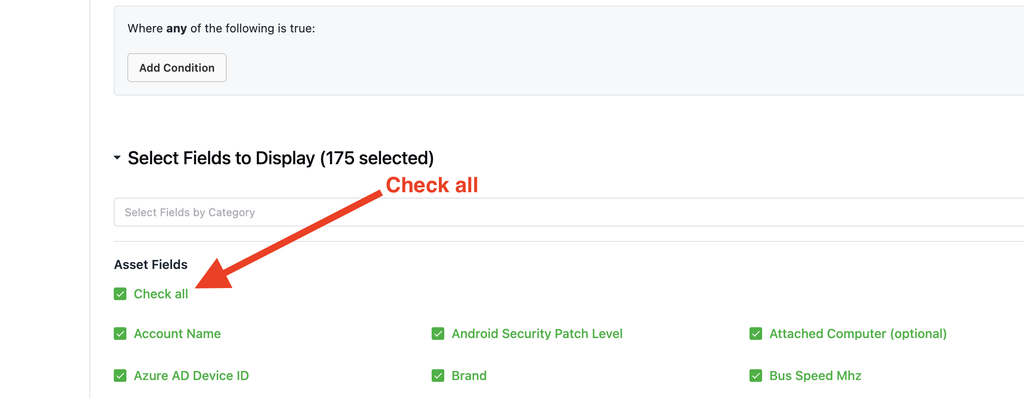
4. Next, check the box “Check all” so that all your fields are selected.
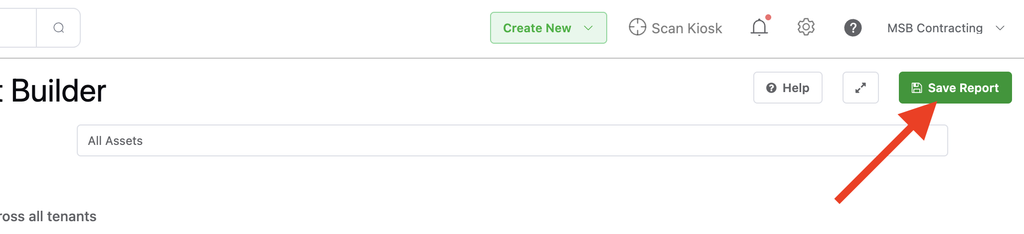
5. Back at the top, click “Save Report“.
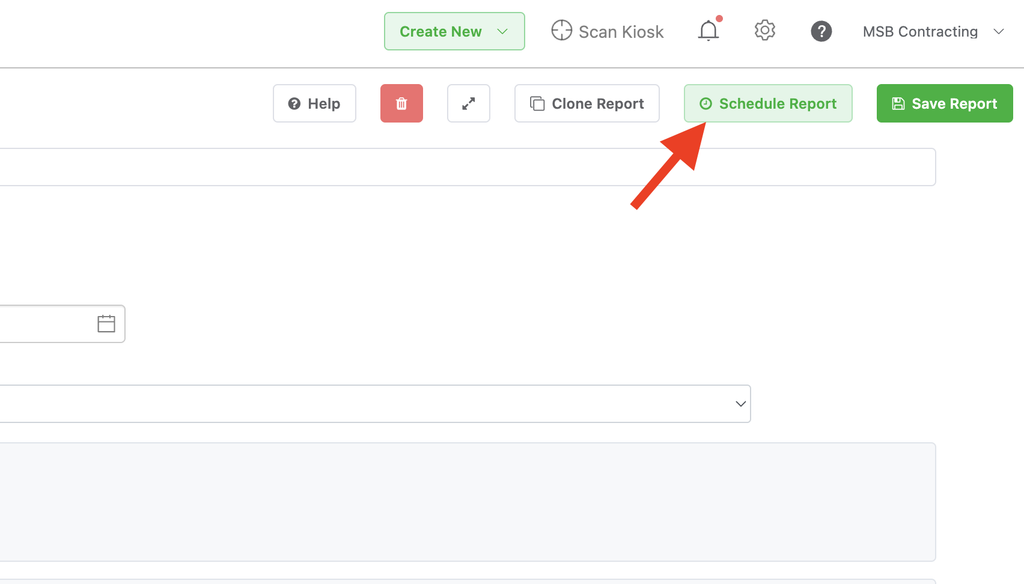
6. Next, click “Schedule Report“
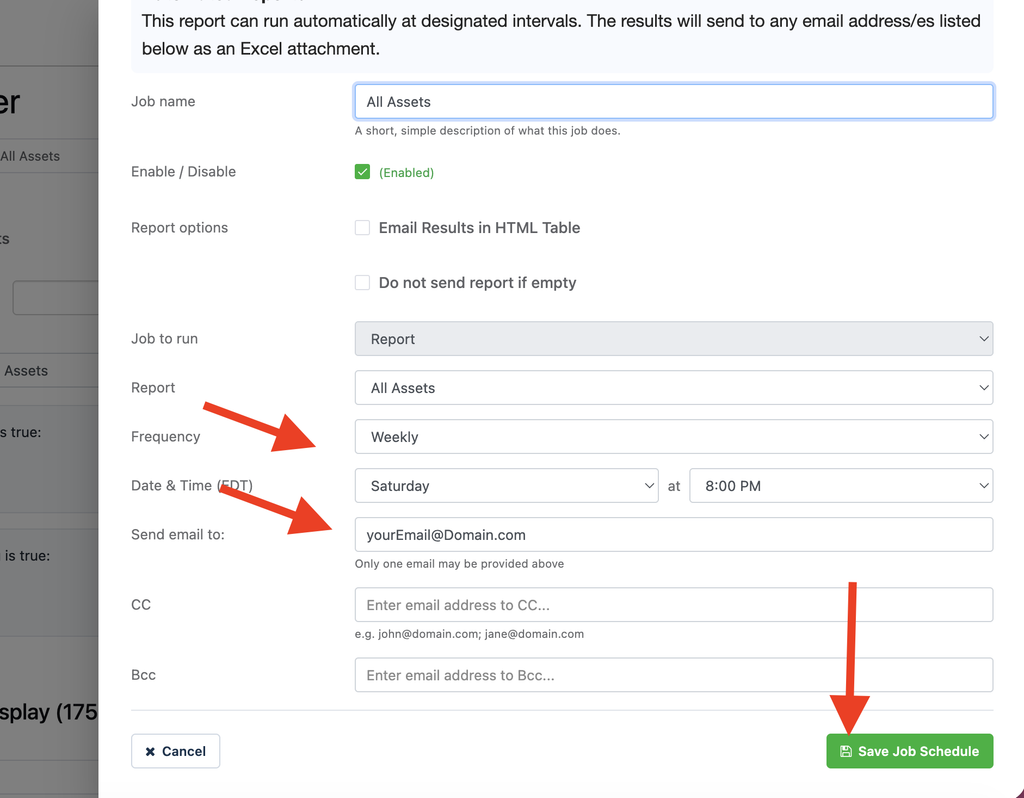
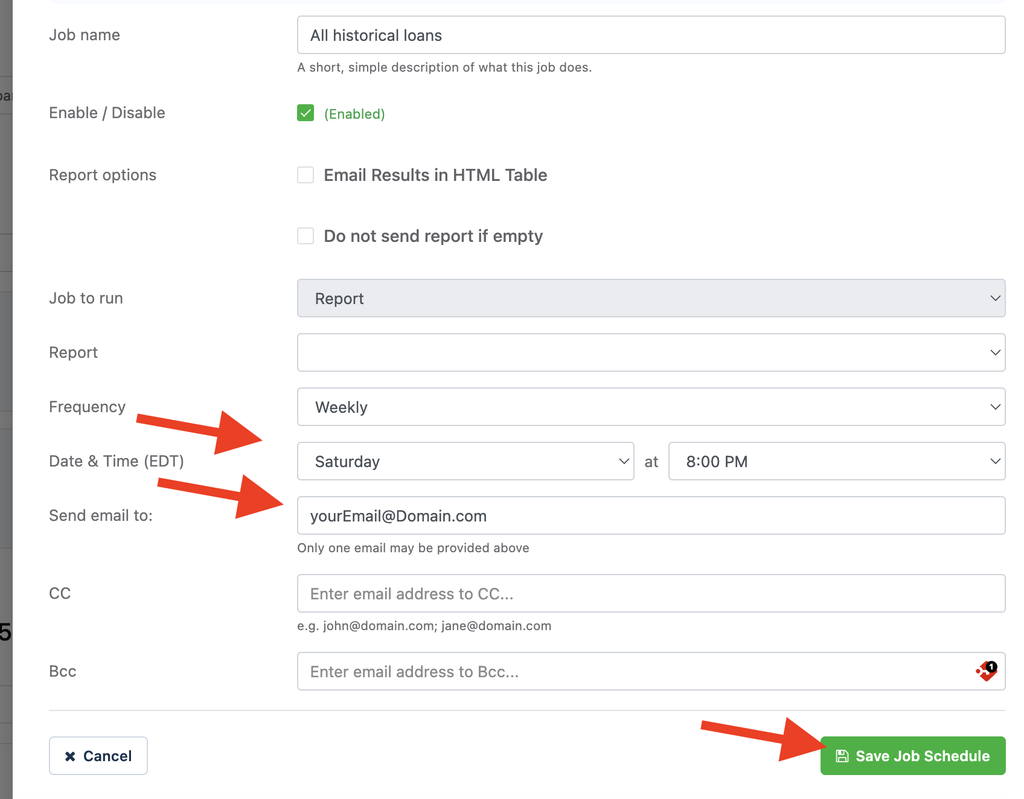
7. Set the frequency for the report to run and enter an email address and click “Save Job Schedule“
That’s it! The report will run on your set schedule and send you an email with the file of all your asset data.
NOTE: Over the course of using Reftab you’ll likely create more fields. You’ll need to come back to this reports page and edit the report to include any new fields created by using those checkboxes in the “Fields to display” section.
Create a report for historical loans (optional)
Click New, give the report a name, and under Report Design, select Show Loans where Loan Status is Out.
If you also want to keep a record of past checkouts, you can create a separate report for historical loans. This is optional, but useful for maintaining a backup of who had an item, when it was checked out, and when it was returned.
1. Click “New Report” and
2. Next, click “Create Blank Report” and on the report builder name the report, “All historical loans” and near show, select “Loans“.
3. Expand “Select fields to display“
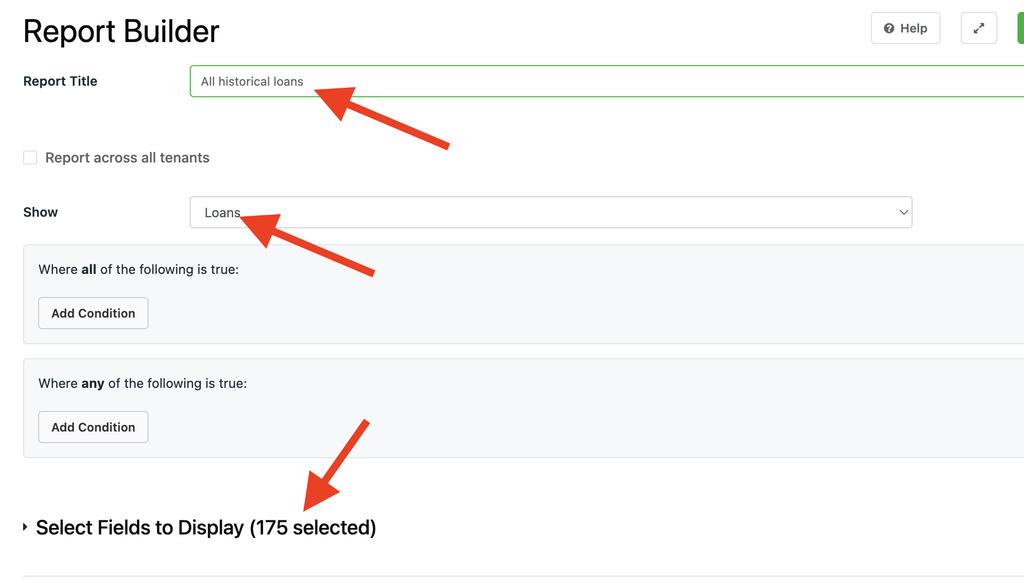
4. Check all fields:
5. Save the report and click “Schedule Report“
6. Finally, set the frequency and the email address to receive the report
You can create as many reports as needed and schedule each one to run automatically. This gives you flexibility to back up different sets of data on different schedules based on what is important to your organization.
Looking to explore more? Another one of our useful guides is reporting on disabled users with equipment
Need help? We're here for you
For any questions or assistance, feel free to reach out to us.
Ready to simplify IT asset management?
No credit card. No watered-down trial. Create a free account and see firsthand what Reftab can do.