
How To: Setting Rental Rates
In the ever-evolving landscape of asset management, efficiency and precision are paramount. With the latest feature from Reftab, setting rental rates based on flexible timeframes has never been easier. This comprehensive guide will walk you through the steps to leverage this new functionality effectively, ensuring automated calculations and streamlined operations for your business.
We will cover:
- How to Setup Rental Rates
- Viewing Rental Rates in Reports
- Indefinite Loans and Rental Rates
- Notes on Rental Rate Calculations
How to Setup Rental Rates
First, you will need to sign into your Reftab account: https://www.reftab.com
Click “Settings” > “Unit Cost Tracking & Rental Rates” > “New Pricing Rate”

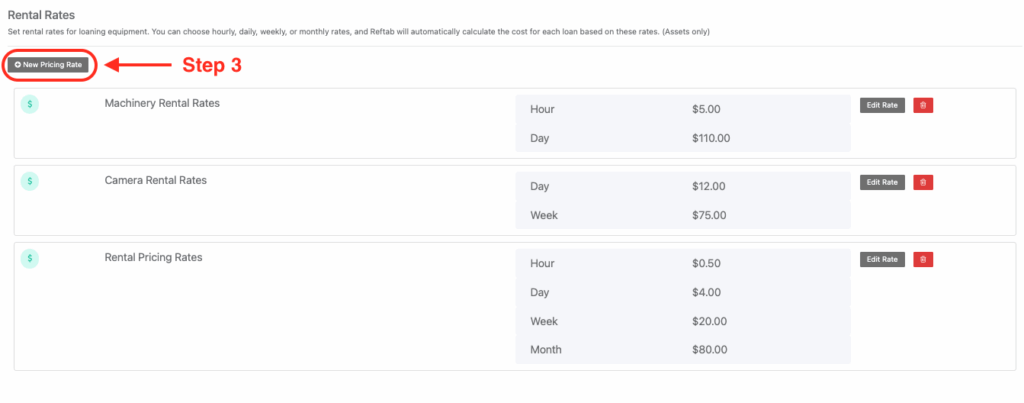
Here you will need to set the name of your pricing scheme, and set the rates per time period as shown below. Then save your pricing rates.
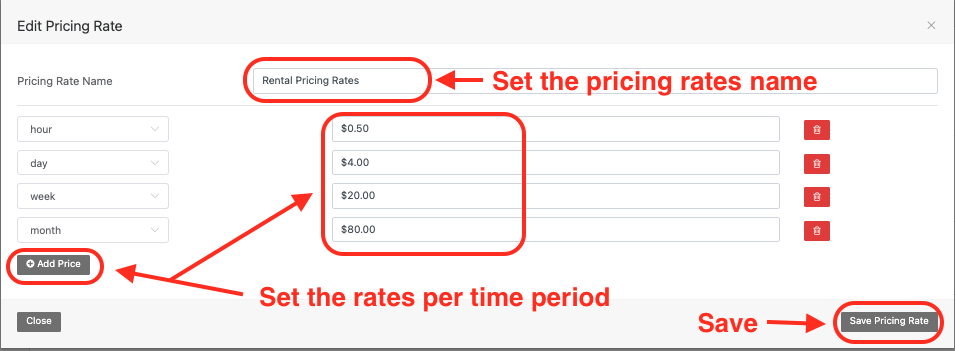
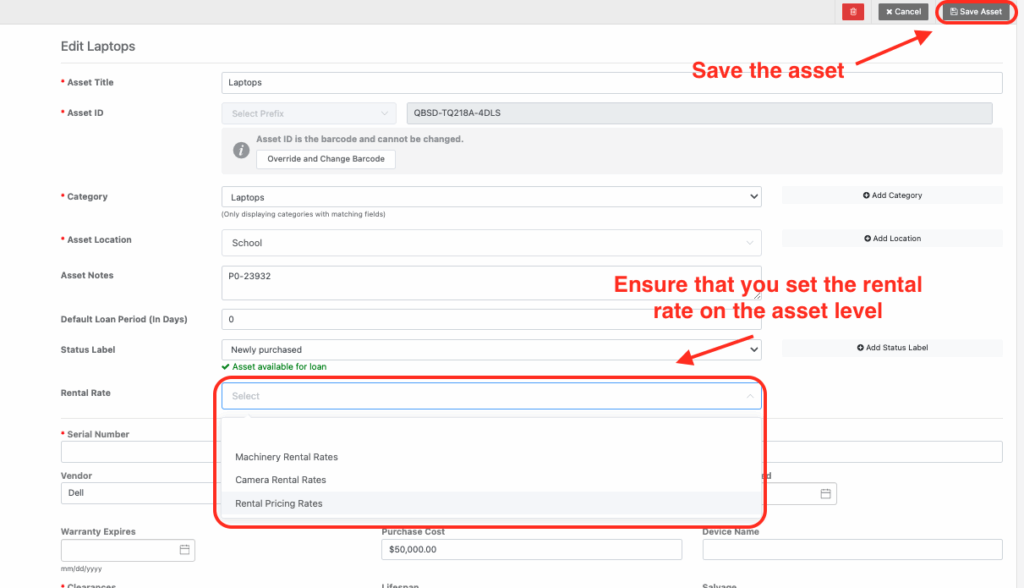
Next you will need to ensure that the rental rates are assigned on the asset level. This can be accomplished by editing an asset, and assigning the appropriate rates to the field, as shown in the screenshot below. Then save the asset.
(Click here for information on Reftab’s time thresholds)
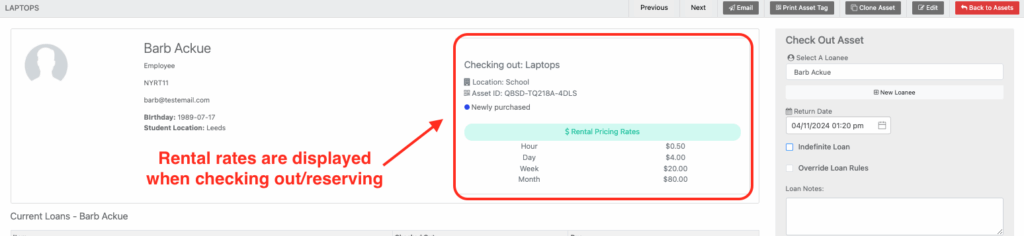
To confirm that the rental rates have been assigned, attempt to check out or reserve an asset for a loanee. The pricing rate should be displayed on the check out/reservation window.
Once the asset is checked out or the reservation is fulfilled, the total cost of the rental will be displayed in the loans page for that specific loanee when they are searched for.
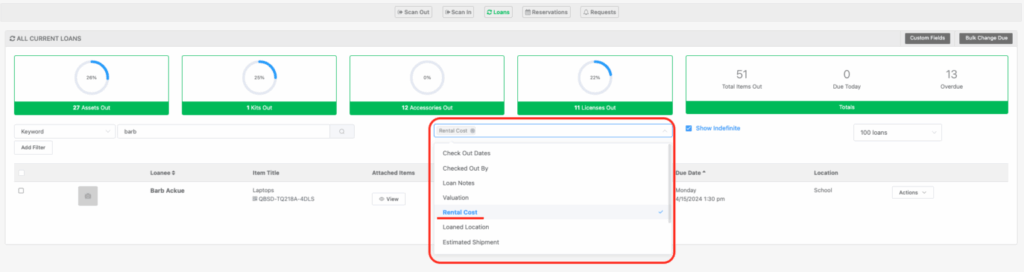
By default you may not see the “Rental Cost” column listed. It will need to be added by selecting “Rental Cost” as shown below on the Loans page.

Additionally you can view the summarized total of all rented equipment for a loanee by visiting their loanee page:

Viewing Rental Rates in Reports
To view rental rates in reports, you will need to create a loans report. Below we have an example loans report showing currently assigned items to a particular user.

In the default fields to display, you will need to ensure that “Rental Cost” is checked in order to display the cost in the report.
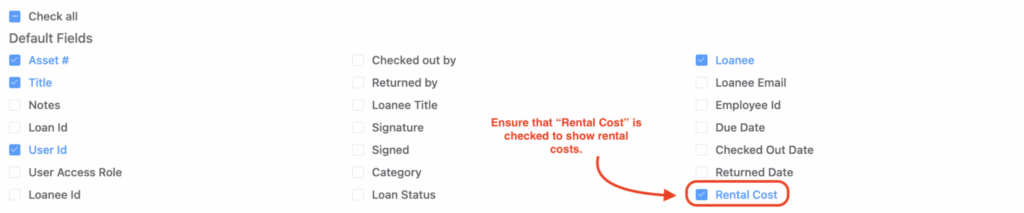
In the results, we see this user has several assets checked out, with the MacBook displaying a total rental cost of $41.

Indefinite Loans and Rental Rates
Please note that when you are loaning an asset for an indefinite period, the system will only start charging after the first 10 minutes. If you do not have hourly rates, it will charge daily. If you do not have daily rates, then it will charge weekly, and so on.
If something is out for rent (i.e. ‘checked out’) with no return date, you’ll see its current rental cost on reports and in the equipment loans section of Reftab. In other words, even if there’s no set return date, the system will figure out how much it costs up until this moment.
This is helpful because, knowing the current rental cost of items checked out indefinitely helps users stay informed about their ongoing expenses and facilitates better financial planning and decision-making.
Some things to make note of when working with Rental Rates:
If a loanee rents an item for a duration that falls within a specific range beyond the predefined time periods, the system automatically adjusts the calculation to the nearest higher duration.
For instance, if a loanee rents an item for 1 hour and 6 minutes, they’ll be charged for just the hour. However, if the duration is 1 hour and 10 minutes, the system will round it up to 2 hours for billing purposes. These adjustments only come into play if you’ve set longer duration options. Otherwise, the system defaults to the smaller durations you’ve defined.
Here are the specific thresholds:
| 10 minutes or more | 1 hour |
| 12 hours or more | 1 day |
| 6 days and 12 hours or more | 1 week |
| 21 days or more | 1 month |
| 4 weeks or more | 1 month |
Table showing time thresholds for Reftab’s Rental Rates feature
Please note also that the pricing schedule is locked in at reservation creation, or when a loan is started. If pricing changes, the loan/reservation is locked in already with the pricing scheme that was present at the time of the loan start, or reservation creation.
Need help? We're here for you
For any questions or assistance, feel free to reach out to us.
Ready to simplify IT asset management?
No credit card. No watered-down trial. Create a free account and see firsthand what Reftab can do.